2.1 Grade Book Assignment

Under Construction

This page is currently being built. Please check back soon.

A platypus
2.1 Grade Book Assignment — overview

Work through the user stories in order. Each story states the goal and acceptance criteria; its nested tasks retain the detailed implementation and verification steps.

1.Gather your resources
A Open the assignment resources
Set up the checkpoint
2.Copy and rename your Grade Book 1.4 Assignment to 2.1
A Verify the required change or observation

Check the result against this instruction: Copy and rename your Grade Book 1.4 Assignment to 2.1

Complete an assignment for the current student
3.Review the feature design
A Identify the contracts and expected behavior

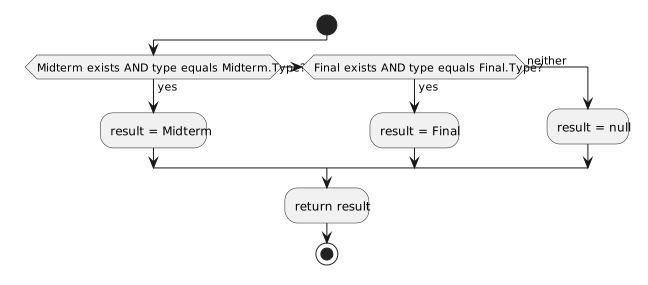
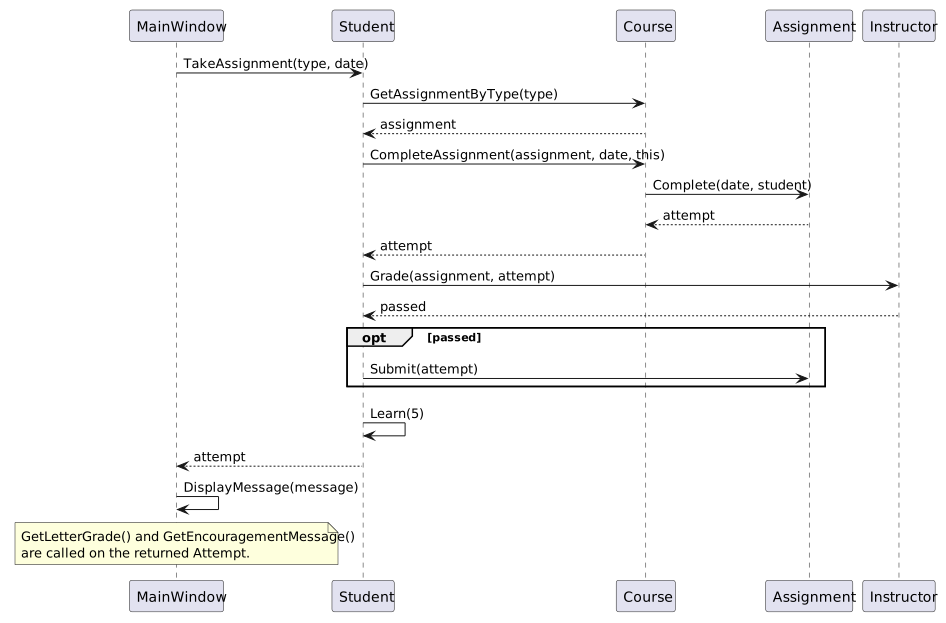
This focused design shows the members or flow relevant to this feature. Keep unchanged members from your preceding checkpoint; follow the tasks below for the order of intermediate edits.

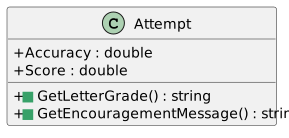
Pass the student through assignment completion. class Student { + TakeAssignment(type : string, date : string) : void } class Course { + CompleteAssignment(type : string, date : string, student : Student) : void } class Assignment { + Complete(date : string, student : Student) : void } class Attempt { + StudentName : string + Accuracy : double + CompletionDate : string + Score : double } Student --> Course : Course Course --> Assignment : Midterm / Final Assignment --> Attempt : Submission
Pass the student through assignment completion
  • New
  • Changed
  • Removed
Completion scenarios
Scenario Assignment Date Accuracy before grading
Blackboard midterm HTML Exercises 10/07/2018 79.575
Blackboard final Website 1 12/18/2018 66.55
Canvas midterm Short Essay 10/07/2018 Approximately 86.075
Canvas final Term Paper 12/18/2018 77.35
4.Make structural changes to the assignment using this story’s design reference
Review this feature’s design and requirements
A Verify the required change or observation

Check the result against this instruction: Make structural changes to the assignment using this story’s design reference.

5.Ensure the sequence structure is correct using this story’s design reference
Review this feature’s design and requirements
A Verify the required change or observation

Check the result against this instruction: Ensure the sequence structure is correct using this story’s design reference.

6.In the TakeAssignment method, pass in the current instance as an argument
this.Course.CompleteAssignment(type, date, this);
A Verify the required change or observation

Check the result against this instruction: In the TakeAssignment method, pass in the current instance as an argument.

7.In the CompleteAssignment method in the Course class, modify the two if statements so that they are one if/else if statement using this story’s design reference
Review this feature’s design and requirements
A Verify the required change or observation

Check the result against this instruction: In the CompleteAssignment method in the Course class, modify the two if statements so that they are one if/else if statement using this story’s design reference.

8.Modify the Complete method
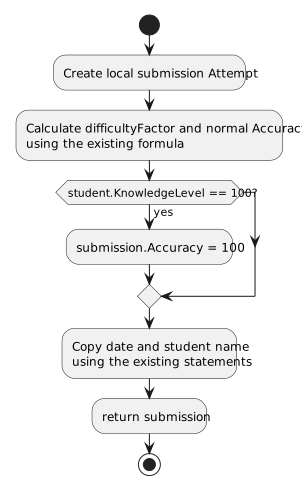
A Change the knowledgeLevel reference to a reference to the student's KnowledgeLevel
B After the lines of code that assigns the CompletionDate, assign the Submission's StudentName to the student's Name
9.Check Your Work (Blackboard):
A Set a breakpoint in the takeMidtermButton_Click on the line of code that calls TakeAssignment
B Start the application. Click the 'New Blackboard' button. Click the 'Take Midterm' button
C Press F11. Ensure the type parameter is 'Midterm' and the date parameter is '10/07/18'
D Step into the CompleteAssignment method. Ensure the type parameter is 'Midterm', the date parameter is '10/07/18' and that the student parameter is the instance of Arthur
E Step through the CompleteAssignment method. Ensure the first logic check passes for Midterm and the debugger steps into the Complete method. Expand 'this' (the

instance of the Assignment) in the Autos window and ensure that the type is "Midterm" and the Name is "HTML Exercises"

F Step through the Complete method and back to the CompleteAssignment method

Press F11 and ensure the else if statement fails.

G Press F11 to return to the MainWindow. Ensure your values match the values below
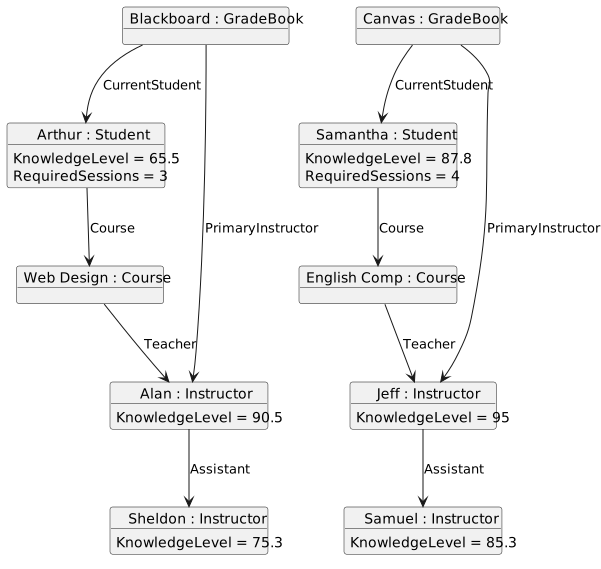
Check Your Work - Blackboard Midterm; compare object identities, field values, and execution position with your debugger.
Check Your Work - Blackboard Midterm
10.Check Your Work (Blackboard):
A Set a breakpoint in the MainWindow in the takeFinalButton_Click on the line that calls TakeAssignment
B Start the application. Click the 'New Blackboard' button. Click the 'Take Final' button
C Press F10. Ensure your values match the values below
Check Your Work - Blackboard Final; compare object identities, field values, and execution position with your debugger.
Check Your Work - Blackboard Final
11.Check Your Work (Canvas):
A Set a breakpoint in the MainWindow in the writeEssayButton_Click on the line of code that calls TakeAssignment
B Start the application. Click 'New Canvas' button. Click the 'Write Midterm Essay' button
C Press F11. Ensure that the type parameter is 'Midterm' and that the date parameter is '10/07/18'
D Step into the CompleteAssignment method. Ensure the type parameter is 'Midterm', the date parameter is '10/07/18' and that the student parameter is the Samantha instance
E Step through the CompleteAssignment method. Ensure the first logic check passes and the debugger steps into the Complete method. Expand 'this' in the Autos window and ensure that the type is "Midterm" and the Name is "Short Essay"
F Step through the Complete method and back to the CompleteAssignment method

Press F11 and ensure the else if statement fails.

G Press F11 to return to the MainWindow. Ensure your values match the values below
Check Your Work - Canvas Midterm; compare object identities, field values, and execution position with your debugger.
Check Your Work - Canvas Midterm
12.Check Your Work (Canvas):
A Set a breakpoint in the MainWindow in the writeFinalPaperButton_Click on the line of code that calls TakeAssignment
B Start the application. Click 'New Canvas' button. Click the 'Write Final Paper' button
C Press F10. Ensure your values match the values below
Check Your Work - Canvas Final; compare object identities, field values, and execution position with your debugger.
Check Your Work - Canvas Final
Receive help from a suitable instructor
13.Review the feature design
A Identify the contracts and expected behavior

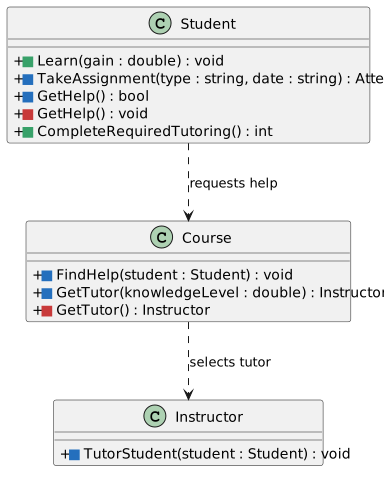
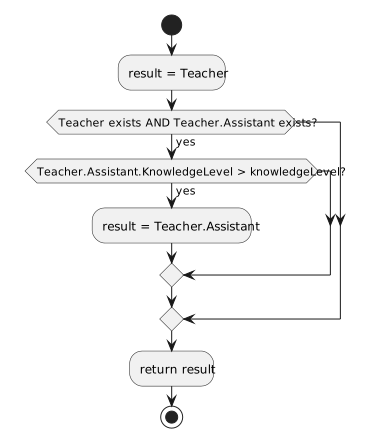
This focused design shows the members or flow relevant to this feature. Keep unchanged members from your preceding checkpoint; follow the tasks below for the order of intermediate edits.

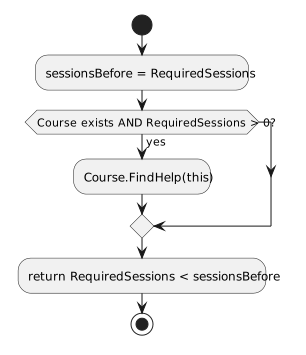
Route a student to a tutor. start if (Teacher.Assistant != null?) then (yes) :Teacher.Assistant.TutorStudent(student); else (no) :Teacher.TutorStudent(student); endif if (student.RequiredSessions <= 0?) then (yes) :student.IsOnProbation = false; endif stop
Route a student to a tutor
  • New
  • Changed
  • Removed
14.Modify methods and parameters using this story’s design reference
Review this feature’s design and requirements
A Verify the required change or observation

Check the result against this instruction: Modify methods and parameters using this story’s design reference.

15.Ensure the sequence structure is correct using this story’s design reference
Review this feature’s design and requirements
A Verify the required change or observation

Check the result against this instruction: Ensure the sequence structure is correct using this story’s design reference.

16.Modify the GetHelp method
A Pass the current instance into the call to FindHelp instead of this.KnowledgeLevel
this.Course.FindHelp(this);
B Remove the line of code in the GetHelp method that reduces the RequiredSessions field
C Write logic to check if the Teacher has an Assistant to have the Assistant tutor the student. If not, have the Teacher tutor the student
D In the FindHelp method, remove the call to TutorStudent and then cut the logic from the GetHelp method in the Student class and put it in the FindHelp method
17.Pass the student parameter into the TutorStudent method instead of studentKnowledgeLevel
A Verify the required change or observation

Check the result against this instruction: Pass the student parameter into the TutorStudent method instead of studentKnowledgeLevel

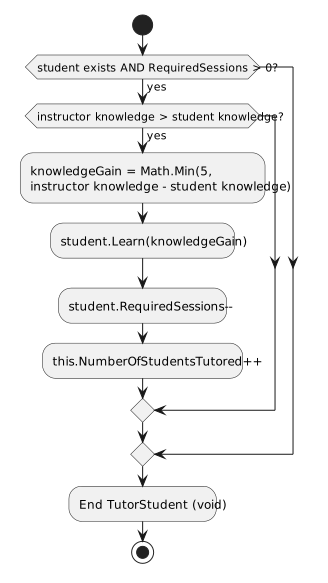
18.In the TutorStudent method, if the knowledge level of the Teacher/Assistant is higher than the student's knowledge level, reduce the student's required sessions by 1 and increase the NumberOfStudentsTutored by 1
Review this feature’s design and requirements
A Verify the required change or observation

Check the result against this instruction: In the TutorStudent method, if the knowledge level of the Teacher/Assistant is higher than the student's knowledge level, reduce the student's required sessions by 1 and increase the NumberOfStudentsTutored by 1.

19.Check Your Work (Blackboard):
A Set a breakpoint in the MainWindow in the tutorArthurButton_Click on the line of code that calls GetHelp
B Start the application. Click the 'New Blackboard' button. Click the 'Tutor Arthur' button
C Press F11 to step into the GetHelp method
D Step into the FindHelp method. Expand the student parameter in the Autos window to ensure it is an instance of Arthur
E Step through the method body. Ensure the first conditional passes and the debugger steps into the TutorStudent Method. Ensure the student parameter is still the instance of Arthur. Additionally, expand 'this' in the Autos window and ensure that it is the instance of Sheldon
F Step through the method body. Ensure that the student's RequiredSessions decreases by 1. Ensure that Sheldon's NumberOfStudentsTutored is increased by 1
G Press F11 to return to the FindHelp method. Step through the remaining method body

Ensure Arthur's IsOnProbation field remains true.

20.Check Your Work (Canvas):
A Set a breakpoint in the MainWindow in the tutorSamanthaButton_Click on the line of code that calls GetHelp
B Start the application. Click the 'New Canvas' button. Click the 'Tutor Samantha' button
C Press F11 to step into the GetHelp method
D Press F11 to step into the FindHelp method. Ensure that the student parameter is the instance of Samantha
E Step through the method body. Ensure that the first logic check passes and step into the Assistant's TutorStudent method. Ensure that 'this' is an instance of Samuel
F Step through the method body
G Return to the FindHelp method. Step through the remaining method body. Ensure that Samantha's IsOnProbation field remains true
Submit your work
21.Ensure that all code is StyleCop compliant
A Verify the required change or observation

Check the result against this instruction: Ensure that all code is StyleCop compliant

22.Zip the solution and submit to the Feedback System
A Verify the required change or observation

Check the result against this instruction: Zip the solution and submit to the Feedback System.

23.Submit the Feedback System URL to the correct assignment in Canvas
A Verify the required change or observation

Check the result against this instruction: Submit the Feedback System URL to the correct assignment in Canvas.

Completion checklist
24.Review the required evidence
A Check every acceptance criterion

Return to each user story and confirm that you can demonstrate its acceptance criteria. Use the task checkboxes to track completion; a checked box is not a substitute for testing or inspecting the required evidence.

Complete an assignment for the current student Receive help from a suitable instructor
B Build and inspect the final solution

Remove temporary lines used only to demonstrate compile-time errors. Build without errors or warnings, check StyleCop compliance, and rerun the required scenario paths.

C Follow this activity’s submission instructions

Use the submission or attendance instructions in this page. For a Feedback System submission, upload the requested ZIP, review and resolve the feedback, and submit the resulting URL to the matching Canvas activity. For a Canvas quiz, enter only the requested answers; for an oral final, complete the scheduling and attendance steps.