2.1.18 Temporarily Changing Values While Debugging

Explore a Soccer Branch by Editing a Value

A debugger value edit temporarily changes the current run. Use it to explore a soccer decision without confusing the experiment with a source-code repair.

A simple turn-limit check is enough; this page does not require loops.

Start with the Soccer Example

Read the example once before trying to explain every line. Then use the short explanations below to connect each part of the code with the soccer task.

Explore a Soccer Branch by Editing a Value
int numberOfTurns = 2;
string instruction = "Wait";

if (numberOfTurns < 3)
{
    instruction = "Take a turn";
}
Understand One Part at a Time
Follow the Worked Trace

Read the table one row at a time. Check when each value is observed: a value before a statement may differ from the value after that statement runs. Cover the result column and predict an answer before checking it.

Worked soccer trace
Experiment Value when condition executes Expected instruction
Fresh run 2 Take a turn
Edit before condition 3 Wait
Edit before condition 0 Take a turn
Follow the Same Idea Visually

Use the diagram to follow the same soccer example in a different form. Start at the beginning and follow one execution at a time. Compare the labeled actions with the source code; do not assume every action in the picture runs.
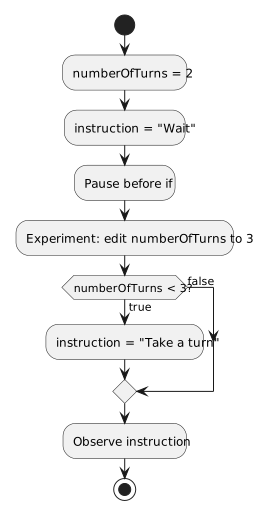
Explore a Soccer Branch by Editing a Value in the Wildcats soccer training model.
Explore a Soccer Branch by Editing a Value
  • New
  • Changed
  • Removed
Try a Small Change
Predict Before You Run

Write your prediction and a short reason first. If you test the change, compare the observed values with that prediction. When they differ, find the first statement or decision where your explanation stops matching the code.