1.4 Zoo Learning Activity

Overview
1.Prepare for Zoo 1.4
A Parameters and Simple Decisions

In Zoo 1.3, many methods performed one fixed action. In Zoo 1.4, you will make those actions more flexible by passing values into methods. You will use parameters, arguments, local variables, and simple one-way if statements so feeding, money movement, pregnancy state, and birthing-room temperature can respond to the current situation.

B Getting Started
1 After backing up, rename the Zoo 1.3 LastName folder and .sln to Zoo 1.4 LastName
C Starting Point — End of Zoo 1.3

Zoo 1.4 begins with the completed Zoo 1.3 structure. The diagram below is the baseline for the changes in this checkpoint.
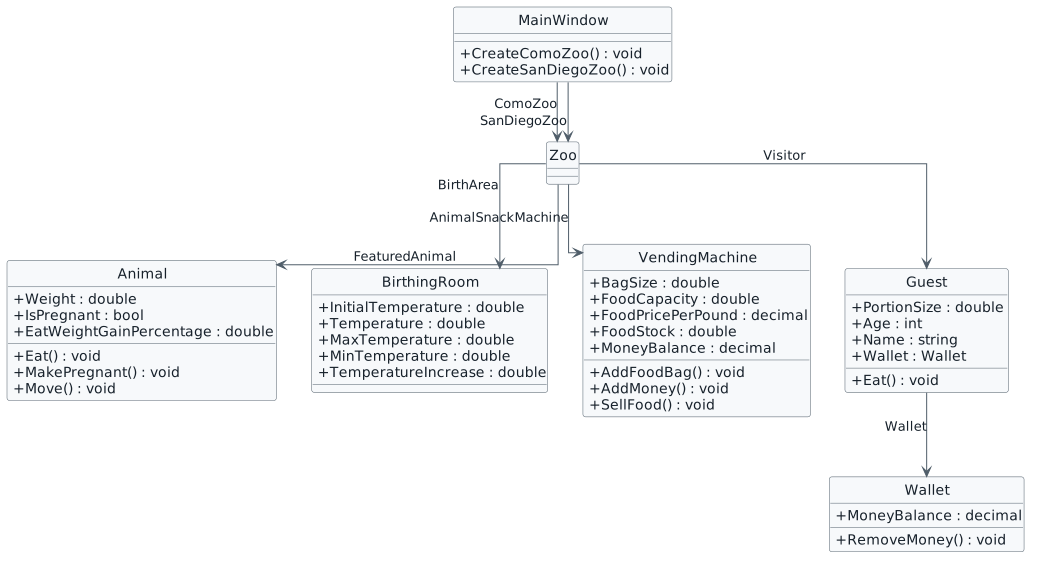
Zoo 1.3 ending class structure used as the starting point for Zoo 1.4. MainWindow references the Como and San Diego Zoo objects. Zoo references its featured Animal, BirthingRoom, VendingMachine, and Guest; Guest references Wallet. Existing Zoo 1.3 methods include parameterless Eat, AddMoney, SellFood, and RemoveMoney behaviors.
Starting structure: authoritative end-of-Zoo-1.3 context.
  • New
  • Changed
  • Removed
Use the Current Amounts for Guest Money and Animal Feeding
2.Calculate the Food Amount and Purchase Cost for the Current Animal
A Calculate the food amount
1 In MainWindow.xaml.cs, inside darlaFeedDingoButton_Click, add the foodWeight local variable:
double foodWeight =
    this.ComoZoo.FeaturedAnimal.Weight *
    this.ComoZoo.FeaturedAnimal.PortionSizePercentage;
2 In MainWindow.xaml.cs, inside daveFeedPlatypusButton_Click, calculate foodWeight using the San Diego featured animal:
double foodWeight =
    this.SanDiegoZoo.FeaturedAnimal.Weight *
    this.SanDiegoZoo.FeaturedAnimal.PortionSizePercentage;
B Calculate the food cost
1 Immediately below foodWeight in darlaFeedDingoButton_Click, add the foodCost local variable:
decimal foodCost =
    (decimal)foodWeight *
    this.ComoZoo.AnimalSnackMachine.FoodPricePerPound;
2 Immediately below foodWeight in daveFeedPlatypusButton_Click, calculate foodCost using the San Diego vending-machine price:
decimal foodCost =
    (decimal)foodWeight *
    this.SanDiegoZoo.AnimalSnackMachine.FoodPricePerPound;
C Check Your Work
1 In MainWindow.xaml.cs, place a breakpoint on the line that starts with "decimal foodCost =" inside darlaFeedDingoButton_Click
2 Run the program and click the feeding button for the current zoo
3 When execution pauses, inspect foodWeight. For Dolly, it should be 0.706
4 Step over the decimal foodCost = line and confirm foodCost becomes 0.5295m
5 Repeat the calculation with the San Diego values. Patti should produce foodWeight = 0.0654 and foodCost = 0.07848m
3.Pass Money Amounts Through the Guest and Wallet Behaviors
A Update Guest money methods
1 In Guest.cs, update Guest.AddMoney to receive a decimal amount parameter and forward that value to Wallet.AddMoney:
public void AddMoney(decimal amount)
{
    this.Wallet.AddMoney(amount);
}
2 In Guest.cs, update Guest.RemoveMoney to receive a decimal amount parameter and forward that value to Wallet.RemoveMoney:
public void RemoveMoney(decimal amount)
{
    this.Wallet.RemoveMoney(amount);
}
B Update Wallet money methods
1 In Wallet.cs, update Wallet.AddMoney so it receives a decimal amount and adds the amount when it is greater than 0:
public void AddMoney(decimal amount)
{
    if (amount > 0)
    {
        this.MoneyBalance += amount;
    }
}
2 In Wallet.cs, update Wallet.RemoveMoney so it receives a decimal amount and subtracts the amount when the wallet has enough money:
public void RemoveMoney(decimal amount)
{
    if (amount <= this.MoneyBalance)
    {
        this.MoneyBalance -= amount;
    }
}
C Send the calculated cost to Guest
1 Back in MainWindow.xaml.cs, inside darlaFeedDingoButton_Click, pass foodCost to Guest.RemoveMoney:
this.ComoZoo.Visitor.RemoveMoney(foodCost);
2 Inside daveFeedPlatypusButton_Click, pass the San Diego foodCost to Guest.RemoveMoney:
this.SanDiegoZoo.Visitor.RemoveMoney(foodCost);
D Check Your Work
1 Before Como feeding, Darla's Wallet balance is 5.25m
2 After the first current feeding transaction, the balance should be 4.7205m
3 Trace foodCost at the call site, amount in Guest.RemoveMoney, and amount in Wallet.RemoveMoney
4 After Dave completes the first San Diego feeding transaction, his Wallet balance should be 3.67152m
4.Pass the Transaction Amounts to the Vending Machine
A Update VendingMachine methods
1 In VendingMachine.cs, update VendingMachine.AddMoney to receive a decimal amount parameter and add it to MoneyBalance:
public void AddMoney(decimal amount)
{
    this.MoneyBalance += amount;
}
2 In VendingMachine.cs, replace the fixed food-sale behavior with RemoveFood(double amount):
public void RemoveFood(double amount)
{
    this.FoodStock -= amount;
}
B Pass the current calculated values
1 In MainWindow.xaml.cs, inside darlaFeedDingoButton_Click, pass the same calculated values to the vending machine:
this.ComoZoo.AnimalSnackMachine.AddMoney(foodCost);
this.ComoZoo.AnimalSnackMachine.RemoveFood(foodWeight);
2 Inside daveFeedPlatypusButton_Click, pass the same San Diego transaction values to the vending machine:
this.SanDiegoZoo.AnimalSnackMachine.AddMoney(foodCost);
this.SanDiegoZoo.AnimalSnackMachine.RemoveFood(foodWeight);
C Check Your Work
1 After Dolly's first current feed, the vending machine MoneyBalance should be 0.5295m
2 Starting from 250 pounds of food, FoodStock should become 249.294
3 After Patti’s first current feed, the San Diego vending machine MoneyBalance should be 0.07848m and FoodStock should be 249.9346
5.Feed the Animal With the Same Food Amount Used by the Transaction
A Update Animal.Eat
1 In Animal.cs, update Animal.Eat to receive double foodWeight, calculate weightGain, and add the result to Weight:
public void Eat(double foodWeight)
{
    double weightGain =
        foodWeight * this.EatWeightGainPercentage;

    this.Weight += weightGain;
}
B Pass foodWeight from the feeding handler
1 In MainWindow.xaml.cs, inside darlaFeedDingoButton_Click, pass foodWeight to Animal.Eat:
this.ComoZoo.FeaturedAnimal.Eat(foodWeight);
2 In Guest.cs, update Guest.Eat so its method signature receives double foodWeight:
public void Eat(double foodWeight)
{
    // No state change is needed for this example.
}
3 Inside daveFeedPlatypusButton_Click, pass foodWeight to the San Diego featured animal:
this.SanDiegoZoo.FeaturedAnimal.Eat(foodWeight);
C Check Your Work
1 For Dolly, foodWeight = 0.706
2 The adult weight gain should be 0.5648
3 Dolly should change from 35.3 to 35.8648
4 For Patti, foodWeight = 0.0654 and her adult Weight should change from 3.27 to 3.32232
6.Trace Arguments and Parameters Through the Transaction
A Use the debugger to follow the values as each method call begins. Focus on the difference between the expression or variable supplied by the caller and the parameter name used by the called method
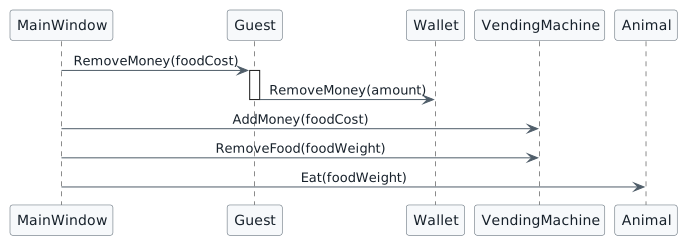
Sequence diagram showing MainWindow passing foodCost to Guest.RemoveMoney, Guest forwarding the amount parameter to Wallet.RemoveMoney, MainWindow passing foodCost to VendingMachine.AddMoney, and foodWeight to VendingMachine.RemoveFood and Animal.Eat. No return messages are shown.
The same calculated values move through several void method calls as arguments and parameters.
  • New
  • Changed
  • Removed
B In MainWindow.xaml.cs, place a breakpoint on "this.ComoZoo.Visitor.RemoveMoney(foodCost);" inside darlaFeedDingoButton_Click
C In Guest.cs, place a breakpoint on "this.Wallet.RemoveMoney(amount);" inside RemoveMoney(decimal amount)
D In Wallet.cs, place a breakpoint on "if (amount <= this.MoneyBalance)" inside RemoveMoney(decimal amount)
E In VendingMachine.cs, place a breakpoint on "this.MoneyBalance += amount;" inside AddMoney(decimal amount)
F In VendingMachine.cs, place a breakpoint on "this.FoodStock -= amount;" inside RemoveFood(double amount)
G In Animal.cs, place a breakpoint on the line that starts with "double weightGain =" inside Eat(double foodWeight)
H Run one feeding action and inspect the value each time execution stops. Compare the argument used by the caller with the parameter inside the method
Keep Pregnancy and Feeding State Consistent for the Animal
Acceptance Criteria
  • Animal uses an Animal Baby field rather than a Boolean pregnancy field;
  • null represents the state where no unborn animal exists;
  • MakePregnant() creates a Baby only when the field is null;
  • Baby values are assigned directly without a custom Initialize(...) method;
  • the Baby uses the parent's current animal type;
  • Eat(double foodWeight) updates the adult;
  • the Baby is updated only when Baby != null;
  • all decisions remain simple one-way if statements.
7.Represent the Unborn Animal With an Animal Reference
A Replace Boolean pregnancy state with a Baby reference
1 In Animal.cs, replace the Boolean pregnancy field with an Animal field named Baby:
public Animal Baby;
B Keep the current percentages on Animal
1 In Animal.cs, use these percentage fields for the current feeding and baby calculations:
public double EatWeightGainPercentage = 0.8;
public double EatBabyWeightGainPercentage = 0.1;
public double PortionSizePercentage = 0.02;
public double BabyWeightPercentage = 0.1;
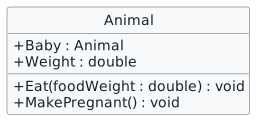
Class diagram for Animal showing a Baby field whose type is Animal, a Weight field of type double, an Eat method with a double foodWeight parameter and void return type, and a void MakePregnant method.
Animal can hold a reference to another Animal through Baby, and Eat receives the food amount through a parameter.
  • New
  • Changed
  • Removed
C Check Your Work
1 Before pregnancy is created, inspect the animal and confirm Baby is null
2 Confirm the field is an Animal reference rather than a separate pregnancy Boolean
8.Create a Baby Only When One Does Not Already Exist
A Guard creation with a null check
1 In Animal.cs, update MakePregnant() so it creates and initializes a baby only when Baby is null:
if (this.Baby == null)
{
    this.Baby = new Animal();
    this.Baby.Sex = "Male";
    this.Baby.Name = string.Empty;
    this.Baby.Age = 0;
    this.Baby.Weight =
        this.Weight * this.BabyWeightPercentage;
    this.Baby.Type = this.Type;
}
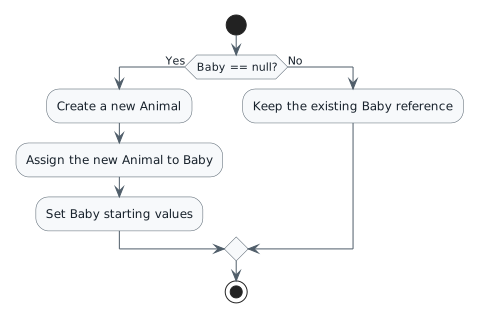
Activity diagram for MakePregnant. The flow checks whether Baby is null. If yes, it creates a new Animal, assigns it to Baby, and sets the baby's starting values. If no, the existing Baby reference is kept. Both paths end.
MakePregnant creates a baby only when the Baby reference is null.
  • New
  • Changed
  • Removed
B Verify the one-way decision
1 Use Dolly as the current Como check: parent Weight 35.3 and BabyWeightPercentage = 0.1 should create a baby Weight of 3.53
2 Confirm the new baby has Sex Male, Age 0, and Type Dingo
3 Call MakePregnant() again and confirm the existing Baby object is preserved rather than replaced
9.Update the Baby Only When the Reference Exists
A Keep the adult weight calculation
B Update the baby only when it exists
1 In Animal.cs, update Eat(double foodWeight) so the adult always gains weight and the baby gains weight only when Baby is not null:
double weightGain =
    foodWeight * this.EatWeightGainPercentage;

this.Weight += weightGain;

if (this.Baby != null)
{
    double babyWeightGain =
        foodWeight * this.EatBabyWeightGainPercentage;

    this.Baby.Weight += babyWeightGain;
}
C Check Your Work
1 For Dolly's current feed, foodWeight = 0.706
2 Dolly's adult weight should change by 0.5648
3 A current baby starting at 3.53 should gain 0.0706 and become 3.6006
4 When Baby is null, the baby-specific block should be skipped without accessing a null object
Adjust the San Diego Birthing-Room Temperature
Acceptance Criteria
  • the San Diego portion of the UI displays the current birthing-room temperature;
  • there is an increase control and a decrease control;
  • both controls call the same temperature-changing method;
  • the method receives a double temperatureChange parameter;
  • the decrease action supplies the negative form of the current increment;
  • a local variable stores the previous temperature;
  • the current temperature changes by the supplied amount;
  • the display is refreshed after each change.
10.Provide Controls for Increasing and Decreasing the Current Temperature
A Add the supplied temperature controls

In MainWindow.xaml, inside sanDiegoZooStackPanel, place this supplied block after the Betty fill-vending-machine button and before StackPanel.Resources. You are not expected to construct these controls from memory.

1 Add the supplied San Diego temperature-control XAML exactly as shown:
<TextBlock Text="Birthing room temperature:" Grid.Column="1" Margin="3,10,3,0"/>
<StackPanel Orientation="Horizontal">
    <Button x:Name="decreaseSanDiegoTemperatureButton" Height="25" Width="25" FontSize="16" FontWeight="Bold" Content="-" Click="decreaseSanDiegoTemperatureButton_Click"/>
    <TextBlock x:Name="temperatureTextBlock" Padding="5" Margin="3" Width="32"/>
    <Button x:Name="increaseSanDiegoTemperatureButton" Height="25" Width="25" FontSize="16" FontWeight="Bold" Content="+" Click="increaseSanDiegoTemperatureButton_Click"/>
</StackPanel>
B Show the current temperature
1 Inside newSanDiegoZooButton_Click, immediately after this.CreateSanDiegoZoo();, display the current birthing-room temperature with one decimal place:
this.temperatureTextBlock.Text =
    this.SanDiegoZoo.BirthArea.Temperature.ToString("0.0");
2 For the current checkpoint, the initial display should show 77.0 with one decimal place
11.Pass the Requested Temperature Change Into One Behavior
A Keep the application-level increment
1 In MainWindow.xaml.cs, add the application-level temperature increment field:
public double TemperatureIncrement = 0.5;
B Use the same method for both directions
1 Inside decreaseSanDiegoTemperatureButton_Click, pass the negative increment and then refresh the displayed temperature:
this.ChangeSanDiegoTemperature(-this.TemperatureIncrement);
this.temperatureTextBlock.Text =
    this.SanDiegoZoo.BirthArea.Temperature.ToString("0.0");
2 Inside increaseSanDiegoTemperatureButton_Click, pass the positive increment and then refresh the displayed temperature:
this.ChangeSanDiegoTemperature(this.TemperatureIncrement);
this.temperatureTextBlock.Text =
    this.SanDiegoZoo.BirthArea.Temperature.ToString("0.0");
3 In MainWindow.xaml.cs, add this method signature for ChangeSanDiegoTemperature:
public void ChangeSanDiegoTemperature(double temperatureChange)
12.Calculate the New Temperature From the Current State
A Store the previous temperature
1 Inside ChangeSanDiegoTemperature(double temperatureChange), store the current temperature in previousTemperature and then apply the requested change:
double previousTemperature =
    this.SanDiegoZoo.BirthArea.Temperature;

this.SanDiegoZoo.BirthArea.Temperature =
    previousTemperature + temperatureChange;
B Check Your Work
1 Create the San Diego Zoo and confirm the displayed temperature begins at 77.0
2 Increase once and confirm it becomes 77.5
3 Decrease once and confirm it returns to 77.0
13.Trace the Temperature Value During Execution
A In MainWindow.xaml.cs, place a breakpoint on the line that calls "ChangeSanDiegoTemperature(this.TemperatureIncrement)" in the increase button event handler
B Place a second breakpoint on the line that starts with "double previousTemperature =" inside ChangeSanDiegoTemperature(double temperatureChange)
C Run the program, create the San Diego Zoo, and click the increase-temperature button
D At the first breakpoint, inspect the argument. At the second breakpoint, inspect the temperatureChange parameter and previousTemperature local variable
E Step over the assignment to this.SanDiegoZoo.BirthArea.Temperature and confirm the field increases by 0.5
Open Each Zoo With the Correct Current Operating State
Acceptance Criteria
  • the established Zoo 1.3 object setup remains in MainWindow;
  • no custom business-class Initialize(...) methods are introduced;
  • Como begins with a birthing-room temperature of 75.0;
  • San Diego begins with a birthing-room temperature of 77.0;
  • both vending machines begin with food stock equal to their configured capacity;
  • AddFoodBag() cannot increase food stock beyond capacity;
  • creating either zoo displays a supplied creation message;
  • established zoo names, people, prices, capacities, animal values, and relationships remain intact.
14.Preserve the Established Zoo 1.3 Setup in MainWindow
A Keep setup in MainWindow
1 Keep CreateComoZoo() and CreateSanDiegoZoo() in MainWindow.xaml.cs
2 Keep the existing object relationships established by the Zoo 1.3 checkpoint
B Confirm the current scenario values
1 Como Zoo
2 Confirm Zoo Capacity: 1000
3 Confirm TicketPrice: 15.00m
4 Confirm Guest: Darla, Age 11, Wallet 5.25m
5 Confirm Vending BagSize: 65.0
6 Confirm FoodCapacity: 250.0
7 Confirm FoodPricePerPound: 0.75m
8 Confirm FeaturedAnimal: Dolly, Age 4, Weight 35.3, Type Dingo
9 San Diego Zoo
10 Confirm Zoo Capacity: 3000
11 Confirm TicketPrice: 25.50m
12 Confirm Guest: Dave, Age 13, Wallet 3.75m
13 Confirm Vending BagSize: 65.0
14 Confirm FoodCapacity: 250.0
15 Confirm FoodPricePerPound: 1.20m
16 Confirm FeaturedAnimal: Patti, Age 5, Weight 3.27, Type Platypus
15.Preserve the Zoo-Specific Birthing-Room Starting Temperatures
A Confirm Como
1 In the Como creation flow, confirm InitialTemperature = 75.0
2 In the Como creation flow, confirm Temperature = 75.0
B Confirm San Diego
1 In the San Diego creation flow, confirm InitialTemperature = 77.0
2 In the San Diego creation flow, confirm Temperature = 77.0
C Confirm the shared room limits
1 Confirm MaxTemperature = 85.0
2 Confirm MinTemperature = 55.0
3 Confirm TemperatureIncrease = 0.5
16.Begin Each Vending Machine With Available Food Stock
A Set FoodStock from FoodCapacity
1 In MainWindow.xaml.cs, inside CreateComoZoo(), set FoodStock equal to FoodCapacity:
this.ComoZoo.AnimalSnackMachine.FoodStock =
    this.ComoZoo.AnimalSnackMachine.FoodCapacity;
2 In MainWindow.xaml.cs, inside CreateSanDiegoZoo(), set FoodStock equal to FoodCapacity:
this.SanDiegoZoo.AnimalSnackMachine.FoodStock =
    this.SanDiegoZoo.AnimalSnackMachine.FoodCapacity;
B Cap AddFoodBag with Math.Min
1 In VendingMachine.cs, update AddFoodBag() so FoodStock does not increase above FoodCapacity:
this.FoodStock =
    Math.Min(this.FoodStock + this.BagSize, this.FoodCapacity);
C Check Your Work
1 Immediately after either zoo is created, confirm FoodCapacity = 250.0 and FoodStock = 250.0
2 Calling AddFoodBag while already full should not raise FoodStock above capacity
17.Display Which Zoo Was Created Using a Supplied Message
A Add DisplayMessage
1 In MainWindow.xaml.cs, add this method:
public void DisplayMessage(string message)
{
    this.informationTextBox.Text = message;
}
B Display the Como message
1 Inside newComoZooButton_Click, immediately after this.CreateComoZoo();, add this call:
this.DisplayMessage("Created " + this.ComoZoo.Name + ".");
C Display the San Diego message
1 Inside newSanDiegoZooButton_Click, after the zoo is created and the temperature display is refreshed, add this call:
this.DisplayMessage("Created " + this.SanDiegoZoo.Name + ".");
D Check Your Work
1 After Como creation, the information box should show "Created Como Zoo."
2 After San Diego creation, the information box should show "Created San Diego Zoo."
Final Check
18.Verify the completed checkpoint
A Use the debugger and the application controls to verify the current checkpoint. A successful build is necessary, but it is not the only evidence that the state is correct
19.Como — Initial State
A Confirm InitialTemperature = 75.0 and Temperature = 75.0
B Confirm FoodCapacity = 250.0 and FoodStock = 250.0
C Confirm Darla Wallet balance is 5.25m
D Confirm Dolly Weight is 35.3
E Confirm Dolly has a non-null Baby with Weight 3.53
F Confirm the information box shows "Created Como Zoo."
20.Como — After the First Current Feed
A Confirm foodWeight = 0.706
B Confirm foodCost = 0.5295m
C Confirm Darla Wallet balance is 4.7205m
D Confirm VendingMachine MoneyBalance is 0.5295m
E Confirm VendingMachine FoodStock is 249.294
F Confirm Dolly Weight is 35.8648
G Confirm Dolly's Baby Weight is 3.6006
21.San Diego — Initial State and Temperature Controls
A Confirm InitialTemperature = 77.0 and Temperature = 77.0
B Confirm FoodCapacity = 250.0 and FoodStock = 250.0
C Confirm Dave Wallet balance is 3.75m
D Confirm Patti Weight is 3.27
E Confirm Patti has a non-null Baby with Weight 0.327
F Confirm the information box shows "Created San Diego Zoo."
G Increase once: 77.0 → 77.5. Decrease once: 77.5 → 77.0
22.San Diego — After the First Current Feed
A Confirm foodWeight = 0.0654
B Confirm foodCost = 0.07848m
C Confirm Dave Wallet balance is 3.67152m
D Confirm VendingMachine MoneyBalance is 0.07848m
E Confirm VendingMachine FoodStock is 249.9346
F Confirm Patti Weight is 3.32232
G Confirm Patti's Baby Weight is approximately 0.33354
23.Finish the final verification
A Save all changed files and build the solution. Resolve compiler errors before submission
B Review the Visual Studio Error List for current errors
C Re-run the key Como and San Diego checks above after the final build
Submit
24.Submit the completed project

Submit the completed Zoo 1.4 project using the course submission process.

A Save all files
B Build the solution
C Review any compiler or course-feedback errors
D Confirm that the submitted project is the Zoo 1.4 copy, not the preserved Zoo 1.3 checkpoint
E Confirm the project still contains the established Zoo structure and the current 1.4 changes
Checkpoint Summary

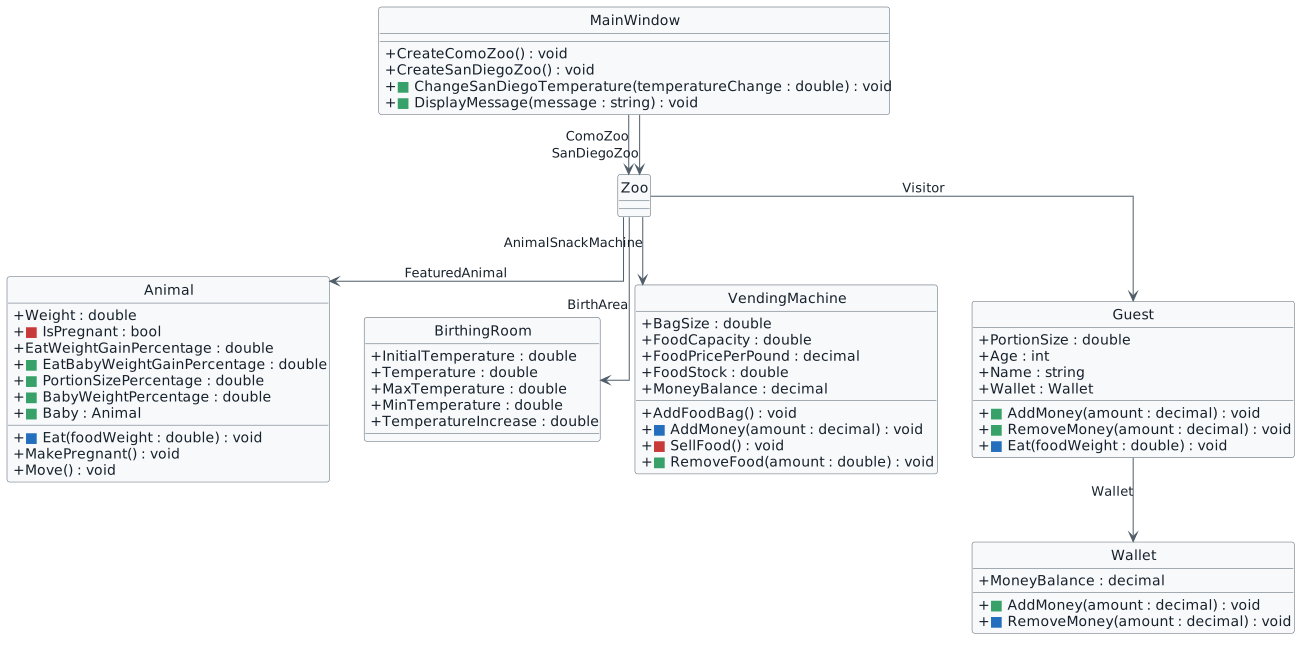
The final diagram compares the completed Zoo 1.4 structure with the Zoo 1.3 starting point.

Final Zoo 1.4 class diagram compared with the Zoo 1.3 baseline. Green squares mark new members, blue squares mark changed parameterized method signatures, and red squares mark removed members. New items include Animal Baby and percentage fields, Guest money methods, Wallet AddMoney, VendingMachine RemoveFood, and MainWindow temperature/message methods. Changed items include Animal.Eat, Guest.Eat, Wallet.RemoveMoney, and VendingMachine.AddMoney. Removed items include Animal.IsPregnant and VendingMachine.SellFood.
Final structural delta from Zoo 1.3 to Zoo 1.4.
  • New
  • Changed
  • Removed

Zoo 1.4 uses parameters to move the current values into reusable methods, local variables to hold temporary calculations, and simple one-way decisions to protect object state. You also traced the same value across callers and parameters and used one parameterized method to move the San Diego temperature in either direction.