1.4.5 Representing Decision Nodes in Activity Diagrams

Representing Decision Nodes in Activity Diagrams

The Wildcats interface displays a different availability message for an available player and an unavailable player.

Read the Code Before Drawing

This excerpt runs inside an existing method with Boolean input isAvailable. The assignment stores a message; no display API is needed to understand the choice.

If the underlying C# feature is unfamiliar, use the lesson below while reading this example.

Source to translate
string message;

if (isAvailable)
{
    message = "Ready";
}
else
{
    message = "Unavailable";
}
Rewrite the Meaning in Ordinary Words
Pseudocode for the same behavior
Read whether the selected player is available
When true, store Ready as the message
Otherwise, store Unavailable as the message
Continue after the selected assignment

Use these words to follow one execution before drawing it. Keep the same order and the same alternatives as the source; simplify the wording without adding work that the code does not perform.

Map the Source to Nodes and Arrows
Build the Diagram in Violet
  1. Create an activity diagram and connect start to a diamond labeled Player available?.
  2. Add actions Set message to Ready and Set message to Unavailable on separate branches.
  3. Label the route from the diamond to Ready true and the route to Unavailable false. Edit the connection labels rather than adding true and false as action nodes.
  4. Connect both actions to a merge diamond, then connect the merge to the activity final.
  5. Save and trace false first. Only Set message to Unavailable should be visited before the merge.
Compare the Completed Soccer Diagram

Compare this reference with the diagram you built in Violet. Layout may differ; the source meaning, labels, and relevant connections should agree.
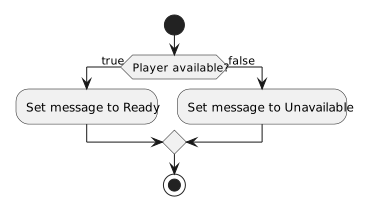
The isAvailable decision selects Ready for true or Unavailable for false, then merges before ending.
The condition selects one message
  • New
  • Changed
  • Removed
Trace One Route at a Time

Trace isAvailable false. Only the Unavailable assignment runs. The true assignment is visible in the diagram but skipped during that execution.

Verify the Drawing Against the Source
Predict and Check a Small Change