2.1 Grade Book Assignment

Grade Book 2.1 — Decisions, Learning, and Repetition
1.Download the starting code
A Download and extract the starting project, replace LastName in the folder and solution filenames with your last name, open the solution, and restore NuGet packages
B Build and run the starting project

Confirm the original Blackboard and Canvas buttons work. This gives you a working baseline before you edit the business classes.

Grade Book 2.1 starting class structure; MainWindow methods are abbreviated as [...].
Starting class structure
  • New
  • Changed
  • Removed
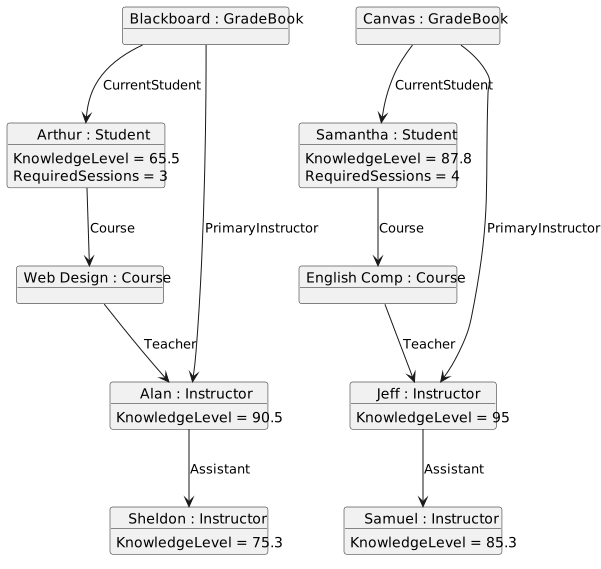
Existing Blackboard and Canvas tutor references and sample knowledge values.
Existing students and tutor references
  • New
  • Changed
  • Removed
Show a grade and useful feedback
Acceptance Criteria
  • Each of the four exam buttons shows earned points, a letter grade, and encouragement.
  • The grade follows the same percentage boundaries for either course.
  • Actions before creating a grade book continue to explain what I need to create first.
2.Select the assignment with an else-if chain
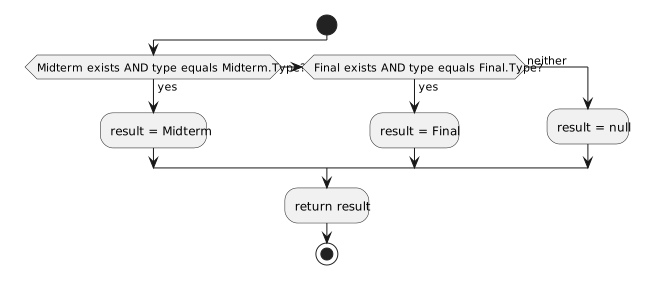
A In Course.cs, revise GetAssignmentByType(string type)

Refactor the existing nested selection into the if/else-if structure shown below. Preserve its assignment-selection behavior.

Course.GetAssignmentByType selects Midterm, Final, or null in priority order.
Choose Midterm, Final, or no assignment
  • New
  • Changed
  • Removed
B Check your work: assignment selection
1 Create Blackboard and break in GetAssignmentByType when taking each exam

Take midterm must select HTML Exercises; Take final must select Website 1. Confirm the selected reference in Locals before continuing.

2 Use a temporary debugger evaluation to request an unknown assignment type

At a breakpoint in MainWindow.xaml.cs after creating Blackboard, evaluate this.Blackboard.CurrentStudent.Course.GetAssignmentByType("Quiz"). Expect null. In a separate trial, temporarily set the course's Midterm reference to null and click Take midterm; expect The assignment or its instructor is unavailable. Recreate Blackboard afterward. No normal button requests Quiz or removes an assignment.

3.Let an attempt determine its letter grade
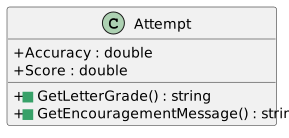
A In Attempt.cs, add the two public methods in the focused class diagram

Use the signatures below. Implement GetLetterGrade() first; GetEncouragementMessage() follows in the next task.

Two new public string-returning methods belong to Attempt.
New methods on Attempt
  • New
  • Changed
  • Removed
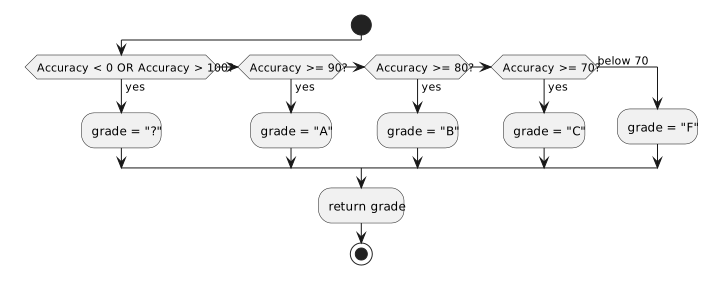
B In GetLetterGrade(), use an ordered if/else-if chain

Translate the activity diagram into an if/else-if chain. Ensure every path supplies the returned grade.

Attempt.GetLetterGrade validates accuracy before checking descending grade boundaries.
Validate the percentage and choose a letter
  • New
  • Changed
  • Removed
C Check your work: grade boundaries before adding feedback

Pause in MainWindow.xaml.cs after creating a grade book. In the Immediate window, declare a temporary Attempt gradeProbe = new Attempt();. Assign its Accuracy and evaluate gradeProbe.GetLetterGrade() for the values below. This probe does not change the student's stored submission.

1 Confirm 100 and 90 return A, while 89.99 returns B
2 Confirm 80 returns B, while 79.99 returns C
3 Confirm 70 returns C, while 69.99 and 0 return F
4 Confirm -0.01 and 100.01 return the question-mark string

These invalid percentages are defensive cases. The normal sample-data calculation does not produce them; use the temporary probe rather than expecting a normal button click to reach them.

4.Choose encouragement with a switch
A In GetEncouragementMessage() in Attempt.cs, switch on the returned letter grade

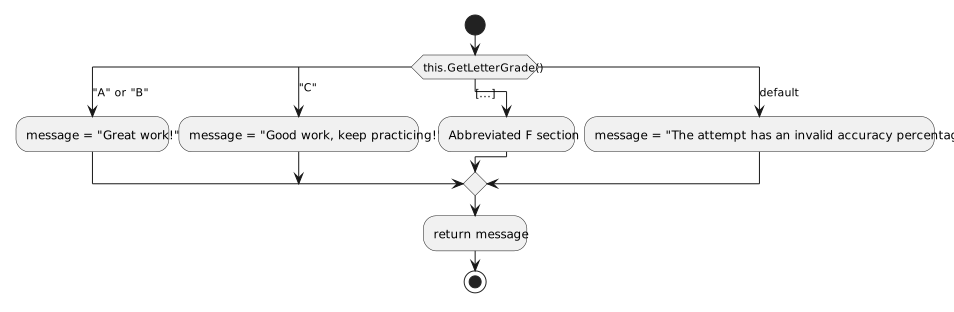
Implement the switch shown below, using this.GetLetterGrade() as its expression. Use the reference table for exact messages.

A switch on GetLetterGrade selects encouragement, with A and B sharing a section.
Select a message from the returned grade
  • New
  • Changed
  • Removed

The diagram shows the shared A/B section, C, one [...] placeholder for F, and default. Implement F using the reference table; [...] is diagram shorthand and must not appear in your code.

Exact encouragement text
Grade Returned message
A or B Great work!
C Good work, keep practicing!
F Please practice and try again.
default The attempt has an invalid accuracy percentage.
B Check your work: encouragement before connecting the window
1 Use gradeProbe with Accuracy 95, 85, 75, and 65 to check all four valid letters

Expect the A/B shared message for the first two values, the C message for 75, and the F message for 65. Compare punctuation and casing with the table.

2 Set gradeProbe.Accuracy to 101 and check the default message

Expect The attempt has an invalid accuracy percentage. Restore ordinary test conditions before continuing.

5.Display the returned grade and encouragement
A In MainWindow.xaml.cs, update the successful-attempt message in each exam handler

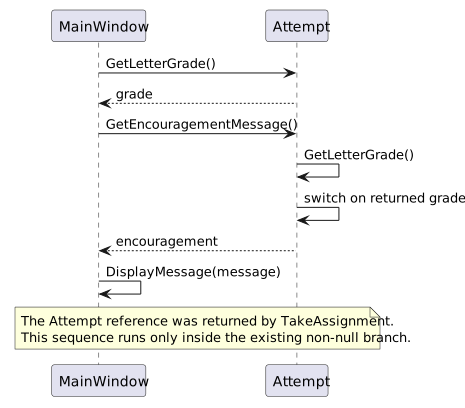
Use the returned Attempt to display its score, grade, and encouragement through the existing DisplayMessage(...) method. Follow the sequence diagram for the calls and the example below for punctuation.

MainWindow asks a non-null returned Attempt for its letter grade and encouragement, then displays the combined feedback.
Ask the returned attempt for feedback
  • New
  • Changed
  • Removed
  • Update takeMidtermButton_Click(...) and takeFinalButton_Click(...).
  • Apply the same pattern in writeEssayButton_Click(...) and writeFinalPaperButton_Click(...).
  • Preserve the existing missing-grade-book and unavailable-assignment paths.

Example: Score = 79.575, grade = C. Good work, keep practicing!

B Check your work: feedback before adding learning
1 Create Blackboard, then click Take midterm

Expect Score = 79.575, grade = C. Good work, keep practicing! Knowledge is still 65.5 at this stage. Taking the same exam again still produces 79.575 because learning has not been added yet.

2 Recreate the appropriate grade book before testing each remaining exam button

For fresh Blackboard, Take final produces score 66.55, grade F, and the F message. For fresh Canvas, Write midterm essay produces 86.075, grade B; Write final paper produces 77.35, grade C. Expect the corresponding encouragement from the table. Numeric formatting follows the computer's culture; compare the numeric values without adding rounding.

Increase knowledge through practice and help
Acceptance Criteria
  • An available assignment gives me practice even when its grade is below passing.
  • Practice improves future results without changing the score I already earned.
  • Useful tutoring adds knowledge without exceeding the tutor's knowledge or full mastery.
6.Add capped learning to Student
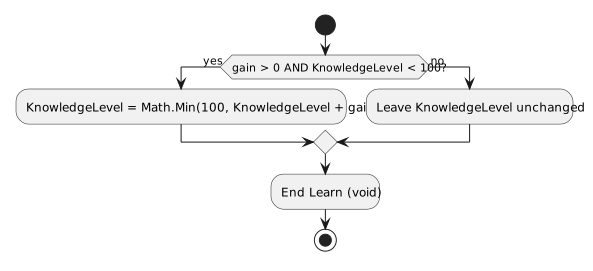
A In Student.cs, add Learn(double gain) after the existing methods

Infer the signature and implementation from the diagrams. Add using System; above the namespace to use Math.Min(...).

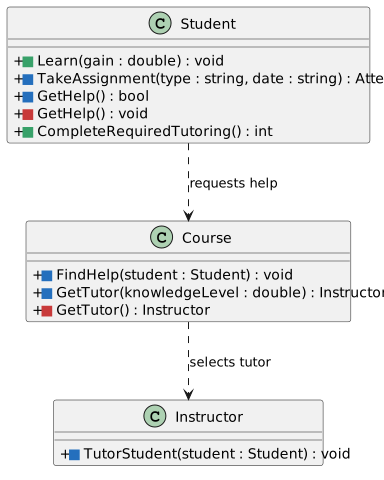
New learning and counted-tutoring methods, and replaced tutoring signatures.
Learning and tutoring method changes
  • New
  • Changed
  • Removed
Student.Learn accepts a positive gain below full knowledge and caps the new value at 100.
Accept a useful gain and cap knowledge
  • New
  • Changed
  • Removed
B Check your work: learning limits

At a breakpoint after creating Blackboard, use a temporary Student learningProbe = new Student(); in the Immediate window. Set its KnowledgeLevel before each trial.

1 Start at 98, call learningProbe.Learn(5), and confirm knowledge reaches 100
2 Start at 65.5 and call Learn(0), then Learn(-5); confirm knowledge stays 65.5
3 Start at 100, call Learn(5), and confirm knowledge stays 100
7.Learn after an assignment is calculated and graded
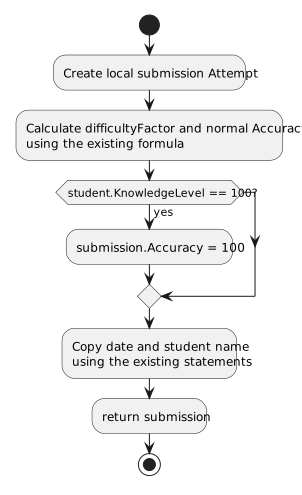
A In Complete(string date, Student student) in Assignment.cs, add a mastery override

Between the normal Accuracy calculation and the CompletionDate assignment, add the full-mastery decision shown below. Preserve the normal formula for other knowledge values.

Assignment.Complete overrides the normal accuracy only when knowledge equals 100.
Full mastery overrides normal accuracy
  • New
  • Changed
  • Removed
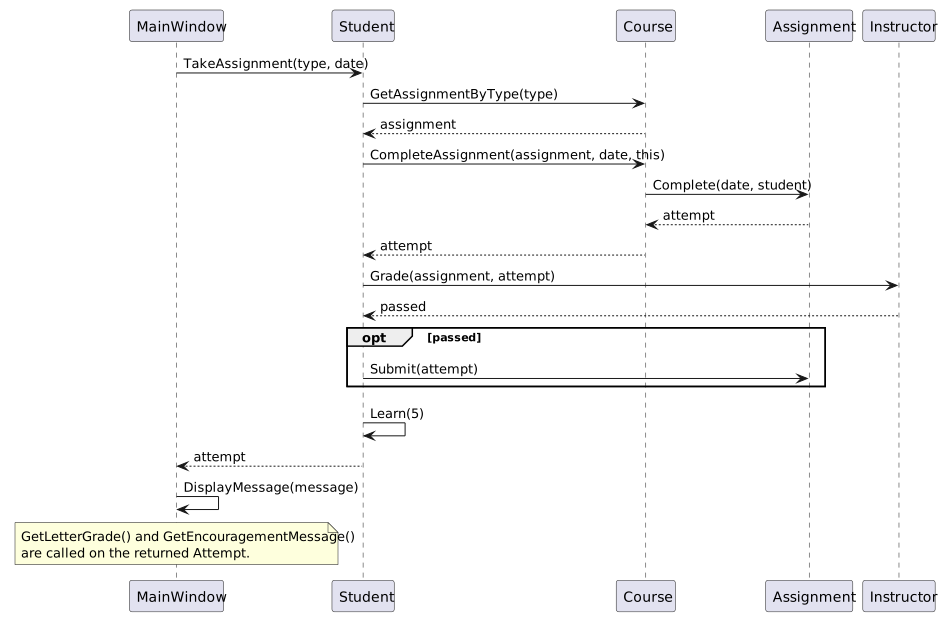
B In TakeAssignment(string type, string date) in Student.cs, add learning after grading and optional submission

Use the sequence diagram to add five points of learning for a non-null attempt. Place this after grading and optional submission within the existing assignment-not-null block.

Successful assignment flow starts at MainWindow, grades the returned attempt, then increases knowledge.
Calculate, grade, optionally submit, then learn
  • New
  • Changed
  • Removed
C Check your work: practice and mastery
1 Create Blackboard, click Take midterm twice, and inspect KnowledgeLevel after each click

The first score remains 79.575 with grade C; knowledge becomes 70.5. The second score is 82.075 with grade B; knowledge becomes 75.5. Break before the second TakeAssignment call and save a debugger reference to the existing Midterm.Submission; afterward, its Score must still be 79.575 even though a newer passing submission replaced the field reference.

2 Recreate Blackboard and click Take final once

Expect score 66.55, grade F, and knowledge 70.5. Final.Submission remains null because the attempt did not pass. The returned attempt still supplies feedback.

3 Recreate Blackboard, temporarily set its course Final to null in the debugger, and click Take final

Expect the existing unavailable message, a null returned attempt, and knowledge still 65.5. Recreate Blackboard afterward.

4 Create Blackboard, temporarily set its student's knowledge to 98, and take the midterm twice

The first attempt has Accuracy and Score 95.825 and raises knowledge to 100. The next attempt has Accuracy and Score 100. Further attempts stay at 100; the first attempt is not recalculated. Restore the ordinary sample values by recreating Blackboard.

8.Choose a tutor who can add knowledge
A In Course.cs, change GetTutor() to accept double knowledgeLevel

Use the revised signature in the focused class diagram. Update the call in FindHelp(Student student) to supply the student's knowledge level.

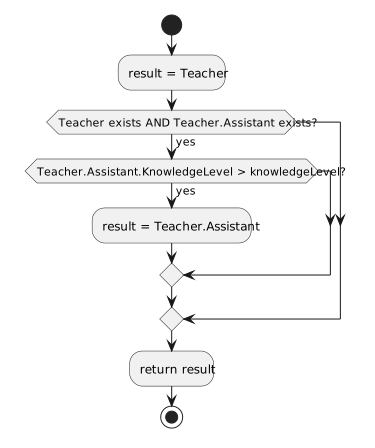
B In GetTutor(double knowledgeLevel), revise the assistant-selection checks

Implement the tutor-selection activity diagram. Preserve Teacher as the fallback when no useful assistant is available.

Course.GetTutor starts with Teacher and selects Assistant only when Assistant knows more than the supplied student knowledge.
Prefer a useful assistant, otherwise return Teacher
  • New
  • Changed
  • Removed
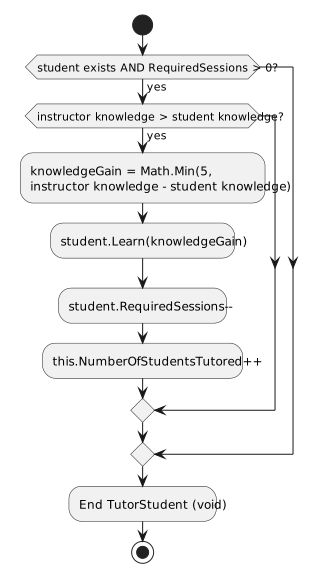
C In TutorStudent(Student student) in Instructor.cs, add learning before the existing count updates

Add using System; above the namespace. Extend the existing successful-session branch using the diagram below; keep its current eligibility checks and count updates.

Instructor.TutorStudent checks existing eligibility and adds capped learning before updating session counts.
Complete one useful tutoring session
  • New
  • Changed
  • Removed
D Check your work: single sessions before adding the loop
1 Create Blackboard and click Tutor Arthur three times, inspecting the selected tutor and knowledge

After the first session, knowledge is 70.5 and two sessions remain. After the second, knowledge is 75.3 and one remains; Sheldon has tutored twice. For the third, Sheldon no longer knows more, so Alan tutors Arthur to 80.3. Zero sessions remain and IsOnProbation is false. A fourth click changes neither sessions nor tutor counts.

2 Create Canvas and click Tutor Samantha three times

Jeff tutors the first two sessions: knowledge reaches 92.8 and then 95, with three and then two sessions remaining. The third click leaves knowledge at 95 and sessions at two. Samuel's knowledge of 85.3 is below Samantha's starting knowledge, so he is not selected; probation remains true.

Complete useful tutoring in one action
Acceptance Criteria
  • Complete Samantha tutoring reports the sessions completed, sessions remaining, and current knowledge.
  • Processing stops when no more useful tutoring is possible.
  • Repeating the action when no progress is possible reports zero new sessions.
9.Return whether one tutoring session made progress
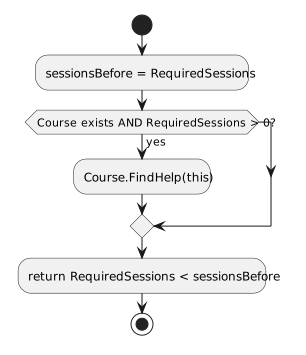
A In GetHelp() in Student.cs, change the return type from void to bool

Implement the activity diagram so the return value reports an actual completed session. Preserve the existing call through Course.

Student.GetHelp reports whether RequiredSessions decreased during one request.
Report an actual decrease in required sessions
  • New
  • Changed
  • Removed
B Check your work: the progress result
1 Create Canvas and evaluate CurrentStudent.GetHelp() once in the debugger

Use the Canvas reference from MainWindow. Expect true, knowledge 92.8, and three sessions remaining. Calling this method in Watch or Immediate actually performs tutoring; do not repeatedly evaluate it unintentionally.

2 After two successful Canvas sessions, evaluate GetHelp again

Expect false, knowledge 95, two sessions remaining, and no additional tutor-count increment. Recreate Canvas for the upcoming loop test.

10.Repeat and count successful tutoring sessions
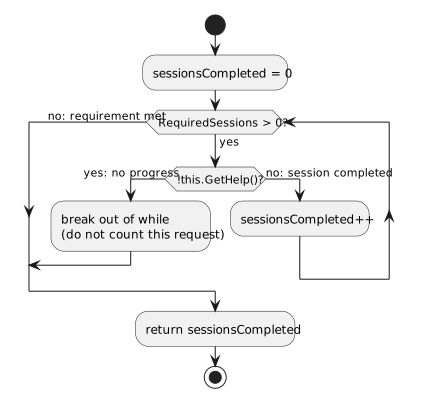
A In Student.cs, add public int CompleteRequiredTutoring() after GetHelp()

Translate the activity diagram into a counted while loop. Use the bool returned by GetHelp to decide whether repetition can continue.

Student.CompleteRequiredTutoring counts successful requests and breaks on the first failed request.
Count completed sessions and stop on no progress
  • New
  • Changed
  • Removed

GetHelp performs the session request as well as returning its result. Call it once per iteration.

B Check your work: the loop before adding its button

Pause in MainWindow.xaml.cs after creating the appropriate grade book. Evaluate the student's CompleteRequiredTutoring() method once in the Immediate window. Recreate the grade book before each independent trial.

1 For fresh Canvas, confirm the method returns 2, leaves 2 sessions, and reaches knowledge 95

Break on the call to GetHelp inside the loop and inspect each iteration. After the first success, knowledge is 92.8 and three sessions remain. The third request fails; it is not counted. Jeff's count is two, Samuel's count is zero, and probation stays true.

2 For fresh Blackboard, confirm the method returns 3, leaves 0 sessions, and reaches knowledge 80.3

Sheldon completes two sessions and Alan completes one. Probation clears. A second call returns zero and leaves all counts unchanged.

3 Temporarily set fresh Canvas RequiredSessions to 0 and evaluate the loop method

Expect zero completed sessions and no call to GetHelp. Knowledge stays 87.8. The loop does not itself clear probation when it skips every iteration; the existing FindHelp method clears it after a completed final required session.

4 In separate fresh Canvas trials, temporarily set Course to null, then Teacher to null, and evaluate the loop

Each trial returns zero, leaves four required sessions, and ends promptly without a null-reference exception. These are defensive debugger trials; normal New Canvas creates both objects. Recreate Canvas between trials and afterward.

5 Temporarily set fresh Canvas knowledge to 100 with four sessions still required and evaluate the loop

Expect zero completed sessions, four remaining, and knowledge 100. No available tutor knows more. Recreate Canvas afterward.

11.Add the Canvas completion button and feedback
A In MainWindow.xaml, add one button immediately after tutorSamanthaButton in the Canvas StackPanel
Complete button element
<Button x:Name="completeTutoringButton" Content="Complete Samantha tutoring" Click="completeTutoringButton_Click"/>

In the opening Window element, set Title to Programming Concepts 2: Grade Book 2.1 End and Height to 450. On the existing statusTextBox, add MinHeight="70" and TextWrapping="Wrap" so longer feedback remains readable. Keep the existing Grid rows, columns, and button styling.

B In MainWindow.xaml.cs, add completeTutoringButton_Click before DisplayMessage

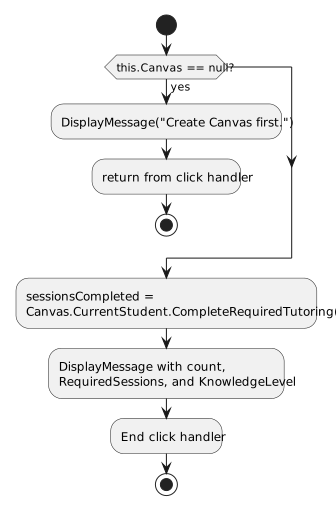
Insert this complete handler inside the MainWindow class, immediately before the existing DisplayMessage method. It checks that Canvas exists, calls the student's tutoring method, and displays its returned count.

Complete tutoring button click handler
private void completeTutoringButton_Click(object sender, RoutedEventArgs e)
{
    if (this.Canvas == null)
    {
        this.DisplayMessage("Create Canvas first.");

        return;
    }

    int sessionsCompleted = this.Canvas.CurrentStudent.CompleteRequiredTutoring();

    this.DisplayMessage("Samantha completed " + sessionsCompleted + " tutoring session(s). Remaining: "
        + this.Canvas.CurrentStudent.RequiredSessions + ". Knowledge: " + this.Canvas.CurrentStudent.KnowledgeLevel
        + ". Processing stops if no tutor can add knowledge.");
}
The new click handler exits early when Canvas is absent and otherwise displays the returned session count.
Guard Canvas, run tutoring, and display the result
  • New
  • Changed
  • Removed
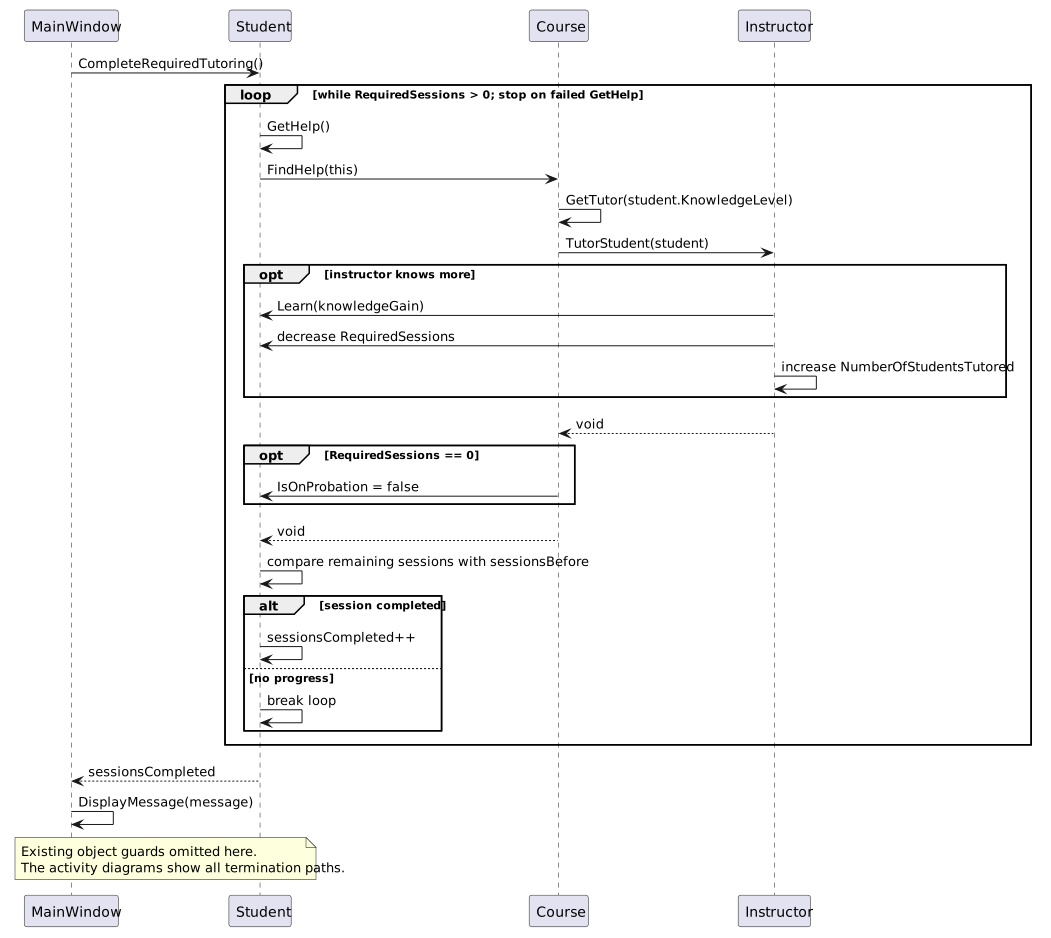
A Canvas click calls the student loop; one representative iteration passes the same student through Course and Instructor.
Pass the same student through each useful tutoring session
  • New
  • Changed
  • Removed
C Check your work: completed application
1 Restart and click Complete Samantha tutoring before New Canvas

Expect Create Canvas first. and no exception. The existing exam and single-session buttons must still show their existing create-first messages when their grade book has not been created.

2 Click New Canvas, then Complete Samantha tutoring

Expect Samantha completed 2 tutoring session(s). Remaining: 2. Knowledge: 95. Processing stops if no tutor can add knowledge.

3 Click Complete Samantha tutoring again without recreating Canvas

Expect Samantha completed 0 tutoring session(s). Remaining: 2. Knowledge: 95. Processing stops if no tutor can add knowledge. The application must remain responsive.

4 Create both grade books, complete Samantha tutoring, and inspect Arthur before taking any Blackboard action

Arthur must still have knowledge 65.5 and three sessions remaining. Recreate both grade books afterward so the final assignment checks begin with their original values.

5 Retest each exam once on a freshly recreated grade book

Expect the four first-attempt scores and grades from the earlier feedback checks. After each, knowledge is now 70.5 for Arthur or 92.8 for Samantha. Confirm score, grade, and encouragement remain visible in the wrapped status area.

6 Compare your finished application with the ending class diagram and build the solution

Resolve build errors. Confirm the two replaced signatures have only their new forms, all nine buttons remain connected, and all original object-creation values remain intact. The red struck-through signatures in the diagram describe replaced forms and must not remain as overloads.

Grade Book 2.1 ending class structure; MainWindow methods are abbreviated as [...].
Ending class structure with New, Changed, and Removed markers
  • New
  • Changed
  • Removed