As it is currently, the zoo only has one animal, the featured animal, that can be acted upon. The zoo would like to be able to have more animals.
Under Construction
This page is currently being built. Please check back soon.

This page is currently being built. Please check back soon.
Work through the user stories in order. Each story states the goal and acceptance criteria; its nested tasks retain the detailed implementation and verification steps.
Check the result against this instruction: Copy your 2.2 ending code, renaming both the folder and the Visual Studio solution file
As it is currently, the zoo only has one animal, the featured animal, that can be acted upon. The zoo would like to be able to have more animals.
You will define a list of animals and add the featured animal to it.
This focused design shows the members or flow relevant to this feature. Keep unchanged members from your preceding checkpoint; follow the tasks below for the order of intermediate edits.
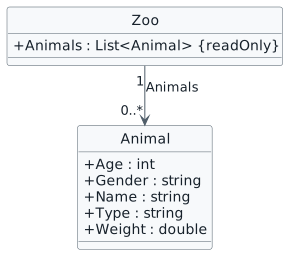
List<Animal> named Animals/// <summary>
/// The zoo's list of animals.
/// </summary>
public readonly List<Animal> Animals;Check the result against this instruction: In the Zoo class, define a readonly field of type List<Animal> named Animals.
/// <summary>
/// The zoo's list of animals.
/// </summary>
public readonly List<Animal> Animals = new List<Animal>();Check the result against this instruction: In the Zoo class, instantiate the list of Animals using field initializer syntax.
this.ComoZoo.Animals.Add(animal);Check the result against this instruction: In the MainWindow, delete the instantiation of the FeaturedAnimal and its set fields.
Make sure to call MakePregnant on the SanDiego Zoo's Platypus.
Review this feature’s design and requirementsCheck the result against this instruction: Repeat steps C-D for the San Diego Zoo using Patti the Platypus.
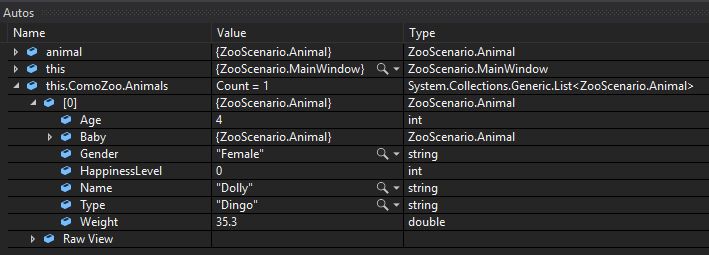
The zoo has a list now but only one animal. The zoo would like there to be multiple animals.
You will instantiate multiple animals and add them to the zoo's list of animals.
This focused design shows the members or flow relevant to this feature. Keep unchanged members from your preceding checkpoint; follow the tasks below for the order of intermediate edits.
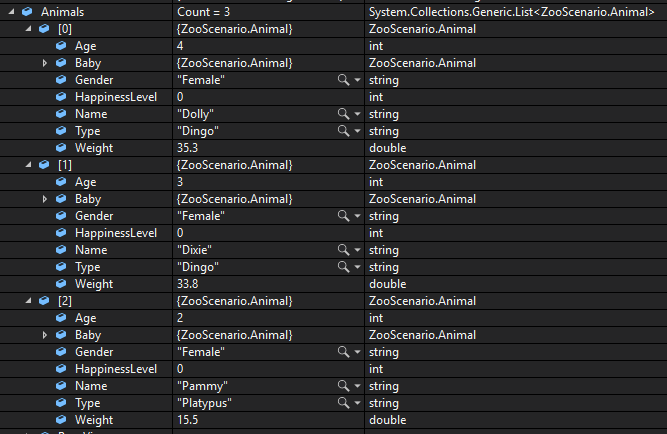
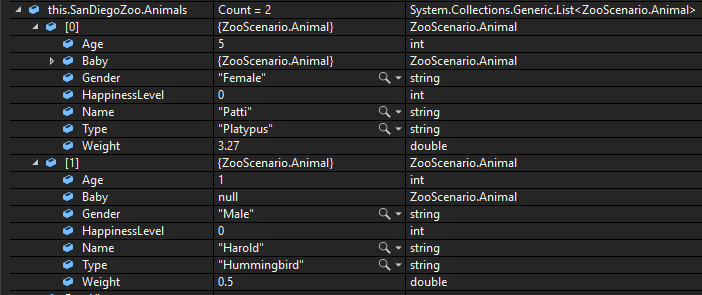
![Initial animal order. object "Como : List<Animal>" as como object "Dolly : Animal" as dolly { Type = Dingo Weight = 35.3 } object "Dixie : Animal" as dixie { Type = Dingo Age = 3 Gender = Female Weight = 33.8 } object "Pammy : Animal" as pammy { Type = Platypus Age = 2 Gender = Female Weight = 15.5 } object "San Diego : List<Animal>" as sd object "Patti : Animal" as patti { Type = Platypus Weight = 3.27 } object "Harold : Animal" as harold { Type = Hummingbird Age = 1 Gender = Male Weight = 0.5 } como --> dolly : [0] como --> dixie : [1] como --> pammy : [2] sd --> patti : [0] sd --> harold : [1]](Diagrams/2.3.Zoo.Class.Population.light.svg)
animal = new Animal();Check the result against this instruction: In the MainWindow in the newComoZooButton_Click after adding the first animal to the Zoo, instantiate an instance of the Animal class using the previously defined animal variable.
animal.Age = 3;
animal.Gender = "Female";
animal.Name = "Dixie";
animal.Type = "Dingo";
animal.Weight = 33.8;Check the result against this instruction: Assign the fields of the animal variable.
Check the result against this instruction: Call MakePregnant on the animal variable.
Check the result against this instruction: Add the animal to the list of Animals.
animal.Age = 2;
animal.Gender = "Female";
animal.Name = "Pammy";
animal.Type = "Platypus";
animal.Weight = 15.5;Check the result against this instruction: Use the animal variable to instantiate a new Animal, assign its fields, make it pregnant, and add it to the list.
animal.Age = 1;
animal.Gender = "Male";
animal.Name = "Harold";
animal.Type = "Hummingbird";
animal.Weight = 0.5;Check the result against this instruction: In the MainWindow in the newSanDiegoZooButton_Click, use the animal variable to instantiate a new Animal, assign its fields, and add it to the list.
The Employees of the Zoo would like a way to wake up all the animals in the zoo.
We will write a method that loops through the list of Animals and calls each Animal's Move method.
This focused design shows the members or flow relevant to this feature. Keep unchanged members from your preceding checkpoint; follow the tasks below for the order of intermediate edits.
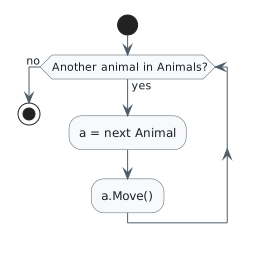
<Button x:Name="comoZooWakeAllAnimals" Content="Wake all animals" Click="comoZooWakeAllAnimals_Click" />
<Button x:Name="sanDiegoZooWakeAllAnimals" Content="Wake all animals" Click="sanDiegoZooWakeAllAnimals_Click" />
Check the result against this instruction: Call the WakeAllAnimals method from the comoZooWakeAllAnimals_Click and the sanDiegoZooWakeAllAnimals_Click in the MainWindow.
Now that the zoo has a list of animals, they would like to get some information based on the animals.
You will add buttons and methods that will determine the number of animals in the zoo and the average weight of the animals in the zoo.
This focused design shows the members or flow relevant to this feature. Keep unchanged members from your preceding checkpoint; follow the tasks below for the order of intermediate edits.
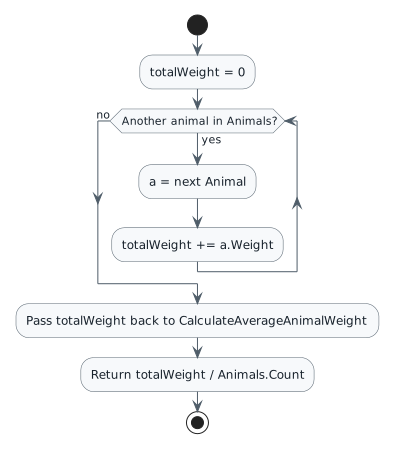
| Zoo | Count | Total weight | Average weight |
|---|---|---|---|
| Como | 3 | 84.6 | 28.2 |
| San Diego | 2 | 3.77 | 1.885 |
/// <summary>
/// The number of the animals in one of the zoos.
/// </summary>
public int ZooAnimalCount;
/// <summary>
/// The average weight of the animals in one of the zoos.
/// </summary>
public double ZooAverageAnimalWeight;Check the result against this instruction: In the MainWindow class, define the following fields:
<Button x:Name="getComoZooAnimalCount" Content="Get animal count" Click="getComoZooAnimalCount_Click" />
<Button x:Name="getComoZooAverageAnimalWeight" Content="Get average animal weight" Click="getComoZooAverageAnimalWeight_Click" />
<Button x:Name="getSanDiegoZooAnimalCount" Content="Get animal count" Click="getSanDiegoZooAnimalCount_Click" />
<Button x:Name="getSanDiegoZooAverageAnimalWeight" Content="Get average animal weight" Click="getSanDiegoZooAverageAnimalWeight_Click" />
this.ZooAnimalCount = this.ComoZoo.Animals.Count;Check the result against this instruction: In the MainWindow, in the getComoZooAnimalCount_Click, assign the ZooAnimalCount field to the Animals Count.
Check the result against this instruction: In the MainWindow in the getSanDiegoZooAnimalCount_Click, assign the ZooAnimalCount field to the Animals Count.
double totalWeight = 0;foreach (Animal a in this.Animals)
{
totalWeight += a.Weight;
}return CalculateTotalAnimalWeight() / this.Animals.Count;ZooAverageAnimalWeight for the Como Zoo.
Ensure that the ZooAnimalCount is 0.
ZooAverageAnimalWeight for the San Diego Zoo.
Ensure that the ZooAnimalCount is 0.
The feeding of the animal is currently not going to work correctly because the featured animal is no longer part of the zoo. Additionally, there is currently no way to feed an animal that the guest specifically wants to feed.
You will set up a loop that finds a particular animal and uses it in the feeding sequence.
This focused design shows the members or flow relevant to this feature. Keep unchanged members from your preceding checkpoint; follow the tasks below for the order of intermediate edits.
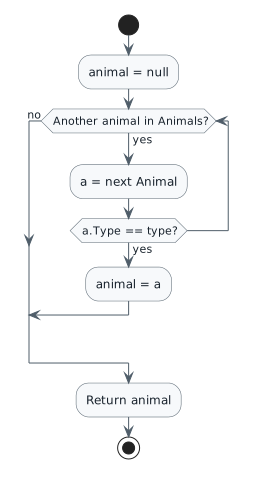
foreach (Animal a in this.Animals)
{
    if (a.Type == type)
    {
        animal = a;
        break;
    }
}Check the result against this instruction: In the MainWindow in the darlaFeedDingoButton_Click event handler, define a variable of type Animal named animal and assign it to the call to the ComoZoo's FindAnimal method and pass in the string "Dingo" as an argument.
Check the result against this instruction: In the ComoZoo's call to FeedAnimal, pass in the animal variable as an argument instead of the FeaturedAnimal.
Check the result against this instruction: In the MainWindow in the daveFeedPlatypusButton_Click event handler, define a variable of type Animal named animal and assign it to the call to the SanDiegoZoo's FindAnimal method and pass in the string "Platypus" as an argument.
Check the result against this instruction: In the SanDiegoZoo's call to FeedAnimal, pass in the animal variable instead of the FeaturedAnimal.
else
{
    // All other animals do nothing special.
}
We add this else statement now because we have added a Hummingbird to the zoo that neither barks nor has a pouch to store food in.
Check the result against this instruction: In the Animal class, add an 'else' statement to the Eat method.
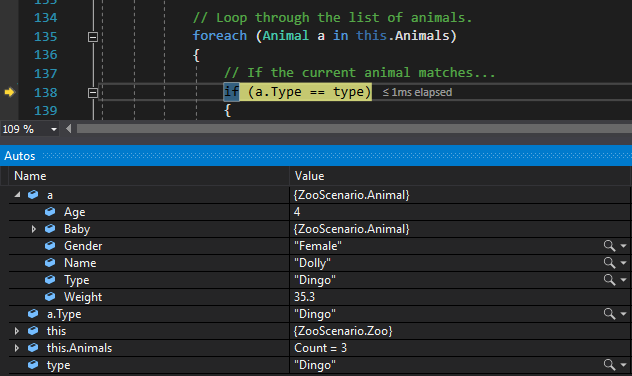
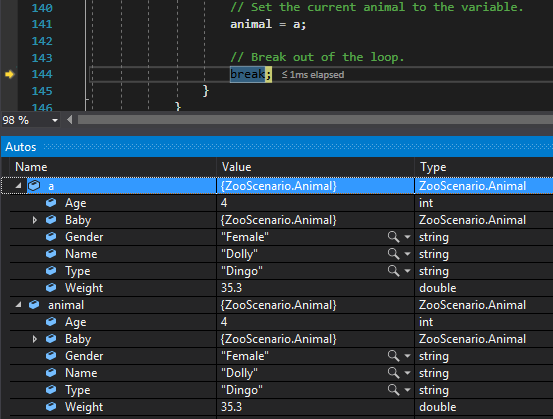
Hummingbird) to see what happens when the foreach loop is gone through.
Currently the birthing of an animal is only happening to the featured animal, but now that there are multiple animals that are pregnant the zoo needs the capability to find the particular animal that needs to give birth.
You will use a foreach loop to find a pregnant animal and refactor the BirthAnimal method to handle that particular animal.
This focused design shows the members or flow relevant to this feature. Keep unchanged members from your preceding checkpoint; follow the tasks below for the order of intermediate edits.
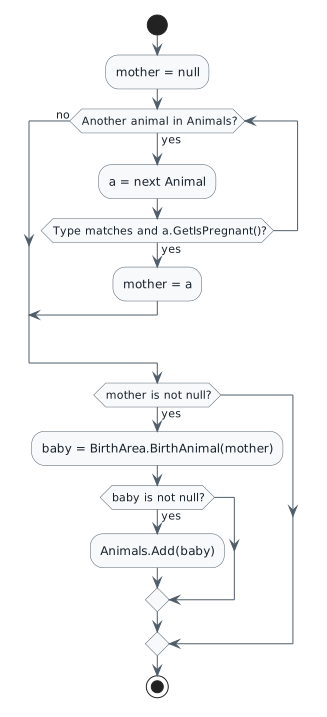
this.ComoZoo.BirthAnimal(this.ComoZoo.FindPregnantAnimal("Dingo"));Check the result against this instruction: In the MainWindow in the birthDingoButton_Click , pass the call to the ComoZoo's FindPregnantAnimal method and pass in the string "Dingo" as an argument.
Check the result against this instruction: In the MainWindow in the birthPlatypusButton_Click , pass the call to the SanDiegoZoo's FindPregnantAnimal method and pass in the string "Platypus" as an argument.
Check the result against this instruction: In the Zoo class, delete the FeaturedAnimal field.
Ensure that a.Type is "Dingo" and that type is "Dingo".
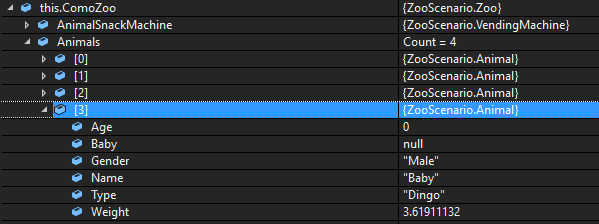
Ensure that the Animals Count is 2.
Check the result against this instruction: Ensure that all code is StyleCop compliant.
Check the result against this instruction: Zip the solution and submit to the Feedback System.
Check the result against this instruction: Submit the Feedback System url to the correct assignment in Canvas.
Return to each user story and confirm that you can demonstrate its acceptance criteria. Use the task checkboxes to track completion; a checked box is not a substitute for testing or inspecting the required evidence.
Store animals in an ordered collection Populate each zoo with distinct animals Wake every animal Report animal count and average weight Find the animal a guest wants to feed Find a pregnant mother and add her newbornRemove temporary lines used only to demonstrate compile-time errors. Build without errors or warnings, check StyleCop compliance, and rerun the required scenario paths.
Use the submission or attendance instructions in this page. For a Feedback System submission, upload the requested ZIP, review and resolve the feedback, and submit the resulting URL to the matching Canvas activity. For a Canvas quiz, enter only the requested answers; for an oral final, complete the scheduling and attendance steps.