1.2 Zoo Instruction

Overview

Classes and Reusable Object Blueprints

Zoo 1.2 shifts from working mainly with individual objects to defining the class blueprints those objects use. You will add BirthingRoom and VendingMachine, create Como Zoo objects from those definitions, and reuse the same class design for a separate San Diego Zoo.

Central idea

A class defines a reusable kind of object. Multiple objects can be created from the same class, and each object can maintain its own state.

Getting Started

Keep a working copy

Make a copy of your code at the beginning of each week and rename the folder and .sln file to the appropriate week number. Doing so will help you maintain a record of your work and keep a working copy of your code in case you need to revert your changes.

Starting Point — End of Zoo 1.1

This class structure already exists. Zoo 1.2 extends it.
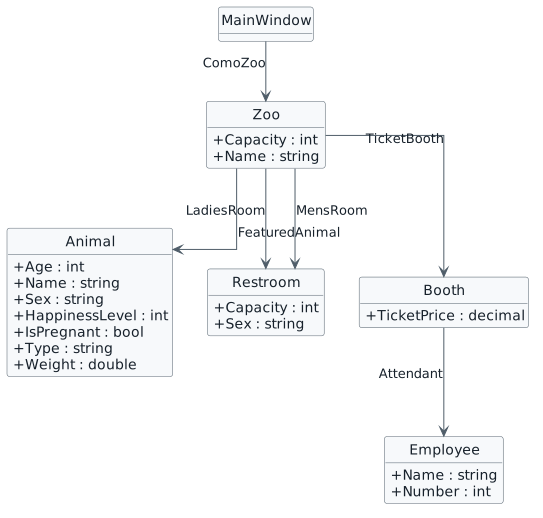
Zoo 1.1 starting class diagram. MainWindow references Zoo through ComoZoo. Zoo references Animal through FeaturedAnimal, Restroom through LadiesRoom and MensRoom, and Booth through TicketBooth. Booth references Employee through Attendant. Existing scalar members are shown in their owning classes.
Authoritative Zoo 1.1 End class structure.

Acceptance Criteria

User Story 1 — Use a birthing room for animal care

As a zoo employee using the application, I want the zoo to have a birthing room with the information needed for animal care so that the room can be represented as its own part of the zoo.

Task 1 — Add the birthing room to the zoo model

Problem

The current project has no reusable class that represents the information belonging to a birthing room.

Solution

Define BirthingRoom and add only the current Zoo 1.2 fields and class relationships required by the scenario.

Step 1 — Add the BirthingRoom class

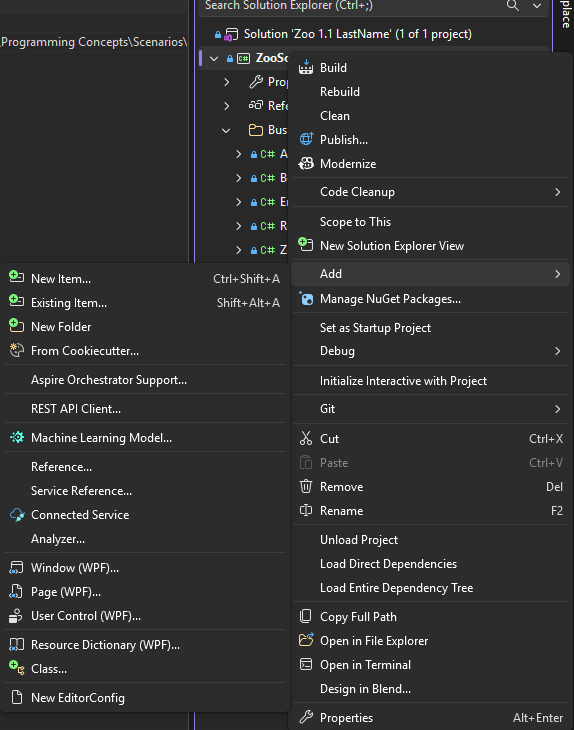
Before you write the new class, use Solution Explorer to add the class file to the ZooScenario project.

Add a class through Solution Explorer

Visual Studio Solution Explorer showing the ZooScenario project context menu with Add expanded and Class visible.
Right-click the ZooScenario project, choose Add, then choose Class....

Now continue with the class structure for BirthingRoom.

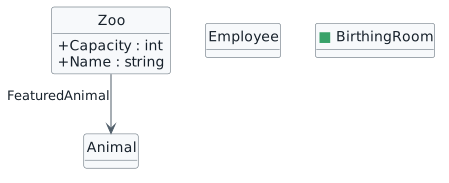
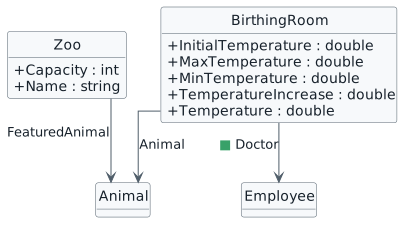
Progressive class diagram. A green square marks BirthingRoom as the new class. Existing Zoo, Animal, and Employee classes provide context.
Add the BirthingRoom class.

Insert the following suppression pattern. Keep the two attributes together in one horizontally scrollable code frame and keep each attribute on one physical source line:

C#

[System.Diagnostics.CodeAnalysis.SuppressMessage("Microsoft.StyleCop.CSharp.NamingRules", "SA1300:ElementMustBeginWithUpperCaseLetter", Justification = "Event handlers may begin with lower-case letters.")]
[System.Diagnostics.CodeAnalysis.SuppressMessage("Microsoft.StyleCop.CSharp.MaintainabilityRules", "SA1401:FieldsMustBePrivate", Justification = "Encapsulation not yet taught.")]

Step 2 — Add the temperature fields

Problem

BirthingRoom exists, but it does not yet describe the temperature information the current scenario needs.

Solution

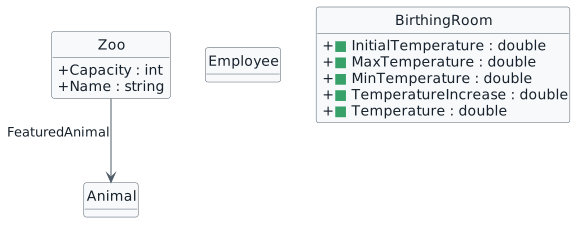
Add the five current scalar fields shown in the class diagram.

Progressive BirthingRoom class diagram. Green squares mark the new fields InitialTemperature double, MaxTemperature double, MinTemperature double, TemperatureIncrease double, and Temperature double.
The five current temperature fields belong inside BirthingRoom.

These values belong to one birthing-room object's state. double supports the current fractional values such as 77.0 and 0.5.

Check Your Work

Step 3 — Add the Animal relationship

Problem

A birthing-room object must be able to refer to an animal when the scenario requires one.

Solution

Add the current Animal-typed field represented as a class relationship.

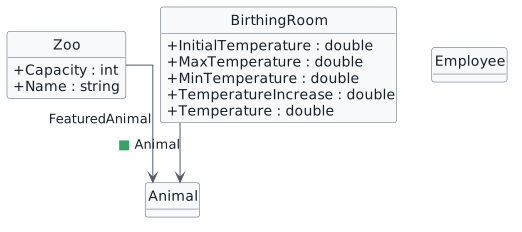
Progressive class diagram showing BirthingRoom related to Animal. A green square marks the new relationship role Animal.
BirthingRoom can reference an Animal object through the Animal role.

Animal is the class/type and also the field/role name. The class relationship describes what a BirthingRoom can reference; it does not create an Animal object.

Check Your Work

Step 4 — Add the Doctor relationship

Problem

The room also needs a reference to the employee serving as the doctor.

Solution

Add the current Employee-typed Doctor field.

Progressive class diagram showing BirthingRoom related to Employee. A green square marks the new Doctor relationship. The established Animal relationship remains unmarked.
Doctor is an Employee role, not a separate Doctor class.

Check Your Work

Go to top

Task 2 — Set up the Como Zoo birthing room

Problem

The class now defines what a birthing room can contain, but Como Zoo still needs its own actual birthing-room object and current state.

Solution

Connect Zoo to BirthingRoom, then create and configure the Como BirthArea.

Step 1 — Add BirthArea to Zoo

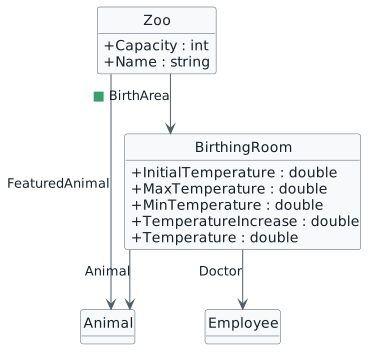
Progressive class diagram showing a green square on the new BirthArea relationship from Zoo to BirthingRoom. BirthingRoom already has its temperature fields and Animal and Doctor relationships.
Zoo can reference its own BirthingRoom through BirthArea.

Declaring BirthArea creates the class relationship. It does not create the runtime BirthingRoom object.

Check Your Work

Step 2 — Create and configure the Como BirthArea

This focused source line adds separate meaning because it shows that the current temperature is initialized from the initial temperature:

C#

this.ComoZoo.BirthArea.Temperature = this.ComoZoo.BirthArea.InitialTemperature;
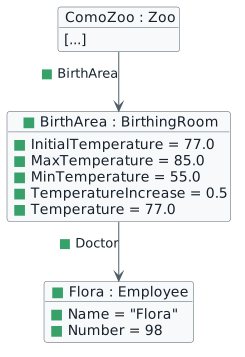
Completed Como BirthArea object diagram. Green squares mark the new BirthArea object and reference, the assigned values InitialTemperature 77.0, MaxTemperature 85.0, MinTemperature 55.0, TemperatureIncrease 0.5, and Temperature 77.0, plus the new Flora Employee object with Name Flora and Number 98 and the Doctor reference from BirthArea to Flora. Untouched default or uninitialized members are omitted.
Completed Como BirthArea state. Only intentionally established current state is shown.

Check Your Work

Go to top

User Story 2 — Provide animal food through a vending machine

As a zoo guest, I want the zoo to have a vending machine that represents the food, inventory, and money information needed for the current zoo experience so that the machine is part of the zoo model.

Task 1 — Add the vending machine to the zoo model

Problem

The zoo model has no reusable class for the animal-food vending machine.

Solution

Define VendingMachine with the current five fields and connect it to Zoo.

Step 1 — Add VendingMachine

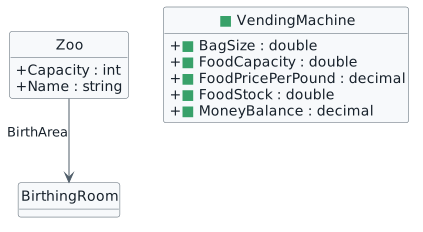
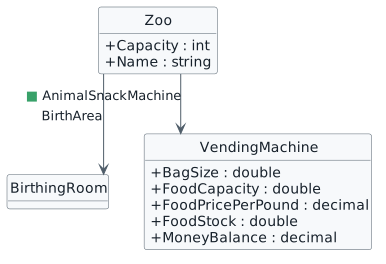
Progressive class diagram. Green squares mark the new VendingMachine class and its fields BagSize double, FoodCapacity double, FoodPricePerPound decimal, FoodStock double, and MoneyBalance decimal.
Add VendingMachine and its five current fields.

BagSize, FoodCapacity, and FoodStock use double. FoodPricePerPound and MoneyBalance use decimal.

Check Your Work

Step 2 — Add AnimalSnackMachine to Zoo

Progressive class diagram showing a green square on the new AnimalSnackMachine relationship from Zoo to VendingMachine. The established BirthArea relationship remains unmarked.
Each Zoo object can reference its own VendingMachine through AnimalSnackMachine.

Check Your Work

Go to top

Task 2 — Set up the Como Zoo vending machine

Problem

The class exists, but Como Zoo still needs its own actual vending-machine object and current state.

Solution

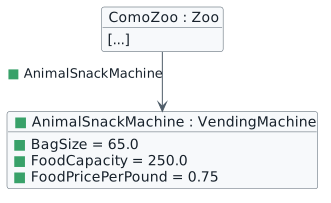
Create the Como AnimalSnackMachine and configure the authoritative current state.

Step 1 — Create and configure the Como vending-machine object

Completed Como vending-machine object diagram. Green squares mark the new AnimalSnackMachine object and reference plus BagSize 65.0, FoodCapacity 250.0, and FoodPricePerPound 0.75. Untouched default-valued members are omitted.
Completed Como vending-machine state. Untouched defaults are intentionally left out.

Check Your Work

Go to top

User Story 3 — Add the San Diego Zoo to the application

The director of the San Diego Zoo has been talking with the Como Zoo director about the zoo application. The San Diego Zoo would like to use the same program structure rather than create a separate application.

As the San Diego Zoo director, I want the application to represent the San Diego Zoo as a separate zoo with its own animals, staff, facilities, and service objects so that our zoo can use the same class design without changing Como Zoo's information.

Task 1 — Reuse the same class design for the San Diego Zoo

Problem

The application needs to represent a second zoo with different state without creating a second set of domain class definitions.

Solution

Use the existing Zoo, Animal, Employee, Restroom, Booth, BirthingRoom, and VendingMachine classes to create a separate San Diego object graph.

Step 1 — Add SanDiegoZoo

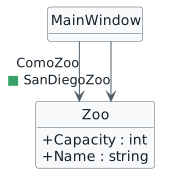
Class diagram showing MainWindow related to Zoo through the existing ComoZoo role and a new SanDiegoZoo role. A green square marks only SanDiegoZoo.
Two fields can refer to two separate objects created from the same Zoo class.

Check Your Work

Step 2 — Use the supplied San Diego button path

The UI markup is not represented by the UML, so use the exact current button source:

XML

<Button x:Name="newSanDiegoZooButton" Content="New San Diego Zoo" Click="newSanDiegoZooButton_Click"/>

Check Your Work

Step 3 — Use the supplied San Diego event-handler path

The current one-line handler signature is:

C#

private void newSanDiegoZooButton_Click(object sender, RoutedEventArgs e)

The event path coordinates creation of a separate object graph. Do not copy a complete finished handler body from this walkthrough.

Step 4 — Create the San Diego Zoo and supporting objects

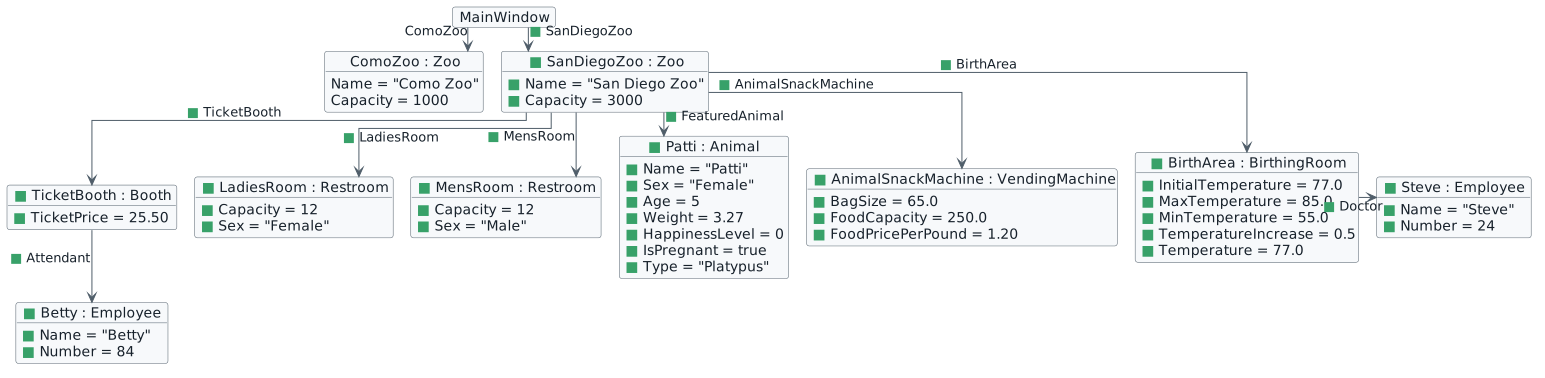
Create the separate San Diego objects using the same class definitions and the current source values.

Object diagram rooted at MainWindow. ComoZoo is folded existing context. A green-square-marked SanDiegoZoo object has Name San Diego Zoo and Capacity 3000. Its separate supporting objects are TicketBooth with Betty as Attendant, LadiesRoom, MensRoom, Patti as FeaturedAnimal, AnimalSnackMachine, BirthArea, and Steve as Doctor. Only intentionally initialized current values are shown; untouched default or uninitialized members are omitted.
Como and San Diego are separate Zoo objects. The San Diego supporting objects are grouped under the San Diego object to make the relationships easier to follow.
What to notice

ComoZoo and SanDiegoZoo are different Zoo objects that use the same class. Their supporting objects hold separate state, so a second zoo does not require duplicate domain classes.

Check Your Work

Go to top

Final Check

Class structure

Como Zoo state

San Diego Zoo state

Verification evidence

Use the normal build/error-reading and already-taught inspection paths. This page does not claim your project built or ran successfully; verify that in your own project.

Zoo 1.2 End-Structure Class Diagram

This final view compares the complete Zoo 1.2 class structure with the authoritative Zoo 1.1 End baseline.

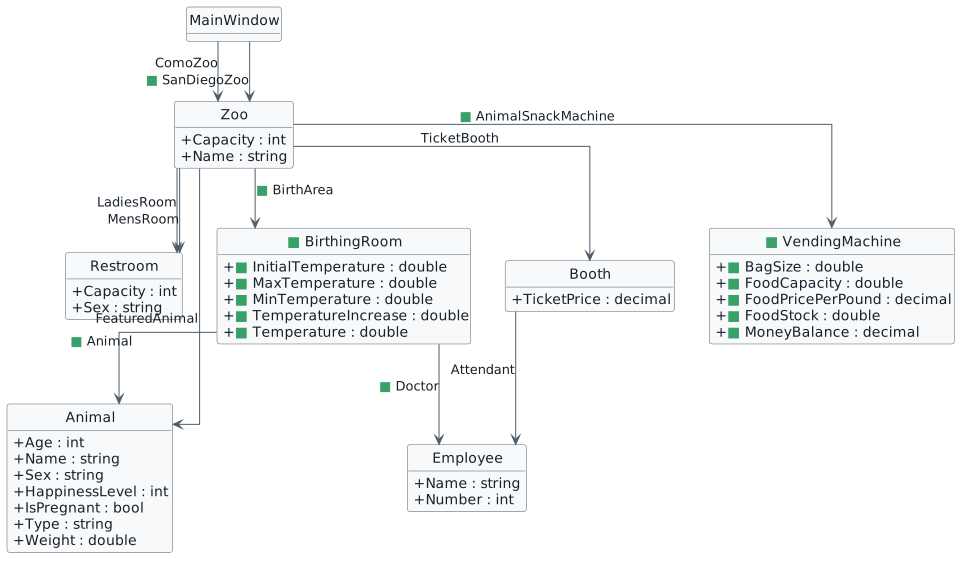
Final Zoo 1.2 class diagram. Green squares mark BirthingRoom and its five scalar fields, its Animal and Doctor relationships, Zoo BirthArea, VendingMachine and its five scalar fields, Zoo AnimalSnackMachine, and MainWindow SanDiegoZoo. Existing Zoo 1.1 classes, members, and relationships are unmarked. There are no Changed or Removed structural items.
Final structural delta: New items only; Changed none; Removed none.
New in Zoo 1.2 relative to Zoo 1.1 End Changed: none Removed: none

Submit

Open the Feedback System to continue with the current submission/readiness process.