Overview
Methods
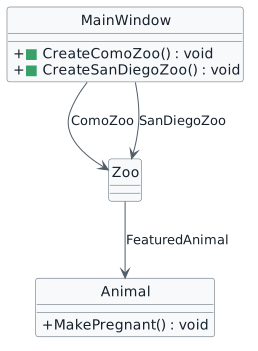
Zoo 1.3 shifts from objects that mainly store state to objects that also perform behavior. You will add
parameterless void methods to the existing zoo model, connect those methods to UI actions,
and trace execution as methods call other methods.
Fields describe an object's state. Methods describe what an object can do.
Getting Started
Keep your Zoo 1.2 checkpoint unchanged. If a later change causes a problem, the previous working checkpoint gives you a known-good source to compare against.
Starting Point — End of Zoo 1.2
Zoo 1.3 begins with the two-zoo object model already established. The existing project includes the current
Zoo, Animal, Employee, Restroom, Booth,
BirthingRoom, and VendingMachine classes, plus the Como and San Diego object graphs.
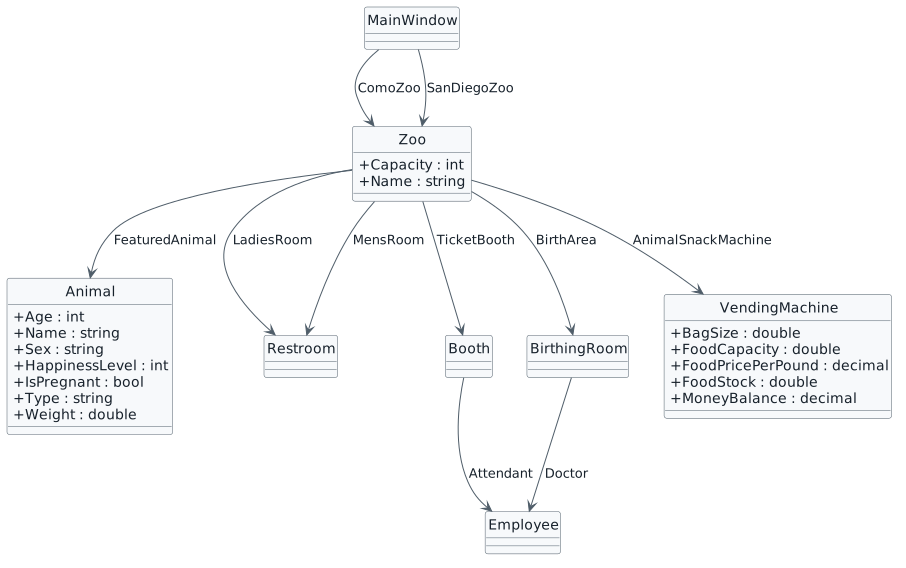
This checkpoint adds behavior without introducing later-course concepts. The custom methods added here remain
parameterless and return void.
Acceptance Criteria
- Each zoo guest is connected to a
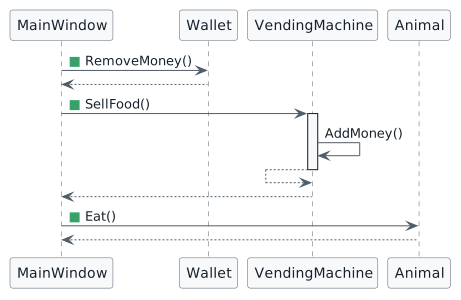
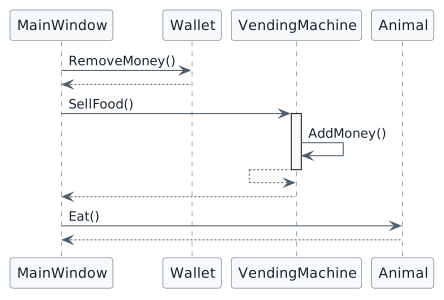
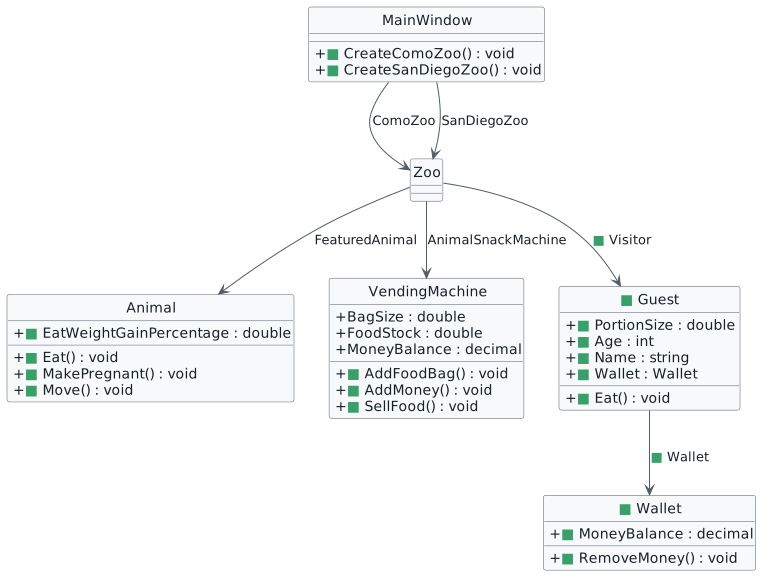
Wallet. Wallet.RemoveMoney()subtracts the fixed$2.00feeding amount.VendingMachine.AddMoney()adds$2.00.VendingMachine.SellFood()callsAddMoney()and subtracts1.0fromFoodStock.Animal.Eat()changes the animal's weight using the current endpoint calculation.- The Como and San Diego feed actions call
RemoveMoney()→SellFood()→Eat()in that order. VendingMachine.AddFoodBag()increases stock by the currentBagSize.Animal.MakePregnant()changes pregnancy state andAnimal.Move()represents movement behavior.CreateComoZoo()andCreateSanDiegoZoo()organize the two creation flows.- The debugger is used to trace method calls with Step Over, Step Into, Step Out, Continue, and the Call Stack.
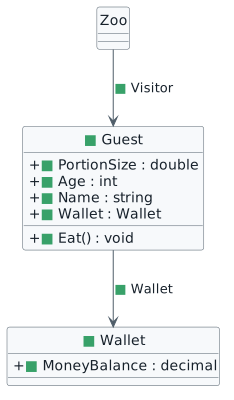
User Story 1 — Complete a guest feeding transaction
The zoo now needs a guest action that affects several connected objects instead of changing one field directly.
As a zoo guest, I want to purchase food and feed the zoo's featured animal so that my money, the vending machine, and the animal all reflect the action I performed.
Task 1 — Give each zoo guest a wallet
The existing zoo model does not yet give the visitor an object that owns the guest's money.
Add the current Guest and Wallet classes, connect Guest to Wallet, and connect each zoo to its current visitor.
Step 1 — Add Wallet
Add Wallet.cs to the existing Business Classes folder. Keep the current project namespace, XML documentation style, and StyleCop suppression pattern.
C#
public decimal MoneyBalance;
Step 2 — Add Guest
C#
public double PortionSize;
public int Age;
public string Name;
public Wallet Wallet;
C#
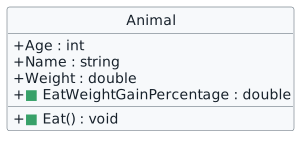
public void Eat()
{
// No state change is needed for this example.
}
Step 3 — Connect the visitor to Zoo
C#
public Guest Visitor;
Step 4 — Create the current visitors and wallets
| Value | Como Zoo | San Diego Zoo |
|---|---|---|
| Guest | Darla | Dave |
| Age | 11 | 13 |
| PortionSize | 1.0 | 1.0 |
| Wallet balance | 5.25m | 3.75m |
Check Your Work
- Build.
- Confirm
ComoZoo.Visitor.Name = "Darla"andComoZoo.Visitor.Wallet.MoneyBalance = 5.25m. - Confirm
SanDiegoZoo.Visitor.Name = "Dave"andSanDiegoZoo.Visitor.Wallet.MoneyBalance = 3.75m. - Confirm the two guests reference separate Wallet objects.
Task 2 — Pay for one feeding transaction
The guest's wallet contains money, but no wallet-owned behavior changes that balance yet.
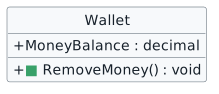
Add a focused RemoveMoney() method that subtracts the fixed Zoo 1.3 transaction amount.
Step 1 — Add RemoveMoney()
C#
public void RemoveMoney()
{
this.MoneyBalance -= 2.0m;
}
The m suffix makes 2.0m a decimal. If the balance starts at
5.25m, one call produces 3.25m.
Check Your Work
- Build.
- Confirm
RemoveMoney()belongs toWallet. - Confirm it subtracts exactly
2.0mand does not return a value.
Task 3 — Record money received by the vending machine
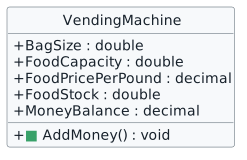
The vending machine can store a money balance, but it has no method that records the fixed payment for one sale.
Add a focused AddMoney() method to the vending machine.
Step 1 — Add AddMoney()
C#
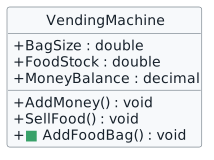
public void AddMoney()
{
this.MoneyBalance += 2.0m;
}
Check Your Work
- Build.
- Confirm the method changes the current vending machine's
MoneyBalance. - Confirm it has no custom parameters and returns
void.
Task 4 — Sell one pound of animal food
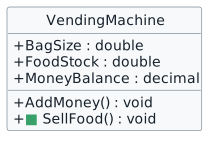
A sale changes two pieces of vending-machine state: money enters the machine and food leaves the machine.
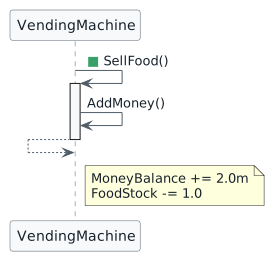
Add SellFood() so it calls the existing AddMoney() method and then reduces food stock.
Step 1 — Add SellFood()
C#
public void SellFood()
{
this.AddMoney();
this.FoodStock -= 1.0;
}
this.AddMoney() calls another method on the same VendingMachine object. When that call
returns, execution continues with the FoodStock subtraction.
Check Your Work
- Build.
- Confirm
SellFood()callsAddMoney(). - Confirm one sale adds
2.0mto money and removes1.0pound of food.
Task 5 — Let the featured animal eat
The feeding action needs to change animal weight, but the calculation should not live in the UI layer.
Give Animal a focused Eat() behavior that updates the current animal's own weight.
Step 1 — Add the current weight-gain percentage
C#
public double EatWeightGainPercentage = 0.8;
Step 2 — Add Eat()
C#
public void Eat()
{
this.Weight = this.Weight + (this.Weight * this.EatWeightGainPercentage);
}
For Dolly: 35.3 + (35.3 × 0.8) = 63.54.
For Patti: 3.27 + (3.27 × 0.8) = 5.886.
Check Your Work
- Build.
- Confirm Dolly changes from
35.3to63.54after one call. - Confirm Patti changes from
3.27to5.886after one call.
Task 6 — Connect the Como Zoo feeding action
The Como feed button must coordinate three separate objects without duplicating the state-change logic in MainWindow.
Call the wallet, vending-machine, and animal methods in the approved transaction order.
Step 1 — Confirm the button
XAML
<Button x:Name="darlaFeedDingoButton" Content="Darla, feed dingo" Click="darlaFeedDingoButton_Click"/>
Step 2 — Complete the event handler
C#
public void darlaFeedDingoButton_Click(object sender, RoutedEventArgs e)
{
this.ComoZoo.Visitor.Wallet.RemoveMoney();
this.ComoZoo.AnimalSnackMachine.SellFood();
this.ComoZoo.FeaturedAnimal.Eat();
}
If FoodStock is 0, one sale produces -1.0. Do not add an
if statement in Zoo 1.3; decision logic belongs to a later checkpoint.
Check Your Work
- From a fresh Como Zoo without refilling, confirm Darla changes
5.25 → 3.25. - Confirm vending money changes
0 → 2.00. - Confirm food stock changes
0 → -1.0. - Confirm Dolly changes
35.3 → 63.54.
Task 7 — Connect the San Diego Zoo feeding action
The same behaviors must work for a second zoo without creating duplicate domain methods.
Call the same Wallet, VendingMachine, and Animal methods through the San Diego object graph.
Step 1 — Confirm the button
XAML
<Button x:Name="daveFeedPlatypusButton" Content="Dave, feed platypus" Click="daveFeedPlatypusButton_Click"/>
Step 2 — Complete the event handler
C#
public void daveFeedPlatypusButton_Click(object sender, RoutedEventArgs e)
{
this.SanDiegoZoo.Visitor.Wallet.RemoveMoney();
this.SanDiegoZoo.AnimalSnackMachine.SellFood();
this.SanDiegoZoo.FeaturedAnimal.Eat();
}
Check Your Work
- From a fresh San Diego Zoo without refilling, confirm Dave changes
3.75 → 1.75. - Confirm vending money changes
0 → 2.00. - Confirm food stock changes
0 → -1.0. - Confirm Patti changes
3.27 → 5.886.
Task 8 — Trace the feeding transaction
The transaction now crosses several methods, so Step Over alone does not show how control moves between callers and called methods.
Use Step Into, Step Out, Continue, and the Call Stack to trace the complete Como feeding path.
Step 1 — Trace the wallet call
Set a breakpoint on:
C#
this.ComoZoo.Visitor.Wallet.RemoveMoney();
Step 2 — Trace the nested vending-machine call
Code
VendingMachine.AddMoney()
VendingMachine.SellFood()
MainWindow.darlaFeedDingoButton_Click(...)
Step 3 — Trace the animal call
Check Your Work
- You can explain how the event handler calls three different object behaviors.
- You can identify the nested
SellFood() → AddMoney()path in the Call Stack. - You can use Step Out to return to a caller.
User Story 2 — Keep animal-food vending machines stocked
As a zoo employee, I want to add food bags to the animal-food vending machine so that food is available for guest feeding transactions.
Task 1 — Add a food bag to a vending machine
The machine stores both its current food stock and bag size, but no behavior connects those two pieces of state.
Add AddFoodBag() so the vending machine updates its own stock.
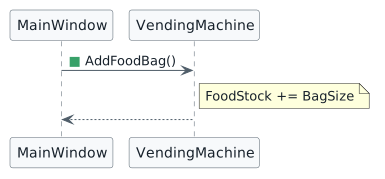
Step 1 — Add AddFoodBag()
C#
public void AddFoodBag()
{
this.FoodStock += this.BagSize;
}
Check Your Work
- Build.
- With
BagSize = 65andFoodStock = 0, one call produces65. - A second call produces
130.
Task 2 — Refill the Como Zoo vending machine
Como Zoo needs a UI action that requests the vending-machine refill behavior.
Connect Flora's refill button to AddFoodBag() on the Como vending machine.
Step 1 — Confirm the button and handler
XAML
<Button x:Name="floraFillVendingMachineButton" Content="Flora, fill vending machine" Click="floraFillVendingMachineButton_Click"/>
C#
public void floraFillVendingMachineButton_Click(object sender, RoutedEventArgs e)
{
this.ComoZoo.AnimalSnackMachine.AddFoodBag();
}
Check Your Work
- Create a fresh Como Zoo.
- Confirm
FoodStock = 0, click the refill button once, and confirmFoodStock = 65.
Task 3 — Refill the San Diego Zoo vending machine
San Diego Zoo needs the same refill behavior on its own machine.
Connect Betty's refill button to the same AddFoodBag() method through the San Diego object graph.
Step 1 — Confirm the button and handler
XAML
<Button x:Name="bettyFillVendingMachineButton" Content="Betty, fill vending machine" Click="bettyFillVendingMachineButton_Click"/>
C#
public void bettyFillVendingMachineButton_Click(object sender, RoutedEventArgs e)
{
this.SanDiegoZoo.AnimalSnackMachine.AddFoodBag();
}
Check Your Work
- Create a fresh San Diego Zoo.
- Confirm
FoodStock = 0, click the refill button once, and confirmFoodStock = 65.
Task 4 — Verify repeated refills
A state-changing method should work from the object's current value, not only from its original starting value.
Call AddFoodBag() more than once and verify that each call adds one current bag size.
Step 1 — Refill more than once
Step 2 — Combine refill and feed
Check Your Work
- Darla wallet =
3.25. - Como vending
MoneyBalance = 2.00. - Como vending
FoodStock = 64.0. - Dolly
Weight = 63.54.
User Story 3 — Let zoo objects perform focused behaviors
As a zoo employee, I want animal state changes to occur through meaningful animal behaviors so that the object responsible for the state also controls the action that changes it.
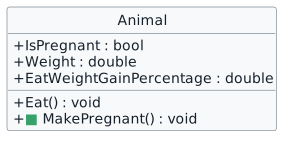
Task 1 — Change pregnancy state through behavior
The featured animal has pregnancy state, but the state change should belong to the animal rather than MainWindow.
Add a focused MakePregnant() method to Animal.
Step 1 — Add MakePregnant()
C#
public void MakePregnant()
{
this.IsPregnant = true;
}
Check Your Work
- Build.
- Confirm the method changes the current animal's
IsPregnantfield totrue.
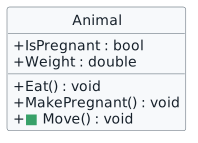
Task 2 — Represent animal movement as behavior
Movement belongs to an animal, but this checkpoint does not yet require additional movement state or parameters.
Add the current empty Move() method so movement is represented as an animal-owned behavior.
Step 1 — Add Move()
C#
public void Move()
{
}
Check Your Work
- Build.
- Confirm the method is parameterless and returns
void.
Task 3 — Use MakePregnant() when creating the featured animals
A focused animal behavior now exists, so MainWindow should request that behavior instead of directly assigning pregnancy state.
Call MakePregnant() on each featured animal after its current fields are established.
Step 1 — Call the behavior for Dolly
C#
this.ComoZoo.FeaturedAnimal.MakePregnant();
Step 2 — Call the behavior for Patti
C#
this.SanDiegoZoo.FeaturedAnimal.MakePregnant();
Check Your Work
- Create each zoo.
- Confirm both featured animals have
IsPregnant = true.
User Story 4 — Organize zoo creation into focused application actions
The New Zoo buttons currently represent large setup actions that are easier to trace when the detailed work is moved into focused methods.
As a user of the zoo application, I want each zoo to be created through one clear action so that all of the objects needed for that zoo are prepared together when I choose to create it.
Task 1 — Create the Como Zoo through a focused method
The New Como Zoo event handler should not own every detail of the object-creation flow.
Move the working Como setup statements into CreateComoZoo() while preserving the current object graph and values.
Step 1 — Add the creation method
C#
public void CreateComoZoo()
Move the existing Como creation statements into this method. Do not rewrite the entire object graph from memory; preserve the current working relationships and values.
| Area | Current state |
|---|---|
| Zoo | Name = "Como Zoo", Capacity = 1000 |
| Ticket booth | TicketPrice = 15.00m, attendant Sam, number 42 |
| Visitor | Darla, age 11, wallet 5.25m, portion size 1.0 |
| Vending machine | BagSize = 65.0, FoodCapacity = 250.0, FoodPricePerPound = 0.75m |
| Birthing room | InitialTemperature = 77.0, max 85.0, min 55.0, increase 0.5, current temperature = initial temperature |
| Doctor | Flora, number 98 |
| Restrooms | Ladies: capacity 4, Female; Mens: capacity 4, Male |
| Featured animal | Dolly, Female, age 4, weight 35.3, happiness 0, type Dingo, pregnancy through MakePregnant() |
Check Your Work
- Build.
- Confirm Como
InitialTemperature = 77.0. - Confirm vending
FoodStockandMoneyBalancebegin at their default numeric value0. - Confirm Dolly is pregnant through
MakePregnant().
Task 2 — Connect the New Como Zoo control
The button event should respond to the UI event without containing the complete setup algorithm.
Have the event handler call CreateComoZoo().
Step 1 — Simplify the event handler
C#
public void newComoZooButton_Click(object sender, RoutedEventArgs e)
{
this.CreateComoZoo();
}
Check Your Work
- Build and run.
- Click New Como Zoo and confirm the complete zoo is still created.
Task 3 — Create the San Diego Zoo through a focused method
The San Diego creation flow should use the same organization as Como while preserving its separate state.
Move the current San Diego setup statements into CreateSanDiegoZoo().
Step 1 — Add the creation method
C#
public void CreateSanDiegoZoo()
| Area | Current state |
|---|---|
| Zoo | Name = "San Diego Zoo", Capacity = 3000 |
| Ticket booth | TicketPrice = 25.50m, attendant Betty, number 84 |
| Visitor | Dave, age 13, wallet 3.75m, portion size 1.0 |
| Vending machine | BagSize = 65.0, FoodCapacity = 250.0, FoodPricePerPound = 1.20m |
| Birthing room | InitialTemperature = 77.0, max 85.0, min 55.0, increase 0.5, current temperature = initial temperature |
| Doctor | Steve, number 24 |
| Restrooms | Ladies: capacity 12, Female; Mens: capacity 12, Male |
| Featured animal | Patti, Female, age 5, weight 3.27, happiness 0, type Platypus, pregnancy through MakePregnant() |
Check Your Work
- Build.
- Confirm San Diego
InitialTemperature = 77.0. - Confirm Patti is pregnant through
MakePregnant().
Task 4 — Connect the New San Diego Zoo control
The New San Diego Zoo event handler should request the larger creation action instead of containing every setup statement.
Have the event handler call CreateSanDiegoZoo().
Step 1 — Simplify the event handler
C#
public void newSanDiegoZooButton_Click(object sender, RoutedEventArgs e)
{
this.CreateSanDiegoZoo();
}
Check Your Work
- Build and run.
- Click New San Diego Zoo and confirm the complete zoo is still created.
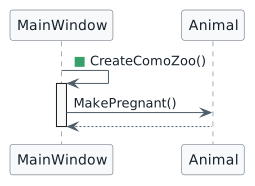
Task 5 — Trace a method called from another method
Zoo creation now contains a method call inside another method, which gives you a second nested call path to inspect.
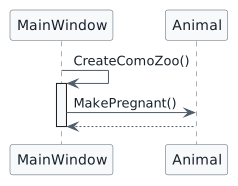
Trace the New Como Zoo event into CreateComoZoo() and then into Animal.MakePregnant().
Step 1 — Enter the creation method
Set a breakpoint on:
C#
this.CreateComoZoo();
Step 2 — Enter the animal method
Code
Animal.MakePregnant()
MainWindow.CreateComoZoo()
MainWindow.newComoZooButton_Click(...)
Check Your Work
- You can explain the three-level call path from the UI event to the animal method.
- You can identify the current method and its callers in the Call Stack.
Finish and Submit
Final Como transaction check
Final San Diego transaction check
Debugger check
Submit Your Work
Submit the completed Zoo 1.3 project according to your instructor's directions.
Feedback SystemCheckpoint Summary
Zoo 1.3 adds focused behavior to the object model.
Feeding transaction
Code
Wallet.RemoveMoney()
VendingMachine.SellFood()
→ VendingMachine.AddMoney()
Animal.Eat()
Other current behaviors
Code
VendingMachine.AddFoodBag()
Animal.MakePregnant()
Animal.Move()
MainWindow.CreateComoZoo()
MainWindow.CreateSanDiegoZoo()
All custom methods introduced at this checkpoint remain parameterless void methods. Parameters,
returned values, and decision logic are reserved for later checkpoints.