An if Statement Lets One Action Depend on a Condition
You have already seen Boolean values such as:
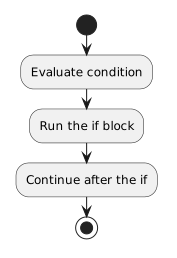
- New
- Changed
- Removed
When the condition is false
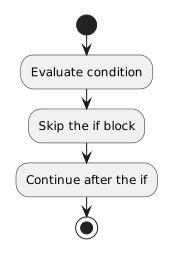
- New
- Changed
- Removed
Both paths eventually continue after the if.
You have already seen Boolean values such as:
Both paths eventually continue after the if.
The C#:
if (player1.isAvailable)
{
    System.Console.WriteLine("Player is available.");
}
can be connected to a simple activity-diagram idea:
![Activity diagram showing Decision: Is the player available?, then [yes] Display "Player is available.", then [no] Continue.](Diagrams/0.3.ReadSimpleIfStatement.Activity.ConnectCodeActivityDiagram.light.svg)
The notation is different, but the reasoning is the same:
Evaluate a condition → follow the path that applies
The activity diagram makes the flow visual.
The C# makes the behavior executable.
Because player1.isAvailable is already Boolean, this is enough:
if (player1.isAvailable)
{
    System.Console.WriteLine("Player is available.");
}
You may sometimes encounter code written as:
if (player1.isAvailable == true)
{
    System.Console.WriteLine("Player is available.");
}
For a Boolean value, the extra comparison is not needed to express the idea.
At this stage, the shorter form keeps the condition easier to read.
Compare:
if (player1.isAvailable)
{
    System.Console.WriteLine("Player is available.");
}
with poorly arranged code:
if (player1.isAvailable)
{
System.Console.WriteLine("Player is available.");
}
The compiler uses C# syntax to determine structure, but consistent indentation makes the controlled statements easier for people to recognize.
When reading unfamiliar code, use both the braces and the indentation to understand which statements belong to the if.
A breakpoint placed before the if lets you inspect the Boolean value before the decision occurs.
Suppose the debugger shows:
player1.isAvailable = trueYou can predict that the block should run.
Using F10 lets you step through the decision and see which statement Visual Studio selects next.
If the debugger instead shows:
player1.isAvailable = falsethe program should skip the block and continue after the if.
This connects three forms of evidence:
A basic if statement answers one question:
If the condition is true, yes.
If the condition is false, no.
Later programming work will use more complicated conditions and several connected decision structures. For now, focus on reading one Boolean condition and tracing the one block it controls.