Step Into Lets You Follow a Method Call
You already know that F10 / Step Over can execute a method call without taking you line-by-line through the called method.
When you need to see what happens inside the called method, use Step Into.
A common Visual Studio shortcut is:
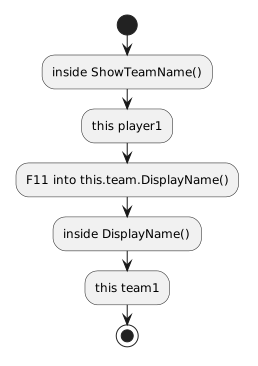 InsideShowTeamName.
This makes object-to-object method calls visible.
Use the Call Stack While Stepping
While inside the nested Team method, the Call Stack can show:
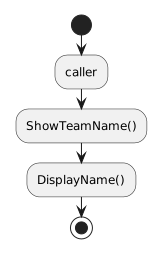 Caller.
the return path is:
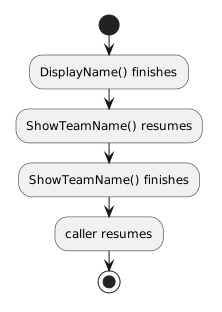 DisplayNameFinishes.
Even void methods return execution to their caller.
They simply do not return a data value.
F5, F10, and F11 Serve Different Purposes
Use:
F5 / Continue
These commands give you different levels of detail.
The Module 1.3 Debugging Story
You can now connect:
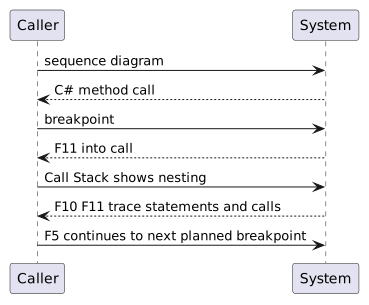 SequenceDiagram.
That gives you a complete introductory workflow for understanding method execution before parameters and return values are introduced.