1.1.3 How to Configure StyleCop

StyleCop Helps Check C# Code Style

A C# program can compile successfully and still be difficult to read.

Code-quality tools can identify style problems that do not necessarily stop the program from building.

StyleCop is used in this course to provide feedback about C# code cleanliness and style.

The goal is not to memorize every StyleCop rule.

The goal is to make sure the supplied project is using the course-required StyleCop configuration so the feedback you see matches the expected coding environment.

Use the Supplied Project and Course Configuration

Open the Visual Studio solution provided for the current course work.

Do not create a new project just to configure StyleCop.

Do not install or substitute a different analyzer because it has similar features.

The course project and directions control which StyleCop setup applies.

Confirm That the Project Loads Normally

Before changing any configuration:

  1. Open the supplied solution.
  2. Let Visual Studio load the project.
  3. Locate the project in Solution Explorer.
  4. Build the current supplied state when the course directions call for it.

This gives you a known starting point.

If the project already includes the required StyleCop configuration, you may not need to add anything.

Follow the Course-Provided Setup Route

StyleCop can be configured in different ways depending on the project and tooling.

The exact setup can change across Visual Studio and package versions.

Use the configuration method supplied by the course.

Do not follow a random tutorial that tells you to:

Those changes can produce a different rule set from the one expected in the course.

Recognize the Configuration as Project Infrastructure

The StyleCop configuration is not the programming task itself.

It supports the programming task by defining which code-quality rules are reported.

Think of the relationship as:
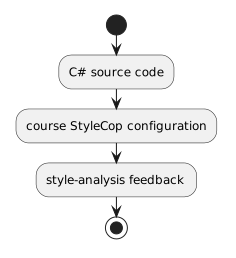
Plain text
C# source code
      +
course StyleCop configuration
      ↓
style-analysis feedback

The configuration tells the analyzer what expectations apply.

Do Not "Fix" Configuration by Disabling Rules

Suppose StyleCop reports a warning you find inconvenient.

The solution is not automatically:

Disable that rule.

The rule may exist because the course expects that coding convention.

When a rule appears, first determine what change the source code needs.

Only modify the StyleCop configuration when the course explicitly directs you to modify it.

Build Feedback and StyleCop Feedback Are Different

A compiler error can prevent the program from building.

A StyleCop issue commonly concerns code quality or style.

For example, a program may build while StyleCop still reports a problem involving:

Do not treat every StyleCop message as a compiler failure.

Read the source of the diagnostic.

Confirm That Style Feedback Is Visible

After the course configuration is in place, the required analyzer feedback should appear through the Visual Studio diagnostics used by the project.

The exact interface can vary.

Your goal is to recognize that a style issue from StyleCop is being reported and can be traced to the relevant source location.

You do not need to memorize the color or icon used by one Visual Studio version.

Keep Configuration Changes Minimal

For a course project:

A configuration task should not become an opportunity to reorganize or modernize the entire project.

Configuration Prepares You for the Next Activity

Once the project is using the expected StyleCop rules, the next step is interpreting and correcting the source-level feedback.

The important distinction is:

Configure StyleCop
Make sure the expected rules are active.

Use StyleCop
Read the reported issue and make a focused code-quality correction.