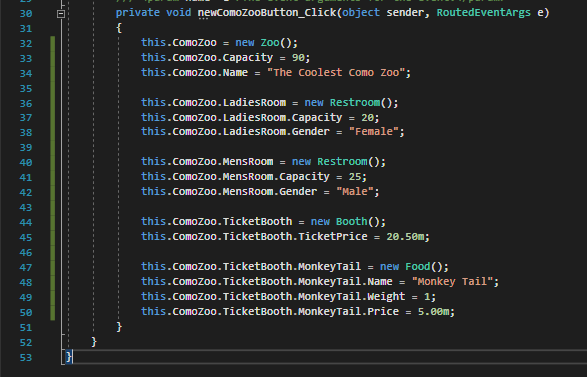
For this example we will be using the code below.
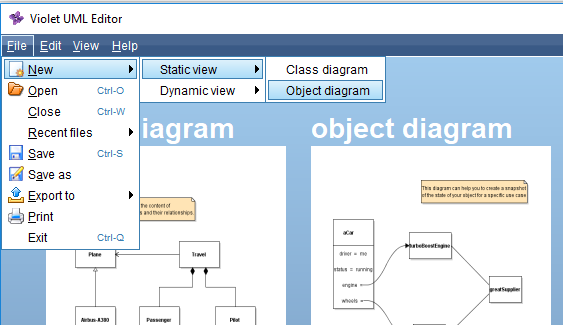
Open Violet and create a new Object Diagram.
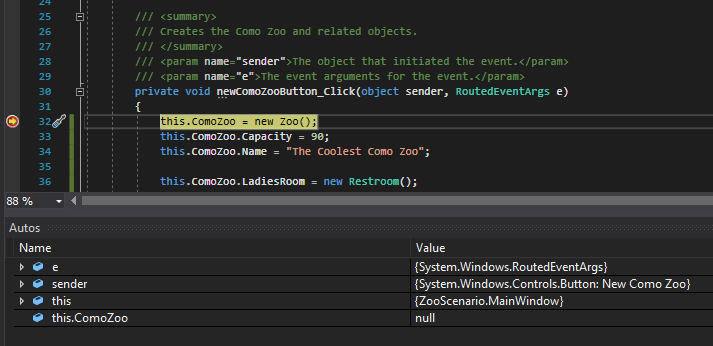
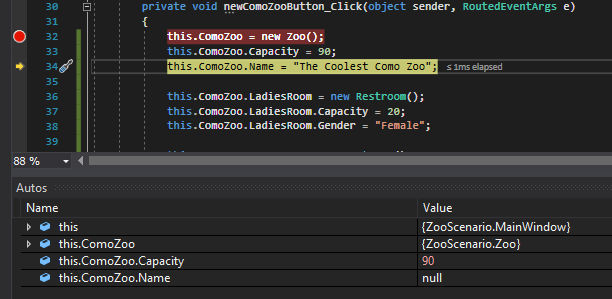
Because an Object Diagram represents a particular point in time, the structure of the object diagram will change as the application executes. To begin, then, we will set a breakpoint at the beginning of the code and run the application.
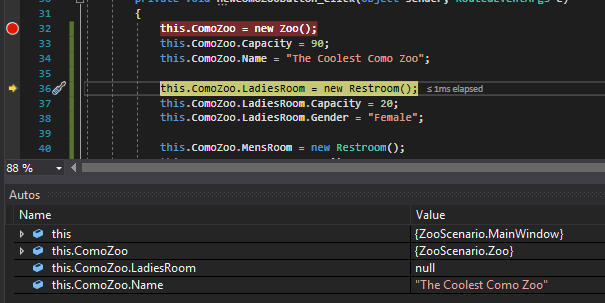
If we look at the Autos Window at this point we can see that the ComoZoo field has yet to be assigned to an instance of the Zoo class (it's null), so nothing would be represented on the object diagram.
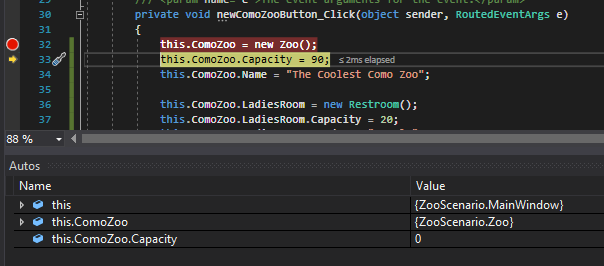
As soon as we press F10, however, that line of code executes and a new Zoo is instantiated.
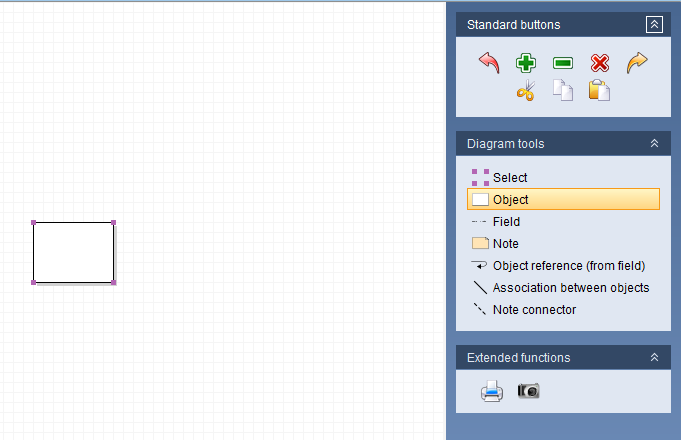
Now we need to represent that Zoo object in the diagram. To do this, Select the 'Object' tool from the toolbar and click the workspace to create an object node.
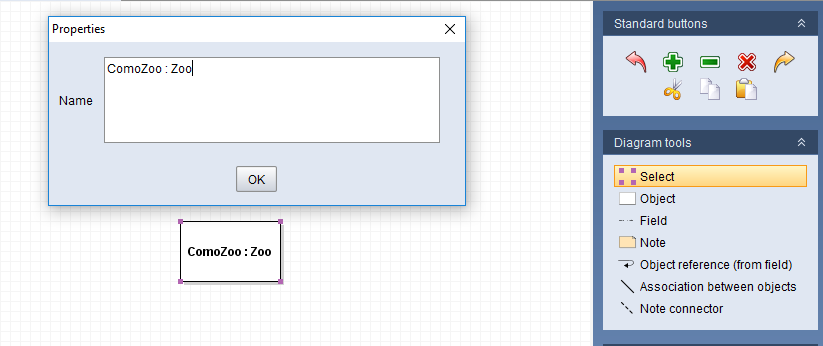
The object node needs a Name and that Name will be the type that it is. In this case the ComoZoo is a type of Zoo. The first node you create, however, is a bit special. Because we don't have a reference to what the object might be, we will add the field name to the beginning of the name. To do this, double click the object node and insert: ComoZoo : Zoo
Now when we press F10 in the debugger, the ComoZoo's Capacity field will be assigned to so we need to represent it in the Object Diagram.
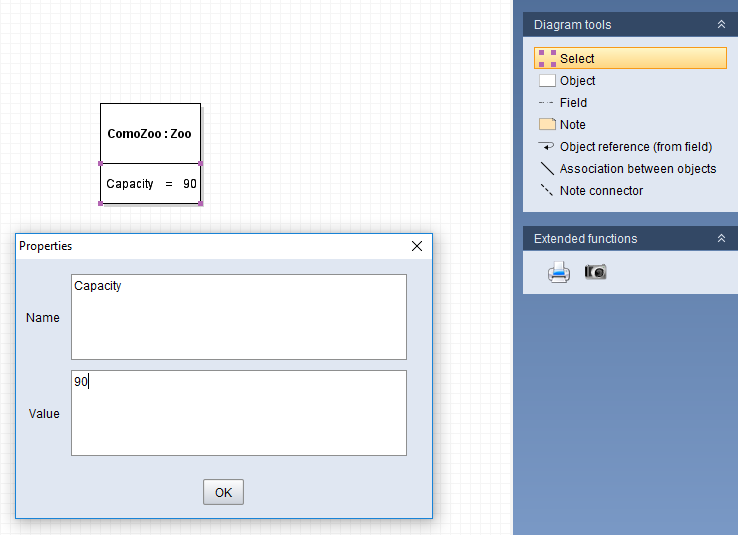
To do this, select the 'Field' tool and click the Zoo object node.
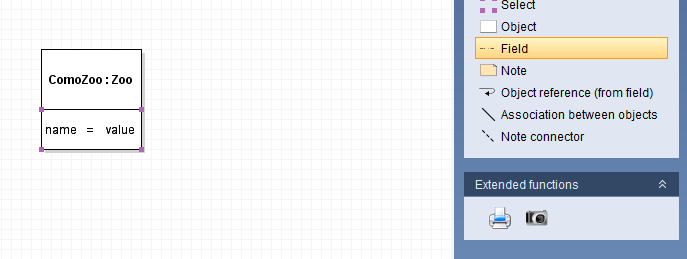
Then, select the 'Select' tool and double click the field and insert Capacity in the Name window and 90 in the Value window.
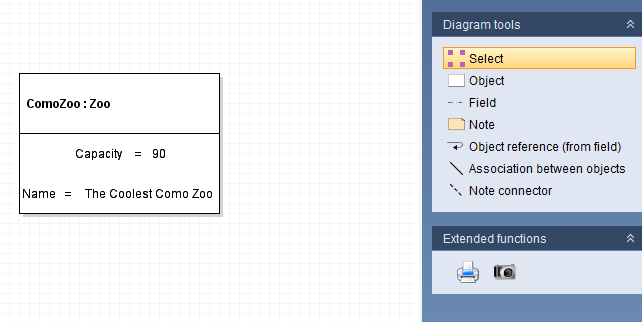
Now when we press F10 in the debugger, the ComoZoo's Name field will be assigned to so we need to represent that.
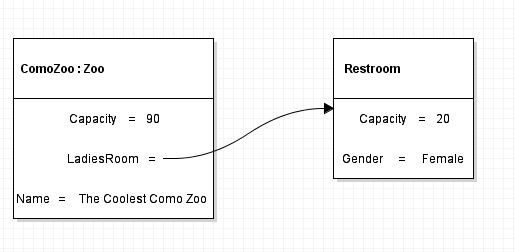
When we press F10 in the debugger, the ComoZoo's LadiesRoom field will assigned to a new instance of the Restroom class.
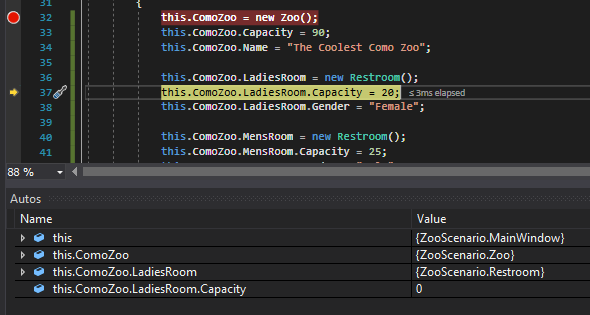
To represent this in an Object Diagram, first insert a field named LadiesRoom between the Capacity and Name fields in the ComoZoo node.
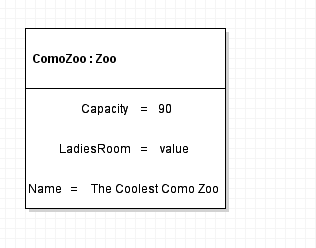
Because a new object was just instantiated, we need to add a new object node to the workspace and because LadiesRoom is a type of Restroom we need to give it the name Restroom.
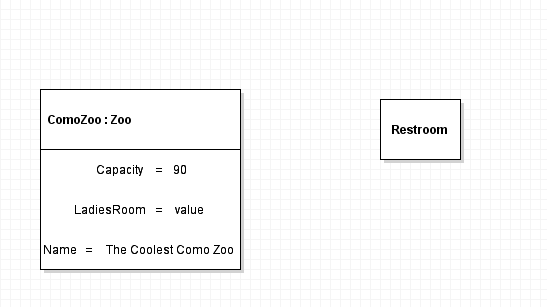
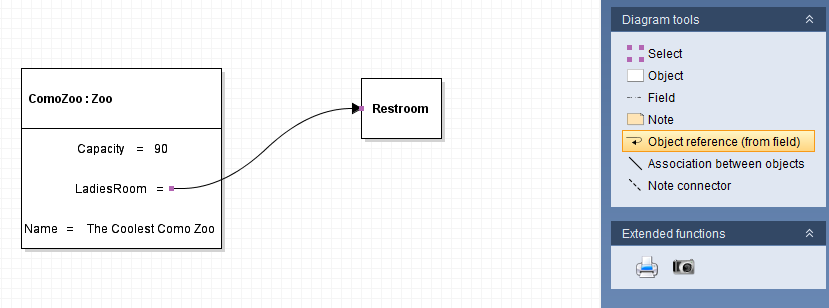
Now we need to make a 'reference' to the new Restroom object because that Restroom object is the ComoZoo's LadiesRoom field. To do this, select the 'Object reference (from field)' tool, click and drag from the value side of the LadiesRoom field and release on the Restroom object node.
As we step through the code the LadiesRoom fields will be assigned...
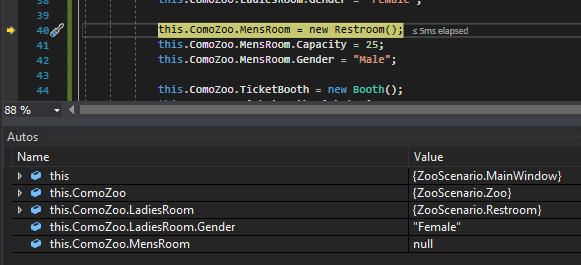
...and will be represented on the diagram.
Now let's step through the rest of those code.
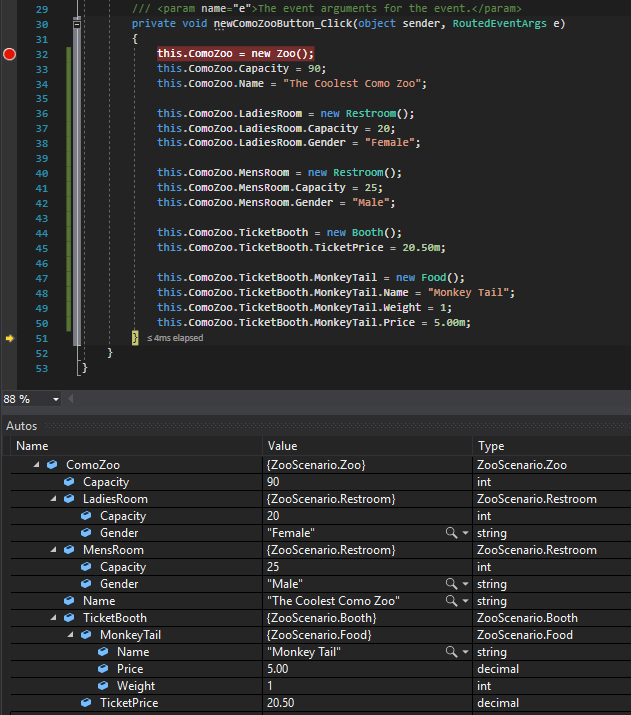
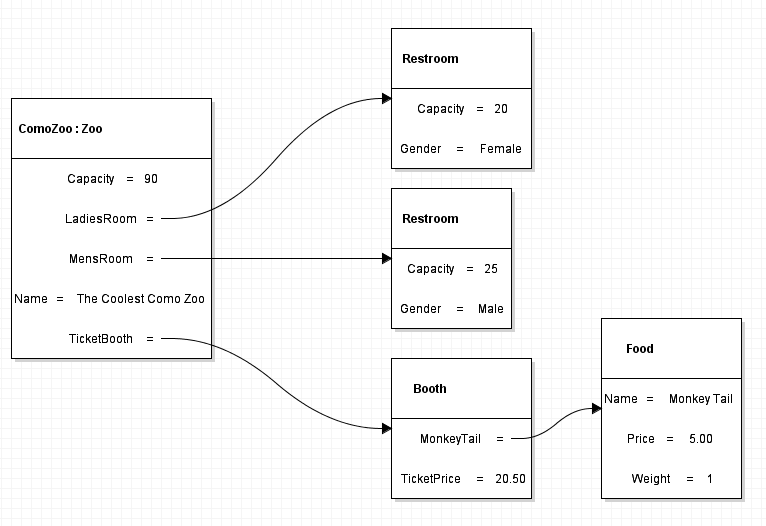
In the Autos Window we can see all of the objects, their fields and their field values. Using this information we can complete the rest of the object diagram.
To save the diagram click File --> Save. Ensure it has the extension object.violet
To export the diagram click File --> Export To --> Image File.