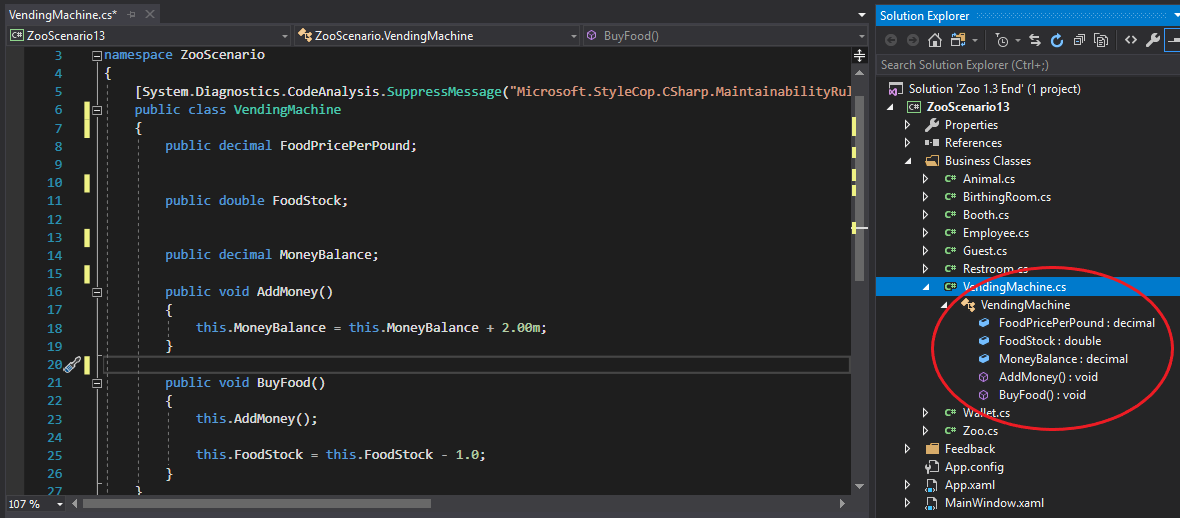
The VendingMachine class has 3 fields and two methods. The fields will go in the Attribute window and the methods will go in the Methods window.
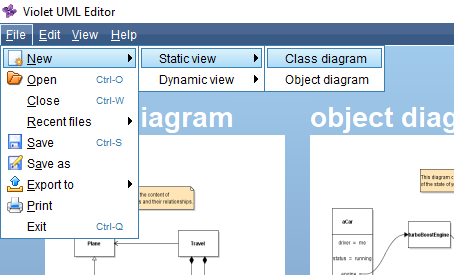
To create a new class diagram, open Violet and click File --> New --> Class Diagram.
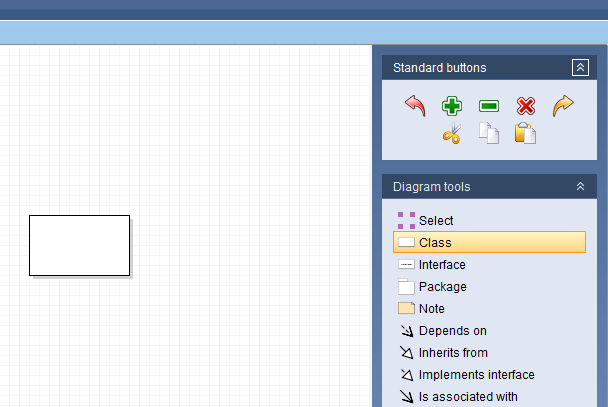
To create a class node, ensure that the Class Diagram tool is selected in the right-hand panel and click in the workspace.
To edit the class node, ensure the Select Diagram tool is selected and double click the node.
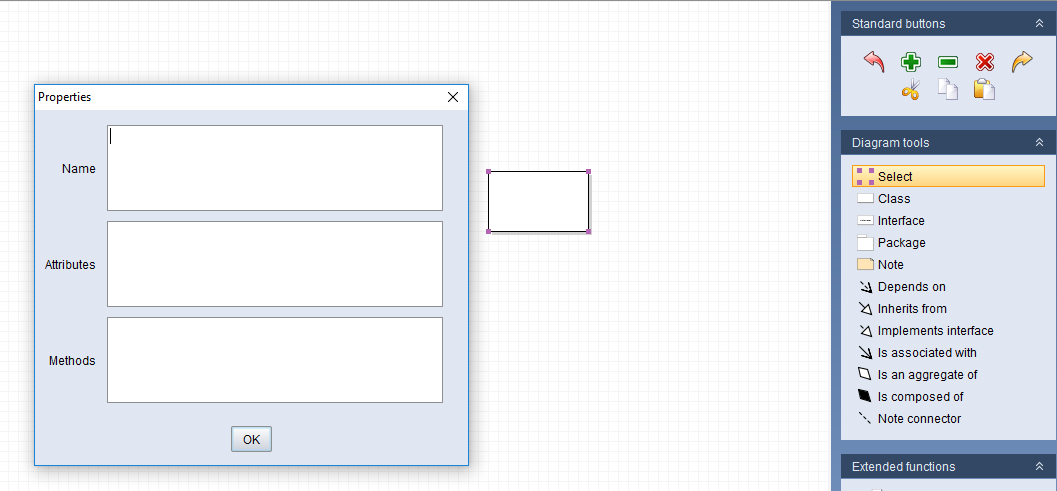
The node will have a Name, Attributes and Methods. We will take a look at the VendingMachine class in Chapter 1.3 as an example.
The VendingMachine class has 3 fields and two methods. The fields will go in the Attribute window and the methods will go in the Methods window.
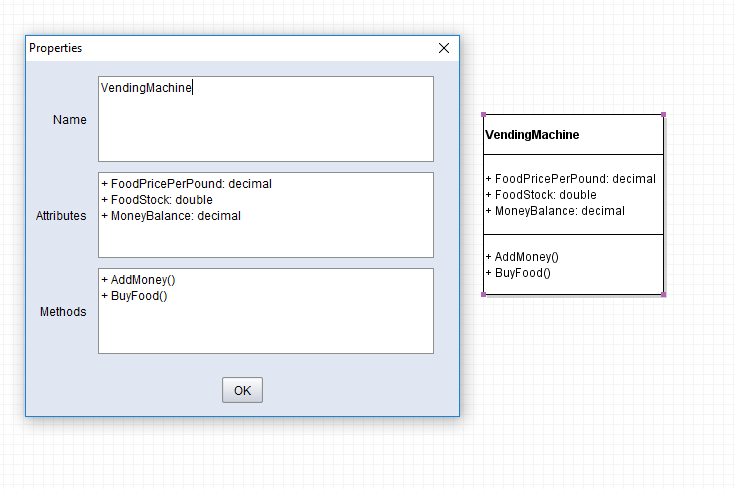
The + signs before the name of the field indicate the visibility of the fields/methods. In this case they are all public.
All fields in Violet diagrams will follow the pattern of Name: Type. Keep in mind that in the cs file the field name and type are reversed so it is sometimes easier to look at the Solution Explorer to get the correct format.
Click OK to accept the changes.
The example we just looked at was a simple one that only dealt with primitive value types in the fields. When dealing with other types, however, class diagrams change.
Let's take a look at the Zoo class.
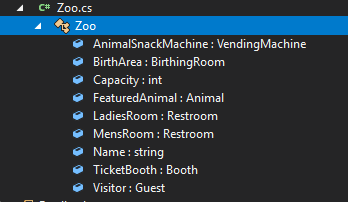
It has a number of fields that are Types we have previously defined. Since those classes have information and structure in them that we would like to see, they will be represented differently.
We will look at how to connect the Zoo class to the VendingMachine class.
First, create a new node and name it Zoo.
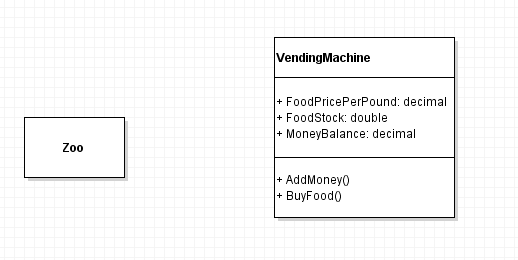 Then, to connect the two, select the 'Is associated with' Diagram tool, click and drag from the Zoo node to the VendingMachine node and release. An arrow should be created that connects them. This relationship is known as a 'has a'. A Zoo 'has a' VendingMachine.
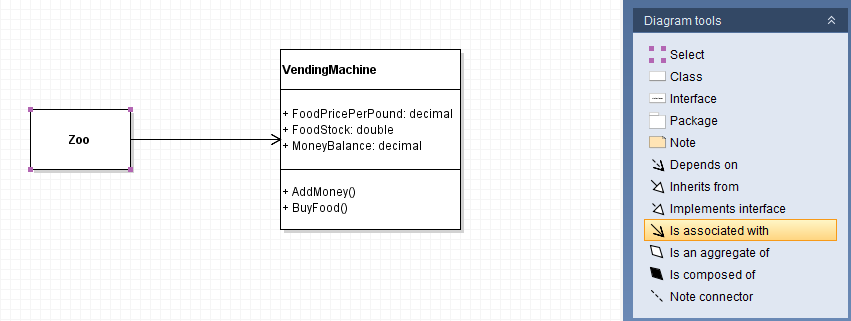
Now they're connected but we are still missing information on what the name of the VendingMachine is and what its visibility is.
Select the Select tool from the Diagram tools and double click on the arrow which will bring up the Properties window.
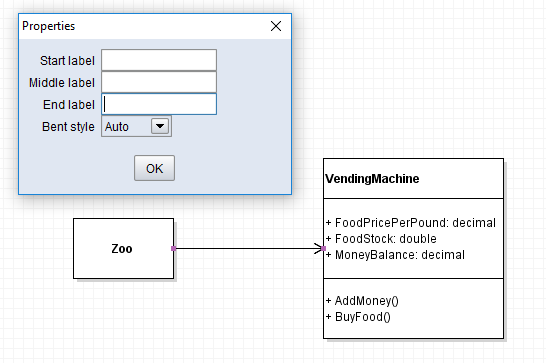
In the Start and End labels, enter 1 to represent 1 Zoo having 1 VendingMachine. In the Middle label put the visibility of the field and the name of the field.
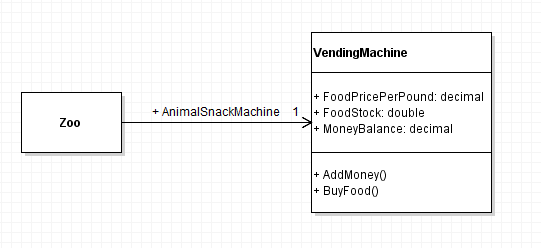
Note that this diagram is incomplete and only represents a small portion of entire structure of the application.
To save the diagram click File --> Save. Ensure it has the extension class.violet
To export the diagram click File --> Export To --> Image File.