Importing Brings Existing Data Into the Spreadsheet
Data does not always begin inside Google Sheets.
A course may provide a file containing information that already exists in a structured form.
Instead of typing every value manually, you can import the data.
Conceptually:
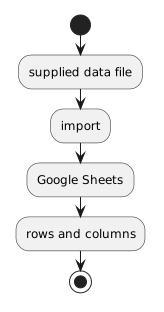 SuppliedDataFile.
Importing is a transfer of representation from one file or system into the spreadsheet environment.
Inspect the Source Before Importing
Before importing a file, identify what you have been given.
Ask:
- What file does the course specify?
- Does it contain headers?
- What does one row appear to represent?
- Which fields are visible?
- Are there multiple sheets or tables already?
Do not import a similarly named file just because it appears in the same folder.
Use the supplied source for the activity.
Use the Import Process Provided by Google Sheets
Google Sheets provides an import workflow for bringing supported files into a spreadsheet.
The exact interface can change.
Use the current import option presented by Sheets or the course directions.
When the interface asks how the imported data should be placed, read the choices carefully.
The goal is to preserve the structure required by the activity rather than automatically accepting an option you do not understand.
Importing Can Affect Existing Spreadsheet Content
Depending on the import choice, data may be:
- added as another worksheet;
- inserted into a current sheet;
- used to replace existing content;
- opened as a separate spreadsheet.
Those outcomes are different.
Before confirming an import, make sure the selected behavior matches the course task.
If the workbook already contains important data, replacing it would be a very different action from adding another worksheet.
Look at the Result as Structured Data
After import, do not stop at:
Inspect the table.
Identify:
- the header row;
- the records;
- the fields;
- whether values appear under the expected columns;
- whether the imported structure matches what you expected from the source.
A successful file operation is not the same as a correct data result.
Watch for Obvious Import Problems
An import may look wrong if:
- several expected fields appear combined in one column;
- header values are missing;
- rows are shifted;
- values appear under the wrong headings;
- unexpected blank rows or columns appear.
If the result does not match the source structure, do not immediately start manually moving hundreds of cells.
First confirm that the correct source and import behavior were used.
Preserve the Original Source
Importing data into Sheets does not mean the original course file should be deleted or overwritten.
The source file provides evidence of what was supplied.
The spreadsheet is now another representation you can work with.
Keeping the source intact makes it easier to determine whether a later problem came from:
- the original data;
- the import;
- or subsequent editing.
Import Is Not the Same as Copy and Paste
Copying visible cells can sometimes move data.
Importing uses the file's structured contents as the source.
For a provided dataset, an import process is often more reliable because it can preserve the row-and-column organization directly.
Use the method required by the current activity.
Imported Data Can Become the Starting Point for Later Work
Once data is in Google Sheets, later activities can work with the dataset.
That may include:
- cleaning inconsistent values;
- reorganizing related information;
- adding identifiers;
- sorting and filtering;
- summarizing;
- visualizing.
Those concepts come later.
At this stage, the important skill is getting the supplied data into the spreadsheet while preserving its intended structure.
Think of Importing as a Data Handoff
The source and destination have different roles.
Source file
contains the supplied data.
Import process
transfers the data representation.
Google Sheets
provides the environment where you can inspect and work with the imported rows and columns.
Understanding that handoff helps you troubleshoot when the visible spreadsheet does not match the expected dataset.