0.2.8 Getting Started With Violet

Before You Draw

Violet is a UML diagram editor. You choose the kind of diagram, place UML elements on the canvas, edit their labels or properties, connect them, and save the editable diagram file.

If Violet is not installed yet, complete the installation guide first.

Start with the right diagram type

When you create a new Violet file, choose the diagram type that matches the question you are trying to answer.

The four diagram types you will use
Diagram Question it answers Typical focus
Object diagram What objects exist right now, and what values or references do they currently contain? Runtime instances and current state
Class diagram What kinds of objects can the program create, and what members or relationships define those types? Program structure
Sequence diagram Which object calls which method, and in what order? Object interaction over time
Activity diagram What actions and decisions occur in a process? Control flow and branching
Learn the Violet Workspace

Most work in Violet follows the same small loop: choose a tool, place an element, return to selection mode, edit the element, arrange the page, and save.
Placeholder showing where a future screenshot of the Violet workspace should identify the diagram tools, canvas, selection tool, and File menu.
Violet workspace screenshot placeholder
Use the basic editing loop
A reliable Violet workflow
  1. Choose the UML element or connector you need from the tool palette.
  2. Click or drag on the canvas to place it.
  3. Return to the selection tool before moving or editing existing elements.
  4. Edit the element's text or properties.
  5. Arrange the diagram so the relationships are easy to read.
  6. Save before making the next major change.
Object Diagrams

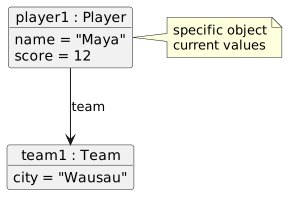
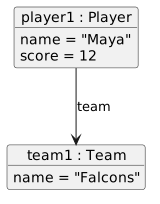
An object diagram is a snapshot of specific object instances at one moment in time. Use it when you need to show which objects exist, the values currently stored in them, and references between those objects.

Object diagram showing player1 of type Player with name Maya and score 12, referencing team1 of type Team.
A simple object diagram
  • New
  • Changed
  • Removed
Create an object diagram in Violet

Create a new Object Diagram. Add an object node for each instance you want to show. Give each object an identity and type using the notation required by the course, then add the current field values that matter to the model.

Placeholder for a Violet object-diagram screenshot showing the object tool, an object node on the canvas, and the connector tool used for object references.
Object diagram tools screenshot placeholder
Read the diagram before editing it

The example below emphasizes the three questions an object diagram should make easy to answer: which object is this?, what values does it currently contain?, and what other object does it refer to?

Object diagram emphasizing identity, current field values, and a reference from a Player object to a Team object.
Object state and a reference
  • New
  • Changed
  • Removed
Try it: create two related objects

The goal is not to model an entire application. Practice creating, editing, connecting, arranging, saving, and reopening a small object diagram.

Class Diagrams

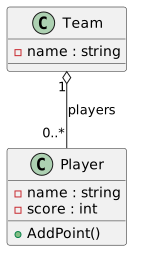
A class diagram describes types rather than individual runtime objects. Use it to show the classes in a design, the fields and methods each class exposes, and structural relationships between classes.

Class diagram showing Player and Team classes with fields, methods, and an association.
A simple class diagram
  • New
  • Changed
  • Removed
Create a class diagram in Violet

Create a new Class Diagram. Add one class node for each type you need. Edit the class name first, then add only the fields and methods that the current exercise asks you to depict.

Placeholder for a Violet class-diagram screenshot showing the class tool, a class box with compartments, and a relationship connector.
Class diagram tools screenshot placeholder
Keep classes and objects separate

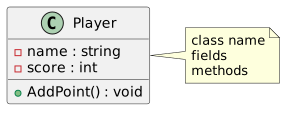
Compare the class definition below with the object-diagram examples above. `Player` describes the type; `player1 : Player` is one instance of that type.

Class diagram showing a Player type with name and score fields and an AddPoint method.
A class with fields and a method
  • New
  • Changed
  • Removed
Try it: describe two classes

Do not worry yet about reproducing every UML visibility symbol or relationship detail perfectly. The immediate goal is to become comfortable creating and editing class nodes and connectors.

Sequence Diagrams

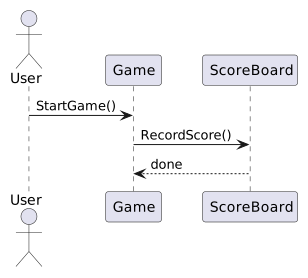
A sequence diagram shows interaction over time. Read it from top to bottom: participants appear across the top, and messages show which participant calls or communicates with another participant and in what order.

Sequence diagram showing User starting a game, Game recording a score with ScoreBoard, and ScoreBoard returning control.
A simple sequence diagram
  • New
  • Changed
  • Removed
Create a sequence diagram in Violet

Create a new Sequence Diagram. Add the participants first so you know who is involved. Then add messages in execution order from top to bottom.

Placeholder for a Violet sequence-diagram screenshot showing participant lifelines and a message arrow between two participants.
Sequence diagram tools screenshot placeholder
Read messages from top to bottom

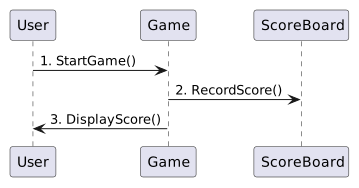
The example below has three participants and three messages. The vertical position of each message matters: the higher message happens before the lower message.

Sequence diagram showing three messages arranged from top to bottom to emphasize execution order and arrow direction.
Message order in a sequence diagram
  • New
  • Changed
  • Removed
Try it: model a short conversation

Save the diagram, close it, and reopen it. Confirm that the participants and message order are still clear without relying on your memory of how you created them.

Activity Diagrams

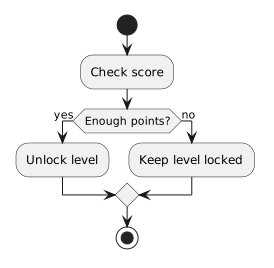
An activity diagram shows flow through a process. Use it to show actions, decisions, alternate paths, and where a process begins or ends.

Activity diagram showing a start node, check score action, decision, two alternate actions, and end node.
A simple activity diagram
  • New
  • Changed
  • Removed
Create an activity diagram in Violet

Create a new Activity Diagram. Begin with a start node, add actions in the order they can occur, and connect them with flows. Add a decision only when the process can follow different paths based on a condition.

Placeholder for a Violet activity-diagram screenshot showing start, action, decision, flow, and end tools.
Activity diagram tools screenshot placeholder
Make each decision path tell a complete story

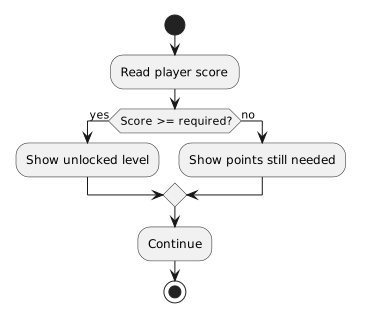
A decision node represents a question. Each outgoing path should make it clear what condition causes that path to be taken.

Activity diagram showing a decision with yes and no paths that rejoin before the end.
A decision with two paths
  • New
  • Changed
  • Removed
Try it: model a simple decision

Before saving, trace the diagram with your finger or mouse from start to finish along both paths. If either path becomes ambiguous, adjust the connectors or labels until the flow is obvious.

Save and Reuse Your Work

For course work, save the editable Violet source file—not merely a screenshot or exported image. You may need to reopen the diagram and revise it after feedback.

You do not need to memorize every Violet tool now. You need enough familiarity that the editor stops being the difficult part. The remaining learning activities will teach the UML notation and modeling decisions in much greater detail.