Install Violet
Download Violet UML Editor 2.1.0
Download the course package to your computer.
Download Violet UML Editor 2.1.0Unblock and extract the ZIP file
Windows may mark files downloaded from the internet as blocked. Unblock the downloaded ZIP before extracting it so the extracted Violet files inherit the correct security state.
Unblock the downloaded file
- In File Explorer, right-click `Violet 2.1.0.zip` and choose Properties.
- On the General tab, look near the bottom of the window for Unblock.
- If Unblock is present, select it and click Apply, then OK.
- Extract the ZIP to a folder where you can keep Violet for this course.
Make sure Java is installed
Violet 2.1.0 requires Java. If Java is already installed and Violet starts normally, no additional Java setup is needed.
Java downloadsRun Violet UML Editor
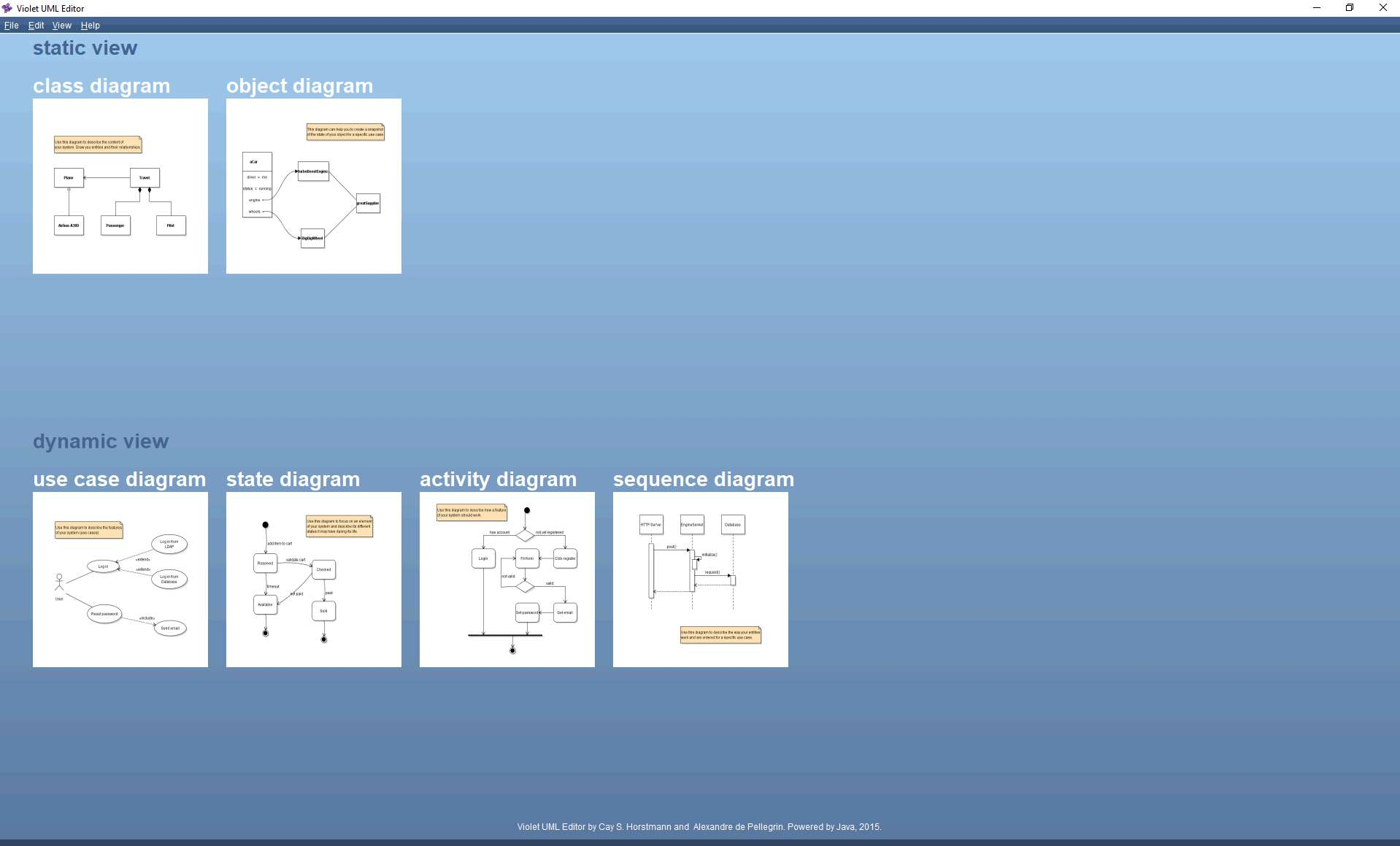
Open Violet from the folder you extracted. A successful installation reaches a start screen similar to the one below.