3.1 Zoo Learning Activity

Under Construction

This page is currently being built. Please check back soon.
A platypus
3.1 Zoo Learning Activity — overview

Work through the user stories in order. Each story states the goal and acceptance criteria; its nested tasks retain the detailed implementation and verification steps.

1.Gather your resources
A Open the assignment resources
Set up the checkpoint
2.Copy your 2.5 ending code, renaming both the folder and the Visual Studio solution file
A Verify the required change or observation

Check the result against this instruction: Copy your 2.5 ending code, renaming both the folder and the Visual Studio solution file

3.Build your solution and ensure it compiles without errors or warnings
A Verify the required change or observation

Check the result against this instruction: Build your solution and ensure it compiles without errors or warnings.

Read the booth and attendant through properties
Problem

Currently the TicketBooth and Attendant are being called directly from outside of their classes, which violates encapsulation.

Solution

You will make public fields that are used during the Fill Vending Machine sequence private.

4.Review the feature design
A Identify the contracts and expected behavior

This focused design shows the members or flow relevant to this feature. Keep unchanged members from your preceding checkpoint; follow the tasks below for the order of intermediate edits.
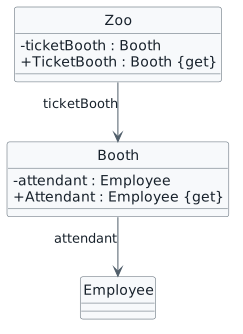
Read-only booth and attendant properties. class Zoo { - ticketBooth : Booth + TicketBooth : Booth {get} } class Booth { - attendant : Employee + Attendant : Employee {get} } Zoo --> Booth : ticketBooth Booth --> Employee : attendant
Read-only booth and attendant properties
  • New
  • Changed
  • Removed
5.Modify the Zoo class
A Modify the TicketBooth field using this story’s design reference
B Rename the code in the Zoo constructor to now reference the private ticketBooth field
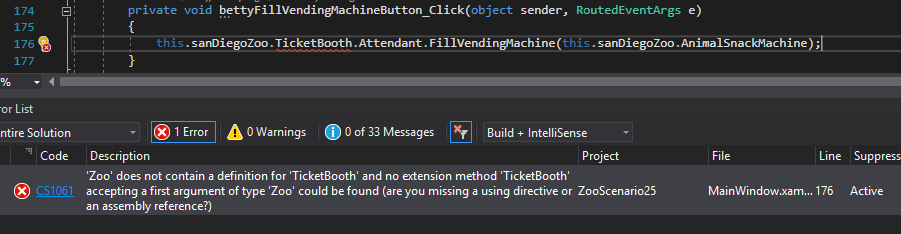
C Build the code. You will get an error
Snip: TicketBooth Error; compare object identities, field values, and execution position with your debugger.
Snip: TicketBooth Error
D Below the Zoo constructor, define the TicketBooth property using the code below
E Build your code. Ensure there is no longer an error
6.Modify the Employee class
A In the Booth class, modify the visibility of the Employee field using this story’s design reference
B Rename the code in the constructor to target the now private employee field
C Define a property by adding the following code below the Booth constructor
public Employee Attendant
{
    get
    {
        return this.attendant;
    }
}
Review this feature’s design and requirements
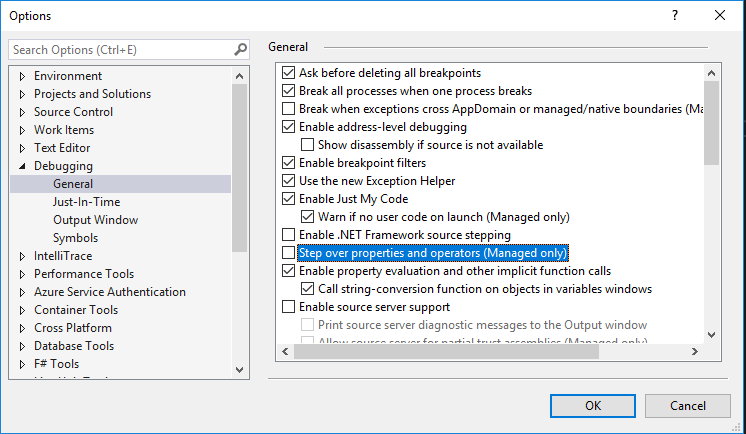
7.Turn off debug setting for stepping over properties
A From the Tools menu, select Options, drop down the Debugging option on the side panel, select General and uncheck Step over properties and operators
Snip: Turn Off Step Over Properties; compare object identities, field values, and execution position with your debugger.
Snip: Turn Off Step Over Properties
8.Check Your Work (San Diego Zoo):
3.1.5 How to Debug Properties
A Set a breakpoint in the bettyFillVendingMachineButton_Click on the line that calls the FillVendingMachine method
B Start the application. Click New San Diego Zoo. Click Betty, fill vending machine
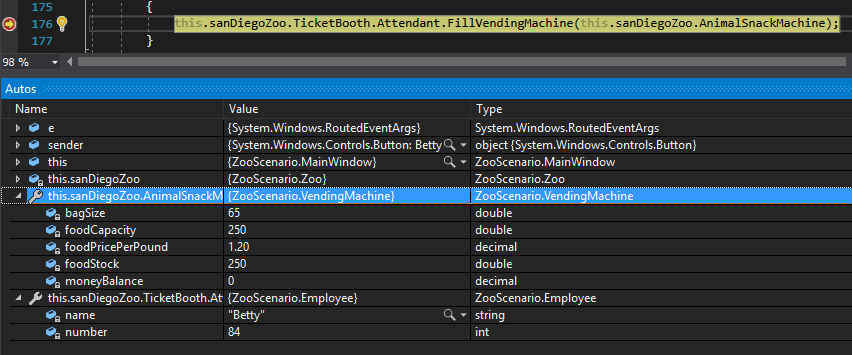
C Ensure that the values of the TicketBooth and Attendant properties match those below
Check Your Work: Properties; compare object identities, field values, and execution position with your debugger.
Check Your Work: Properties
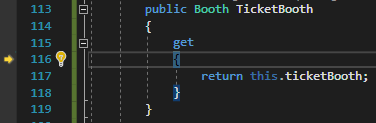
D Press F11. Ensure that the debugger steps into the TicketBooth property
Check Your Work: TicketBooth Property; compare object identities, field values, and execution position with your debugger.
Check Your Work: TicketBooth Property
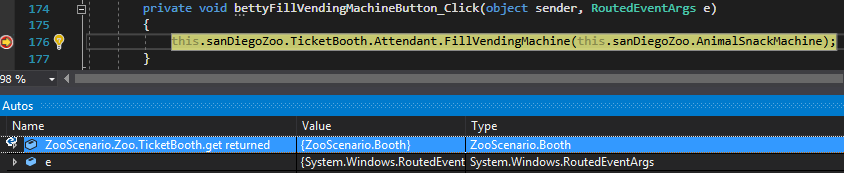
E Step through the property and back to the MainWindow. Ensure that the TicketBooth object was returned
Check Your Work: TicketBooth Return; compare object identities, field values, and execution position with your debugger.
Check Your Work: TicketBooth Return
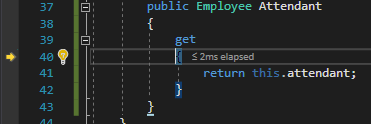
F Press F11. Ensure the debugger steps into the Attendant property
Check Your Work: Attendant Property; compare object identities, field values, and execution position with your debugger.
Check Your Work: Attendant Property
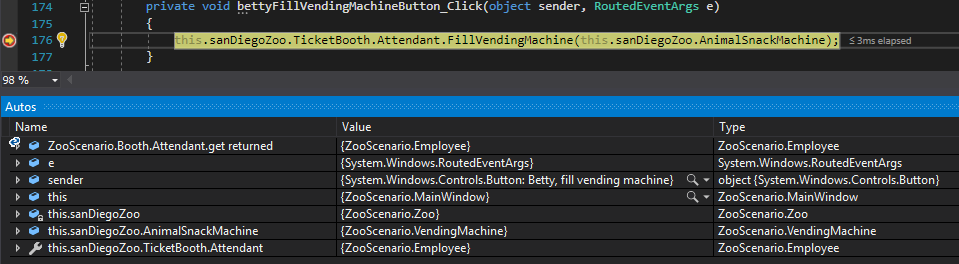
G Step through the property and back to the MainWindow. Ensure that the Attendant object was returned
Check Your Work: Return Attendant; compare object identities, field values, and execution position with your debugger.
Check Your Work: Return Attendant
H Press F11. Ensure that the FillVendingMachine method is called
Expose controlled animal information
Problem

The Animal class has fields that are still public that can be altered from outside the class.

Solution

You will change the visibility of fields and add properties in the Animal class.

9.Review the feature design
A Identify the contracts and expected behavior

This focused design shows the members or flow relevant to this feature. Keep unchanged members from your preceding checkpoint; follow the tasks below for the order of intermediate edits.
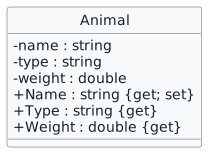
Encapsulated animal properties. class Animal { - name : string - type : string - weight : double + Name : string {get; set} + Type : string {get} + Weight : double {get} }
Encapsulated animal properties
  • New
  • Changed
  • Removed
10.Modify the Animal class
A Make the remaining fields in the Animal class private using this story’s design reference and change how they are referenced in the constructor
B Add properties for weight and type using this story’s design reference
C Add the property for name by adding the following code:
3.1.6 How to Use a Property Setter
public string Name
{
    get
    {
        return this.name;
    }
    set
    {
        this.name = value;
    }
}
Review this feature’s design and requirements
11.Check Your Work (Como Zoo):
Review this feature’s design and requirements
A Set a breakpoint in the birthDingoButton_Click on the line that calls BirthAnimal and a breakpoint in the Employee class in the DeliverAnimal method on the line that assigns the baby's Name field
B Start the application. Click the New Como Zoo button. Click the Birth dingo button
C Press F11 to step through the code. Ensure the debugger steps into the Type property as described in this story’s design reference
D Press F11 to continue through the sequence. Ensure the debugger steps into the Weight property as described in this story’s design reference
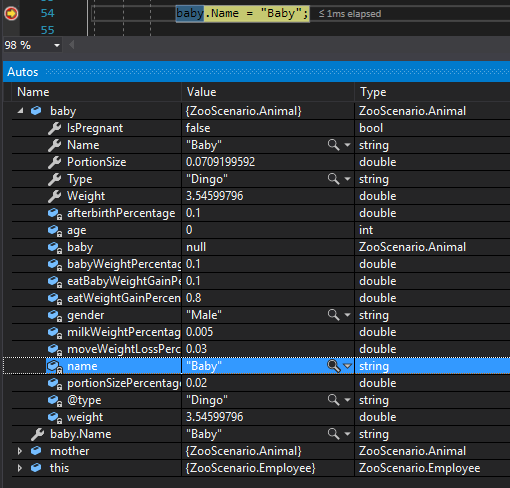
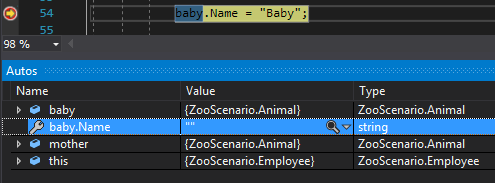
E Click Continue to hit the next breakpoint. Ensure that the baby.Name property is " "
Check Your Work: Name Property; compare object identities, field values, and execution position with your debugger.
Check Your Work: Name Property
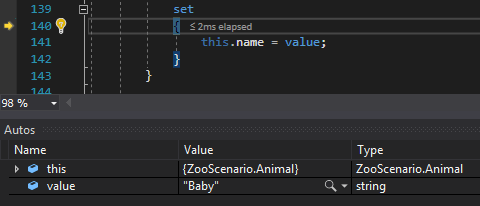
F Press F11. Ensure the debugger steps into the Name property's setter. Ensure the value is "Baby"
Check Your Work: Name Setter; compare object identities, field values, and execution position with your debugger.
Check Your Work: Name Setter
G Step through the setter and back to the Employee class. Ensure that the name of the baby is now "Baby"
Check Your Work: Name Property; compare object identities, field values, and execution position with your debugger.
Check Your Work: Name Property
Read calculated zoo statistics
Problem

Currently we are using methods to retrieve data on the animals in the zoo. While this is acceptable, using properties for this is less cumbersome.

Solution

You will refactor the methods that get zoo information into properties.

12.Review the feature design
A Identify the contracts and expected behavior

This focused design shows the members or flow relevant to this feature. Keep unchanged members from your preceding checkpoint; follow the tasks below for the order of intermediate edits.

Calculated zoo properties. class Zoo { - animals : List<Animal> {readOnly} + AnimalCount : int {get} + TotalAnimalWeight : double {get} + AverageAnimalWeight : double {get} } note right of Zoo AnimalCount = animals.Count TotalAnimalWeight = sum of Weight AverageAnimalWeight = TotalAnimalWeight / AnimalCount end note
Calculated zoo properties
  • New
  • Changed
  • Removed
13.Modify the Zoo class
A Define a property named AnimalCount with a getter
B Cut the body of the GetAnimalCount method and paste it into the AnimalCount property
public int AnimalCount
{
    get
    {
        return this.animals.Count;
    }
}
C Delete the GetAnimalCount method
D Define properties for AverageAnimalWeight and TotalAnimalWeight by cutting and pasting the method body from CalculateAverageAnimalWeight and CalculateTotalAnimalWeight and then delete the CalculateAverageAnimalWeight and CalculateTotalAnimalWeight methods
3.1.7 How to Use Calculated Properties 3.1.8 How to Call a Property Within a Property Review this feature’s design and requirements

You will need to change the call to CalculateTotalAnimalWeight in the AverageAnimalWeight property to target the TotalAnimalWeight property

14.Modify the MainWindow and Zoo classes
A In the MainWindow and Zoo class, replace the calls to GetAnimalCount, GetAverageAnimalWeight and GetTotalAnimalWeight with the new properties
B Build your solution and ensure it compiles without errors or warnings
15.Check Your Work (Como Zoo):
A Set breakpoints in the MainWindow on the lines that call the Como Zoo's AnimalCount and AverageAnimalWeight
B Start the application. Click the New Como Zoo button. Click the Get animal count button
C Press F11. Ensure the debugger steps into the AnimalCount property
D Step through the AnimalCount property and back to the MainWindow. Ensure the value returned is 3
E Click Continue. Click Get average animal weight
F Press F11. Ensure the debugger steps into the AverageAnimalWeight property
G Step through the AverageAnimalWeight property. Ensure that the debugger steps into the TotalAnimalWeight property and the AnimalCount property
H Return to the MainWindow. Ensure that the value returned is 28.2
16.Check Your Work (San Diego Zoo):
A Set breakpoints in the MainWindow in the lines that call the San Diego Zoo's AnimalCount, TotalAnimalWeight and AverageAnimalWeight
B Start the application. Click New San Diego Zoo. Click Get animal count
C Press F10. Ensure the animalCount variable is assigned the value 2
D Click Continue. Click the Get average animal weight button
E Press F10. Ensure that the averageAnimalWeight variable is assigned the value 1.885
Feed animals through encapsulated values
Problem

The sequence for feeding animals is still accessing public fields that should be private.

Solution

You will make remaining public fields private for the feeding animals.

17.Review the feature design
A Identify the contracts and expected behavior

This focused design shows the members or flow relevant to this feature. Keep unchanged members from your preceding checkpoint; follow the tasks below for the order of intermediate edits.
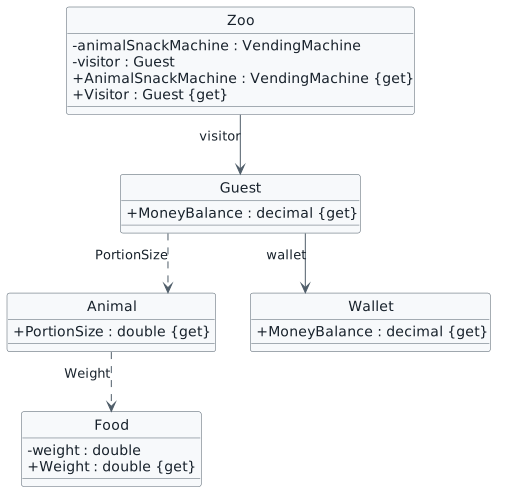
Properties used by feeding. class Zoo { - animalSnackMachine : VendingMachine - visitor : Guest + AnimalSnackMachine : VendingMachine {get} + Visitor : Guest {get} } class Animal { + PortionSize : double {get} } class Food { - weight : double + Weight : double {get} } class Guest { + MoneyBalance : decimal {get} } class Wallet { + MoneyBalance : decimal {get} } Guest --> Wallet : wallet Zoo --> Guest : visitor Guest ..> Animal : PortionSize Animal ..> Food : Weight
Properties used by feeding
  • New
  • Changed
  • Removed
18.Modify the Zoo class
A In the Zoo class, make the fields private and add properties using this story’s design reference
19.Modify the Animal class
A In the Animal class, refactor the code so that getting the portion size uses a property instead of a method
B Replace any references to GetPortionSize with calls to PortionSize
20.Modify the Food class
A In the Food class, make the Weight field private and add a property for it
B Change any code that assigns the Weight field to target the private weight field instead of the property
21.Modify the Wallet class
A Remove the GetMoneyBalance method
B Add a property that returns the moneyBalance
22.Modify the Guest class
A Remove the GetMoneyBalance method
B Add a property that returns the wallet's MoneyBalance
C In the FeedAnimal method, use the guest's MoneyBalance property to get the money balance
23.Check Your Work (Como Zoo):
Review this feature’s design and requirements
A Set a breakpoint in the darlaFeedDingoButton_Click on the line of code that calls FeedAnimal
B Start the application. Click New Como Zoo. Click the Darla feed dingo button,
C Press F11 to step through the sequence. Ensure that the debugger steps into the properties described in this story’s design reference
Read pregnancy and delivery dependencies through properties
Problem

The sequence for birthing animals is still accessing public fields that should be private.

Solution

You will make remaining public fields private for the birthing animals.

24.Review the feature design
A Identify the contracts and expected behavior

This focused design shows the members or flow relevant to this feature. Keep unchanged members from your preceding checkpoint; follow the tasks below for the order of intermediate edits.
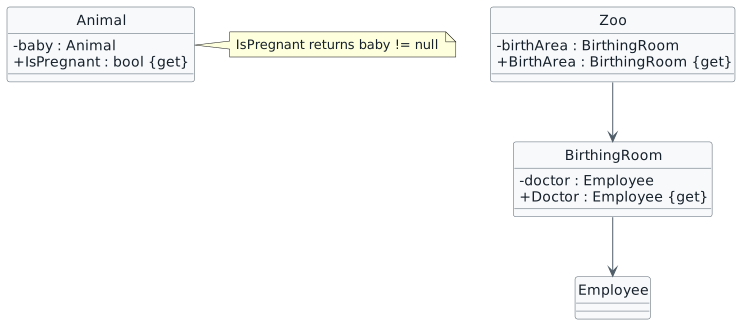
Properties used by birth. class Zoo { - birthArea : BirthingRoom + BirthArea : BirthingRoom {get} } class BirthingRoom { - doctor : Employee + Doctor : Employee {get} } class Animal { - baby : Animal + IsPregnant : bool {get} } Zoo --> BirthingRoom BirthingRoom --> Employee note right of Animal IsPregnant returns baby != null end note
Properties used by birth
  • New
  • Changed
  • Removed
25.Make changes to the class structure using this story’s design reference
Review this feature’s design and requirements
A Verify the required change or observation

Check the result against this instruction: Make changes to the class structure using this story’s design reference.

26.In the Animal class, use a property to determine the pregnancy status of the animal rather than a method
Review this feature’s design and requirements
A Verify the required change or observation

Check the result against this instruction: In the Animal class, use a property to determine the pregnancy status of the animal rather than a method.

27.Check Your Work (Como Zoo):
Review this feature’s design and requirements
A Set a breakpoint in the birthDingoButton_Click on the line that calls BirthAnimal
B Start the application. Click the New Como Zoo button. Click the Birth dingo button
C Press F11 to step through the sequence and ensure that the debugger steps into the properties described in this story’s design reference
Keep birthing-room temperature within bounds
Problem

Currently if the Zoo keeps birthing animals over and over the temperature of the room could get out of control.

Solution

You will define a property with logic inside of it to control the temperature range.

28.Review the feature design
A Identify the contracts and expected behavior

This focused design shows the members or flow relevant to this feature. Keep unchanged members from your preceding checkpoint; follow the tasks below for the order of intermediate edits.
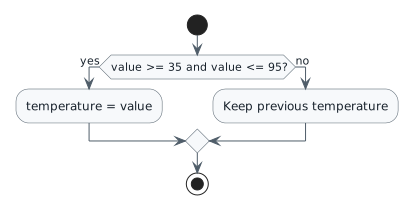
Temperature setter bounds. start if (value >= 35 and value <= 95?) then (yes) :temperature = value; else (no) :Keep previous temperature; endif stop
Temperature setter bounds
  • New
  • Changed
  • Removed
Suggested setter checks
Value assigned Expected result
35.0 Accept lower boundary
95.0 Accept upper boundary
34.9 Keep previous temperature
95.1 Keep previous temperature
29.Define fields in the BirthingRoom class
A In the BirthingRoom class, define readonly fields for max and min temperatures
B Assign the maxTemperature to 95.0
C Assign the minTemperature to 35.0
30.Define a property in the BirthingRoom class
3.1.9 How to Use Logic in a Property
A Define a Temperature property with a getter and setter
B In the getter, return the temperature field
C In the setter, assign the temperature to the value if the value is greater than or equal to the minTemperature and less than or equal to the maxTemperature
if (value >= this.minTemperature && value <= this.maxTemperature)
{
    this.temperature = value;
}
D In the BirthAnimal method, change the reference to temperature to reference the Temperature property instead
31.Check Your Work (Como Zoo):
A Set a breakpoint in the BirthingRoom class in the BirthAnimal method on the line that increases the Temperature
B Start the application. Click New Como Zoo. Click Birth Dingo
C Press F11. Ensure that the debugger steps into the Temperature property's getter
D Step through the getter and back to the BirthAnimal method
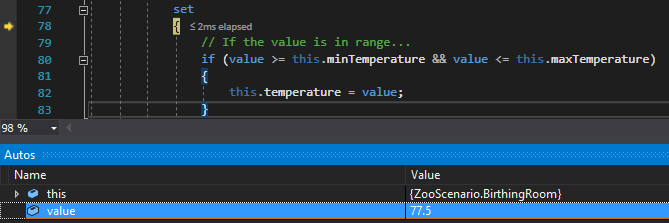
E Press F11. Ensure the debugger steps into the Temperature property's setter. Ensure that the Value is 77.5
Check Your Work: Temperature Setter; compare object identities, field values, and execution position with your debugger.
Check Your Work: Temperature Setter
F Step through the setter. Ensure that the logic check passes. Return to the BirthAnimal method. Ensure that this.temperature is 77.5
G Click Continue. Click Birth dingo
H Step through the getter. Ensure it now returns 77.5
I Step through the setter. Ensure that this.temperature is now 78
Simplify window construction and feeding calls
Problem

Currently there are several places in the MainWindow where code can be shortened for readability.

Solution

You will refactor parts of the code so that lines are combined.

32.Review the feature design
A Identify the contracts and expected behavior

This focused design shows the members or flow relevant to this feature. Keep unchanged members from your preceding checkpoint; follow the tasks below for the order of intermediate edits.
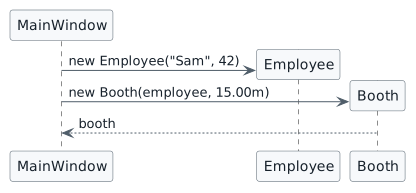
Evaluate nested constructor arguments first. participant MainWindow create Employee MainWindow -> Employee : new Employee("Sam", 42) create Booth MainWindow -> Booth : new Booth(employee, 15.00m) Booth --> MainWindow : booth
Evaluate nested constructor arguments first
  • New
  • Changed
  • Removed
33.In the newComoZooButton_Click, in the instantiation of the Booth, replace the attendant variable with an instance of the Employee class using the values on the line above
3.1.10 How to Use Inline Instantiation
Booth booth = new Booth(new Employee("Sam", 42), 15.00m);
A Verify the required change or observation

Check the result against this instruction: In the newComoZooButton_Click, in the instantiation of the Booth, replace the attendant variable with an instance of the Employee class using the values on the line above.

34.Delete the line of code that assigns the attendant variable
A Verify the required change or observation

Check the result against this instruction: Delete the line of code that assigns the attendant variable.

35.In the newSanDiegoZooButton_Click, in the instantiation of the Booth, replace the attendant variable with an instance of the Employee class using the values on the line above
A Verify the required change or observation

Check the result against this instruction: In the newSanDiegoZooButton_Click, in the instantiation of the Booth, replace the attendant variable with an instance of the Employee class using the values on the line above.

36.Delete the line of code that assigns the attendant variable
A Verify the required change or observation

Check the result against this instruction: Delete the line of code that assigns the attendant variable.

37.In the darlaFeedDingoButton_Click, in the call to FeedAnimal, replace the animal variable with t call to FindAnimal
this.comoZoo.Visitor.FeedAnimal(this.comoZoo.FindAnimal("Dingo"), this.comoZoo.AnimalSnackMachine);
A Verify the required change or observation

Check the result against this instruction: In the darlaFeedDingoButton_Click, in the call to FeedAnimal, replace the animal variable with t call to FindAnimal

38.In the daveFeedPlatypusButton_Click, in the call to FeedAnimal, replace the animal variable with the call to FindAnimal
A Verify the required change or observation

Check the result against this instruction: In the daveFeedPlatypusButton_Click, in the call to FeedAnimal, replace the animal variable with the call to FindAnimal

39.Check Your Work (Como Zoo):
A Set a breakpoint in the newComoZooButton_Click on the line of code that instantiates booth and a breakpoint in the darlaFeedDingoButton_Click on the line that calls FeedAnimal
B Start the application. Click New Como Zoo
C Press F11. Ensure that the debugger steps into the Employee constructor
D Step through the constructor and back to the MainWindow
E Press F11. Ensure the debugger steps into the Booth constructor
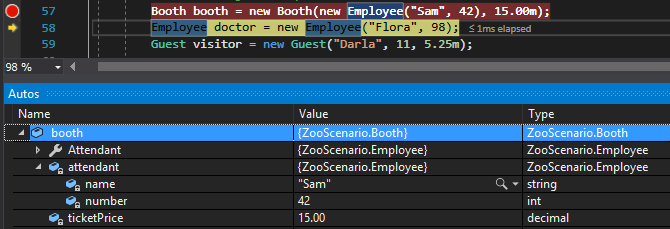
F Step through the constructor and back to the MainWindow and press F11. Ensure that the booth object has the correct values
Check Your Work: Booth Object; compare object identities, field values, and execution position with your debugger.
Check Your Work: Booth Object
G Click Continue. Click Darla feed dingo
H Press F11. Ensure that the debugger steps into the FindAnimal method
I Step through the method and back to the MainWindow
J Press F11. Ensure that the debugger steps into the FeedAnimal method
40.Check Your Work (San Diego Zoo):
A Set a breakpoint in the newSanDiegoZooButton_Click on the line of code that instantiates booth and a breakpoint in the daveFeedPlatypusButton_Click on the line that calls FeedAnimal
B Start the application. Click the New San Diego Zoo button
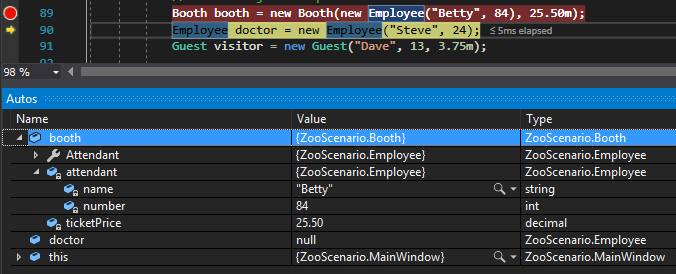
C Press F10. Ensure that the booth object was instantiated correctly
Check Your Work: Booth Object; compare object identities, field values, and execution position with your debugger.
Check Your Work: Booth Object
D Click Continue. Click Dave feed platypus
E Press F10. Ensure the debugger steps over the line of code without issues
Choose special eating behavior with a switch
Problem

Currently there is an if/else statement that determines how an animal eats and those can get very difficult to maintain/read.

Solution

You will refactor the if/else statement into a switch statement.

41.Review the feature design
A Identify the contracts and expected behavior

This focused design shows the members or flow relevant to this feature. Keep unchanged members from your preceding checkpoint; follow the tasks below for the order of intermediate edits.
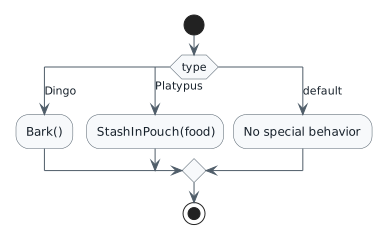
Dispatch special eating behavior. start switch (type) case (Dingo) :Bark(); case (Platypus) :StashInPouch(food); case (default) :No special behavior; endswitch stop
Dispatch special eating behavior
  • New
  • Changed
  • Removed
42.In the Eat method in the Animal class, replace the entire if/else statement with the switch statement code below
3.1.11 How to Write a Switch Statement
switch (this.type)
{
    case "Dingo":
        this.Bark();
        break;
    case "Platypus":
        this.StashInPouch(food);
        break;
    default:
        // All other animals do nothing special.
        break;
}
A Verify the required change or observation

Check the result against this instruction: In the Eat method in the Animal class, replace the entire if/else statement with the switch statement code below.
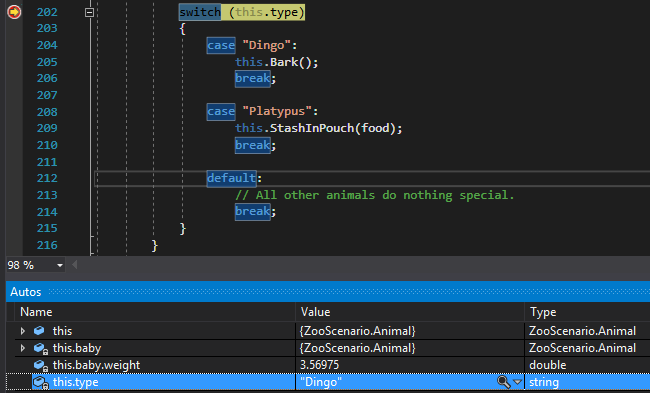
43.Check Your Work (ComoZoo)
A Set a breakpoint in the Animal class in the Eat method on the line of code that begins the switch statement
B Start the application. Click New Como Zoo. Click Darla feed dingo. Ensure that the type is "Dingo"
Check Your Work: Switch Statement; compare object identities, field values, and execution position with your debugger.
Check Your Work: Switch Statement
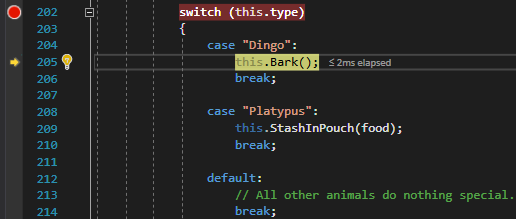
C Press F11. Ensure the debugger steps into the "Dingo" case
Check Your Work: Switch Statement; compare object identities, field values, and execution position with your debugger.
Check Your Work: Switch Statement
D Press F11 and step through the Bark method
E Return to the switch statement and press F11 to step through the remaining code. Ensure that the "Platypus" case nor the default are hit by the debugger
44.Check Your Work (San Diego):
A Set a breakpoint in the Animal class in the Eat method on the line of code that begins the switch statement
B Start the application. Click New San Diego Zoo. Click Dave, feed platypus
C Press F11 to step through the switch statement. Ensure that the debugger steps into the StashInPouch method and nothing else
Remove obsolete warning suppressions
45.Now that everything is private, the suppression message that kept warnings from occurring due to violating encapsulation is no longer necessary
A Verify the required change or observation

Check the result against this instruction: Now that everything is private, the suppression message that kept warnings from occurring due to violating encapsulation is no longer necessary.

46.Delete the suppression message from every class
A Press Ctrl+Shift+F to bring up 'Find In Files'
B Search for FieldsMustBePrivate and delete every occurrence
Submit your work
47.Ensure that all code is StyleCop compliant
A Verify the required change or observation

Check the result against this instruction: Ensure that all code is StyleCop compliant.

48.Zip the solution and submit to the Feedback System
A Verify the required change or observation

Check the result against this instruction: Zip the solution and submit to the Feedback System.

49.Submit the Feedback System url to the correct assignment in Canvas
A Verify the required change or observation

Check the result against this instruction: Submit the Feedback System url to the correct assignment in Canvas.

Completion checklist
50.Review the required evidence
A Check every acceptance criterion
B Build and inspect the final solution

Remove temporary lines used only to demonstrate compile-time errors. Build without errors or warnings, check StyleCop compliance, and rerun the required scenario paths.

C Follow this activity’s submission instructions

Use the submission or attendance instructions in this page. For a Feedback System submission, upload the requested ZIP, review and resolve the feedback, and submit the resulting URL to the matching Canvas activity. For a Canvas quiz, enter only the requested answers; for an oral final, complete the scheduling and attendance steps.