2.3 Grade Book Assignment

Under Construction

This page is currently being built. Please check back soon.
A platypus
2.3 Grade Book Assignment — overview

Work through the user stories in order. Each story states the goal and acceptance criteria; its nested tasks retain the detailed implementation and verification steps.

1.Gather your resources
A Open the assignment resources
Set up the checkpoint
2.Copy your 2.2 Grade Book end code and rename the folder and solution to 2.3
A Verify the required change or observation

Check the result against this instruction: Copy your 2.2 Grade Book end code and rename the folder and solution to 2.3

Choose from a collection of assignments
3.Review the feature design
A Identify the contracts and expected behavior

This focused design shows the members or flow relevant to this feature. Keep unchanged members from your preceding checkpoint; follow the tasks below for the order of intermediate edits.
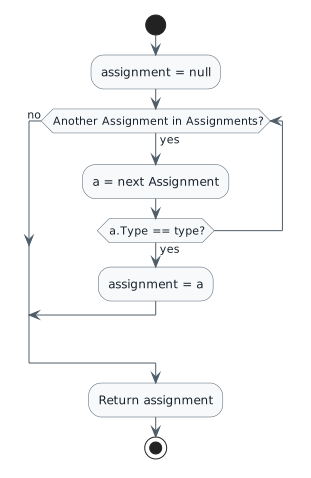
Find the first assignment matching Type. start :assignment = null; while (Another Assignment in Assignments?) is (yes) :a = next Assignment; if (a.Type == type?) then (yes) :assignment = a; break endif endwhile (no) :Return assignment; stop
Find the first assignment matching Type
  • New
  • Changed
  • Removed
Assignment list values in order
Course and index Name Type Points Difficulty
Both: 0 Plan Start Here 5.0 2.1
Blackboard: 1 HTML Exercises Midterm 100.0 12.7
Blackboard: 2 Website 1 Final 100.0 64.8
Canvas: 1 Short Essay Midterm 100.0 31.3
Canvas: 2 Term Paper Final 100.0 66.2
4.Modify the class structure using this story’s design reference
Review this feature’s design and requirements

Instantiate the list of Assignments at the field definition using field initializer syntax.

A Verify the required change or observation

Check the result against this instruction: Modify the class structure using this story’s design reference.

5.Modify the Course.GetAssignmentByType method using this story’s design reference
Review this feature’s design and requirements
A Verify the required change or observation

Check the result against this instruction: Modify the Course.GetAssignmentByType method using this story’s design reference.

6.In MainWindow in the newBlackboardButton_Click add 3 assignments to it using the list values in this story’s design reference
Review this feature’s design and requirements

Use a local variable of type Assignment to hold a reference to each newly instantiated Assignment object. Use that local variable to configure the object and add it to the list.

A Verify the required change or observation

Check the result against this instruction: In MainWindow in the newBlackboardButton_Click add 3 assignments to it using the list values in this story’s design reference.

7.In MainWindow in the newCanvasButton_Click add 3 assignments to it using the list values in this story’s design reference
Review this feature’s design and requirements

Use a local variable of type Assignment to hold a reference to each newly instantiated Assignment object. Use that local variable to configure the object and add it to the list.

A Verify the required change or observation

Check the result against this instruction: In MainWindow in the newCanvasButton_Click add 3 assignments to it using the list values in this story’s design reference.

8.In the Course class, remove the field definitions for the Midterm and Final fields

Ensure that your solution builds without warnings or errors. All references to the Midterm and Final fields must be removed. This should have been done during the previous steps.

A Verify the required change or observation

Check the result against this instruction: In the Course class, remove the field definitions for the Midterm and Final fields.

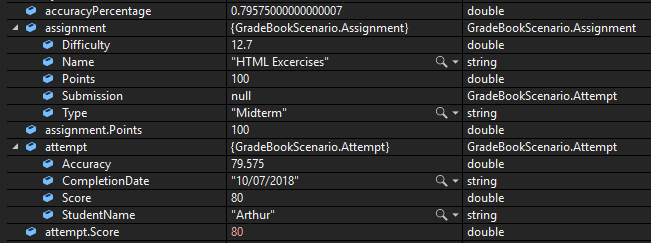
9.Check Your Work (Blackboard Midterm):
A Set a breakpoint in the MainWindow in the takeMidtermButton_Click on the line of code that calls TakeAssignment
B Start the application. Click the 'New Blackboard' button. Click the 'Take Midterm' button
C Press F11 to step into the TakeAssignment method. Press F11 to step into the GetAssignmentByType method. Ensure that the type parameter is "Midterm"
D Step through the method body. Ensure that the result variable (the assignment variable) is assigned to the instance of the "HTML Exercises" Midterm. Return to the TakeAssignment method
E Press F11 to step into the CompleteAssignment method. Ensure that the assignment parameter is the instance of the "HTML Exercises" Midterm
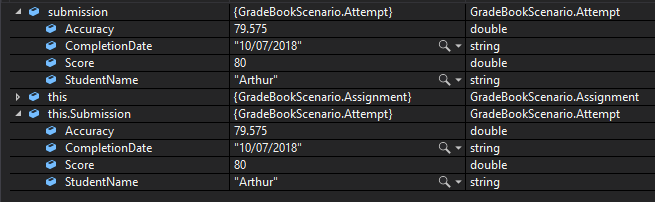
F Step into the Complete method. Step through the Complete method. Ensure the values of the submission variable match those below
Check Your Work - Blackboard Midterm; compare object identities, field values, and execution position with your debugger.
Check Your Work - Blackboard Midterm
G Return to the TakeAssignment method. Press F11 to step into the Grade method
H Step through the Grade method. Ensure that the values match those below
Check Your Work - Grade; compare object identities, field values, and execution position with your debugger.
Check Your Work - Grade
I Return to the TakeAssignment method. Press F11 to step into the Submit method
J Step over the line of code that assigns the Submission field. Ensure the values match those below
Check Your Work - Submit; compare object identities, field values, and execution position with your debugger.
Check Your Work - Submit
10.Check Your Work (Blackboard Final):
A Set a breakpoint at the beginning of the Grade method in the Instructor class. Start the application. Click the 'New Blackboard' button. Click the 'Take Final' button
B Start the application. Click the 'New Blackboard' button. Click the 'Take Final' button
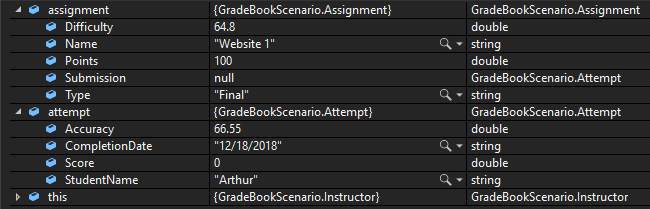
C Press F10. Ensure your values match those below
Check Your Work - Blackboard Final; compare object identities, field values, and execution position with your debugger.
Check Your Work - Blackboard Final
11.Check Your Work (Canvas Midterm):
A Set a breakpoint in the MainWindow in the writeEssayButton_Click on the line that calls TakeAssignment
B Start the application. Click the 'New Canvas' button. Click the 'Write Midterm Essay' button
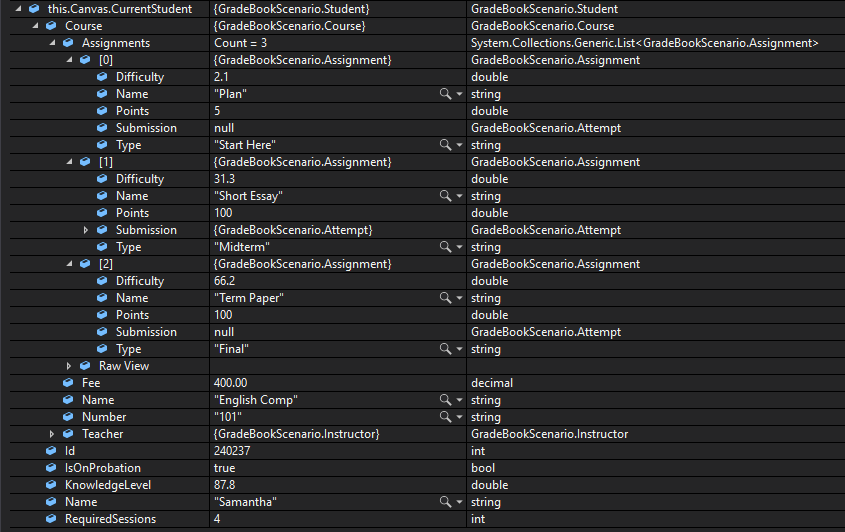
C Press F10. Ensure your values match those below
Check Your Work - Canvas Midterm; compare object identities, field values, and execution position with your debugger.
Check Your Work - Canvas Midterm
12.Check Your Work (Canvas Final):
A Set a breakpoint in the MainWindow in the writeFinalPaperButton_Click on the line that calls TakeAssignment
B Start the application. Click the 'New Canvas' button. Click the 'Write Final Paper' button
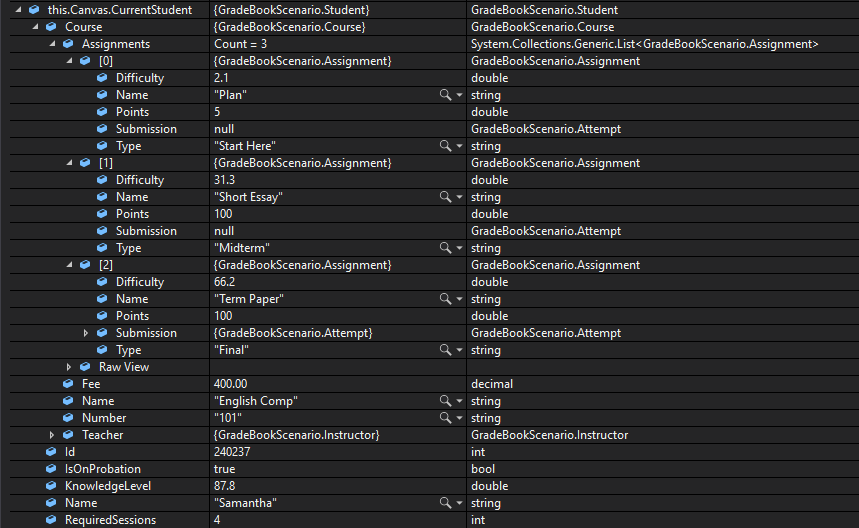
C Press F10. Ensure your values match those below
Check Your Work - Canvas Final; compare object identities, field values, and execution position with your debugger.
Check Your Work - Canvas Final
Find a qualified assistant from a collection
13.Review the feature design
A Identify the contracts and expected behavior

This focused design shows the members or flow relevant to this feature. Keep unchanged members from your preceding checkpoint; follow the tasks below for the order of intermediate edits.
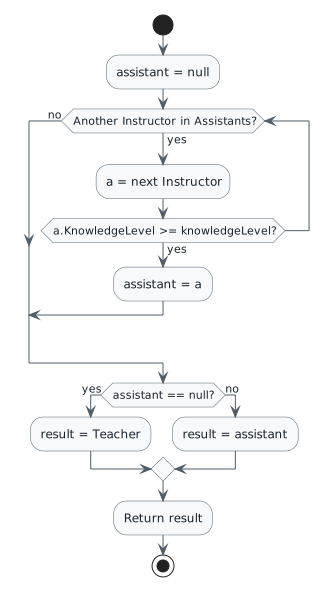
Select the first qualified assistant or the teacher. start :assistant = null; while (Another Instructor in Assistants?) is (yes) :a = next Instructor; if (a.KnowledgeLevel >= knowledgeLevel?) then (yes) :assistant = a; break endif endwhile (no) if (assistant == null?) then (yes) :result = Teacher; else (no) :result = assistant; endif :Return result; stop
Select the first qualified assistant or the teacher
  • New
  • Changed
  • Removed
Assistant list values in order
Teacher Index Assistant KnowledgeLevel Salary
Alan 0 Donald 65.3 39000.00m
Alan 1 Sheldon 75.3 40000.00m
Jeff 0 Linus 75.3 40000.00m
Jeff 1 Samuel 85.3 35000.00m
14.Modify the class structure using this story’s design reference
Review this feature’s design and requirements

Class diagram changes: Instructor new field Assistants, new method GetAssistantByKnowledgeLevel. Course GetTutor new param double knowledgeLevel.

A Verify the required change or observation

Check the result against this instruction: Modify the class structure using this story’s design reference.

15.Define the logic of the GetAssistantByKnowledgeLevel method using this story’s design reference
Review this feature’s design and requirements
A Verify the required change or observation

Check the result against this instruction: Define the logic of the GetAssistantByKnowledgeLevel method using this story’s design reference.

16.Modify the logic of the GetTutor method using this story’s design reference
Review this feature’s design and requirements
A Verify the required change or observation

Check the result against this instruction: Modify the logic of the GetTutor method using this story’s design reference.

17.Modify the FindHelp method to pass in a knowledge level when it calls the GetTutor method
Review this feature’s design and requirements
A Verify the required change or observation

Check the result against this instruction: Modify the FindHelp method to pass in a knowledge level when it calls the GetTutor method.

18.In MainWindow in the newBlackboardButton_Click add 2 assistants to the Teacher's list of Assistants using the list values in this story’s design reference
Review this feature’s design and requirements
A Verify the required change or observation

Check the result against this instruction: In MainWindow in the newBlackboardButton_Click add 2 assistants to the Teacher's list of Assistants using the list values in this story’s design reference.

19.In MainWindow in the newCanvasButton_Click add 2 assistants to the Teacher's list of Assistants to it using the list values in this story’s design reference
Review this feature’s design and requirements
A Verify the required change or observation

Check the result against this instruction: In MainWindow in the newCanvasButton_Click add 2 assistants to the Teacher's list of Assistants to it using the list values in this story’s design reference.

20.Now that the Course class, in the FindHelp and GetTutor methods, has the logic to find a tutor, we need to ensure this logic has been removed from the Instructor's TutorStudent method so it can just focus on tutoring. Ensure it matches the Activity Diagram below
Review this feature’s design and requirements
A Verify the required change or observation

Check the result against this instruction: Now that the Course class, in the FindHelp and GetTutor methods, has the logic to find a tutor, we need to ensure this logic has been removed from the Instructor's TutorStudent method so it can just focus on tutoring. Ensure it matches the Activity Diagram below.

21.Check Your Work (Blackboard):
A Set a breakpoint in tutorArthurButton_Click, on the line that calls GetHelp
B Start the application. Click the 'New Blackboard' button. Click the 'Tutor Arthur' button
C Press F11. Press F11 to step into the FindHelp method
D Press F11 to step into the GetTutor method
E Step through the method. Ensure that result is assigned to the instance of Sheldon
F Return to the FindHelp method. Press F11 to step into the TutorStudent method

Ensure that 'this' is the instance of Sheldon.
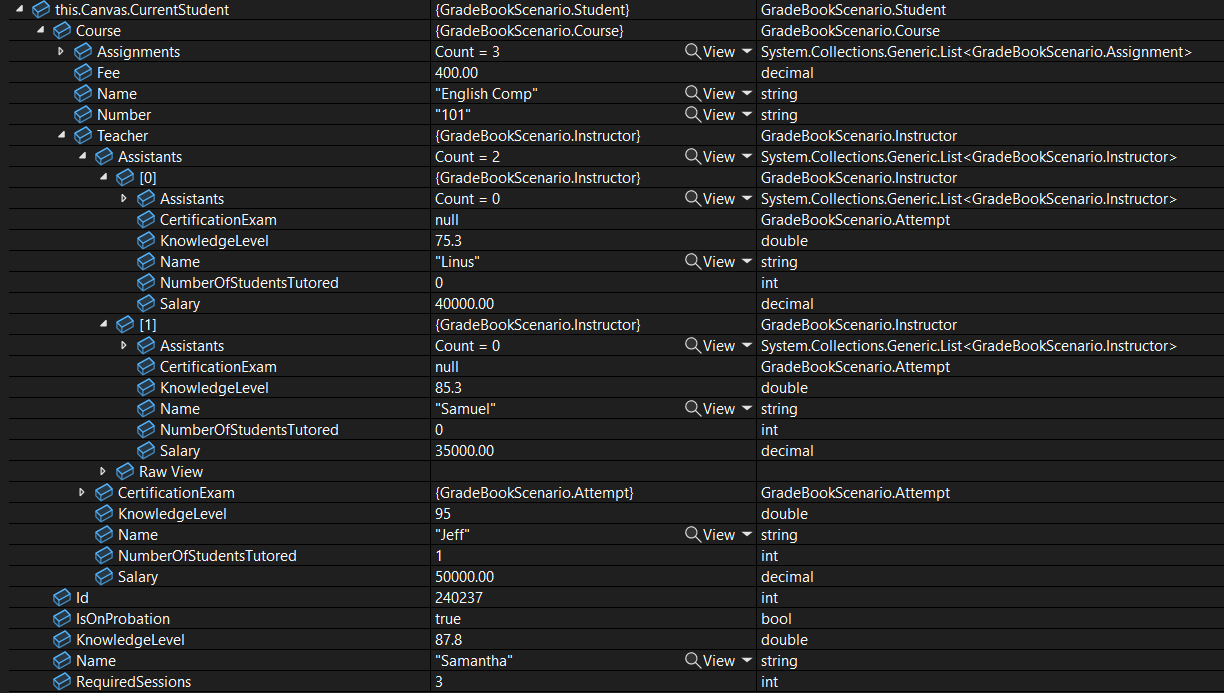
22.Check Your Work (Canvas):
A Set a breakpoint in tutorSamanthaButton_Click, on the line that calls GetHelp
B Start the application. Click the 'New Canvas' button. Click the 'Tutor Samantha' button
C Press F10. Ensure that your values match the values below and that Jeff, the Teacher is the one who did the tutoring (the only one with NumberOfStudentsTutored=1)
Check Your Work - Canvas; compare object identities, field values, and execution position with your debugger.
Check Your Work - Canvas
Submit your work
23.Ensure that all code is StyleCop compliant
A Verify the required change or observation

Check the result against this instruction: Ensure that all code is StyleCop compliant

24.Zip the solution and submit to the Feedback System
A Verify the required change or observation

Check the result against this instruction: Zip the solution and submit to the Feedback System.

25.Submit the Feedback System URL to the correct assignment in Canvas
A Verify the required change or observation

Check the result against this instruction: Submit the Feedback System URL to the correct assignment in Canvas.

Completion checklist
26.Review the required evidence
A Check every acceptance criterion

Return to each user story and confirm that you can demonstrate its acceptance criteria. Use the task checkboxes to track completion; a checked box is not a substitute for testing or inspecting the required evidence.

Choose from a collection of assignments Find a qualified assistant from a collection
B Build and inspect the final solution

Remove temporary lines used only to demonstrate compile-time errors. Build without errors or warnings, check StyleCop compliance, and rerun the required scenario paths.

C Follow this activity’s submission instructions

Use the submission or attendance instructions in this page. For a Feedback System submission, upload the requested ZIP, review and resolve the feedback, and submit the resulting URL to the matching Canvas activity. For a Canvas quiz, enter only the requested answers; for an oral final, complete the scheduling and attendance steps.