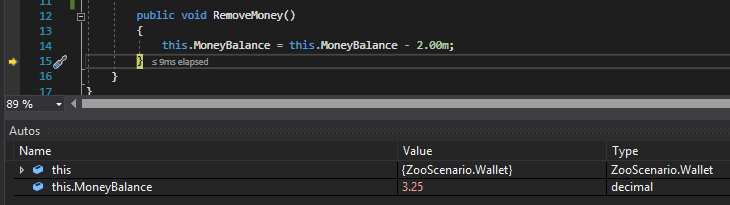
The Autos window will pop up automatically when you run the application. If it doesn't try resetting your Window layout by going to Window --> Reset Window Layout
The Autos Window shows you important information about particular things such as their Value and Type. We will go into what some of the Values mean in other articles.
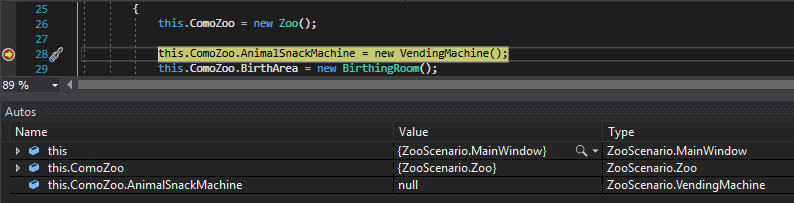
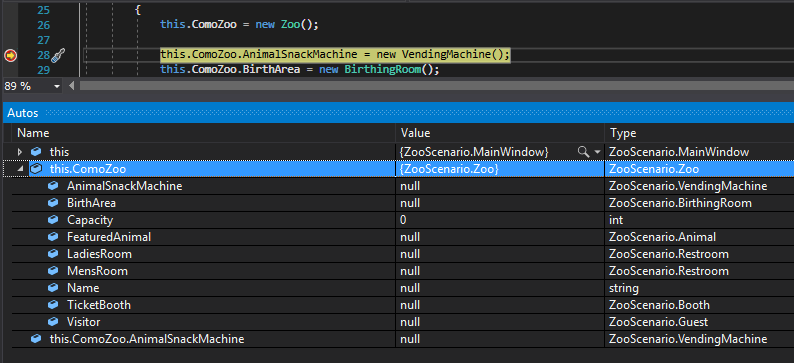
If you want to look at something more in-depth you can click the arrow on an object to view its values.
As you step through the code, the Autos Window will update values as they are executed and will also update what you 'most likely' want to view. The snip below shows the Autos Window after stepping through the code several lines.
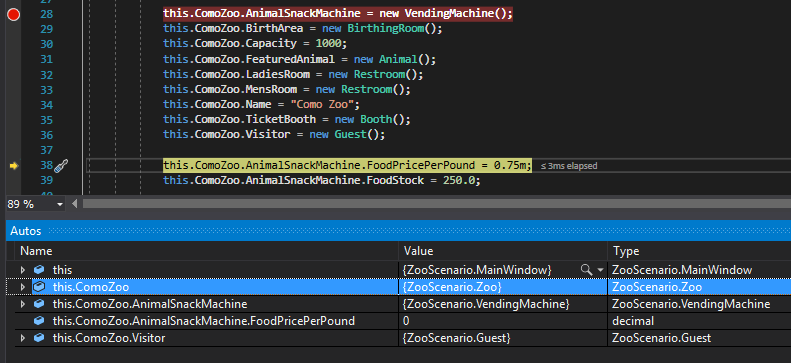
Notice that the Autos Window at this point does not show the Values for Capacity and Name because they are no longer 'relevant'. You can still, however, check the values by expanding the object.
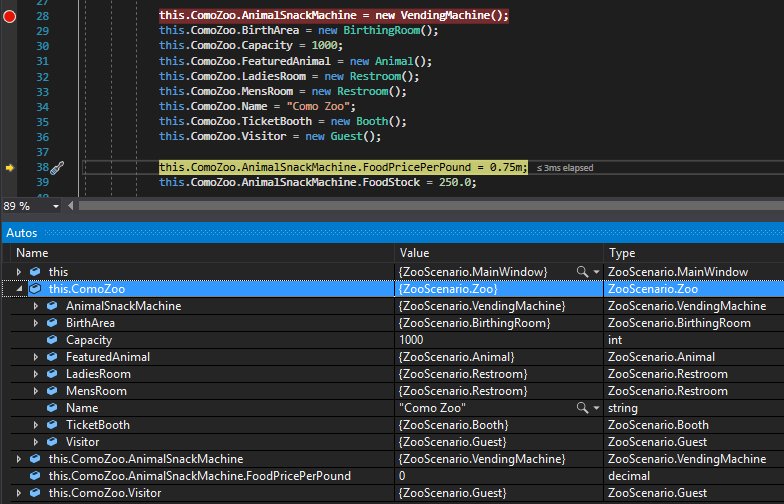
When stepping through code, the Autos Window will modify the color of values that have recently been assigned/changed.