1.6.4 The Visual Studio Locals Window

Overview

Visual Studio’s Locals window shows variables and objects available at the current pause point. Start a debugging session, stop at a breakpoint, and expand the current object to inspect its fields. As you step into a method, the available parameters and local variables change with the current method.

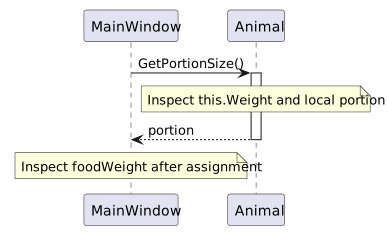
double foodWeight = this.ComoZoo.FeaturedAnimal.GetPortionSize();

Before stepping into GetPortionSize(), inspect foodWeight only after the assignment executes. Inside Animal, inspect this.Weight, this.PortionSizePercentage, and the calculated local portion. Step out to MainWindow to find foodWeight with the returned result.

Follow the Active Method
Locals reflects the line and stack frame where execution is paused. A variable from MainWindow may disappear from Locals while Animal is active because it is not a local in Animal’s method. Return to the caller to inspect it there. Expand this in the
Follow the Active Method
  • New
  • Changed
  • Removed

Locals reflects the line and stack frame where execution is paused. A variable from MainWindow may disappear from Locals while Animal is active because it is not a local in Animal’s method. Return to the caller to inspect it there. Expand this in the appropriate frame to see the fields of that particular instance.

Trace the Outcome

Set a breakpoint on the call and another on the next line. Record the Animal field values before stepping in, the local portion before returning, and foodWeight afterward. Confirm the three observations agree.

If a field appears with an unexpected value, check which object the debugger shows as this. Two Animal objects can have the same class but different Weight values. Locals shows the state of the object executing the current method, not every Animal in the application. Use the Call Stack to return to the caller if you need to compare its local variables.