Violet gives you a workspace for creating UML diagrams.
The program does not decide what your model should contain. You make those decisions. Violet gives you tools for placing diagram elements, connecting them, editing their information, moving them, and saving the result.
That distinction is important:
Violet helps you draw the model. Your reasoning determines whether the model makes sense.
You have already begun thinking about objects, values, and relationships. This activity focuses only on becoming comfortable with the editor so that the software does not get in the way of that thinking.
Open Violet and create a new diagram using the diagram type identified in your course directions.
When a diagram opens, notice the main parts of the workspace:
Different UML diagram types provide different tools. You do not need to memorize all of them.
For now, learn how to select a tool, place an element, select that element again, move it, edit it, and save the diagram.
In Violet, adding an element is generally a two-step process:
Do not assume that every diagram tool is relevant to the current activity. Use only the element types introduced by the course.
A good habit is to pause before adding something and ask:
What does this element represent in the model?
The editor can place a shape even when the modeling decision behind it is wrong. The tool does not replace that decision.
After adding an element, switch back to the selection tool.
Select the element and move it to a clearer location on the page.
Diagram layout matters because a crowded or confusing diagram can make correct information difficult to read.
Move elements when doing so makes the model easier to follow, but do not change the meaning of the model simply to make the page look symmetrical.
For example, if you later model several soccer-related objects, you might place closely related objects near each other so the relationships are easier to follow. Their physical position on the page does not create the relationship; the UML notation does.
Violet allows you to edit information associated with a diagram element.
Depending on the element, you may be able to edit its name or other properties.
The exact information you should enter depends on the kind of UML diagram you are creating. Later Learning Activities will explain those rules.
At this stage, focus on the editor behavior:
If you accidentally change the wrong element, undo the change rather than trying to repair several things at once.
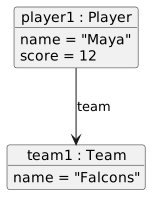
Create a temporary practice diagram that you can use only to learn the Violet controls.
Add one diagram element and label it with a simple soccer-related name such as:
player1
Move the element to another location.
Edit the label once.
Then add a second temporary element such as:
team1
The purpose of these elements is not to create a complete or correct UML model yet. They simply give you something concrete to select, edit, move, delete, undo, and save.
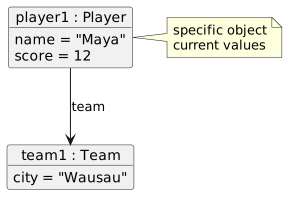
Later activities will explain exactly how object identity, type, values, and relationships should be represented.
Technical work includes revision.
Select one of the temporary elements and delete it.
Then use Undo to restore it.
Knowing how to reverse a change encourages you to experiment with the editor without treating every click as permanent.
If Undo does not restore the result you expected, stop and look at what changed before making several more edits.
Save your diagram early.
Then save again after meaningful changes.
Frequent saving reduces the chance of losing work and gives you a predictable file to return to.
Use the course-required folder and filename when you are working on an actual course diagram.
Your editable Violet file is important because later feedback may require you to revise the diagram. An exported picture can show what the diagram looked like, but it is not a replacement for the editable source file.
Use Open to reopen the practice diagram you saved.
Confirm that the elements you created are still present.
When you begin actual UML work, reopening the existing file is usually better than recreating the diagram from memory. Technical artifacts should be revised from the current source whenever possible.
Violet can help you:
Violet cannot decide:
Those are modeling decisions.
The software is useful because it gives you a consistent way to express those decisions.
You now know enough of the Violet interface to begin using it for actual UML diagrams.
The next Learning Activities will focus on reading UML object diagrams and understanding how specific object instances, values, and relationships are represented.
When that happens, keep your attention on the meaning of the diagram first. Use Violet as the tool that records that meaning.