4.2A Zoo Assignment

4.2A Zoo Assignment
Create a framework for a console application
Acceptance Criteria
Acceptance criteria
  • The solution has a console front end with the required command-processing loop.
1.Create a framework for a console application
Problem
Solution
A Create a new C# Console Application project named ZooConsole.

You will select the Console App (.NET Framework) as seen in the image below.

4.2.1 How to Create a Console Application
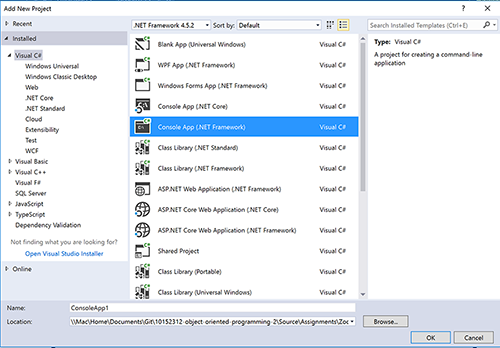
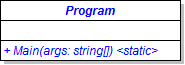
Image: Console App (.Net Framework). Reference figure for create a framework for a console application.
Image: Console App (.Net Framework)
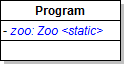
Class Diagram - Program. Reference figure for create a framework for a console application.
Class Diagram - Program
B Test the application
1 Set a breakpoint in the Main method of the Program class.
2 Run the application.
3 Notice that the WPF application appears and that the console application's breakpoint is not hit.
C Make the console the start-up project Right-click on the ZooConsole project and select Set as StartUp Project.
D Add references to the Zoos and People projects.
E Check Your Work
1 Run the application.
2 Ensure that the breakpoint in the Main method of the Program class is hit.
F In the Main method in Program.cs, call the Console's static WriteLine method to write "Welcome to the Como Zoo!" to the console, as shown in the code below
4.2.2 How to Utilize Console Writing and Reading
Console.WriteLine("Welcome to the Como Zoo!");
G Call the Console's static Title method to set the title of the console to Object-Oriented Programming 2: Zoo as shown in the code below.
Console.Title = "Object-Oriented Programming 2: Zoo";
H Define a variable of type bool named exit. Assign it to false.
I Create a while loop and have the condition check if the exit variable is not true (!exit).

Leave the body of the loop empty.

J Check Your Work
1 Run the console application.

A console window with the text "Welcome to Como Zoo!" and a blinking cursor should appear. Typing should not work.

2 Stop the application by clicking the red X button or clicking the stop debugging button in Visual Studio.
Write a console command to exit the application
Acceptance Criteria
Acceptance criteria
  • The exit command ends the console application.
2.Write a console command to exit the application
Problem
Solution
A In Program.cs, define a variable of type string named command just before the while loop.
B Inside the while loop, write a right bracket to the console to act as a prompt to the user, as in the the code below
Console.Write("] ")
C In the while loop, assign the command variable to the result of calling the Console's static ReadLine method.
D Write a switch statement in the while loop that switches on the command variable.
E Add a switch case for "exit". In it, assign the exit variable to true. Then break out of the loop.
Command Diagram: Exit. Reference figure for write a console command to exit the application.
Command Diagram: Exit
F In the default case of the switch statement, use Console.WriteLine to warn the user of a bad command.

Include the bad command in your warning.

G Check Your Work
1 Run the console application.
2 Type a bogus command into the application and press Enter.

Your message with the command should appear and the application should reset to the prompt.
3 Run the "exit" command by typing exit. The application should close.
Write a console command to start a new zoo
Acceptance Criteria
Acceptance criteria
  • The console command creates a new instance of Como Zoo.
3.Write a console command to start a new zoo
Problem
Solution
A In Program.cs, define a field of type Zoo named zoo. In the main method initalize the zoo field to null.
Class Diagram: Zoo Field Console. Reference figure for write a console command to start a new zoo.
Class Diagram: Zoo Field Console
1 Add a using directive for the Zoos namespace.
B Add the ability to create a new Como Zoo.
1 Add a switch case for "new".
Command Diagram: New. Reference figure for write a console command to start a new zoo.
Command Diagram: New
2 Inside the case
Subtasks
  • A. Instantiate the zoo field to a new Zoo. Pass in the same values used in the CreateComoZoo method in the MainWindow.
  • B. Write the following message to the console telling the user that a new zoo was created successfully:
A new Como Zoo has been created.
Subtasks
  • C. Break out of the loop.
C Check Your Work
1 Set a breakpoint in Program.cs on the line that creates a new zoo. Run the console application.
2 Run the "new" command by typing new.
3 Step through the code to ensure a new zoo is created successfully and a success message is written to the console window.
Write a console command for help information
Acceptance Criteria
Acceptance criteria
  • The help command displays the available commands and their purposes.
4.Write a console command for help information
Problem
Solution
A In Program.cs, add a switch case for "help".
Command Diagram: Help. Reference figure for write a console command for help information.
Command Diagram: Help
B In the help case, write a line to the console for each of the following commands with a short description of what the command does.

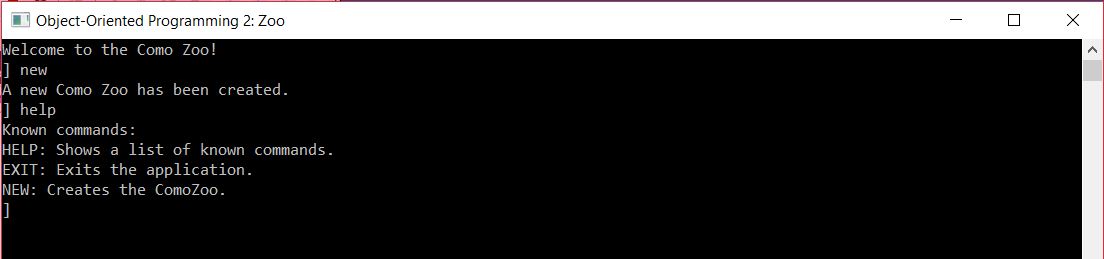
The output should be exactly as seen below:

Known commands:
HELP: Shows a list of known commands.
EXIT: Exits the application.
NEW: Creates the ComoZoo.
C Check Your Work
1 Run the console application.
2 Run the "help" command by typing help. The output should look like the image below
Snip: Output of Console Help Command. Reference figure for write a console command for help information.
Snip: Output of Console Help Command
Ignore upper case letters and white space in console commands
Acceptance Criteria
Acceptance criteria
  • Commands work regardless of letter case or leading and trailing whitespace.
5.Ignore upper case letters and white space in console commands
Problem
Solution
A Test the application: Run the Console application and type HELP.

Nothing should happen. Type help. The "help" command should run.

B After getting the command from the user, assign the command to the result of calling the ToLower method on the command variable, as shown in the code below
4.2.3 How to Manipulate a String
command = command.ToLower();
C Assign the command to the result of calling the Trim method on the command variable.

The ToLower and Trim methods can be chained (i.e. named one after the other on the same line), as shown in the code below:

command.ToLower().Trim();
D Check Your Work
1 Run the console application
2 Type HELP with spaces before and after the text. The specified command should run.
Demonstrate your work
6.Record a video your application showing
A Your Console Application
1 Step 3C - Check Your Work
2 Type the following commands
Subtasks
  • A. "HeLp"
  • A.1. The statements for help should appear
  • B. " HELP"
  • B.1. The statements for help should still appear
  • C. "NTC"
  • C.1. A message should appear indicating the command is not valid
  • D. "exit"
  • D.1. The console application should close
Prepare and submit your work
7.Submission Steps
A Ensure that your application has no compiler errors or warnings
B Ensure that your code is StyleCop compliant
C Remove all bin and obj folders from your solution
D Zip your solution
E Submit your zipped solution to the Feedback System
F Submit your Feedback System results link to Canvas
G Submit your video recording to your f-channel
Source credit

© 2026 Northcentral Technical College