Overview
1.Folder Structure and Naming Conventions
2.Create an object diagram based on the information below
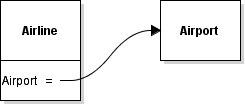
A
An Airline has a Name of AeroWisco
B
An Airline has an EmployeeCount of 12
C
An Airline has an Airport of type Airport
D
An Airline has an Airplane of type Jet
1
An Airline's Airplane has a Model of 319
2
An Airline's Airplane has a Manufacturer of Airbus
3
An Airline's Airplane has a Name of Spirit of the Forest
4
An Airline's Airplane has a LengthInMeters of 33.84
E
An Airline's Airport has a Name of CWA
F
An Airline's Airport has an Employees of 10
G
An Airline's Airport has a MainTerminal of type Terminal
1
An Airport's Terminal has a GateA of type Gate
2
GateA has a HasSkyway of true
3
GateA has a PlaneSideCheckLuggage of false
4
GateA has a Number of 3A
5
An Airport's Terminal has a GateB of type Gate
6
GateB has a HasSkyway of false
7
GateB has a PlaneSideCheckLuggage of true
8
GateB Gate has a Number of 3B
3.Save diagram and submit to Feedback System
A
Save the diagram by clicking File | Save in Violet
1
Make sure the naming convention of the .html file is: Airline 1.1 LastName
2
Ensure that Violet adds a .object.violet.html extension to the file when saving
B
Zip the html file and submit the .zip file to the Feedback System
1
Make sure to zip the html file and not a folder with the html file inside
2
Make sure the naming convention of the .zip file is: Airline 1.1 LastName
C
Correct any mistakes based on Feedback
1
Re-open file in Violet
2
Correct any errors based upon feedback returned
3
Save
4
Re-zip the .html file
5
Re-submit to Feedback System
6
Repeat the process as necessary until all feedback is resolved
D
Submit the resulting Feedback to Canvas as a URL