For this example we will be looking at the code below.
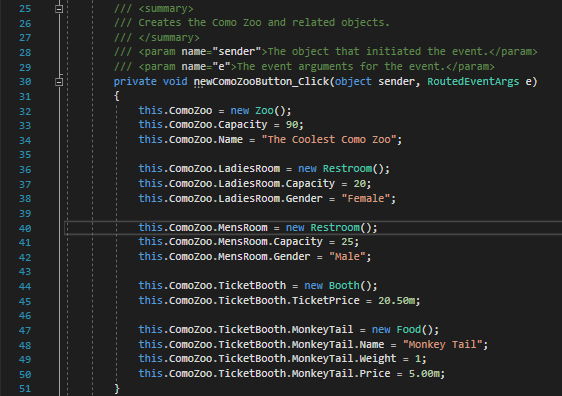
We need to translate this particular block of code into an object diagram. We cannot do that by just looking at a static block of code, however. Recall that object diagrams are representative of a specific moment in time and from what we are looking at above we cannot determine where or when the "state" of the code is. What we will do then, is set a breakpoint on a particular line of code and run the application to see what the values are at a point in time.
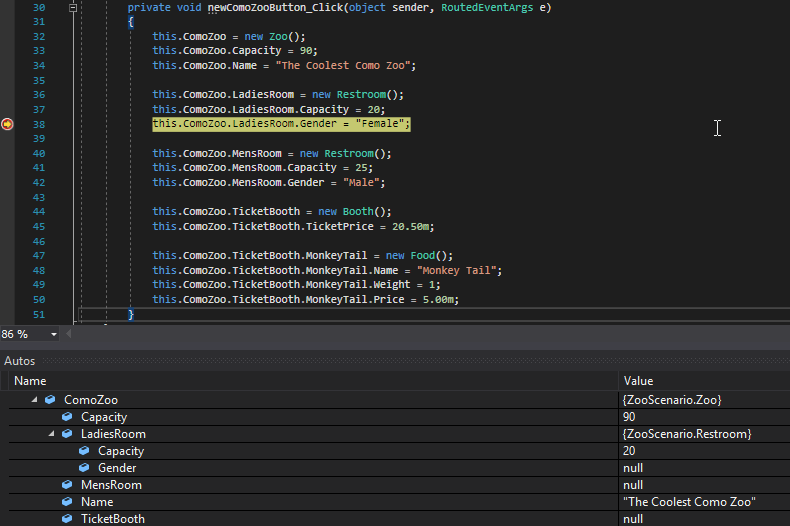
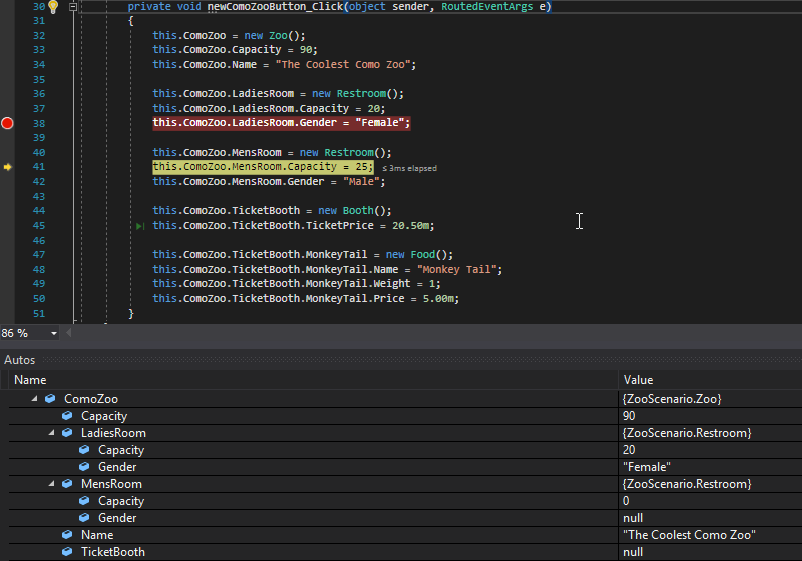
In the snip above we can see that the debugger hit the breakpoint on line 38 and in the Autos window the only values that have been assigned are the ComoZoo field, the ComoZoo's Capacity, the ComoZoo's Name, the ComoZoo's LadiesRoom field, the ComoZoo's LadiesRoom's Capacity. The rest of the fields are null because the debugger hasn't executed the lines yet.
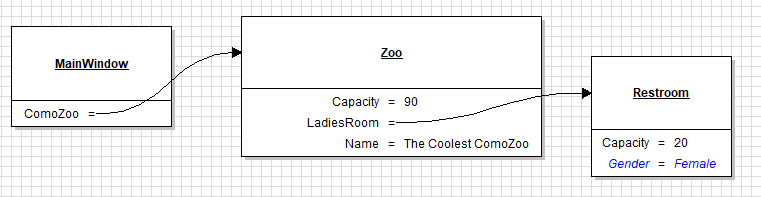
At this particular point, then, the object diagram representation of this would look like it does below.
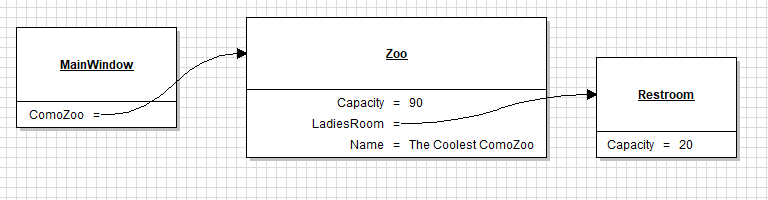
The MainWindow has a ComoZoo field that has a Capacity of 90, LadiesRoom field of type Restroom and a Name of The Coolest Como Zoo. The LadiesRoom field has a Capacity of 20.
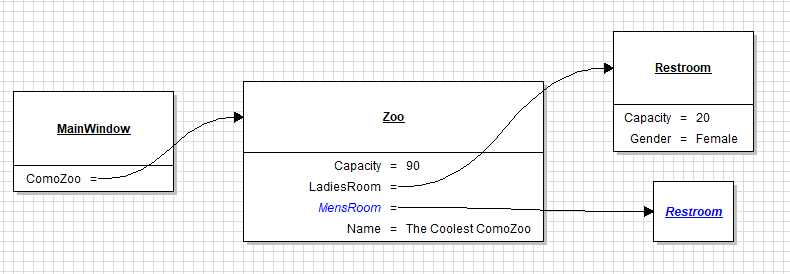
As soon as we push F11 to execute the line of code that the debugger is on it changes the "state" of the application and the object diagram.
NOTE: In the instructions we give you we use blue to symbolize new things. You do not need to make things blue in your own diagrams.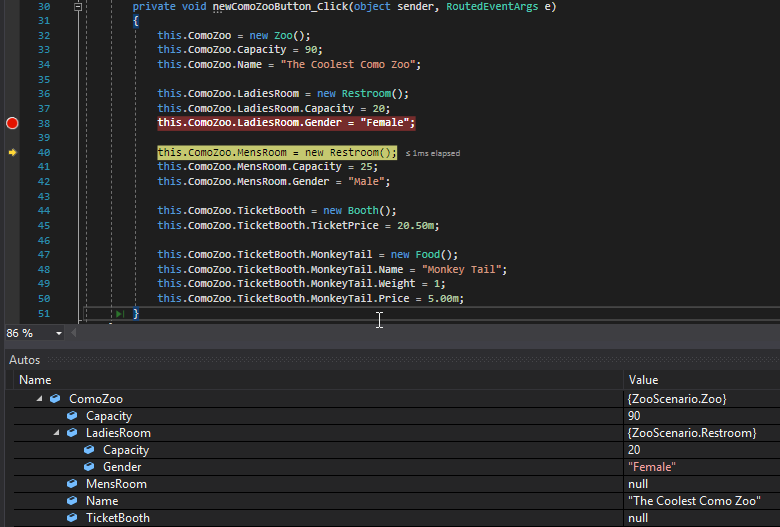
The same works for object instantiation. If we press F11 again it will execute line 40, which will again change the state of the application and the object diagram.
You do not need to even look at code to create an object diagram. Say we want to see all of the objects and the values from the code. We can set a breakpoint on the closing curly brace of the newComoZooButton_Click and run the application.
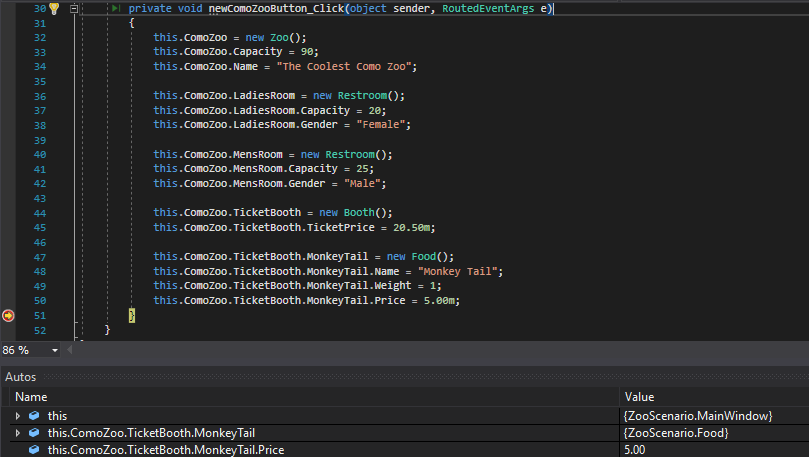
Without even looking at the code we can expand 'this' (the current instance of the current class) and look at the objects and values
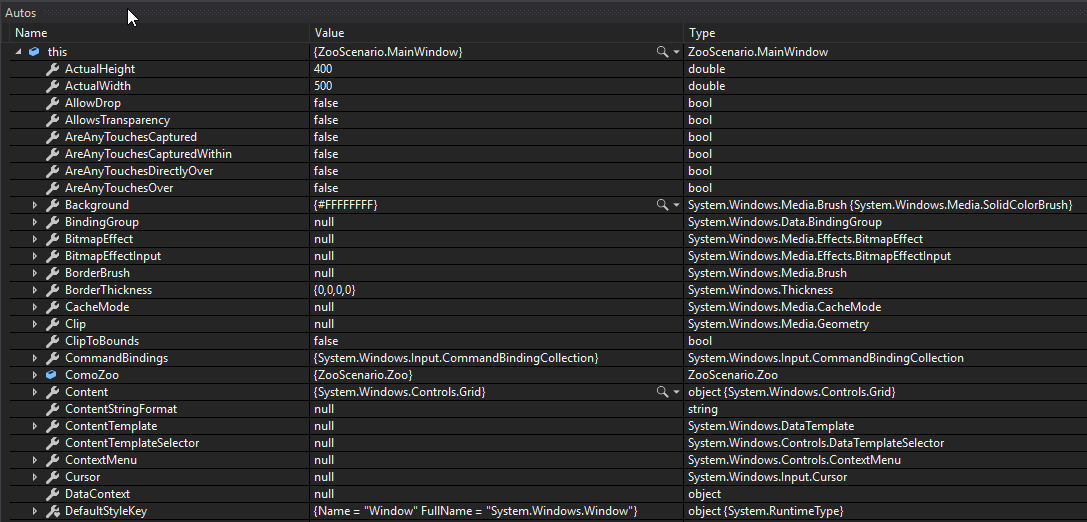
Notice that because this is an instance of MainWindow which has a LOT of stuff that isn't important to us. What is important, however, is the ComoZoo field so we can expand that to look at it.
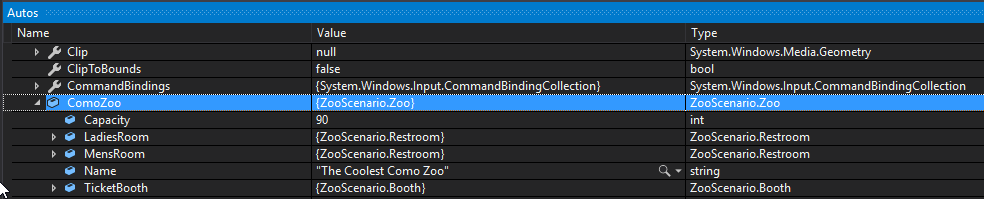
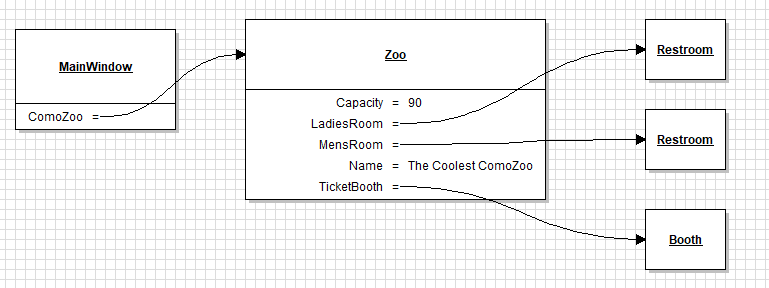
Note that the primitive values don't have arrows next to them but the sub-objects do. This is representative of the has a relationship in object diagrams. The ComoZoo has a Capacity field with a value of 90. It has a LadiesRoom of type Restroom. It has a MensRoom of type Restroom. It has a Name with the value of The Coolest Como Zoo. It has a TicketBooth of type Booth.
This view is the same as the object diagram below. We can see the primitive values of the ComoZoo and its sub-objects but no values.
We can expand those sub-objects to look at their values.
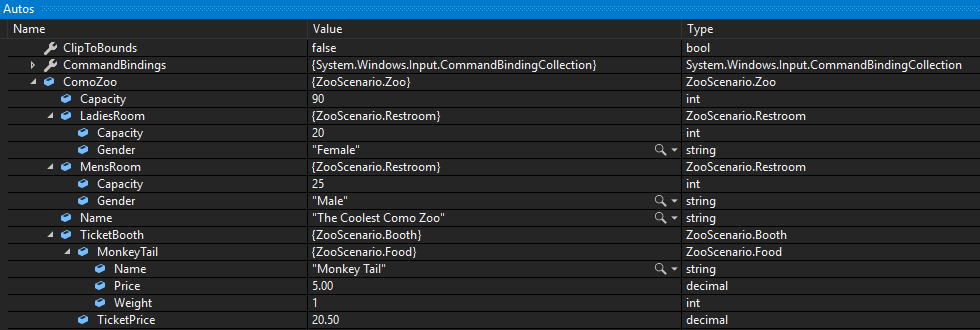
This view would look like the object diagram below.
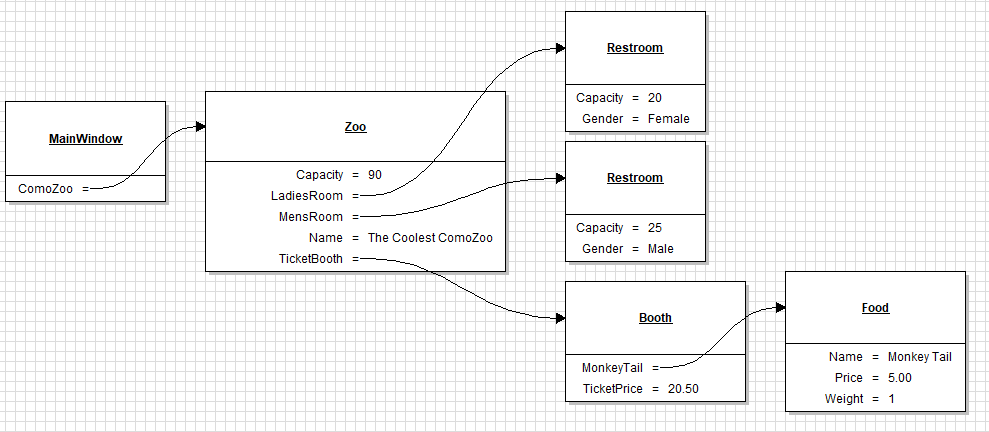
So when you are making an object diagram, make sure to use the Autos/Locals windows to expand objects and sub-objects and ensure that the values are represented correctly.