In the code that is provided for you when adding buttons to the XAML, the part of the code that has Click="" refers to the event taking place. In this case it's a click. In order for that button to work, then, we need to add code for it in the MainWindow.xaml.cs. There are two ways to do this:
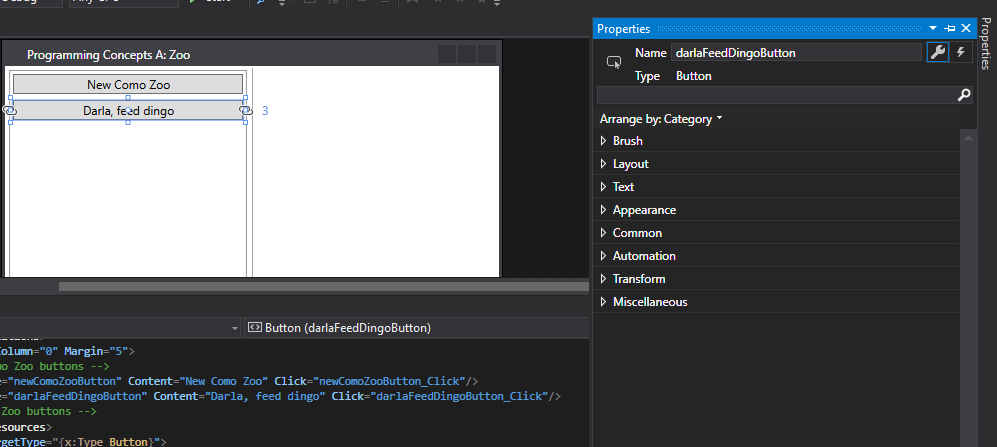
1. In the MainWindow.xaml, click on the button you would like to create an event handler for (feed dingo) and by the Solution Explorer, click the Properties tab. The Properties tab is generally hidden by default but if you still can't find it try resetting your Window layout by going to Window --> Reset Window Layout.
In the top right corner of the Properties window there is a wrench and a lightning bolt. The wrench deals with anything related to the 'look' of the item and the lightning bolt deals with anything related to how it functions.
If I click the lightning bolt you can see that there is already a 'click event' in the 'Click' section because of the code that was provided.
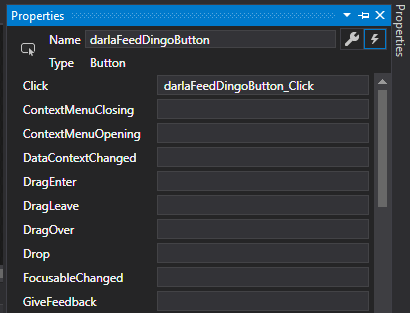
To create the 'event handler' for when someone clicks the button, double click inside of the space next to 'Click' with the darlaFeedDingoButton_Click description. This will automatically generate the event handler for this button in the MainWidnow.cs and whenever someone clicks that button, the code in the event handler will run.
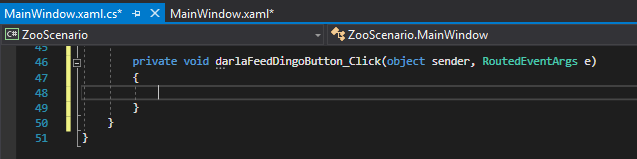
2. The second way to create event handlers is to double-click the button in the MainWindow.xaml that you want to create the event handler for.