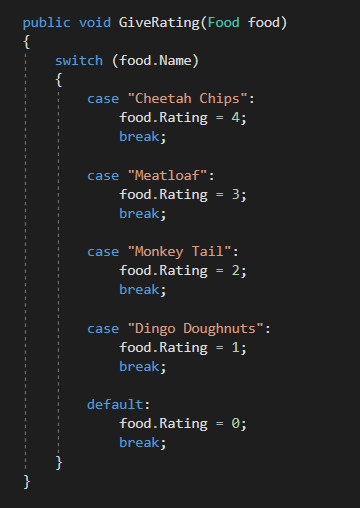
For this example we will be using the code below.
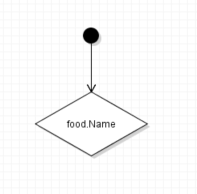
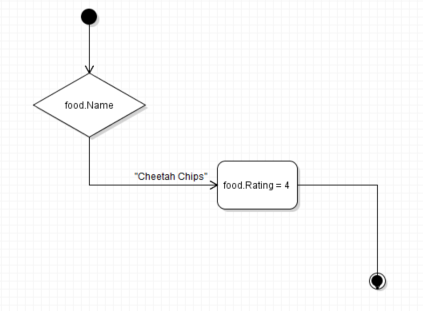
The first thing that we are going to do is put what we are "switching on" in a Decision node.
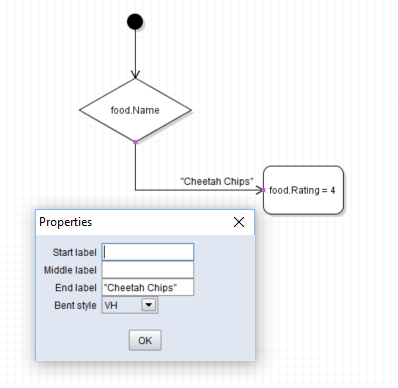
Then let's make our first case by placing a new Activity node, putting the condition on the end of the line, and entering the activity.
Then, we can add an end scenario node and draw a line from the Activity to the end.
Add an additional case by placing another Activity node, drawing an additional arrow from the Decision node to that Activity node, and then connecting the Activity node to the end scenario node.
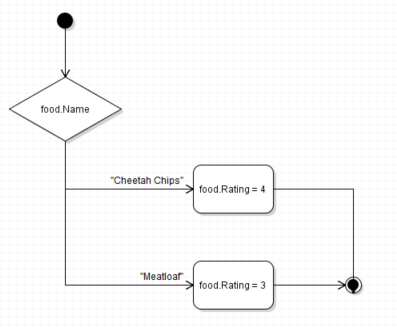
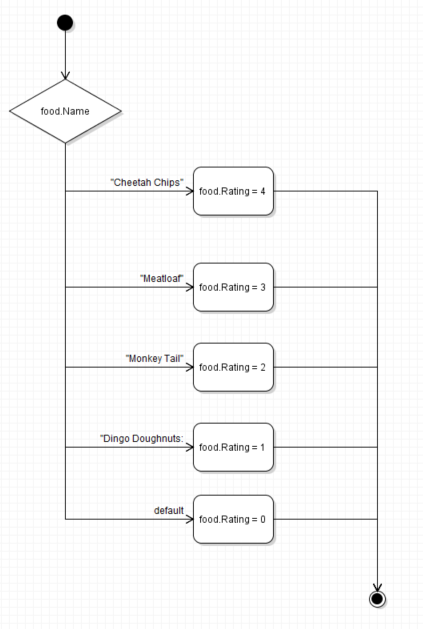
The completed version of this switch statement looks like this: