Google Sheets provides a browser-based workspace for creating and editing spreadsheets.
You can use it to work with:
The interface may change over time, but the underlying spreadsheet concepts remain stable.
This activity focuses on those durable skills.
When you open a spreadsheet, identify:
A cell reference combines a column and row.
For example:
A1
means column A, row 1.
A structured table begins with headers.
For example:
A1: Title
B1: Artist
C1: Genre
D1: Year
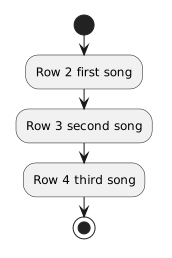
Then enter one song per row.
Conceptually:
Row 2 → first song
Row 3 → second song
Row 4 → third song
The exact values will come from the course activity or supplied dataset.
If column C is:
Genre
keep genre values there.
If column D is:
Year
keep release-year values there.
A spreadsheet becomes easier to work with when each column has a consistent purpose.
When correcting one data value, change the specific cell.
Avoid moving entire rows, merging cells, or rearranging columns unless the activity requires that structural change.
Small, deliberate changes are easier to reason about and reverse.
A spreadsheet file can contain several worksheet tabs.
That can be useful when the activity intentionally separates different kinds of information.
For example, a later music-library activity may organize related information into separate logical tabs.
Do not create extra tabs just to spread the data out.
Use them when the data model or activity purpose calls for separation.
When a sheet needs a specific purpose, its tab name should help identify that purpose.
A name such as:
Songs
is clearer than:
Sheet7
when the sheet actually stores song records.
Use the names required by the current activity when exact names are supplied.
Simple formatting can make a structured table easier to scan.
For example, you might make header text visually distinct.
Formatting should support the data structure rather than replace it.
A header should be understandable because of its text, not only because it has a particular background color.
Google Sheets normally works with an online document.
As you edit, the service manages the current online version.
This is different from a local text file where you explicitly call a C# write operation.
The user experience is different, but the underlying question remains useful:
Where does the current information live?
In this case, the spreadsheet is managed through the online service rather than only in a local program variable.
A spreadsheet can have sharing and access controls.
Do not change sharing settings unless the course activity directs you to do so.
Working with the data and deciding who can access the file are separate responsibilities.
If the course supplies a Google Sheet, work in the supplied file or authorized copy.
Do not silently create a separate spreadsheet with different column names or structure.
The course file gives everyone a shared starting point.
Menu locations and button appearances can change.
The durable skills are:
Those skills transfer across spreadsheet tools.
The next activity focuses on using that environment deliberately to manage structured data.