A Program Usually Contains More Than One File
When you open a C# application in Visual Studio, you are not simply opening one page of code.
A working application may contain:
- C# source files;
- user-interface files;
- images or other resources;
- project settings;
- references to libraries;
- and information Visual Studio uses when building the application.
Visual Studio organizes these pieces using solutions and projects.
The Solution Is the Outer Container
A solution is the top-level container Visual Studio uses to organize one or more related projects.
You will commonly open a solution using a file whose name ends in:
.sln
A simple course example might conceptually look like:
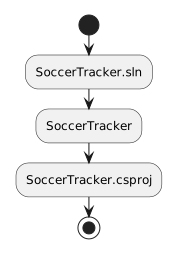 SoccerTrackerSln.
The project identifies the source files and configuration needed to build that part of the application.
A small solution may contain only one project.
A larger solution may contain several.
Solution Explorer Shows the Hierarchy
Visual Studio displays this organization in Solution Explorer.
A simplified view could look like:
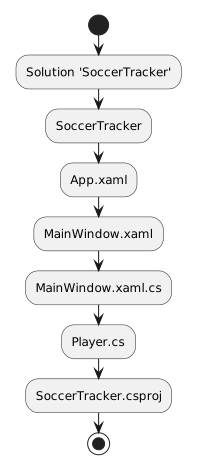 SolutionSoccerTracker.
You do not need to understand every file yet.
The important idea is the hierarchy:
Solution → Project → Files
When instructions tell you to open a particular file, Solution Explorer helps you find it in that structure.
C# Source Files End in .cs
Files ending in:
.cs
contain C# source code.
For example:
Player.cs
could contain C# instructions related to the Player part of an application.
At this point, do not assume that every .cs file is independent.
Files in the same project are compiled together as part of the application.
WPF Applications Also Use XAML
The desktop applications used in this course may include WPF user-interface files.
A WPF project commonly contains files such as:
MainWindow.xaml
and:
MainWindow.xaml.cs
The .xaml file describes user-interface structure.
The related .xaml.cs file contains C# code associated with that window.
You do not need to learn XAML design in this module.
Simply recognize that the application can contain different kinds of files that work together.
The Startup Project Is the Part That Runs
If a solution contains several projects, Visual Studio needs to know which runnable project should start.
That project is called the startup project.
The course-provided solution should already be configured or should tell you which project to use.
This is another reason to preserve the supplied project structure rather than reorganizing files before you understand their roles.
Think of the Structure as a Team Workspace
A soccer club provides a useful organizational comparison.
The solution is like the overall club workspace.
A project is like one team with a particular purpose.
The files are the specific pieces of information and work that team needs.
The comparison is only about organization. A Visual Studio solution is a technical container, not a literal sports organization.
Do Not Move Files Just to Make Them Look Simpler
Visual Studio and the project build system expect files to exist in a meaningful project structure.
If course directions tell you to edit Player.cs, find that file where it currently exists.
Do not copy the code into a new file, rename the project, or drag files into new folders simply to make the structure easier to remember.
Technical work is easier to verify when everyone is working from the same supplied structure.
The Main Idea
When you open a Visual Studio application, read the structure from the outside inward:
Solution
contains one or more:
Projects
which contain:
Files and resources
Solution Explorer makes that hierarchy visible.
Knowing where a file belongs is the first step toward understanding what role it plays in the program.