2.4 Zoo Learning Activity

Under Construction

This page is currently being built. Please check back soon.
A platypus
2.4 Zoo Learning Activity — overview

Work through the user stories in order. Each story states the goal and acceptance criteria; its nested tasks retain the detailed implementation and verification steps.

1.Gather your resources
A Open the assignment resources
Set up the checkpoint
2.Copy your 2.3 ending code, renaming both the folder and the Visual Studio solution file
A Verify the required change or observation

Check the result against this instruction: Copy your 2.3 ending code, renaming both the folder and the Visual Studio solution file

Protect birthing-room temperature
Problem

Currently the Temperature field of the BirthingRoom can be manipulated from the MainWindow when really it should only be the BirthingRoom itself that handles the Temperature and any changes.

Solution

You will make the Temperature field private, define a readonly field for the initial temperature, a readonly field for the temperature change and a constructor that assigns the initial temperature.

3.Review the feature design
A Identify the contracts and expected behavior

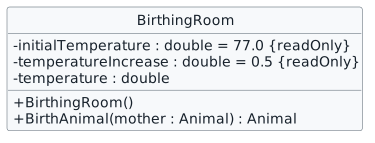
This focused design shows the members or flow relevant to this feature. Keep unchanged members from your preceding checkpoint; follow the tasks below for the order of intermediate edits.

Private temperature initialized by a constructor. class BirthingRoom { - initialTemperature : double = 77.0 {readOnly} - temperatureIncrease : double = 0.5 {readOnly} - temperature : double + BirthingRoom() + BirthAnimal(mother : Animal) : Animal }
Private temperature initialized by a constructor
  • New
  • Changed
  • Removed
4.Modify the visibility of the Temperature field in the BirthingRoom class
2.4.5 How to Adhere to the Law of Demeter 2.4.6 How to Define Private Fields 2.4.7 How to Use Private Fields
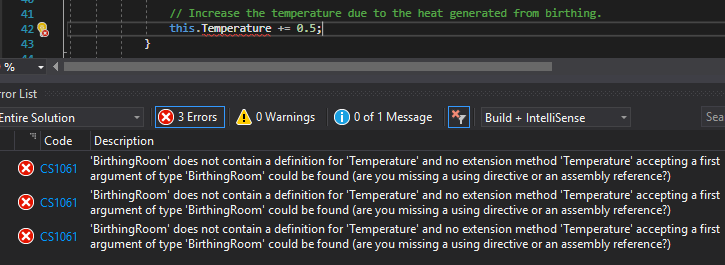
A Observe the errors in the ErrorList. Because there is no longer a reference to uppercase Temperature, the code breaks
Snip: Temperature Error (Reference); compare object identities, field values, and execution position with your debugger.
Snip: Temperature Error (Reference)
B Change the uppercase reference in the BirthAnimal method to lowercase temperature. Ensure the one of the errors goes away
C In the MainWindow, in the newComoZooButton_Click, change the uppercase Temperature reference to lowercase temperature
D Modify the visibility of the Temperature field in the BirthingRoom by changing the keyword public to private and changing the field name to lower case
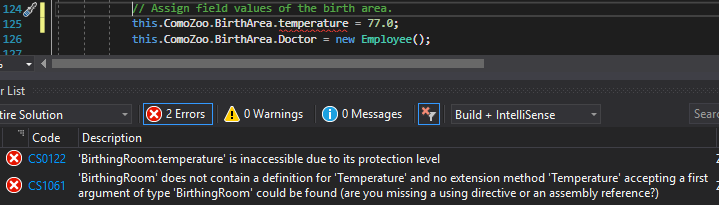
E Observe the new error in the ErrorList. Since the temperature field is now private, other classes cannot change or manipulate it
Snip: Temperature Error (Private); compare object identities, field values, and execution position with your debugger.
Snip: Temperature Error (Private)
F Since you can only modify the temperature from the BirthingRoom class now, delete the line of code that assigns a value to the temperature field in the MainWindow
G In the newSanDiegoZooButton_Click, delete the line of code that assigns a value to the Temperature field in the MainWindow
5.Assign the initial temperature of the BirthingRoom
2.4.8 How to Define Readonly Fields
A In the BirthingRoom class, define a field of type double named initialTemperature with a readonly modifier and assign it the value 77.0
/// <summary>
/// The initial temperature of the BirthingRoom.
/// </summary>
/// <summary>
/// The initial temperature of the BirthingRoom.
/// </summary>
private readonly double initialTemperature = 77.0;
Review this feature’s design and requirements
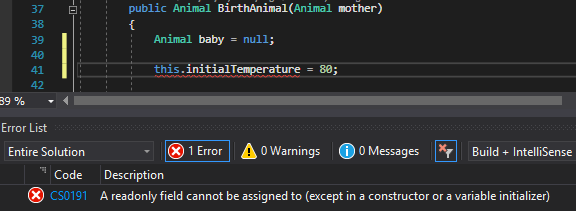
B Observe that when attempting to assign the initialTemperature field a value, you will get an error
Snip: Readonly Field Error; compare object identities, field values, and execution position with your debugger.
Snip: Readonly Field Error
6.Assign the temperature of the BirthingRoom field using a constructor
2.4.9 How to Utilize Constructors 2.4.10 How to Define a Constructor
A Above the BirthAnimal method in the BirthingRoom class, define a constructor using the code below
/// <summary>
/// Initializes a new instance of the BirthingRoom class.
/// </summary>
/// <summary>
/// Initializes a new instance of the BirthingRoom class.
/// </summary>
public BirthingRoom()
{
}
Review this feature’s design and requirements
B In the constructor body, assign the temperature field to the initialTemperature field
/// <summary>
/// Initializes a new instance of the BirthingRoom class.
/// </summary>
/// <summary>
/// Initializes a new instance of the BirthingRoom class.
/// </summary>
public BirthingRoom()
{
    this.temperature = this.initialTemperature;
}
7.Add a readonly field for the temperature increase
A In the BirthingRoom class, define a readonly field of type double named temperatureIncrease and assign it the value 0.5
B In the BirthAnimal method, increase the temperature field by the

temperatureIncrease field instead of the hardcoded 0.5.

8.Check Your Work (Como Zoo):
2.4.12 How to Debug Constructors
A Set a breakpoint in the newComoZooButton_Click on the line that instantiates a BirthingRoom and a breakpoint in the BirthingRoom class in the BirthAnimal method on the line that assigns temperature
B Start the application. Click New Como Zoo
C Press F11. Ensure the debugger steps into the BirthingRoom class
D Press F11 twice to step over the readonly fields
E Press F11. Ensure the debugger steps into the BirthingRoom constructor
F Press F11 to step through the BirthingRoom constructor and back to the MainWindow
G Press F11. Ensure that the values of the BirthArea object are correct
H Click Continue. Click Birth dingo
I Press F11. Ensure that the temperature field is now 77.5
9.Check Your Work (San Diego Zoo):
A Set a breakpoint in the birthPlatypusButton_Click on the closing curly brace
B Start the application. Click New SanDiego Zoo. Click Birth platypus
C Ensure that the values for the BirthArea are correct
Protect the vending-machine balance
Problem

Currently the VendingMachine's money balance can be manipulated outside of the class both through the public MoneyBalance field and the public AddMoney method.

Solution

You will make fields and methods in the VendingMachine class private so that other classes do not have access to them.

10.Review the feature design
A Identify the contracts and expected behavior

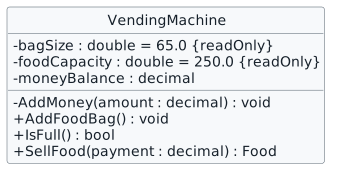
This focused design shows the members or flow relevant to this feature. Keep unchanged members from your preceding checkpoint; follow the tasks below for the order of intermediate edits.

Private vending-machine state. class VendingMachine { - bagSize : double = 65.0 {readOnly} - foodCapacity : double = 250.0 {readOnly} - moneyBalance : decimal - AddMoney(amount : decimal) : void + AddFoodBag() : void + IsFull() : bool + SellFood(payment : decimal) : Food }
Private vending-machine state
  • New
  • Changed
  • Removed
11.Modify visibility in the VendingMachine class
2.4.13 How to Define and Use Private Methods Review this feature’s design and requirements
A Modify the visibility of the moneyBalance field and the AddMoney method from public to private
B Change any references from MoneyBalance to moneyBalance and delete the lines of code in the MainWindow that assign a value to MoneyBalance
12.Define readonly fields in the VendingMachine class
Review this feature’s design and requirements
A Define a private readonly field of type double named bagSize and assign it the value 65.0
B Define a private readonly field of type double named foodCapacity and assign it the value 250.0
C In the IsFull method, replace the hardcoded 250.0 with the foodCapacity field reference
D In the AddFoodBag method, replace the hardcoded 65.0 with the bagSize field reference and the 250.0 with the foodCapacity field reference
13.Check Your Work (Como Zoo):
A In the newComoZooButton_Click, attempt to assign the moneyBalance of the AnimalSnackMachine. Ensure that you cannot
this.ComoZoo.AnimalSnackMachine.moneyBalance = 3000.00m
B In the newComoZooButton_Click, attempt to add money to the

AnimalSnackMachine. Ensure that you cannot. this.ComoZoo.AnimalSnackMachine.AddMoney(3000.00m);

C Remove both lines of code
Let a guest manage a private wallet
Problem

Currently the Guest's money balance can be manipulated outside of the class both through the public Wallet field and the public RemoveMoney method.

Solution

You will make the wallet and RemoveMoney method private and give the Guest a way to add money to their wallet.

14.Review the feature design
A Identify the contracts and expected behavior

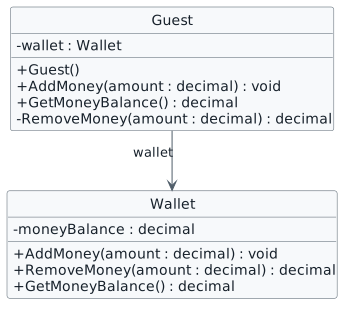
This focused design shows the members or flow relevant to this feature. Keep unchanged members from your preceding checkpoint; follow the tasks below for the order of intermediate edits.

Guest owns a private wallet. class Guest { - wallet : Wallet + Guest() + AddMoney(amount : decimal) : void + GetMoneyBalance() : decimal - RemoveMoney(amount : decimal) : decimal } class Wallet { - moneyBalance : decimal + AddMoney(amount : decimal) : void + RemoveMoney(amount : decimal) : decimal + GetMoneyBalance() : decimal } Guest --> Wallet : wallet
Guest owns a private wallet
  • New
  • Changed
  • Removed
15.Make the Guest's Wallet private
2.4.14 How to Define and Use Private Object Fields
A In the Guest class, change the visibility of the Wallet field from public to private and change it to lowercase
B Change all Wallet references in the Guest class to wallet
16.In the MainWindow in the newComoZooButton_Click and

newSanDiegoZooButton_Click methods, delete the lines of code that instantiate the Wallet and assign the Wallet's MoneyBalance

A Verify the required change or observation

Check the result against this instruction: In the MainWindow in the newComoZooButton_Click and

17.Modify the Wallet class
Review this feature’s design and requirements
A Make the MoneyBalance field private and change it to lowercase
B Define a method named AddMoney with a parameter of type decimal named amount that adds the amount parameter to the moneyBalance field
C Change all references to MoneyBalance to moneyBalance
D Define a method named GetMoneyBalance with a return type of decimal that returns the moneyBalance field
18.Define the AddMoney method in the Guest class
Review this feature’s design and requirements
A AddMoney has a return type of void and takes a parameter of type decimal named amount
B In the method body, call the wallet's AddMoney method and pass in the amount parameter
19.Modify the Guest class
A In the GetMoneyBalance method, call the wallet's GetMoneyBalance method instead of the MoneyBalance field directly
B Define a constructor
C In the constructor, instantiate an instance of the Wallet class using the wallet field
20.Give the Guests an initial amount of money

This violates encapsulation and will be fixed in the next assignment. For now pretend the Zoo is giving them a gift to start their Zoo journey with.

Review this feature’s design and requirements
A In the MainWindow in the newComoZooButton_Click after the lines of code that assign the Visitor fields, call the Visitor's AddMoney method and pass in $5.25
B In the MainWindow in the newSanDiegoZooButton_Click after the lines of code that assign the Visitor fields, call the Visitor's AddMoney method and pass in $3.75
21.Check Your Work (Como Zoo):
A Set a breakpoint in the newComoZooButton_Click on the line of code that calls AddMoney
B Start the application. Click New Como Zoo
C Press F11. Ensure the debugger steps into the AddMoney method in the Guest class
D Press F11 to step into the AddMoney method in the Wallet class
E Press F11 to step through the method and back to the MainWindow
F Press F11. Ensure the Visitor values match those below
22.Check Your Work(San Diego Zoo):
A Set a breakpoint in the FeedAnimal method in the Guest class on the line that calls GetMoneyBalance
B Start the application. Click New San Diego Zoo. Click Dave, feed platypus
C Press F11. Ensure the debugger steps into the GetMoneyBalance method in the Guest class
D Press F11 to step into the GetMoneyBalance method in the Wallet class
E Step through the GetMoneyBalance method and back to the FeedAnimal method

Ensure it returns 3.75.

Keep animal internals inside Animal
Problem

Currently, classes other than the Animal class can make the animal do things that only the animal should have control over.

Solution

You will make methods and field in the Animal class private.

23.Review the feature design
A Identify the contracts and expected behavior

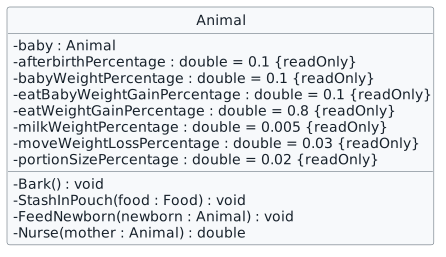
This focused design shows the members or flow relevant to this feature. Keep unchanged members from your preceding checkpoint; follow the tasks below for the order of intermediate edits.

Private animal behavior and constants. class Animal { - baby : Animal - afterbirthPercentage : double = 0.1 {readOnly} - babyWeightPercentage : double = 0.1 {readOnly} - eatBabyWeightGainPercentage : double = 0.1 {readOnly} - eatWeightGainPercentage : double = 0.8 {readOnly} - milkWeightPercentage : double = 0.005 {readOnly} - moveWeightLossPercentage : double = 0.03 {readOnly} - portionSizePercentage : double = 0.02 {readOnly} - Bark() : void - StashInPouch(food : Food) : void - FeedNewborn(newborn : Animal) : void - Nurse(mother : Animal) : double }
Private animal behavior and constants
  • New
  • Changed
  • Removed
Readonly animal percentages
Field Value
afterbirthPercentage 0.1
babyWeightPercentage 0.1
eatBabyWeightGainPercentage 0.1
eatWeightGainPercentage 0.8
milkWeightPercentage 0.005
moveWeightLossPercentage 0.03
portionSizePercentage 0.02
24.Modify the Animal class
A Change the visibility of the methods and Baby field in this story’s design reference from public to private
B Define the private readonly fields using this story’s design reference
C Assign the private readonly fields
1 Assign the afterbirthPercentage to 0.1
2 Assign the babyWeightPercentage to 0.1
3 Assign the eatBabyWeightGainPercentage to 0.1
4 Assign the eatWeightGainPercentage to 0.8
5 Assign the milkWeightPercentage to 0.005
6 Assign the moveWeightLossPercentage to 0.03
7 Assign the portionSizePercentage to 0.02
D Refactor code to use the readonly fields instead of hardcoded values
1 In the Reproduce method, delete the lines of code that assign weightLossAmount and Weight
2 In the Reproduce method, replace the deleted lines with code that reduces the mother's Weight by the baby's Weight and then reduces the mother's Weight by the baby's Weight multiplied by the afterbirthPercentage
3 In the MakePregnant method replace the 0.1 on the line that assigns the baby's Weight with babyWeightPercentage
4 In the Eat method, replace the 0.1 on the line that determines the babyWeightGain with eatBabyWeightGainPercentage
5 In the Eat method, replace the 0.8 on the line that assigns the weightGain with eatWeightGainPercentage
6 In the Nurse method, replace the 0.005 on the line that assigns the milkWeight with milkWeightPercentage
7 In the Move method, replace the 0.01 on the line of code that assigns the weightLossAmount with moveWeightLossPercentage
8 In the GetPortionSize method, replace 0.02 with portionSizePercentage
25.Check Your Work (Como Zoo):
A Set a breakpoint in the Reproduce method in the Animal class on the line that returns the baby object
B Start the application. Click New Como Zoo. Click Birth dingo
C Ensure the values of the baby and mother match those below
26.Check Your Work (San Diego Zoo):
A In the BirthAnimal method in the BirthingRoom class, write a line of code that calls StashInPouch on the baby object. Ensure that you do not have access to the method
B In the newSanDiegoZooButton_Click, write a line of code that calls GetIsPregnant on the baby field. Ensure that you do not have access to the field
animal.baby.GetIsPregnant();

Even though GetIsPregnant method is public, we still cannot access it through the baby field because of its visibility.

Protect the animal collection
Problem

The Zoo class should be the only class with access to the list of animals. Additionally, when adding an animal to the list it is possible to add null to the list which is not something we want to happen.

Solution

You will make the Animals list private, refactor the code to use it and make sure animal objects aren't null before adding them to the list.

27.Review the feature design
A Identify the contracts and expected behavior

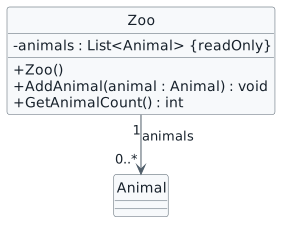
This focused design shows the members or flow relevant to this feature. Keep unchanged members from your preceding checkpoint; follow the tasks below for the order of intermediate edits.

Controlled collection access. class Zoo { - animals : List<Animal> {readOnly} + Zoo() + AddAnimal(animal : Animal) : void + GetAnimalCount() : int } Zoo "1" --> "0..*" Animal : animals
Controlled collection access
  • New
  • Changed
  • Removed
28.Change the visibility of the Animals list from public to private
Review this feature’s design and requirements
A Verify the required change or observation

Check the result against this instruction: Change the visibility of the Animals list from public to private.

29.Change all references from Animals to animals
A Verify the required change or observation

Check the result against this instruction: Change all references from Animals to animals.

30.Define a Zoo constructor
A Define the Zoo constructor using this story’s design reference
B In the Zoo constructor, instantiate a list of animals using the animals field instead of instantiating the list at the field definition

From now on, we will instantiate list fields with the readonly modifier inside the class' constructor.

C In the MainWindow in the newComoZooButton_Click and

newSanDiegoZooButton_Click methods, delete the lines of code that instantiate the Animal list.

31.Add animals to the list in the Zoo class
A Define methods in the Zoo class using this story’s design reference
B In the AddAnimal method, check if the animal parameter is null. If it isn't, add it to the animals list
C In the GetAnimalCount method, return the Count of the animals list
D In the MainWindow, change all lines of code that add the animal to the list directly to a call to AddAnimal
E In the BirthAnimal method in the Zoo class, use the AddAnimal method to add the baby animal to the list instead of calling the Add method directly
F In the MainWindow, change all lines of code that call the Count property on the Animals to a call to GetAnimalCount
32.Check Your Work (Como Zoo):
A Set a breakpoint in the MainWindow in the newComoZooButton_Click on the line that adds Dolly to the list of animals
B Start the application. Click New Como Zoo
C Press F11. Ensure the debugger steps into the AddAnimal method in the Zoo class
D Step through the method. Ensure the logic check passes and that Dolly is added to the list of animals
33.Check Your Work (San Diego Zoo):
A Set a breakpoint in the getSanDiegoZooAnimalCount_Click on the line that calls GetAnimalCount
B Start the application. Click New San Diego Zoo. Click Get animal count
C Press F11. Step through the GetAnimalCount method and back to the MainWindow
D Press F11. Ensure the Animals list Count is 2 and that the values match those below
Keep window-owned zoos private
Problem

There isn't a "Zoo" problem here, but fields should never be public (we will change the rest in future assignments).

Solution

You will make the Zoos private and change their references.

34.Review the feature design
A Identify the contracts and expected behavior

This focused design shows the members or flow relevant to this feature. Keep unchanged members from your preceding checkpoint; follow the tasks below for the order of intermediate edits.

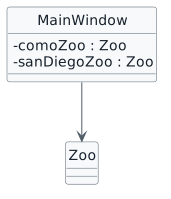
Private zoo references. class MainWindow { - comoZoo : Zoo - sanDiegoZoo : Zoo } MainWindow --> Zoo
Private zoo references
  • New
  • Changed
  • Removed
35.In the MainWindow, change the visibility of the ComoZoo and SanDiegoZoo from public to private. Do not change them to lowercase just yet
Review this feature’s design and requirements
A Verify the required change or observation

Check the result against this instruction: In the MainWindow, change the visibility of the ComoZoo and SanDiegoZoo from public to private. Do not change them to lowercase just yet.

36.Change all references to ComoZoo to comoZoo
2.4.16 How to Rename Fields
A Place your cursor on the ComoZoo in the field and press Ctrl+R, Ctrl+R. This will bring up the rename panel
B Change the ComoZoo field to comoZoo and click Apply. Ensure that all references to ComoZoo changed to comoZoo
C Build your solution and ensure it compiles without errors or warnings
37.Change all references to SanDiegoZoo to sanDiegoZoo

Using Ctrl+R, Ctrl+R will not always be useful in the future. When using it be very careful about what it might be changing that could alter the functionality of your code.

A Verify the required change or observation

Check the result against this instruction: Change all references to SanDiegoZoo to sanDiegoZoo

Submit your work
38.Ensure that all code is StyleCop compliant
A Verify the required change or observation

Check the result against this instruction: Ensure that all code is StyleCop compliant.

39.Zip the solution and submit to the Feedback System
A Verify the required change or observation

Check the result against this instruction: Zip the solution and submit to the Feedback System.

40.Submit the Feedback System url to the correct assignment in Canvas
A Verify the required change or observation

Check the result against this instruction: Submit the Feedback System url to the correct assignment in Canvas.

Completion checklist
41.Review the required evidence
A Check every acceptance criterion

Return to each user story and confirm that you can demonstrate its acceptance criteria. Use the task checkboxes to track completion; a checked box is not a substitute for testing or inspecting the required evidence.

Protect birthing-room temperature Protect the vending-machine balance Let a guest manage a private wallet Keep animal internals inside Animal Protect the animal collection Keep window-owned zoos private
B Build and inspect the final solution

Remove temporary lines used only to demonstrate compile-time errors. Build without errors or warnings, check StyleCop compliance, and rerun the required scenario paths.

C Follow this activity’s submission instructions

Use the submission or attendance instructions in this page. For a Feedback System submission, upload the requested ZIP, review and resolve the feedback, and submit the resulting URL to the matching Canvas activity. For a Canvas quiz, enter only the requested answers; for an oral final, complete the scheduling and attendance steps.