2.3 Zoo Learning Activity

Under Construction

This page is currently being built. Please check back soon.
A platypus
2.3 Zoo Learning Activity — overview

Work through the user stories in order. Each story states the goal and acceptance criteria; its nested tasks retain the detailed implementation and verification steps.

1.Gather your resources
A Open the assignment resources
Set up the checkpoint
2.Copy your 2.2 ending code, renaming both the folder and the Visual Studio solution file
A Verify the required change or observation

Check the result against this instruction: Copy your 2.2 ending code, renaming both the folder and the Visual Studio solution file

Store animals in an ordered collection
Problem

As it is currently, the zoo only has one animal, the featured animal, that can be acted upon. The zoo would like to be able to have more animals.

Solution

You will define a list of animals and add the featured animal to it.

3.Review the feature design
A Identify the contracts and expected behavior

This focused design shows the members or flow relevant to this feature. Keep unchanged members from your preceding checkpoint; follow the tasks below for the order of intermediate edits.
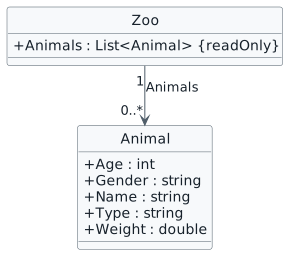
An ordered animal collection. class Zoo { + Animals : List<Animal> {readOnly} } class Animal { + Age : int + Gender : string + Name : string + Type : string + Weight : double } Zoo "1" --> "0..*" Animal : Animals
An ordered animal collection
  • New
  • Changed
  • Removed
4.In the Zoo class, define a readonly field of type List<Animal> named Animals
2.3.4 How to Define a List
/// <summary>
/// The zoo's list of animals.
/// </summary>
/// <summary>
/// The zoo's list of animals.
/// </summary>
public readonly List<Animal> Animals;
Review this feature’s design and requirements
A Verify the required change or observation

Check the result against this instruction: In the Zoo class, define a readonly field of type List<Animal> named Animals.

5.In the Zoo class, instantiate the list of Animals using field initializer syntax
2.3.5 How to Instantiate a List
/// <summary>
/// The zoo's list of animals.
/// </summary>
/// <summary>
/// The zoo's list of animals.
/// </summary>
public readonly List<Animal> Animals = new List<Animal>();
Review this feature’s design and requirements
A Verify the required change or observation

Check the result against this instruction: In the Zoo class, instantiate the list of Animals using field initializer syntax.

6.Add an animal to the list
2.3.6 How to Add Items to a List
A In the MainWindow after assigning the ComoZoo fields, define a variable of type Animal named animal
B Instantiate the animal variable as an instance of the Animal class
C Assign the fields of Dolly the Dingo using the animal variable instead of the ComoZoo.FeaturedAnimal field
D Call the MakePregnant method on the animal variable instead of the ComoZoo.FeaturedAnimal field
E Add the animal variable to the list of Animals by passing it in to the List class's Add method
this.ComoZoo.Animals.Add(animal);
Review this feature’s design and requirements
7.In the MainWindow, delete the instantiation of the FeaturedAnimal and its set fields
A Verify the required change or observation

Check the result against this instruction: In the MainWindow, delete the instantiation of the FeaturedAnimal and its set fields.

8.Repeat steps C-D for the San Diego Zoo using Patti the Platypus

Make sure to call MakePregnant on the SanDiego Zoo's Platypus.

Review this feature’s design and requirements
A Verify the required change or observation

Check the result against this instruction: Repeat steps C-D for the San Diego Zoo using Patti the Platypus.
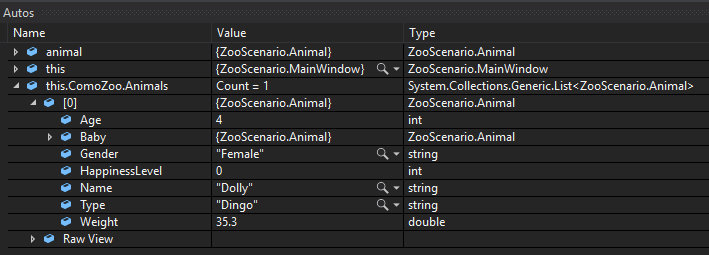
9.Check Your Work (ComoZoo):
2.3.7 How to Debug Items in a List
A Set a breakpoint in the Zoo class on the line that instantiates a List of Animals
B Start the application. Click New Como Zoo. Ensure that this.ComoZoo.Animals is null
C Press F10. Ensure that the value of this.ComoZoo.Animals is Count = 0
D Press F10 to step through the lines of code until the pointer hits the line of code that adds the animal to the List. Ensure that the list's Count is still 0
E Press F10. Ensure that the Animals Count is now 1. Expand the Animals list to ensure that the animal currently in the list is Dolly the Dingo and that there is a Baby object that has been instantiated
Check Your Work: ComoZoo Animals List; compare object identities, field values, and execution position with your debugger.
Check Your Work: ComoZoo Animals List
10.Check Your Work (San Diego):
A Set a breakpoint in the newSanDiegoZooButton_Click on the line of code that adds an animal to the list
B Start the application. Click New San Diego Zoo. Ensure that the Count of the Animals List is 0
C Press F10. Ensure that the Animals Count is now 1. Expand the Animals list to ensure that the animal currently in the list is Patti the Platypus and that there is a Baby object that has been instantiated
Populate each zoo with distinct animals
Problem

The zoo has a list now but only one animal. The zoo would like there to be multiple animals.

Solution

You will instantiate multiple animals and add them to the zoo's list of animals.

11.Review the feature design
A Identify the contracts and expected behavior

This focused design shows the members or flow relevant to this feature. Keep unchanged members from your preceding checkpoint; follow the tasks below for the order of intermediate edits.

Initial animal order. object "Como : List<Animal>" as como object "Dolly : Animal" as dolly { Type = Dingo Weight = 35.3 } object "Dixie : Animal" as dixie { Type = Dingo Age = 3 Gender = Female Weight = 33.8 } object "Pammy : Animal" as pammy { Type = Platypus Age = 2 Gender = Female Weight = 15.5 } object "San Diego : List<Animal>" as sd object "Patti : Animal" as patti { Type = Platypus Weight = 3.27 } object "Harold : Animal" as harold { Type = Hummingbird Age = 1 Gender = Male Weight = 0.5 } como --> dolly : [0] como --> dixie : [1] como --> pammy : [2] sd --> patti : [0] sd --> harold : [1]
Initial animal order
  • New
  • Changed
  • Removed
12.In the MainWindow in the newComoZooButton_Click after adding the first animal to the Zoo, instantiate an instance of the Animal class using the previously defined animal variable
2.3.8 How to Reuse Variables
animal = new Animal();
A Verify the required change or observation

Check the result against this instruction: In the MainWindow in the newComoZooButton_Click after adding the first animal to the Zoo, instantiate an instance of the Animal class using the previously defined animal variable.

13.Assign the fields of the animal variable
animal.Age = 3;
animal.Gender = "Female";
animal.Name = "Dixie";
animal.Type = "Dingo";
animal.Weight = 33.8;
A Verify the required change or observation

Check the result against this instruction: Assign the fields of the animal variable.

14.Call MakePregnant on the animal variable
A Verify the required change or observation

Check the result against this instruction: Call MakePregnant on the animal variable.

15.Add the animal to the list of Animals
Review this feature’s design and requirements
A Verify the required change or observation

Check the result against this instruction: Add the animal to the list of Animals.

16.Use the animal variable to instantiate a new Animal, assign its fields, make it pregnant, and add it to the list
animal.Age = 2;
animal.Gender = "Female";
animal.Name = "Pammy";
animal.Type = "Platypus";
animal.Weight = 15.5;
Review this feature’s design and requirements
A Verify the required change or observation

Check the result against this instruction: Use the animal variable to instantiate a new Animal, assign its fields, make it pregnant, and add it to the list.

17.In the MainWindow in the newSanDiegoZooButton_Click, use the animal variable to instantiate a new Animal, assign its fields, and add it to the list
animal.Age = 1;
animal.Gender = "Male";
animal.Name = "Harold";
animal.Type = "Hummingbird";
animal.Weight = 0.5;
Review this feature’s design and requirements
A Verify the required change or observation

Check the result against this instruction: In the MainWindow in the newSanDiegoZooButton_Click, use the animal variable to instantiate a new Animal, assign its fields, and add it to the list.
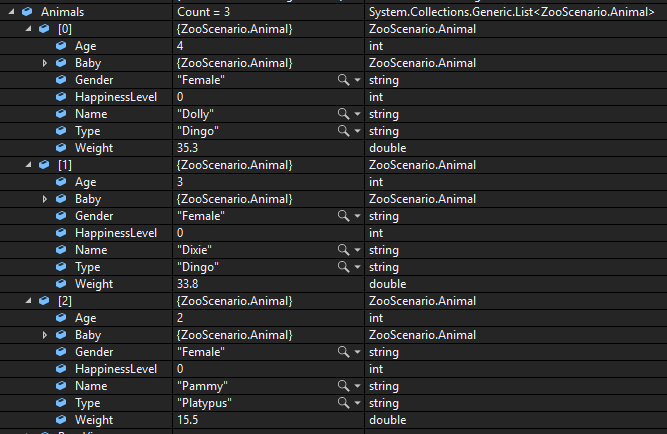
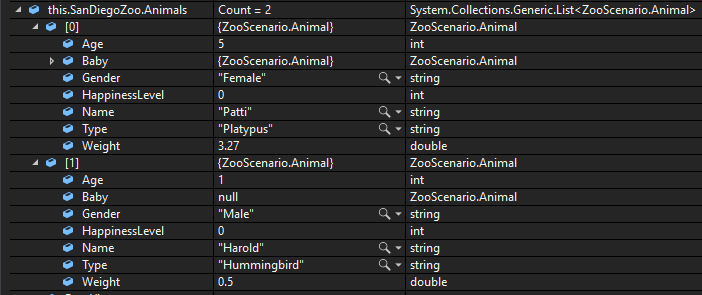
18.Check Your Work (ComoZoo):
A Set a breakpoint at the end of the newComoZooButton_Click
B Start the application. Click New Como Zoo
C In the Autos window, expand the ComoZoo object and ensure that the Animals Count is 3 and that the values match the values below
Debugger checkpoint on source page 7; compare object identities, field values, and execution position with your debugger.
Debugger checkpoint on source page 7
19.Check Your Work (San Diego):
A Set a breakpoint at the end of the newSanDiegoZooButton_Click
B Start the application. Click New San Diego Zoo
C In the Autos window, expand the SanDiegoZoo object and ensure that the Animals Count is 2 and that the values match the values below
Check Your Work: Animals List (San Diego Zoo); compare object identities, field values, and execution position with your debugger.
Check Your Work: Animals List (San Diego Zoo)
Wake every animal
Problem

The Employees of the Zoo would like a way to wake up all the animals in the zoo.

Solution

We will write a method that loops through the list of Animals and calls each Animal's Move method.

20.Review the feature design
A Identify the contracts and expected behavior

This focused design shows the members or flow relevant to this feature. Keep unchanged members from your preceding checkpoint; follow the tasks below for the order of intermediate edits.
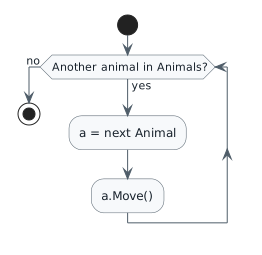
Move every animal once. start while (Another animal in Animals?) is (yes) :a = next Animal; :a.Move(); endwhile (no) stop
Move every animal once
  • New
  • Changed
  • Removed
21.Add buttons in MainWindow.xaml to wake up all animals
A Below the existing ComoZoo buttons, add the following code:
<Button x:Name="comoZooWakeAllAnimals" Content="Wake all animals" Click="comoZooWakeAllAnimals_Click" />
B Below the existing SanDiegoZoo buttons, add the following code:
<Button x:Name="sanDiegoZooWakeAllAnimals" Content="Wake all animals" Click="sanDiegoZooWakeAllAnimals_Click" />
C Double click all of the new buttons to create their event handlers
22.Define the WakeAllAnimals method in the Zoo class
Review this feature’s design and requirements
A In the method body, call the Move method on all the animals in the Animals list using a foreach loop
23.Call the WakeAllAnimals method from the comoZooWakeAllAnimals_Click and the sanDiegoZooWakeAllAnimals_Click in the MainWindow
A Verify the required change or observation

Check the result against this instruction: Call the WakeAllAnimals method from the comoZooWakeAllAnimals_Click and the sanDiegoZooWakeAllAnimals_Click in the MainWindow.

24.Check Your Work (Como Zoo):
A Set a breakpoint on the opening curly brace of the WakeAllAnimals method
B Start the application. Click the 'New Como Zoo' button. Click the 'Wake all animals'
C Press F11 to step into the foreach loop
D Step through the foreach loop. Ensure Dolly's Weight reduces to 34.946999999999996
E Step through the foreach loop again. Ensure Dixie's Weight reduces to 33.461999999999996
F Step through the foreach loop again. ensure Pammy's Weight reduces to 15.345
25.Check Your Work (San Diego):
A Set a breakpoint on the closing curly brace of the WakeAllAnimals method
B Start the application. Click the 'New San Diego Zoo' button. Click the 'Wake all animals' button
C Ensure that Patti's Weight is 3.2373 and Harold's Weight is 0.495
Report animal count and average weight
Problem

Now that the zoo has a list of animals, they would like to get some information based on the animals.

Solution

You will add buttons and methods that will determine the number of animals in the zoo and the average weight of the animals in the zoo.

26.Review the feature design
A Identify the contracts and expected behavior

This focused design shows the members or flow relevant to this feature. Keep unchanged members from your preceding checkpoint; follow the tasks below for the order of intermediate edits.
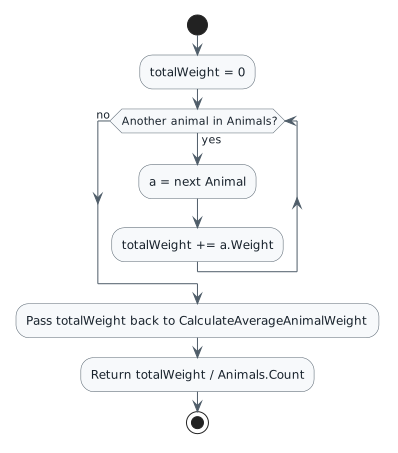
Compute total and average weight. start :totalWeight = 0; while (Another animal in Animals?) is (yes) :a = next Animal; :totalWeight += a.Weight; endwhile (no) :Pass totalWeight back to CalculateAverageAnimalWeight; :Return totalWeight / Animals.Count; stop
Compute total and average weight
  • New
  • Changed
  • Removed
Fresh zoo statistics
Zoo Count Total weight Average weight
Como 3 84.6 28.2
San Diego 2 3.77 1.885
27.In the MainWindow class, define the following fields:
Review this feature’s design and requirements
/// <summary>
/// The number of the animals in one of the zoos.
/// </summary>
/// <summary>
/// The number of the animals in one of the zoos.
/// </summary>
public int ZooAnimalCount;
/// <summary>
/// The average weight of the animals in one of the zoos.
/// </summary>
/// <summary>
/// The average weight of the animals in one of the zoos.
/// </summary>
public double ZooAverageAnimalWeight;
A Verify the required change or observation

Check the result against this instruction: In the MainWindow class, define the following fields:

28.Add new buttons to MainWindow.xaml
A Below the existing ComoZoo buttons, add the following code:
<Button x:Name="getComoZooAnimalCount" Content="Get animal count" Click="getComoZooAnimalCount_Click" />
<Button x:Name="getComoZooAverageAnimalWeight" Content="Get average animal weight" Click="getComoZooAverageAnimalWeight_Click" />
B Below the existing SanDiegoZoo buttons, add the following code:
<Button x:Name="getSanDiegoZooAnimalCount" Content="Get animal count" Click="getSanDiegoZooAnimalCount_Click" />
<Button x:Name="getSanDiegoZooAverageAnimalWeight" Content="Get average animal weight" Click="getSanDiegoZooAverageAnimalWeight_Click" />
C Double click all of the new buttons to create their event handlers
29.In the MainWindow, in the getComoZooAnimalCount_Click, assign the ZooAnimalCount field to the Animals Count
2.3.9 How to Use the Count Property of a List
this.ZooAnimalCount = this.ComoZoo.Animals.Count;
A Verify the required change or observation

Check the result against this instruction: In the MainWindow, in the getComoZooAnimalCount_Click, assign the ZooAnimalCount field to the Animals Count.

30.In the MainWindow in the getSanDiegoZooAnimalCount_Click, assign the ZooAnimalCount field to the Animals Count
A Verify the required change or observation

Check the result against this instruction: In the MainWindow in the getSanDiegoZooAnimalCount_Click, assign the ZooAnimalCount field to the Animals Count.

31.Get the total animal weight
2.3.10 How to Define and Use Accumulator Variables 2.3.11 How to Use Foreach Loops
A In the Zoo class, define a method named CalculateTotalAnimalWeight with a return type of double
B In the method body, define an accumulator variable of type double named totalWeight
double totalWeight = 0;
C Define an foreach loop that adds the Weight of a particular animal to the totalWeight variable
foreach (Animal a in this.Animals)
{
    totalWeight += a.Weight;
}
D Return the totalWeight variable
32.Get average animal weight
A In the Zoo class, define a method named CalculateAverageAnimalWeight with a return type of double
B In the method body return the call to CalculateTotalAnimalWeight by the Animals list's Count
return CalculateTotalAnimalWeight() / this.Animals.Count;
C In the MainWindow in the getComoZooAverageAnimalWeight_Click, assign the ZooAverageAnimalWeight field to the return of the call to the ComoZoo's CalculateAverageAnimalWeight method
D In the MainWindow in the getSanDiegoZooAverageAnimalWeight_Click, assign the ZooAverageAnimalWeight field to the return of the call to the SanDiegoZoo's CalculateAverageAnimalWeight method
33.Check Your Work (ComoZoo):
A Set a breakpoint on the lines that assign the ZooAnimalCount and

ZooAverageAnimalWeight for the Como Zoo.

B Start the application. Click the New Como Zoo button. Click the Get animal count button

Ensure that the ZooAnimalCount is 0.

C Press F10. Ensure that the ZooAnimalCount is 3
D Click Continue. Click the Get average animal weight button. Step into the CalculateTotalAnimalWeight method
E Ensure that the totalWeight is 0
F Step through the method body. Ensure that the foreach loop is stepped through 3 times
G Ensure that the totalWeight is 84.6
H Press F10 to return to MainWindow. Ensure that the ZooAverageAnimalWeight is 28.2
34.Check Your Work (San Diego):
A Set a breakpoint on the lines that assign the ZooAnimalCount and

ZooAverageAnimalWeight for the San Diego Zoo.

B Start the application. Click the New San Diego Zoo button. Click the Get animal count button

Ensure that the ZooAnimalCount is 0.

C Press F10. Ensure that the ZooAnimalCount is 2
D Click Continue. Click the Get average animal weight button. Step into the CalculateTotalAnimalWeight method
E Ensure that the totalWeight is 0
F Step through the method body. Ensure that the foreach loop is stepped through 2 times
G Ensure that the totalWeight is 3.77
H Press F10 to return to MainWindow. Ensure that the ZooAverageAnimalWeight is 1.885
Find the animal a guest wants to feed
Problem

The feeding of the animal is currently not going to work correctly because the featured animal is no longer part of the zoo. Additionally, there is currently no way to feed an animal that the guest specifically wants to feed.

Solution

You will set up a loop that finds a particular animal and uses it in the feeding sequence.

35.Review the feature design
A Identify the contracts and expected behavior

This focused design shows the members or flow relevant to this feature. Keep unchanged members from your preceding checkpoint; follow the tasks below for the order of intermediate edits.
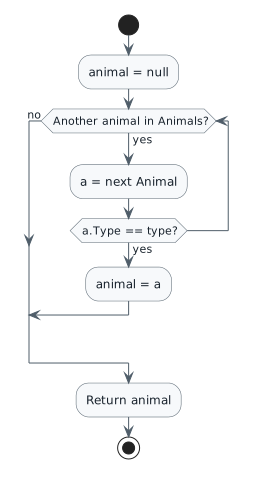
Find the first matching animal. start :animal = null; while (Another animal in Animals?) is (yes) :a = next Animal; if (a.Type == type?) then (yes) :animal = a; break endif endwhile (no) :Return animal; stop
Find the first matching animal
  • New
  • Changed
  • Removed
36.Define the FindAnimal method in the Zoo class
Review this feature’s design and requirements
A FindAnimal has a return type of Animal and takes a parameter of type string name type
B In the method body, define a variable of type Animal named animal and assign it to null
C Define a foreach loop that loops through the list of Animals, checks if the Type of Animal is the same as the type parameter, assigns the animal variable to that particular Animal and then breaks out of the loop
2.3.13 How to Write a Control-Break Loop
foreach (Animal a in this.Animals)
{
    if (a.Type == type)
    {
        animal = a;
        break;
    }
}
D Return the animal variable
37.In the MainWindow in the darlaFeedDingoButton_Click event handler, define a variable of type Animal named animal and assign it to the call to the ComoZoo's FindAnimal method and pass in the string "Dingo" as an argument
Review this feature’s design and requirements
A Verify the required change or observation

Check the result against this instruction: In the MainWindow in the darlaFeedDingoButton_Click event handler, define a variable of type Animal named animal and assign it to the call to the ComoZoo's FindAnimal method and pass in the string "Dingo" as an argument.

38.In the ComoZoo's call to FeedAnimal, pass in the animal variable as an argument instead of the FeaturedAnimal
A Verify the required change or observation

Check the result against this instruction: In the ComoZoo's call to FeedAnimal, pass in the animal variable as an argument instead of the FeaturedAnimal.

39.In the MainWindow in the daveFeedPlatypusButton_Click event handler, define a variable of type Animal named animal and assign it to the call to the SanDiegoZoo's FindAnimal method and pass in the string "Platypus" as an argument
A Verify the required change or observation

Check the result against this instruction: In the MainWindow in the daveFeedPlatypusButton_Click event handler, define a variable of type Animal named animal and assign it to the call to the SanDiegoZoo's FindAnimal method and pass in the string "Platypus" as an argument.

40.In the SanDiegoZoo's call to FeedAnimal, pass in the animal variable instead of the FeaturedAnimal
A Verify the required change or observation

Check the result against this instruction: In the SanDiegoZoo's call to FeedAnimal, pass in the animal variable instead of the FeaturedAnimal.

41.In the Animal class, add an 'else' statement to the Eat method
else
{
    // All other animals do nothing special.
}

We add this else statement now because we have added a Hummingbird to the zoo that neither barks nor has a pouch to store food in.

A Verify the required change or observation

Check the result against this instruction: In the Animal class, add an 'else' statement to the Eat method.
42.Check Your Work (Como Zoo):
A Set a breakpoint in the darlaFeedDingoButton_Click event handler on the line that assigns the animal variable
B Start the application. Click the New Como Zoo button. Click the Darla, feed dingo button
C Press F11. Ensure that the type parameter is "Dingo"
D Step over the line of code that assigns the animal variable
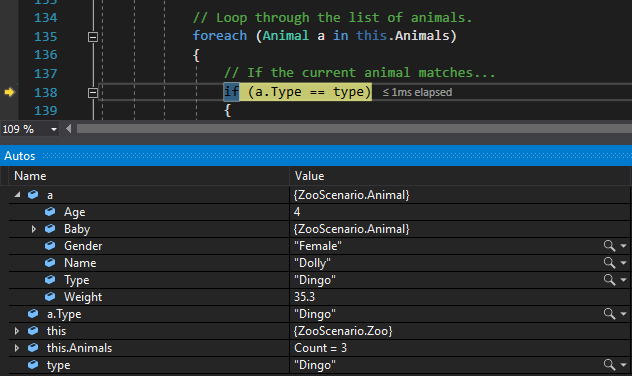
E Step through the foreach loop and pause the debugger on the if statement. In the autos window, expand 'a' and ensure that the animal is Dolly the Dingo
Check Your Work: Check object 'a'; compare object identities, field values, and execution position with your debugger.
Check Your Work: Check object 'a'
F Step through the foreach loop and pause the debugger on the line that assigns the animal variable to 'a'. Ensure that the animal variable is null
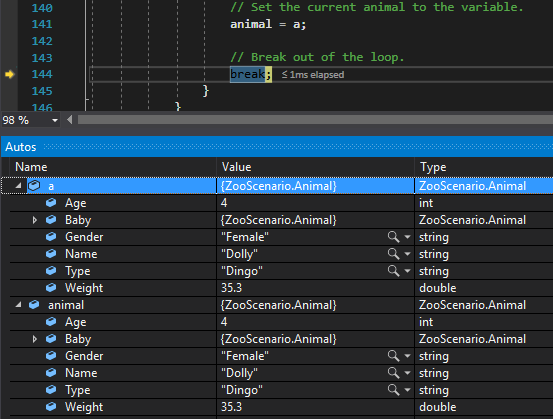
G Press F11. Ensure that the animal variable is assigned to Dolly the Dingo
Check Your Work: Animal Variable; compare object identities, field values, and execution position with your debugger.
Check Your Work: Animal Variable
H Press F11 twice. Ensure that the loop breaks and hits the return statement
I Return to the MainWindow and press F10. Ensure that the animal variable is assigned to Dolly the Dingo
J Press F11 to step into the FeedAnimal method. Ensure that the animal parameter is Dolly the Dingo
43.Check Your Work (San Diego):
A Set a breakpoint in the daveFeedPlatypusButton_Click on the line of code that assigns the animal variable
B Start the application. Click the New San Diego Zoo button. Click the Dave, feed platypus button
C Press F10. Ensure that the animal variable is assigned to Patti the Platypus
D Press F11 to step into the FeedAnimal method. Ensure that the animal parameter is Patti the Platypus
44.Check Your Work (Optional):
A In the FindAnimal method, pass in a misspelled Animal string or a different kind of Animal (i.e

Hummingbird) to see what happens when the foreach loop is gone through.

Find a pregnant mother and add her newborn
Problem

Currently the birthing of an animal is only happening to the featured animal, but now that there are multiple animals that are pregnant the zoo needs the capability to find the particular animal that needs to give birth.

Solution

You will use a foreach loop to find a pregnant animal and refactor the BirthAnimal method to handle that particular animal.

45.Review the feature design
A Identify the contracts and expected behavior

This focused design shows the members or flow relevant to this feature. Keep unchanged members from your preceding checkpoint; follow the tasks below for the order of intermediate edits.
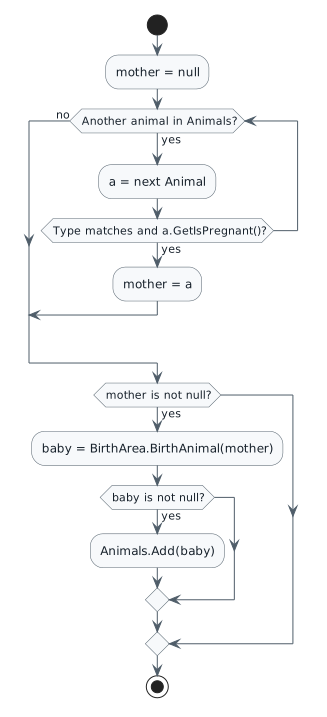
Find a pregnant animal and register its baby. start :mother = null; while (Another animal in Animals?) is (yes) :a = next Animal; if (Type matches and a.GetIsPregnant()?) then (yes) :mother = a; break endif endwhile (no) if (mother is not null?) then (yes) :baby = BirthArea.BirthAnimal(mother); if (baby is not null?) then (yes) :Animals.Add(baby); endif endif stop
Find a pregnant animal and register its baby
  • New
  • Changed
  • Removed
46.Define the FindPregnantAnimal method in the Zoo class
Review this feature’s design and requirements
A FindPregnantAnimal has a return type of Animal and takes a parameter of type string named type
B In the method body, define a variable of type Animal named animal and assign it to null
C Define a foreach loop that loops through the list of Animals, checks if the current Animal's Type is the same as the type parameter and that the current Animal is pregnant, assigns the current Animal to the animal variable and breaks out of the loop
D Return the animal variable
47.Refactor the BirthAnimal method
A In the method header, add a parameter of type Animal named mother
B Replace all references to FeaturedAnimal with the mother parameter
C After the call to BirthAnimal, add a logic check that determines if the baby is not null. Inside the logic check, add the baby to the list of Animals
48.In the MainWindow in the birthDingoButton_Click , pass the call to the ComoZoo's FindPregnantAnimal method and pass in the string "Dingo" as an argument
2.3.14 How to Pass a Method Return as a Parameter
this.ComoZoo.BirthAnimal(this.ComoZoo.FindPregnantAnimal("Dingo"));
A Verify the required change or observation

Check the result against this instruction: In the MainWindow in the birthDingoButton_Click , pass the call to the ComoZoo's FindPregnantAnimal method and pass in the string "Dingo" as an argument.

49.In the MainWindow in the birthPlatypusButton_Click , pass the call to the SanDiegoZoo's FindPregnantAnimal method and pass in the string "Platypus" as an argument
Review this feature’s design and requirements
A Verify the required change or observation

Check the result against this instruction: In the MainWindow in the birthPlatypusButton_Click , pass the call to the SanDiegoZoo's FindPregnantAnimal method and pass in the string "Platypus" as an argument.

50.In the Zoo class, delete the FeaturedAnimal field
Review this feature’s design and requirements
A Verify the required change or observation

Check the result against this instruction: In the Zoo class, delete the FeaturedAnimal field.

51.Check Your Work (Como Zoo):
A Build the solution. Ensure that it compiles without warnings or errors
B Set a breakpoint in the birthDingoButton_Click on the line of code that calls the BirthAnimal method
C Start the application. Click the New Como Zoo button. Click the Birth dingo button
D Press F11. Step through the method body and pause the debugger on the if statement

Ensure that a.Type is "Dingo" and that type is "Dingo".
E Press F11. Step through the method body and press F11. Ensure that the logic check passes
F Step through the remaining method body and to the MainWindow
G Press F11. Ensure that the mother parameter is Dolly the Dingo
H Step through the remaining method body and return to the MainWindow
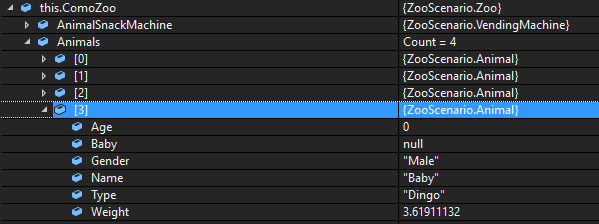
I In the Autos window, ensure that the Animals Count is 4
Check Your Work: Animals List; compare object identities, field values, and execution position with your debugger.
Check Your Work: Animals List
52.Check Your Work (San Diego):
A Set a breakpoint in the birthPlatypusButton_Click on the line of code that calls the BirthAnimal method
B Start the application. Click the New San Diego Zoo button. Click the Birth platypus button

Ensure that the Animals Count is 2.

C Press F10. Ensure that the Animals Count is 3
Submit your work
53.Ensure that all code is StyleCop compliant
A Verify the required change or observation

Check the result against this instruction: Ensure that all code is StyleCop compliant.

54.Zip the solution and submit to the Feedback System
A Verify the required change or observation

Check the result against this instruction: Zip the solution and submit to the Feedback System.

55.Submit the Feedback System url to the correct assignment in Canvas
A Verify the required change or observation

Check the result against this instruction: Submit the Feedback System url to the correct assignment in Canvas.

Completion checklist
56.Review the required evidence
A Check every acceptance criterion

Return to each user story and confirm that you can demonstrate its acceptance criteria. Use the task checkboxes to track completion; a checked box is not a substitute for testing or inspecting the required evidence.

Store animals in an ordered collection Populate each zoo with distinct animals Wake every animal Report animal count and average weight Find the animal a guest wants to feed Find a pregnant mother and add her newborn
B Build and inspect the final solution

Remove temporary lines used only to demonstrate compile-time errors. Build without errors or warnings, check StyleCop compliance, and rerun the required scenario paths.

C Follow this activity’s submission instructions

Use the submission or attendance instructions in this page. For a Feedback System submission, upload the requested ZIP, review and resolve the feedback, and submit the resulting URL to the matching Canvas activity. For a Canvas quiz, enter only the requested answers; for an oral final, complete the scheduling and attendance steps.