1.6 Zoo Learning Activity

Overview
1.Prepare for Zoo 1.6
A One Animal, More Than One Reference

In Zoo 1.6, connect each birthing room to its zoo's existing featured animal. Feed the animal through the birthing-room reference, then inspect the change through both references. Use the shared mother reference to complete the first part of the birth process.

B Getting Started
1 Copy your completed Zoo 1.5 solution. Rename the copied folder and solution file for Zoo 1.6, then open the copied solution in Visual Studio.
2 Build the solution and resolve any starting errors or warnings.
C Starting Point — End of Zoo 1.5

The class diagram shows the existing structure. The focused object diagram shows Como Zoo before its birthing room is connected to Dolly.

Starting Zoo 1.6 business-class structure. Relationships are reference fields; Animal.Baby represents the unborn animal.
Starting structure — completed Zoo 1.5
  • New
  • Changed
  • Removed
At the end of Zoo 1.5, the birthing room Animal reference is null. Dolly already references her unborn Baby.
Starting references — Como Zoo
  • New
  • Changed
  • Removed
1 Create each zoo and inspect FeaturedAnimal, BirthArea.Animal, and FeaturedAnimal.Baby. The featured animal and its unborn Baby exist; BirthArea.Animal is still null.
Starting references after creating each zoo
Reference Como Zoo San Diego Zoo
FeaturedAnimal Dolly, Weight 35.3 Patti, Weight 3.27
BirthArea.Animal null null
FeaturedAnimal.Baby Unborn Animal, Weight 3.53 Unborn Animal, Weight 0.327

Keep the existing names Sex, GetIsPregnant, and Animal.Baby. Keep both calls to MakePregnant() in the zoo-creation methods. The existing temperature setup remains unchanged: Como starts at 75.0 and San Diego at 77.0, each using its room's InitialTemperature to set Temperature.

Manage the Same Animal Through Two References
Acceptance Criteria
  • Each birthing room references its zoo's existing featured animal.
  • Feeding through the birthing room changes the weight seen through FeaturedAnimal.
  • Both access paths continue to identify the same mother after care is provided.
2.Share the Featured Animal with the Birthing Room
A callout explains renaming the Animal field to Mother using Ctrl+R, Ctrl+R. After reference assignment, FeaturedAnimal and BirthArea.Mother both point to Dolly. Green squares mark new items, blue squares mark changed items, and red squares mark removed names shown for comparison.
Two references to one mother
  • New
  • Changed
  • Removed

Join the birthing room to the zoo's existing featured animal by assigning that animal to BirthArea.Mother. Both references will then reach Dolly.

Problem

The birthing room needs a reference to the mother already in the zoo. Both the zoo and the birthing room should refer to that same mother, so care provided through either reference updates the same animal.

Solution
A Make the Changes
1 In BirthingRoom.cs, place the cursor on the second Animal in public Animal Animal; (the field name). Press Ctrl+R, Ctrl+R to open Rename, enter Mother, and apply the rename so Visual Studio updates references to this field throughout the solution. Keep the first Animal unchanged; it is the field type.
public Animal Mother;
2 In MainWindow.xaml.cs, find CreateComoZoo(). Anywhere below the statement that creates this.ComoZoo.FeaturedAnimal, assign that existing animal to the birthing room's Mother field. The birthing room needs a reference to the same Dolly object.
this.ComoZoo.BirthArea.Mother = this.ComoZoo.FeaturedAnimal;
3 In CreateSanDiegoZoo(), make the corresponding assignment using SanDiegoZoo's existing featured animal. Place it anywhere below the statement that creates that animal.
3.Feed Through the Birthing-Room Reference
The Como feeding handler completes payment and calls Eat on Dolly through BirthArea.Mother. The same Dolly is also FeaturedAnimal. Green squares mark new items, blue squares mark changed items, and red squares mark removed names shown for comparison.
Feed the shared animal — call sequence
  • New
  • Changed
  • Removed
Problem

Matching field values alone cannot establish that the references identify one object. A change made through one path should be visible through the other.

Solution

Keep the feeding transaction, but call Eat through the birthing room's Mother reference.

A Make the Changes
1 In darlaFeedDingoButton_Click, change only the target of the final Eat(foodWeight) call from ComoZoo.FeaturedAnimal to ComoZoo.BirthArea.Mother. Keep the portion, price, payment, AddMoney, and RemoveFood statements.
2 Make the corresponding change in daveFeedPlatypusButton_Click.
B Check Your Work
1 Set a breakpoint on the Eat call in darlaFeedDingoButton_Click. Create Como Zoo and click Darla, feed dingo. Inspect FeaturedAnimal.Weight and BirthArea.Mother.Weight before and after stepping over the call. Both paths should show Dolly changing from approximately 35.3 to 35.8648. Expand Baby through both paths and observe the same unborn animal.
2 Repeat for San Diego. Patti's weight changes from approximately 3.27 to 3.32232 through both paths.
4.Preserve the Mother's Pregnancy Checks
Problem

The existing early return protects an unborn Baby, but baby creation also needs to be restricted to female animals.

Solution

Keep the pregnancy early return and place the existing creation statements inside a separate Female check.

A Make the Changes
1 In Animal.MakePregnant(), keep the existing GetIsPregnant() check and its early return at the beginning of the method.
2 Below the early-return block, wrap the existing Baby creation and all five field assignments in an if statement checking this.Sex == "Female". Keep the existing assignments and their values.
B Check Your Work
1 Create each zoo. Both female animals should still have their starting babies. Call MakePregnant again while paused in the debugger and verify that the existing Baby reference is preserved.
2 For a temporary check, change Dolly's setup Sex to "Male", then create Como Zoo. Verify Baby remains null. Restore "Female" before continuing and recreate the zoo.
Help the Mother Give Birth
Acceptance Criteria
  • Each zoo has a give-birth button.
  • Only a pregnant mother receives the additional feeding and birth action.
  • The birthing room calls its doctor and clears the mother's Baby reference.
  • Both references to the mother show that she is no longer pregnant.
  • Clicking give birth again does not feed the mother or increase the room temperature.
5.Coordinate the Birth Through Existing Objects
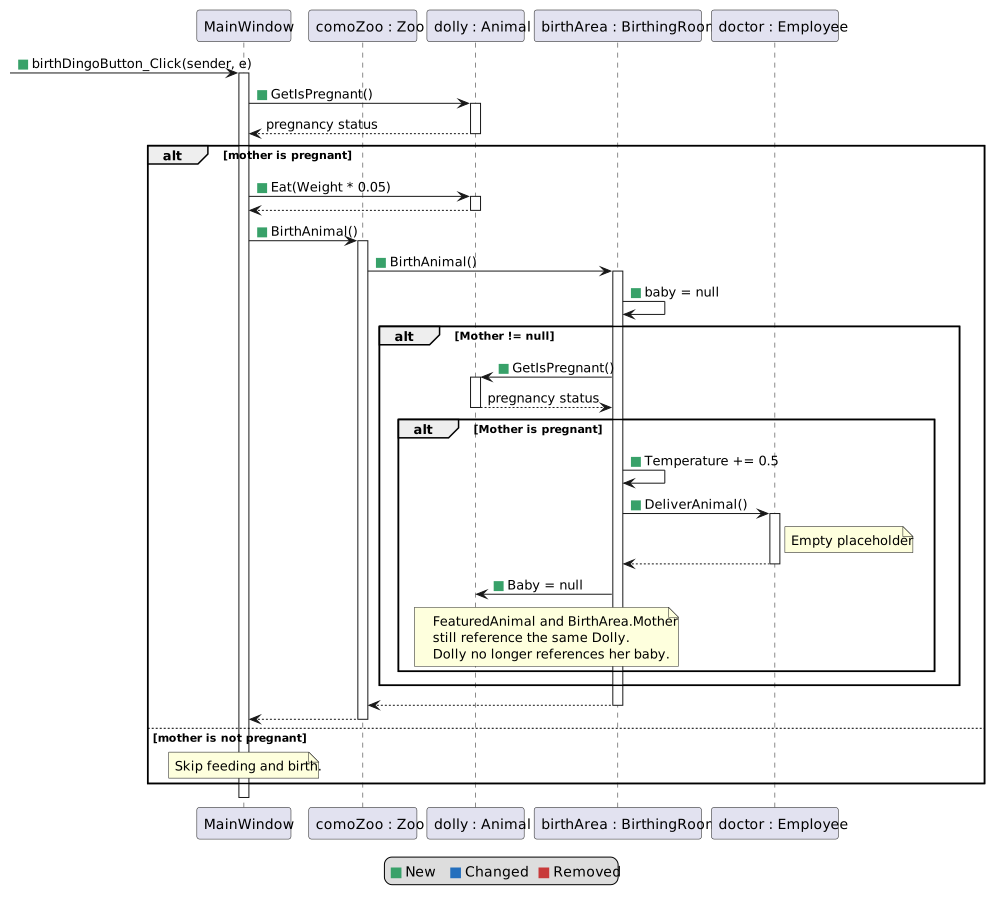
MainWindow checks pregnancy before feeding and invoking birth through Zoo, BirthingRoom, and Employee. The shared mother stays reachable through both paths, but her Baby reference becomes null. Green squares mark new items, blue squares mark changed items, and red squares mark removed names shown for comparison.
Give birth through the shared mother
  • New
  • Changed
  • Removed
Problem

The zoo and birthing room share the mother, but they do not yet have methods to coordinate her delivery.

Solution

Have the zoo call its birthing room, and have the room call its doctor. Clear the shared mother's Baby reference when the delivery step completes.

A Make the Changes
1 In Employee.cs, below the existing fields and inside the Employee class, add this complete method. The birthing room will call it on its Doctor. Its body is empty in Zoo 1.6.
/// <summary>
/// Represents the doctor's delivery step.
/// </summary>
public void DeliverAnimal()
{
}
2 In BirthingRoom.cs, below the existing fields and inside the BirthingRoom class, add this method. The outer if checks whether the room has a mother. The nested if checks whether she is pregnant. Keep the temperature change, doctor's call, and Baby assignment in this order. The baby local is declared but unused in this version.
/// <summary>
/// Updates the birthing room and mother when a pregnant animal gives birth.
/// </summary>
public void BirthAnimal()
{
    Animal baby = null;

    if (this.Mother != null)
    {
        if (this.Mother.GetIsPregnant())
        {
            this.Temperature += 0.5;
            this.Doctor.DeliverAnimal();
            this.Mother.Baby = null;
        }
    }
}
3 In Zoo.cs, inside the Zoo class below the existing methods, add this method so the window can start the action through the zoo.
/// <summary>
/// Starts the birth action in this zoo's birthing room.
/// </summary>
public void BirthAnimal()
{
    this.BirthArea.BirthAnimal();
}
6.Give Birth from the Window
Problem

The birth methods need a window action, and a second click must not feed a mother who has already given birth.

Solution

Add a button for each zoo. Check pregnancy before both the additional feeding and the birth call.

A Make the Changes
1 In MainWindow.xaml, inside comoZooStackPanel immediately after floraFillVendingMachineButton, add the following button.
<Button x:Name="birthDingoButton" Content="Give birth to dingo" Click="birthDingoButton_Click"/>
2 In MainWindow.xaml, inside sanDiegoZooStackPanel, add this button immediately after bettyFillVendingMachineButton and before the temperature label.
<Button x:Name="birthPlatypusButton" Content="Give birth to platypus" Click="birthPlatypusButton_Click"/>
3 In MainWindow.xaml.cs, add public void birthDingoButton_Click(object sender, RoutedEventArgs e). Use the following body and add XML summary and parameter documentation.
if (this.ComoZoo.FeaturedAnimal.GetIsPregnant())
{
    this.ComoZoo.FeaturedAnimal.Eat(this.ComoZoo.FeaturedAnimal.Weight * 0.05);
    this.ComoZoo.BirthAnimal();
}
4 Add birthPlatypusButton_Click with the same event-handler parameters and body structure, using SanDiegoZoo in place of ComoZoo. Keep both the Eat and BirthAnimal calls inside the pregnancy check.
B Check Your Work
1 Start fresh and create Como Zoo. Break inside birthDingoButton_Click and click Give birth to dingo. Step into the calls from MainWindow to Zoo, BirthingRoom, and Employee. After birth, FeaturedAnimal.Baby and BirthArea.Mother.Baby should both be null. Both access paths still reach Dolly. The room temperature is now 75.5.
2 Record Dolly's weight and the room temperature. Click Give birth to dingo again. The pregnancy check should skip both calls, leaving weight and temperature unchanged.
3 Create San Diego Zoo and repeat with Give birth to platypus. Both paths to Patti show Baby as null, and the room's Temperature becomes 77.5. Inspect that field in the debugger; the existing temperature text is not refreshed by the birth handler. Verify that a second click changes neither weight nor temperature.
7.Ignore Missing or Empty Messages
Problem

A null or empty message should not erase useful information already shown in the text box.

Solution

Use two separate early-return checks before the existing text assignment.

A Make the Changes
1 In MainWindow.DisplayMessage(string message), add two separate if statements before the existing informationTextBox.Text assignment. Return immediately if message is null. In the second statement, return immediately if message equals string.Empty. Keep the existing text assignment after both checks.
B Check Your Work
1 After creating Como Zoo, pause in the debugger and evaluate DisplayMessage(null), then DisplayMessage(string.Empty). Confirm the existing message remains. Create San Diego Zoo and confirm its normal creation message replaces the earlier message.
Complete Zoo 1.6
8.Review the Completed Design
Ending Zoo 1.6 business-class structure. Relationships are reference fields; Animal.Baby represents the unborn animal. Green squares mark new items, blue squares mark changed items, and red squares mark removed names shown for comparison.
Ending structure — completed Zoo 1.6
  • New
  • Changed
  • Removed
A Final Check
1 Confirm both creation methods share FeaturedAnimal with BirthArea.Mother and both feeding handlers call BirthArea.Mother.Eat(foodWeight). Verify both mothers start pregnant and MakePregnant retains its early return and separate Female check.
2 Keep informationTextBox at Height="84" and retain the existing zoo-creation messages. Initial temperatures remain Como 75.0 and San Diego 77.0, with Temperature assigned from InitialTemperature.
3 Build the solution and resolve errors. Review warnings: the baby local in BirthingRoom.BirthAnimal() is unused in this version. Confirm new methods have XML documentation.
9.Submit Zoo 1.6
A Close Visual Studio and ZIP the complete Zoo 1.6 solution folder.
B Submit the ZIP through the Feedback System.
C Submit the Feedback System URL in Canvas.