0.2 First Day Assignment

0.2 First Day Assignment

The purpose of this assignment is to familiarize you with the layout of Visual Studio and standardize the way we will be using folders and files throughout the courses.

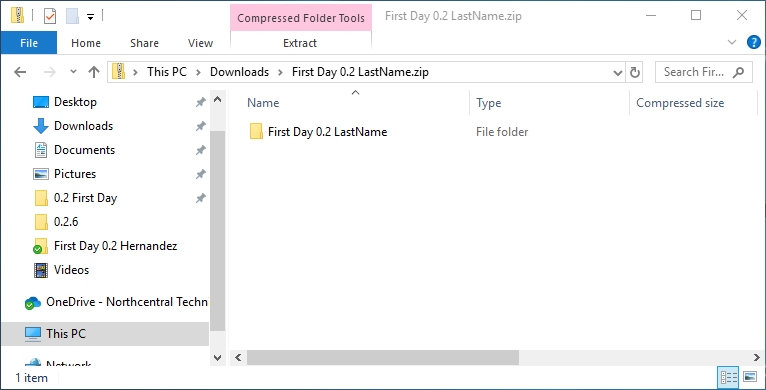
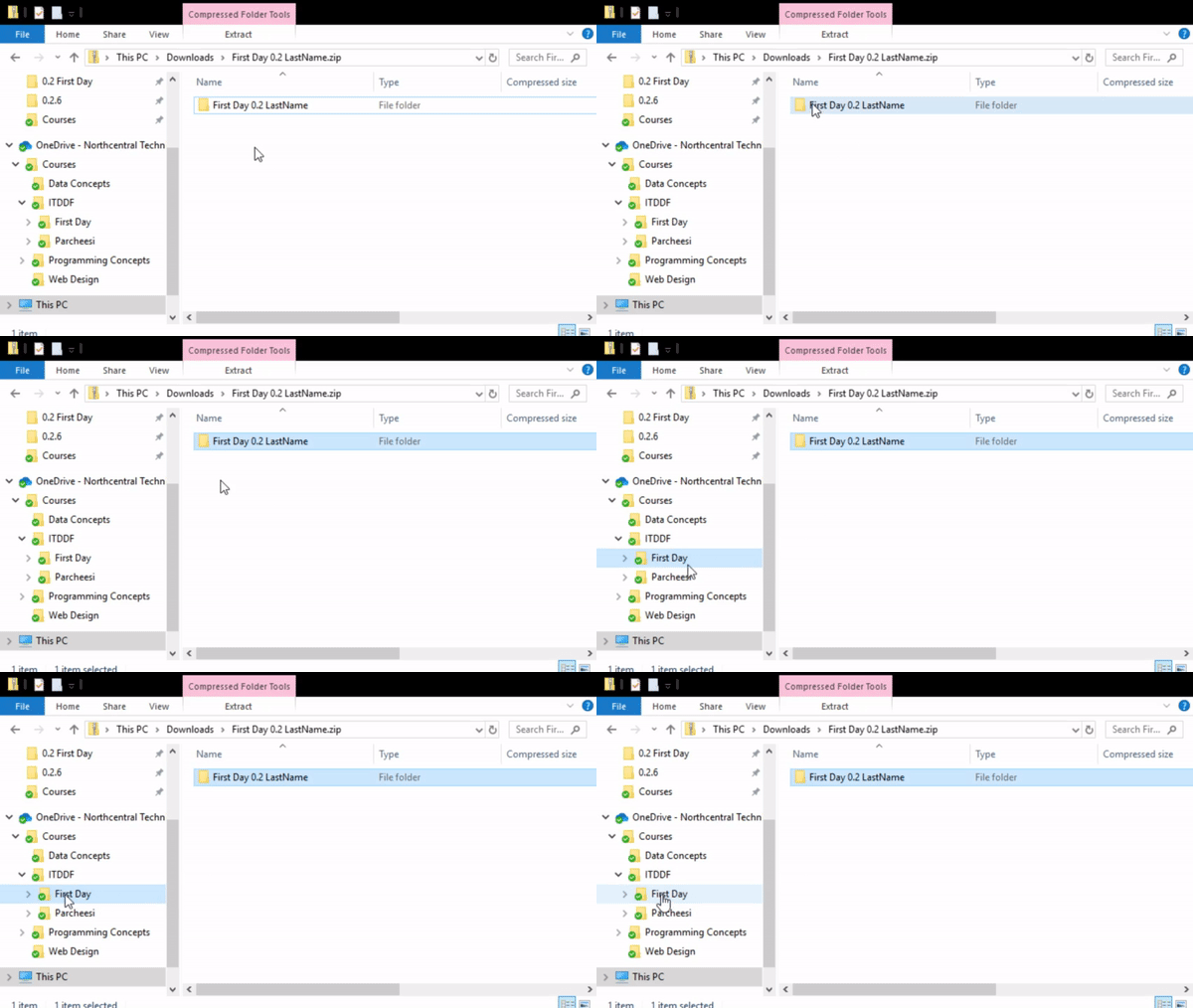
  1. Download the starting Zip file and store it in your OneDrive

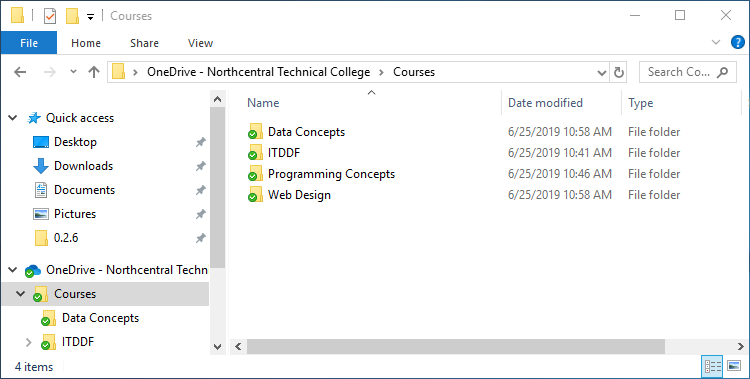
    1. 0.2 First Day 1 Snip OneDrive
      0.2 First Day 1 Snip OneDrive.png
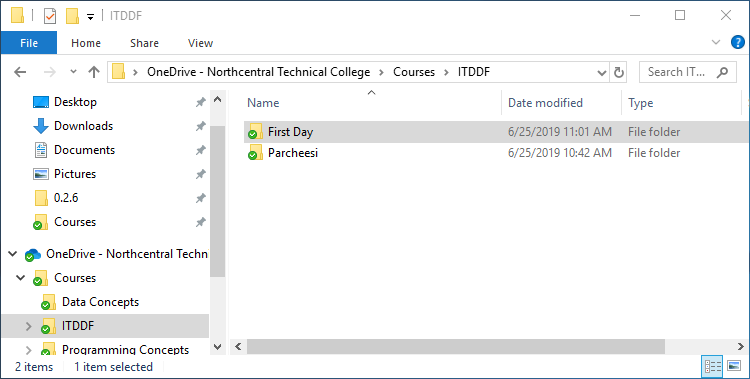
    2. 0.2 First Day 1 Snip OneDrive2
      0.2 First Day 1 Snip OneDrive2.png
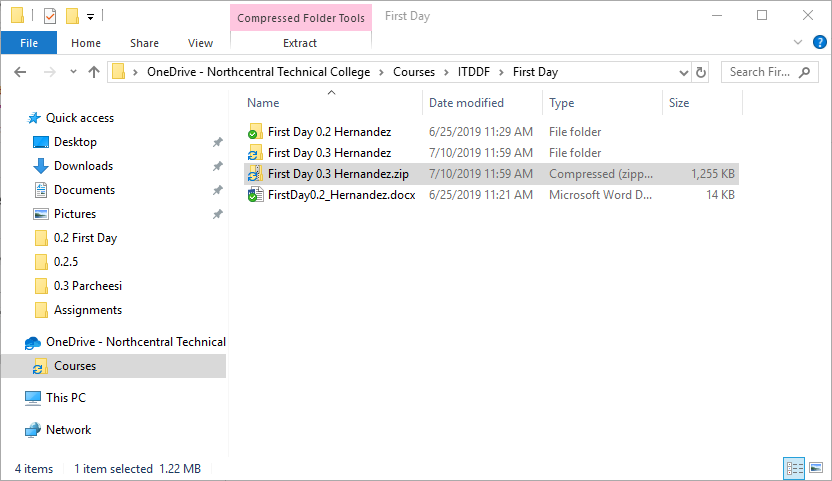
      1. 0.2 First Day 1 Snip Zip
        0.2 First Day 1 Snip Zip.png
      2. Instructional image from 0.2 First Day Assignment, page 2
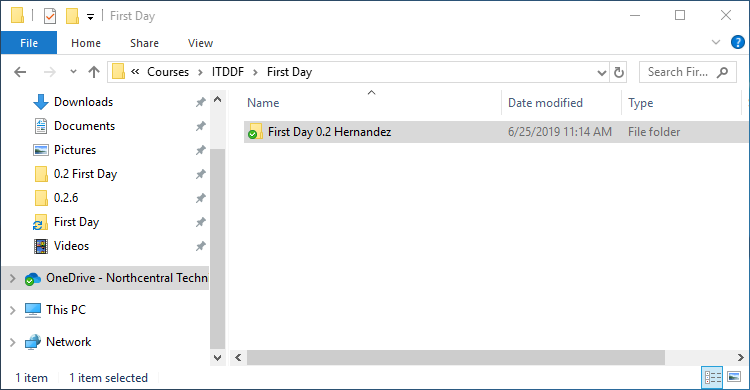
      3. 0.2 First Day 1 Snip RenameFolder
        0.2 First Day 1 Snip RenameFolder.png
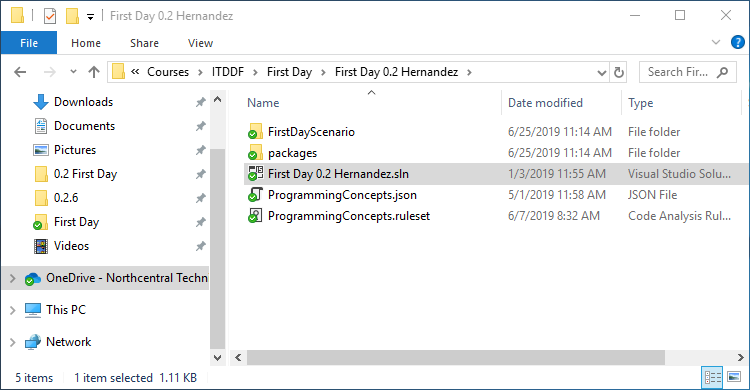
      4. 0.2 First Day 1 Snip RenameSln
        0.2 First Day 1 Snip RenameSln.png
    Go to top
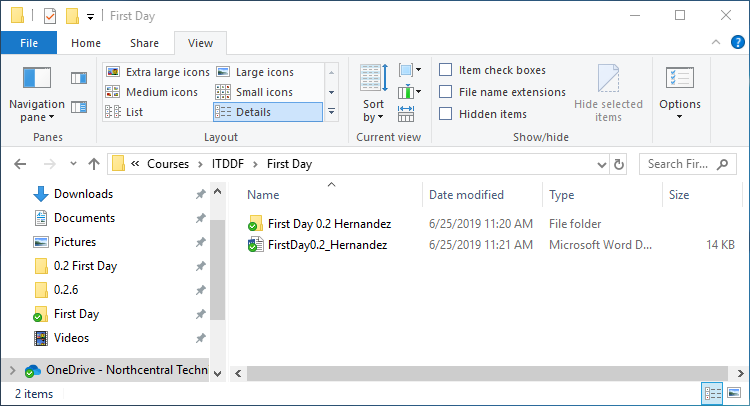
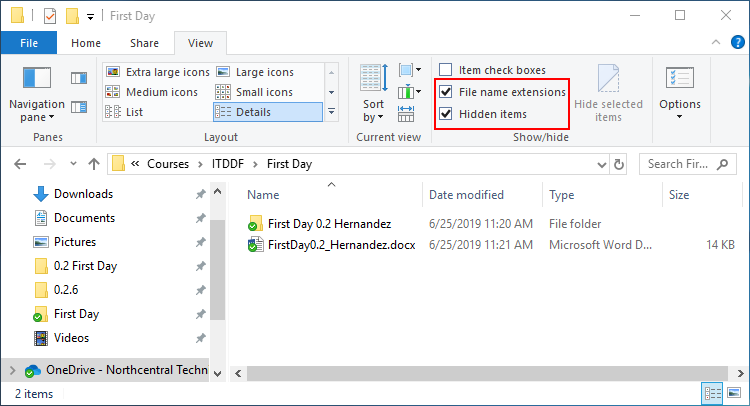
  2. Enable "file name extensions" and "Hidden items" in File Explorer

    1. 0.2 First Day 2 Snip View
      0.2 First Day 2 Snip View.png
    2. 0.2 First Day 2 Snip ViewSettings
      0.2 First Day 2 Snip ViewSettings.png
      1. Before enabling "File name extensions" in File Explorer, your File Explorer should look similar to the following:
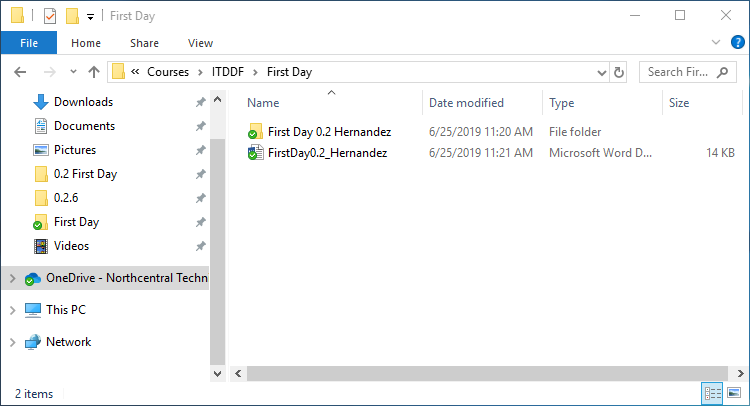
        0.2 First Day 2 Snip BeforeExt
        0.2 First Day 2 Snip BeforeExt.png

        After enabling "File name extensions" in File Explorer, your File Explorer should look similar to the following:
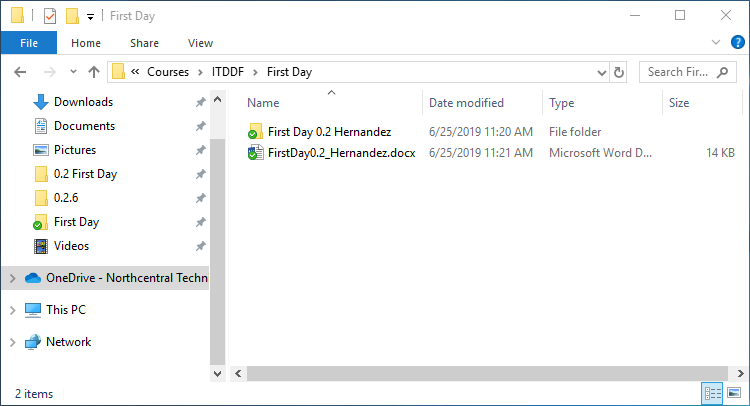
        0.2 First Day 2 Snip AfterExt
        0.2 First Day 2 Snip AfterExt.png
      2. Before enabling "Hidden items" in File Explorer, your File Explorer should look similar to the following:
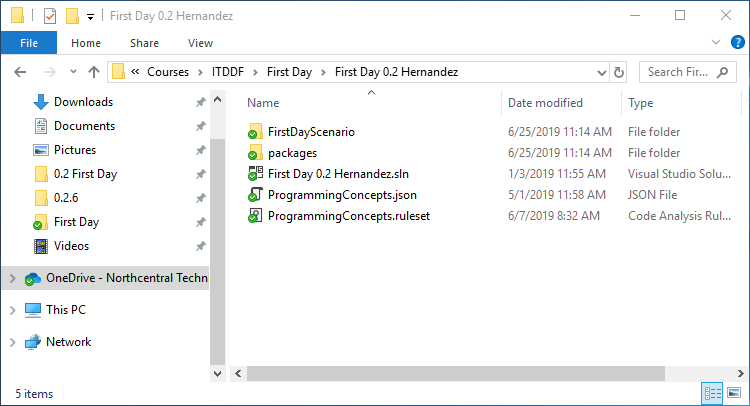
        0.2 First Day 2 Snip BeforeHidden
        0.2 First Day 2 Snip BeforeHidden.png

        After enabling "Hidden items" in File Explorer, your File Explorer should look similar to the following:
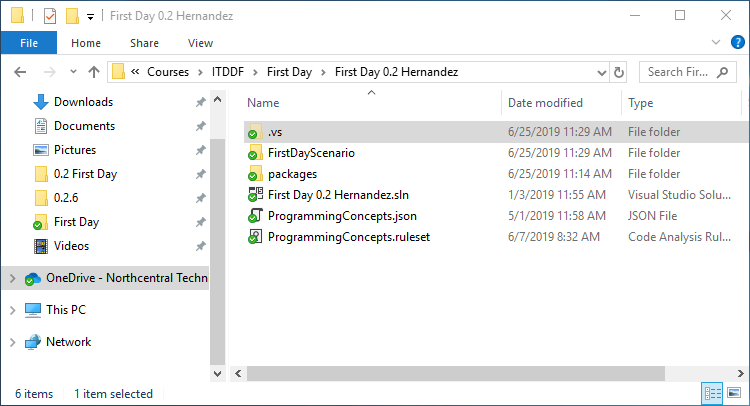
        0.2 First Day 2 Snip AfterHidden
        0.2 First Day 2 Snip AfterHidden.png

        Notice the ".vs" folder and how it is slightly transparent. Folders that have a preceding period in its name will be hidden.
    Go to top

Debugging and Feedback System

Continue the 0.2 First Day Assignment by working with Visual Studio errors and using the Feedback System to identify and correct code issues.

  1. Open your First Day project

    Go to top
  2. Fix a build error.

    1. Instructional image from 0.2 First Day Assignment, page 2

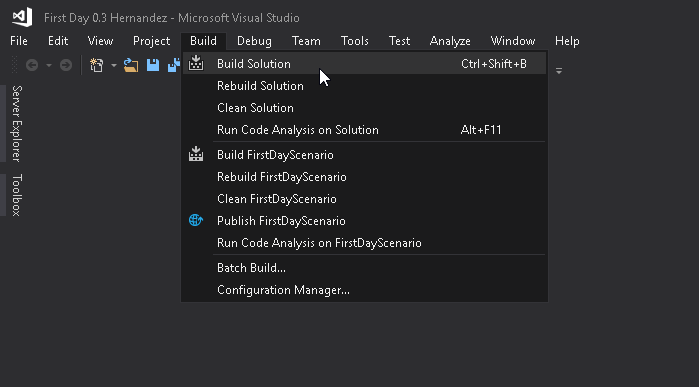
      Build Application

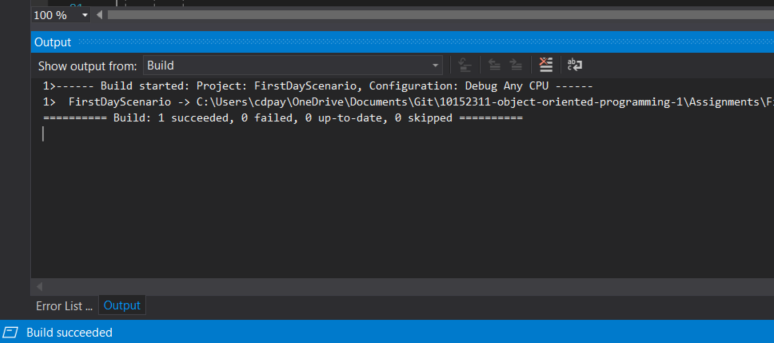
      Your Output window should look like the image below.

      Instructional image from 0.2 First Day Assignment, page 2

      Build Output

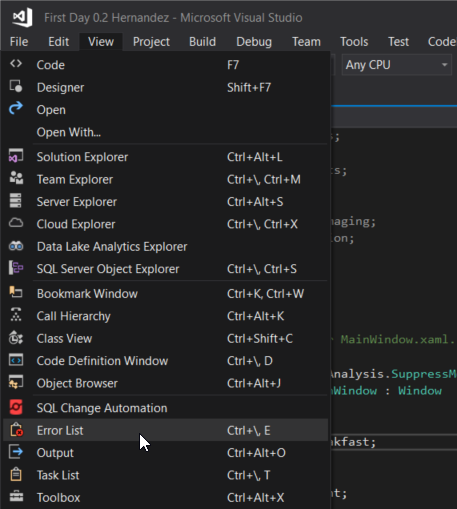
    2. Instructional image from 0.2 First Day Assignment, page 3

      Snip - Show Error List

      This will bring up a window that shows you issues with the code. These issues are known as compiler errors. Visual Studio has a built in compiler that checks for errors as you write code.
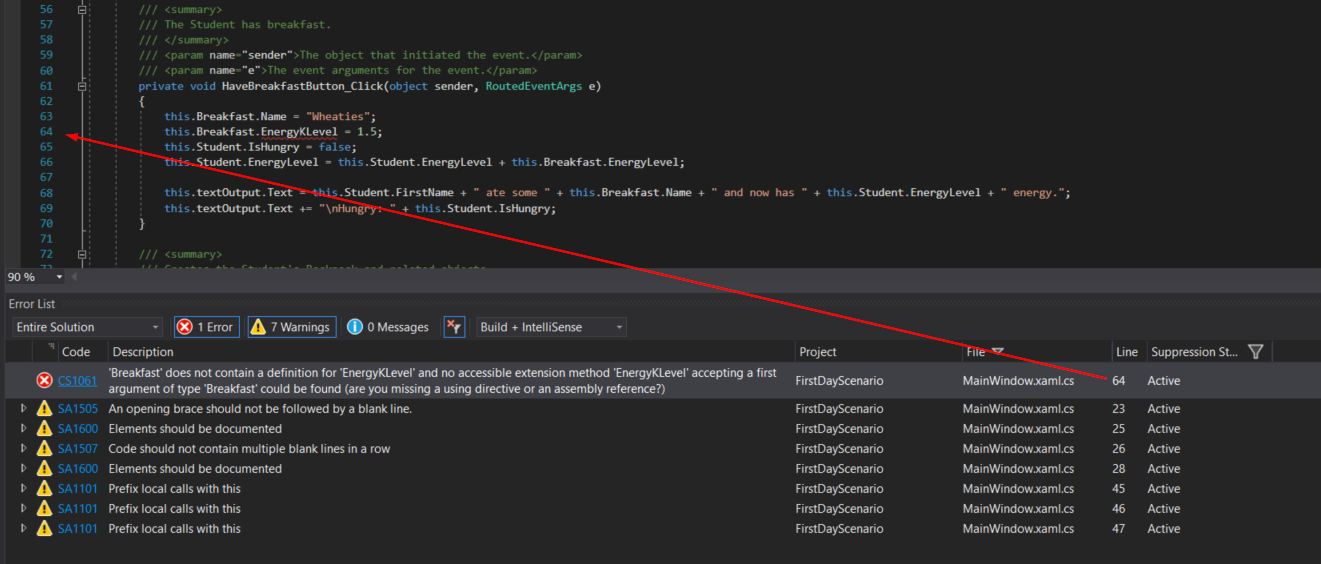
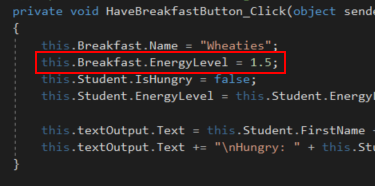
    3. Instructional image from 0.2 First Day Assignment, page 3

      Snip - Error Line

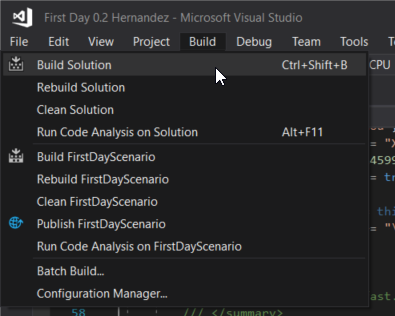
    4. Instructional image from 0.2 First Day Assignment, page 4

      Snip - Build

      Because we have an error in our code the application will not build properly, meaning that Visual Studio recognizes that something isn't right and the application is not usable. It will show that the build has failed in the status bar on the bottom.

      Instructional image from 0.2 First Day Assignment, page 4

      Build Failed

    5. Every time we start the application, the application saves and then builds first.

      1. If you get a prompt instead, select 'No' and make sure your Build Settings are correct. If you don't get a prompt but the application still runs it means your settings are incorrect and you will need to fix them.
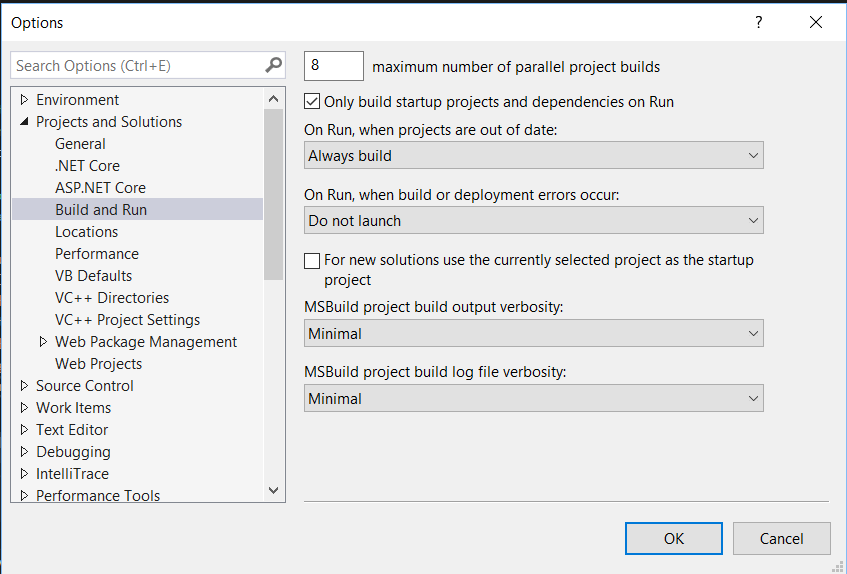
        Instructional image from 0.2 First Day Assignment, page 5

        Build Settings

    6. Instructional image from 0.2 First Day Assignment, page 5

      Snip - Fix Error

    7. Instructional image from 0.2 First Day Assignment, page 6

      Snip - Build Succeeded

    8. Instructional image from 0.2 First Day Assignment, page 6

      Snip - Start Application

    Go to top
  3. Upload the First Day Assignment to the Feedback System

    Currently when we build the application everything seems fine. This is all well and good, but when we upload to the Feedback System we get errors.

    1. 0.2 First Day 4 Snip ZipFolder
      0.2 First Day 4 Snip ZipFolder.png
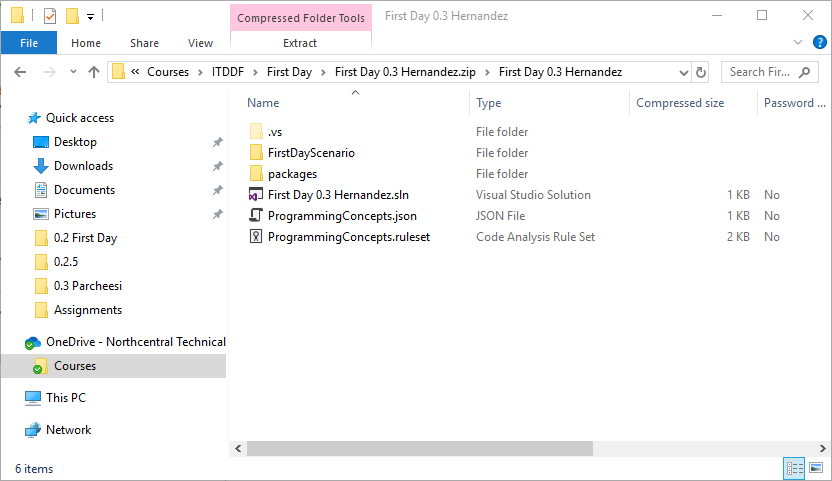
    2. 0.2 First Day 4 Snip InsideZipFolder
      0.2 First Day 4 Snip InsideZipFolder.png
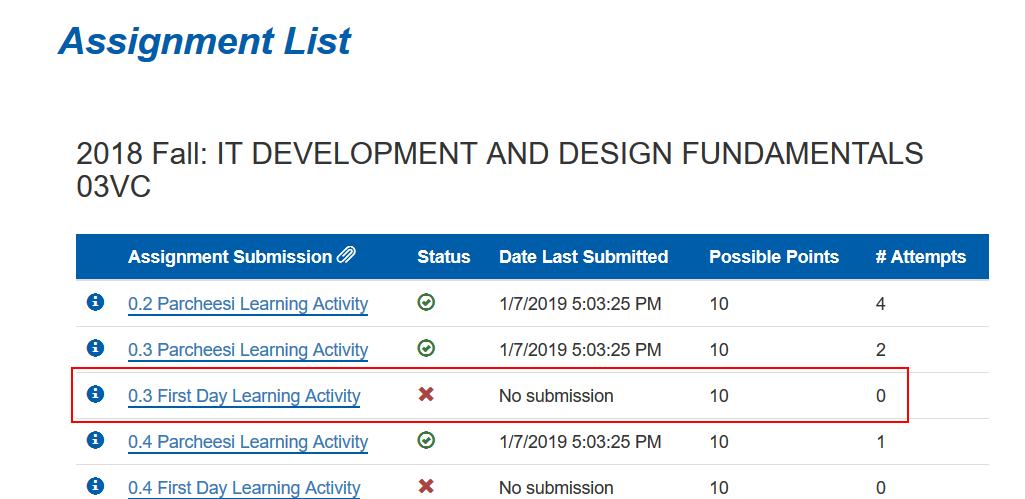
    3. Instructional image from 0.2 First Day Assignment, page 11

      Feedback Assignment

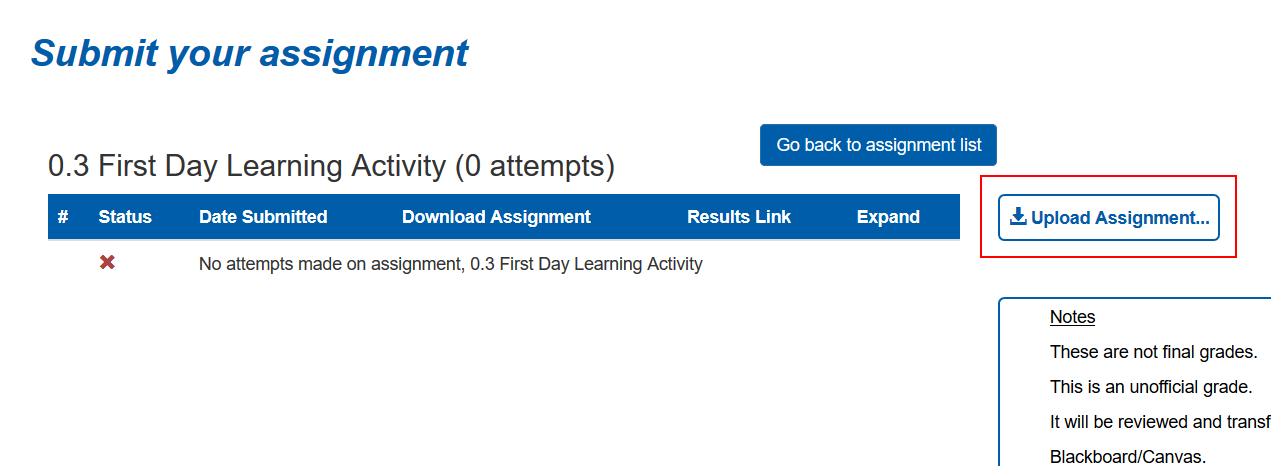
    4. Instructional image from 0.2 First Day Assignment, page 12

      Upload Button

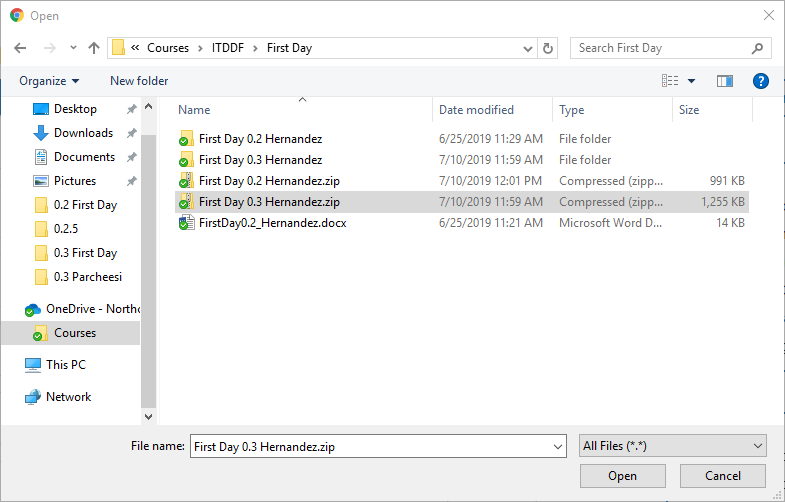
    5. 0.2 First Day 4 UploadToFBS
      0.2 First Day 4 UploadToFBS.png
    Go to top
  4. Observe Feedback System Errors

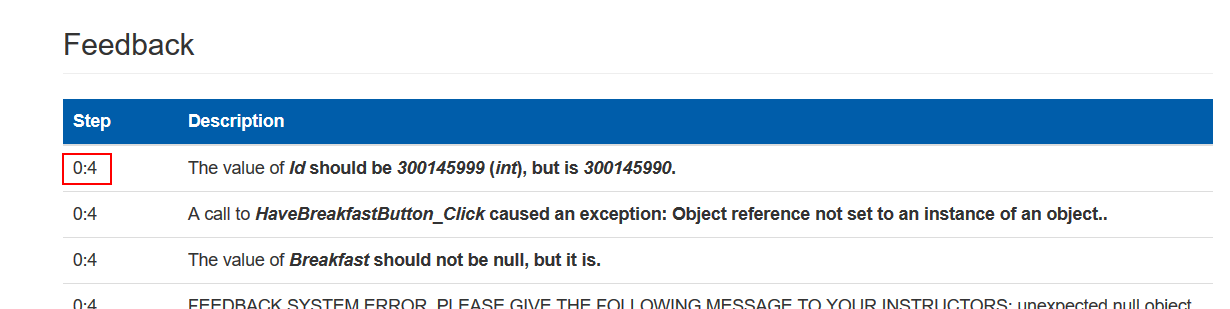
    1. Instructional image from 0.2 First Day Assignment, page 13

      Step Number

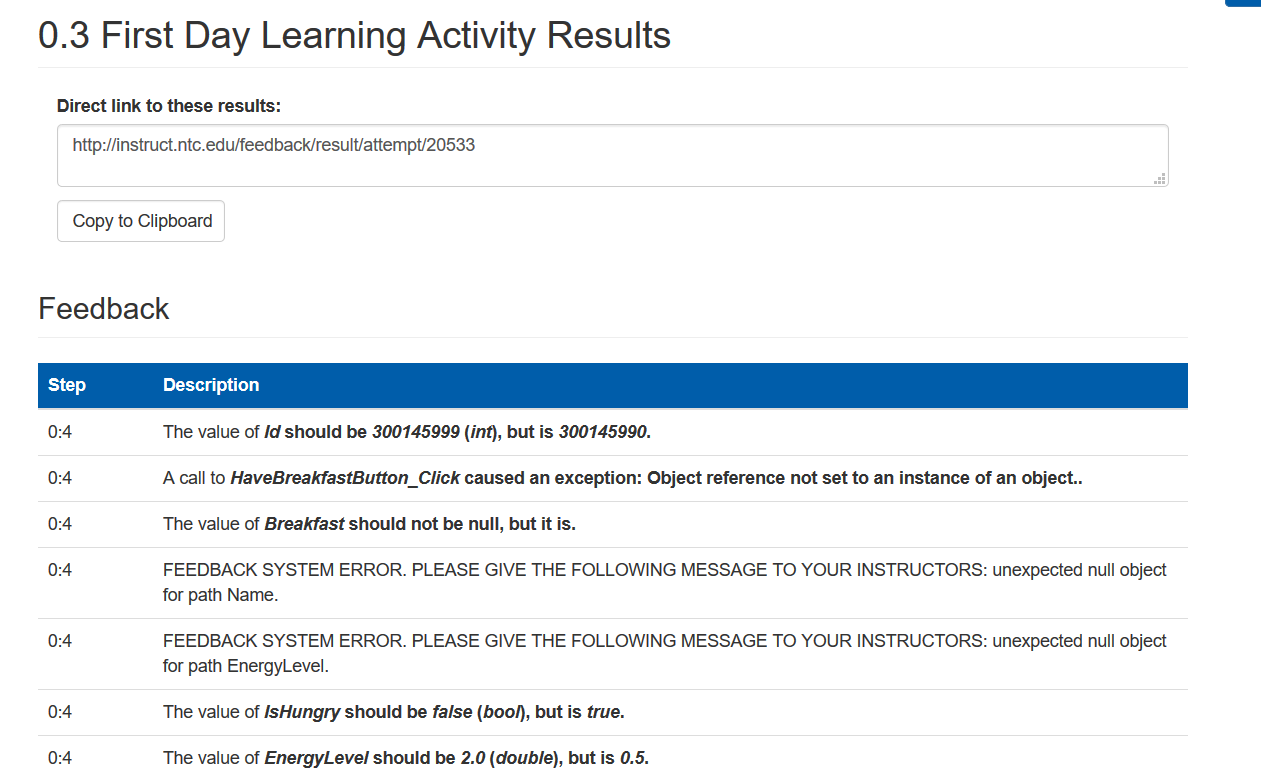
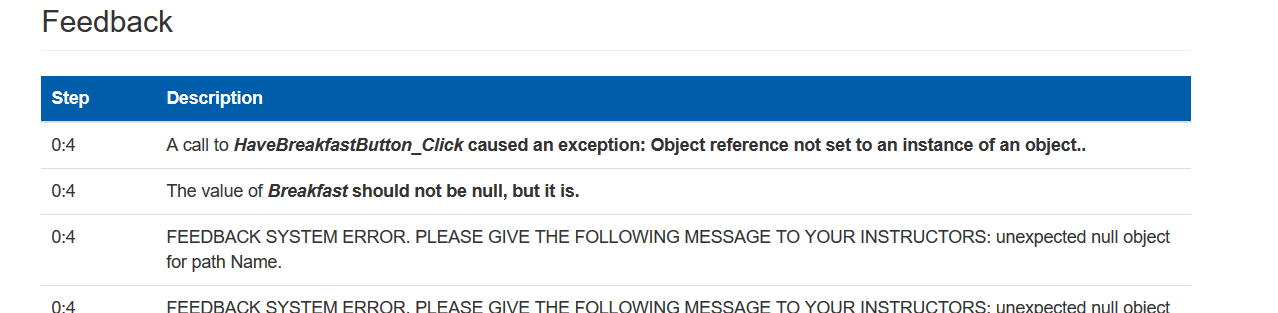
    2. Instructional image from 0.2 First Day Assignment, page 13

      Feedback Errors

    Go to top
  5. Fix your first error.

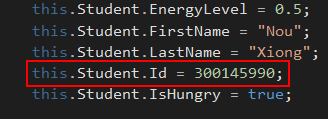
    1. Instructional image from 0.2 First Day Assignment, page 14

      Id Error

    2. Instructional image from 0.2 First Day Assignment, page 14

      Resubmit

    3. Instructional image from 0.2 First Day Assignment, page 14

      Error Fixed

    Go to top
  6. Fix the next error

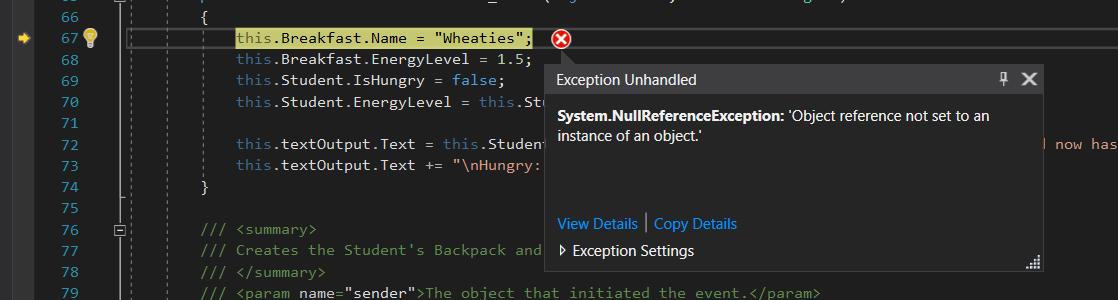
    1. Instructional image from 0.2 First Day Assignment, page 15

      NullReferenceException

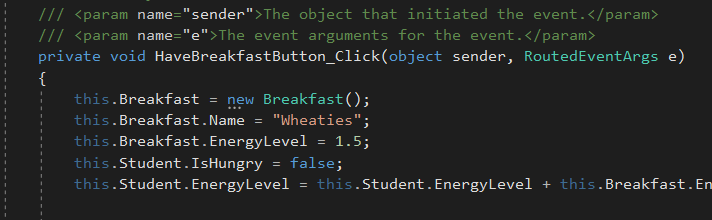
    2. this.Breakfast = new Breakfast();
      Instructional image from 0.2 First Day Assignment, page 15

      New Breakfast Object

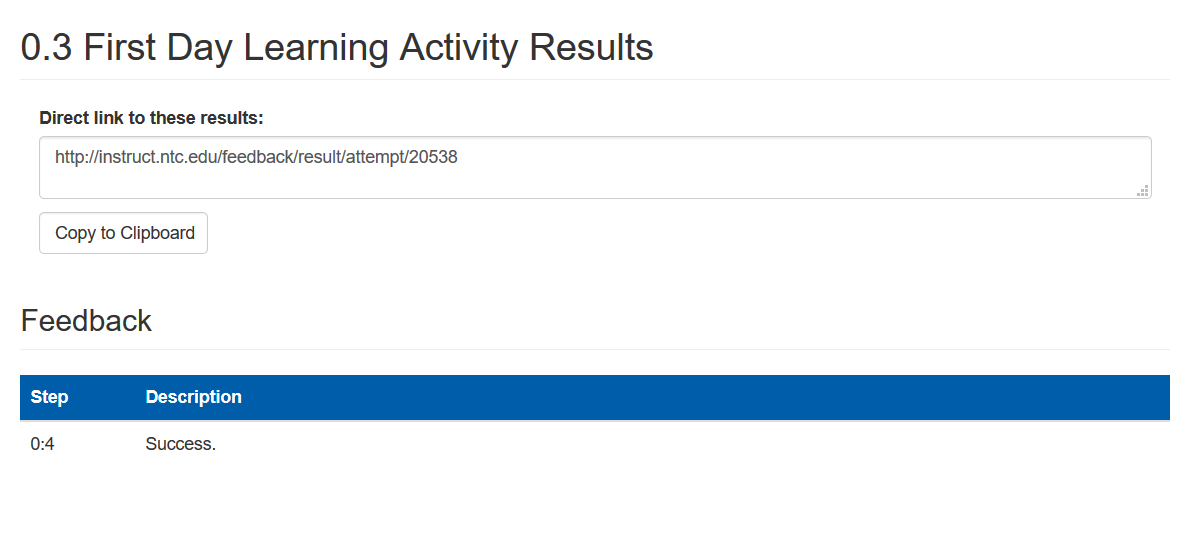
    3. Instructional image from 0.2 First Day Assignment, page 16

      Success Message

    Go to top