0.4 First Day Assignment

Overview

The purpose of this assignment is to introduce you to the concept of assigning values to fields
and debugging in Visual Studio.

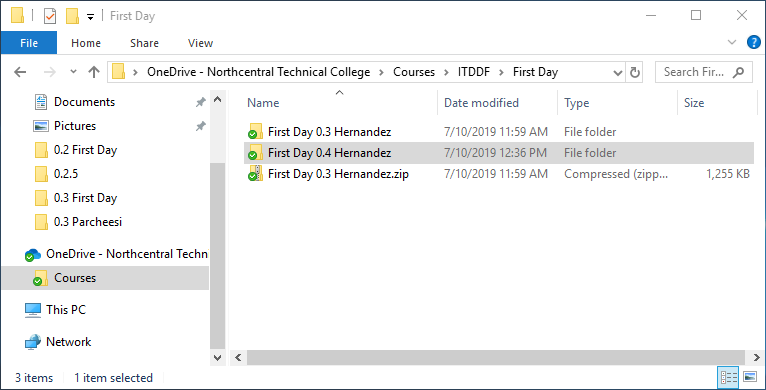
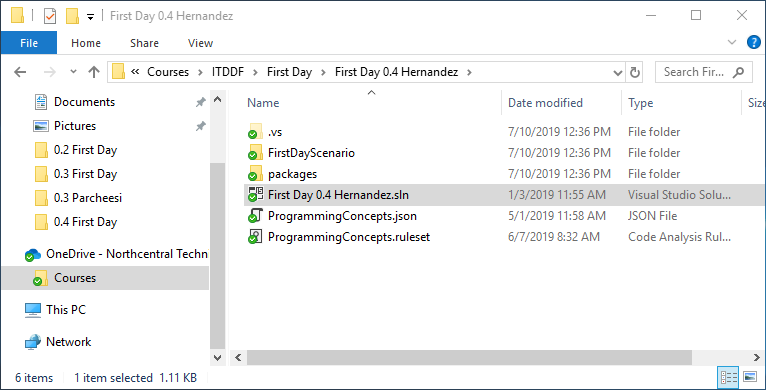
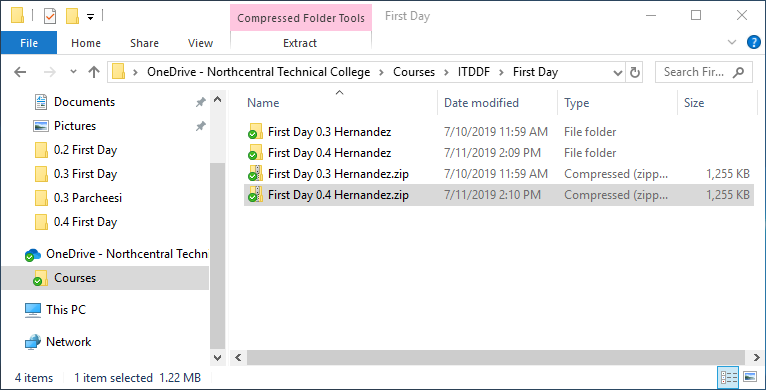
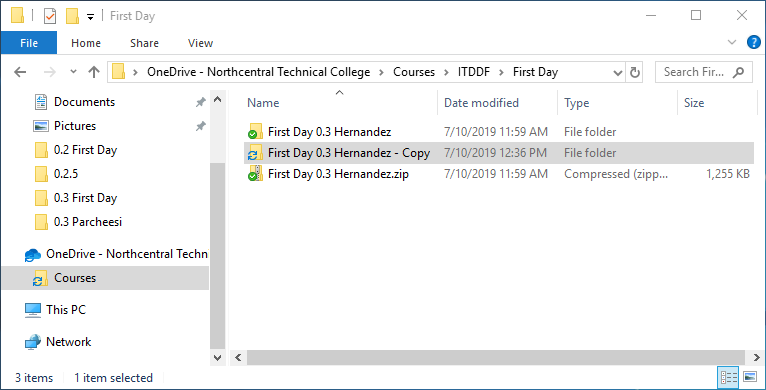
  1. Copy and rename First Day 0.3

    In Programming Concepts we will be building off of the previous week's assignment so
    we will be copying over assignments regularly. It will be very important to make sure
    your previous assignment is correct or the mistakes will follow you to the next
    assignment.

    0.4 First Day 1 Snip CopyFolder
    0.4 First Day 1 Snip CopyFolder.png
    0.4 First Day 1 Snip RenameFolder
    0.4 First Day 1 Snip RenameFolder.png
    0.4 First Day 1 Snip RenameSln
    0.4 First Day 1 Snip RenameSln.png
    Go to top
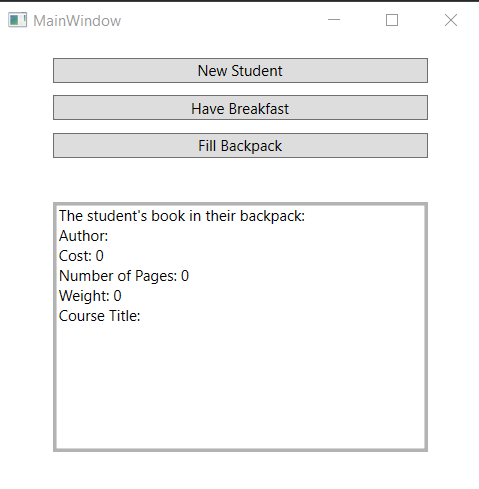
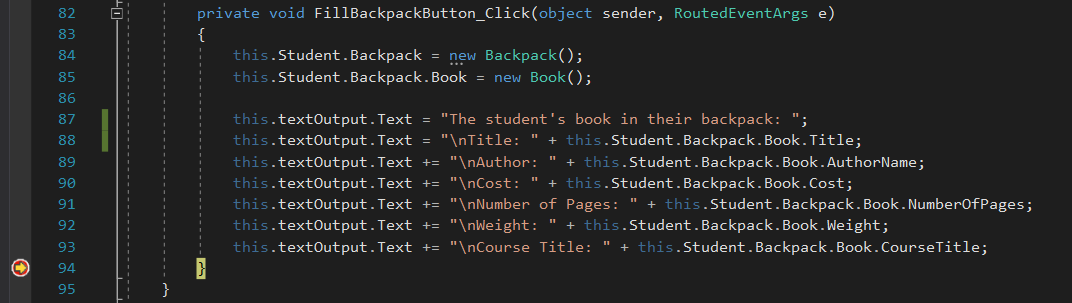
  2. Debug the Book object field values.

    Instructional image from 0.4 First Day Assignment, page 3

    No Field Values

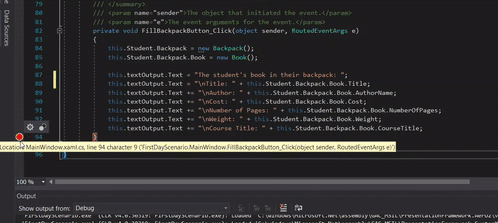
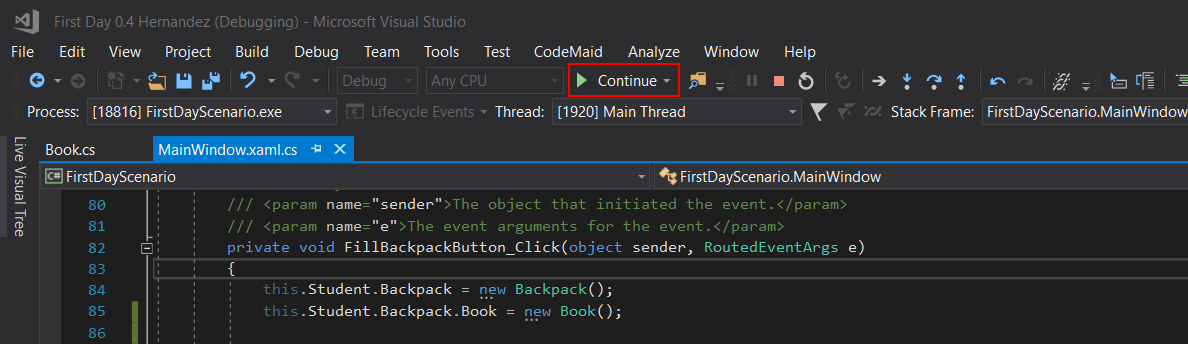
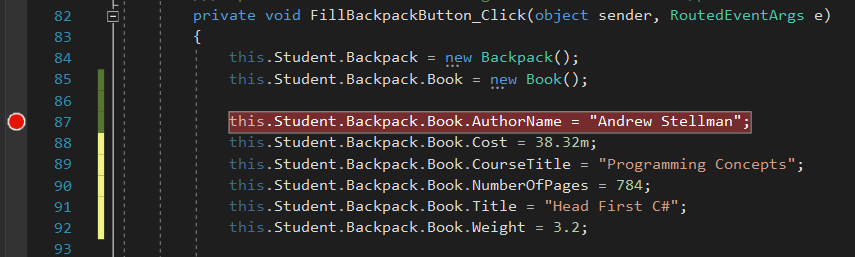
    Breakpoints stop the application at a specific point in time. This allows us to see
    specific values while the application is running.

    Instructional image from 0.4 First Day Assignment, page 3

    Set Breakpoint

    Instructional image from 0.4 First Day Assignment, page 4

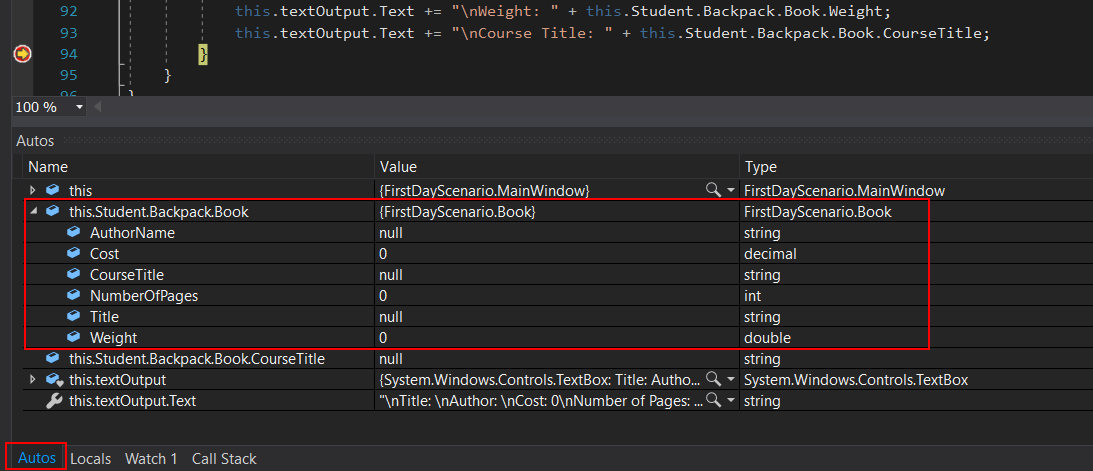
    Debugger

    If you do not see the Autos Window, go to Debug | Windows | Autos.

    Instructional image from 0.4 First Day Assignment, page 4

    Autos Window

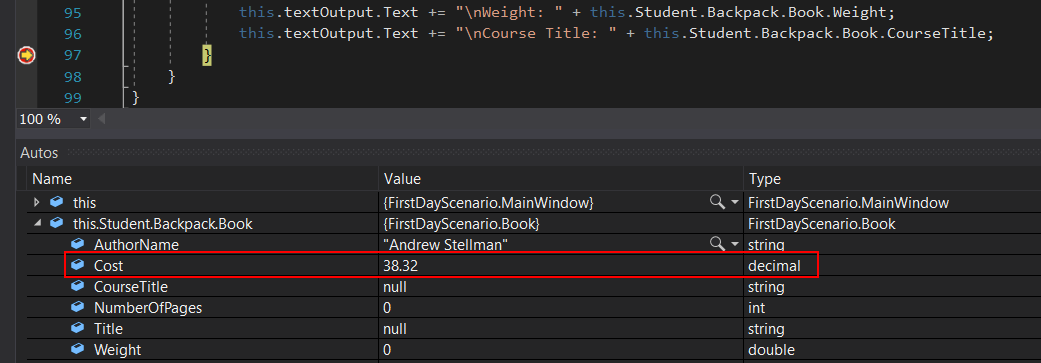
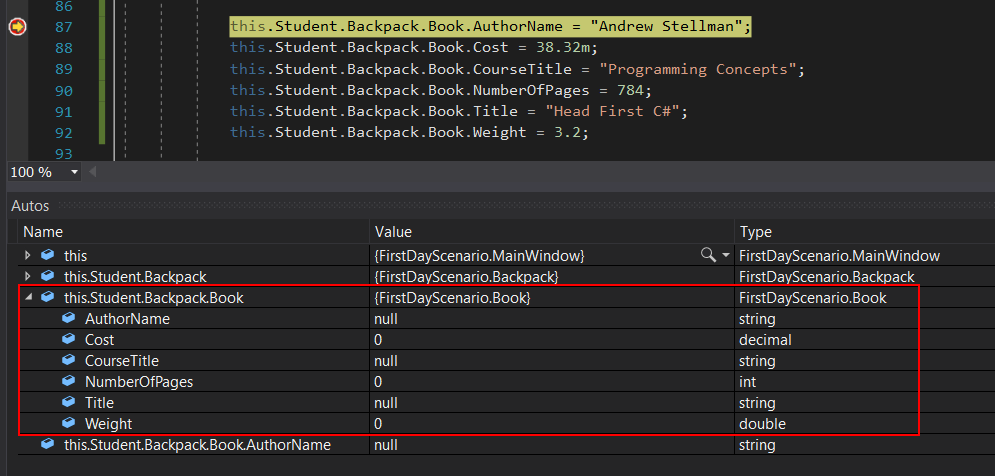
    The Autos Window shows the "best guess" of what the debugger thinks you want to
    see. It shows you the Name of the object/field, the Value of the object/field and it's
    Type. In this case, we have an object of 'this.Student.Backpack.Book' with the Value
    of {FrstDayScenario.Book} (which signifies it's an object), and a Type of Book. The
    Book object also has a number of Fields such as AuthorName, Cost, etc. In this case,
    all the Values shown are default values because we have not assigned anything to
    them.

    Go to top
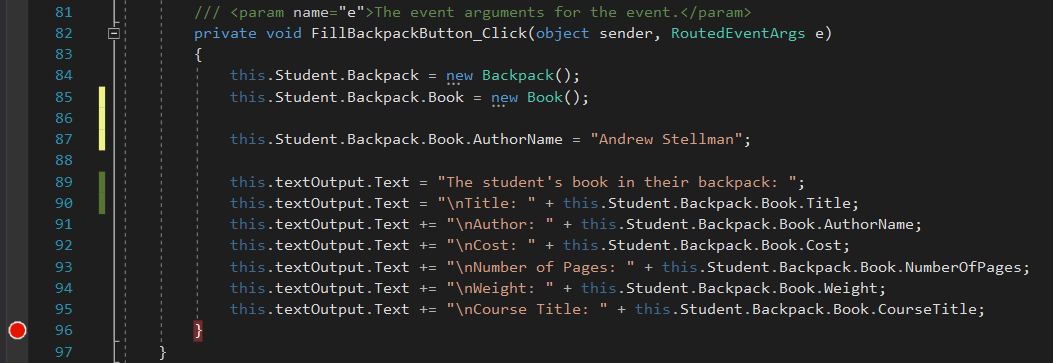
  3. Assign a value to a field.

    this.Student.Backpack.Book.AuthorName = "Andrew Stellman";
    Instructional image from 0.4 First Day Assignment, page 5

    Assign AuthorName

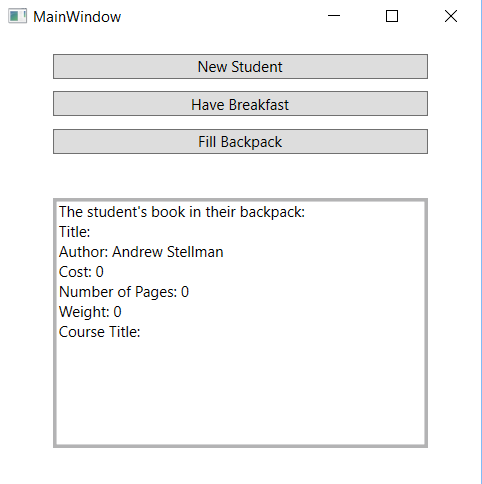
    In English this would read, "The Student's Backpack's Book's AuthorName is the
    value 'Andrew Stellman'."

    Instructional image from 0.4 First Day Assignment, page 5

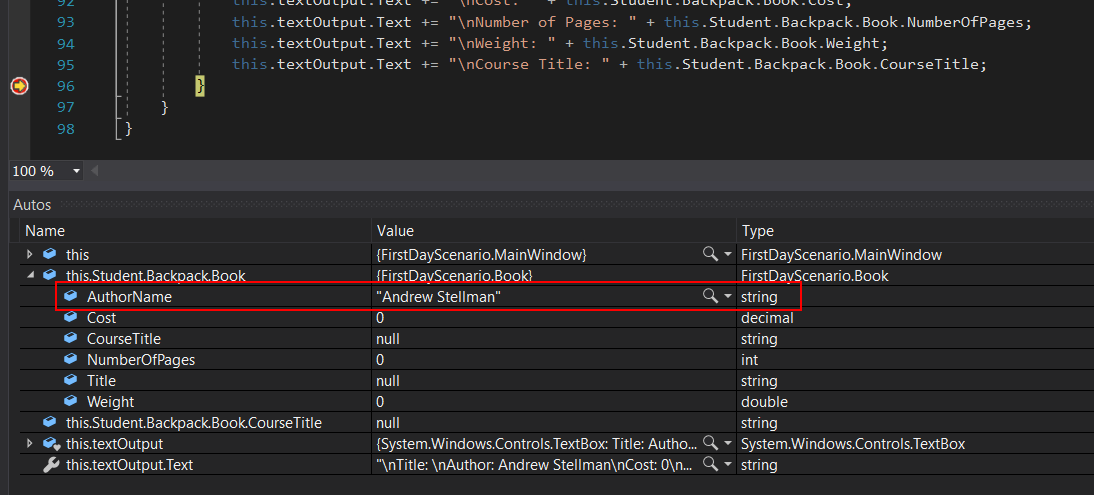
    AuthorName Value

    Instructional image from 0.4 First Day Assignment, page 6

    Continue Button

    Instructional image from 0.4 First Day Assignment, page 6

    Author Value

    Go to top
  4. Use Intellisense to assign a value.

    Visual Studio has a built in "hint giver" called Intellisense that shows us what we can
    use/do. It can make life a lot easier, but can also lead you down the wrong path.

    Instructional image from 0.4 First Day Assignment, page 7

    Type this.

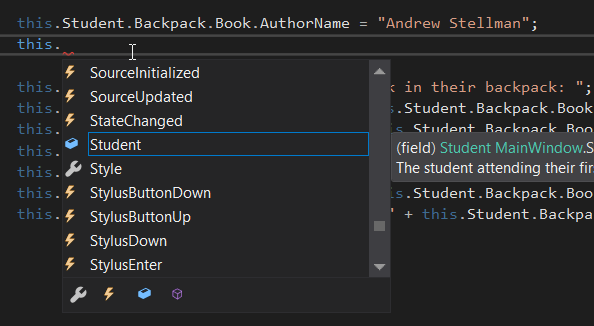
    Intellisense will bring up a list of things that are in the current instance of the current
    class. Since Student is a field in the MainWindow class and we just assigned a
    Student field on the line before, Intellisense "guesses" that that is what we want to
    use.

    Instructional image from 0.4 First Day Assignment, page 7

    Student Fields

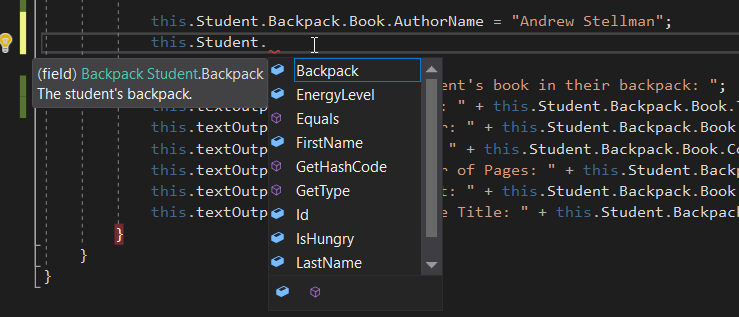
    Note that Intellisense shows the fields for the Student class.

    Instructional image from 0.4 First Day Assignment, page 8

    Student Class

    In C# the = sign DOES NOT mean "equals" it means "assign to".

    Instructional image from 0.4 First Day Assignment, page 8

    Cost Field

    The "m" after a number indicates that the value is a decimal type.

    Instructional image from 0.4 First Day Assignment, page 9

    Cost Value

    Instructional image from 0.4 First Day Assignment, page 9

    Cost Value

    Go to top
  5. Use debugging tools to check values.

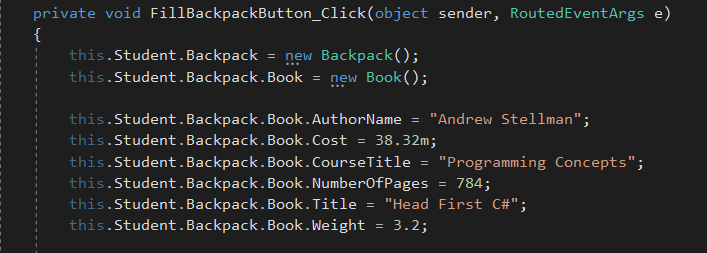
    this.Student.Backpack.Book.CourseTitle = "Programming Concepts";
    this.Student.Backpack.Book.NumberOfPages = 784;
    this.Student.Backpack.Book.Title = "Head First C#";
    this.Student.Backpack.Book.Weight = 3.2;
    Instructional image from 0.4 First Day Assignment, page 10

    Remaining Book Values

    Instructional image from 0.4 First Day Assignment, page 10

    Set Breakpoint

    Instructional image from 0.4 First Day Assignment, page 10

    Autos Window - Book

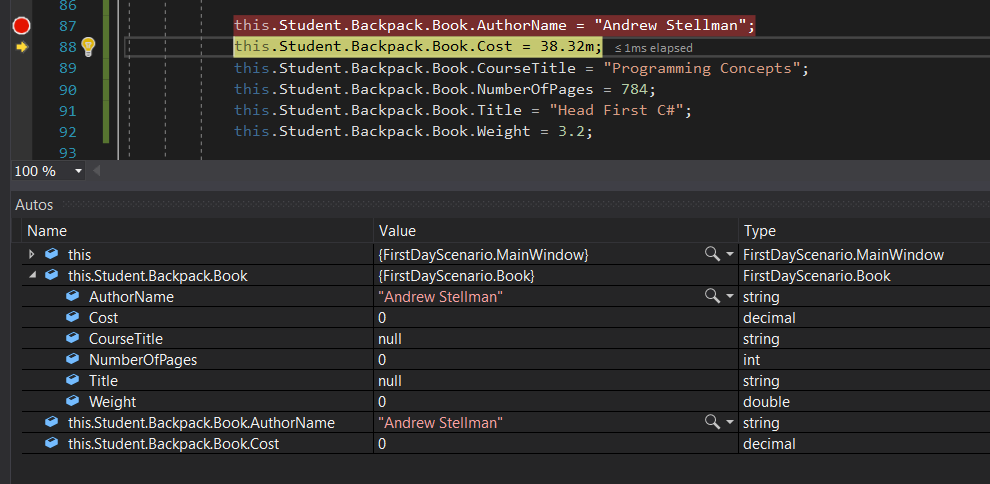
    Even though we have code that assigns values to the Book's Fields, since the
    debugger has stopped on line 87 none of those lines of code have executed. Even the
    AuthorName hasn't been assigned a value even though the debugger is on that line.
    The line will only execute after the debugger moves off that line.

    Instructional image from 0.4 First Day Assignment, page 11

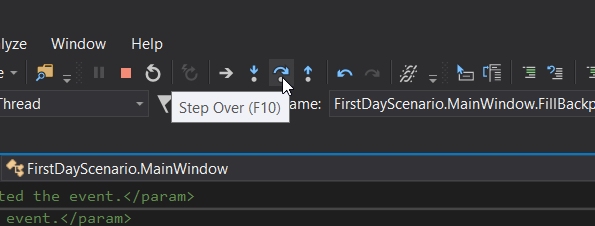
    Step Over

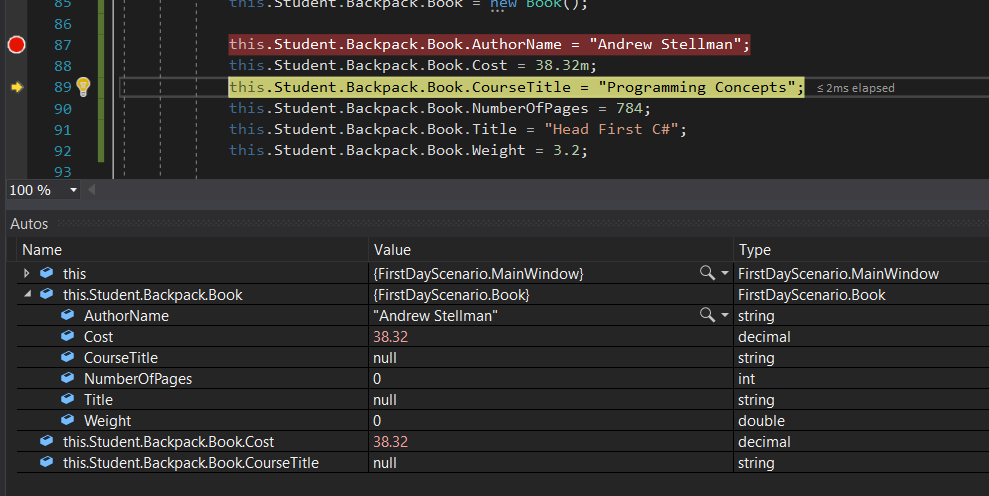
    This executes the lines of code and moves the debugger down but does not
    change the breakpoint.
    Instructional image from 0.4 First Day Assignment, page 11

    AuthorName Value Changed

    Instructional image from 0.4 First Day Assignment, page 12

    Cost Value Change (F10)

    Go to top
  6. Submit to the Feedback System.

    0.4 First Day 6 Snip ZipFolder
    0.4 First Day 6 Snip ZipFolder.png
    Go to top