 Investigate desktop computer system security and access controls
Defenses
Computers are a necessary instrument in our everyday lives. Let's face it, what would we do without them? With this said, we have to protect our computer and keep it out of harms way - even at the expense of being inconvenienced. Here are the CRUCIAL things that have to be done to keep your computer safe:
- Perform regular operating system updates (manage patches).
- Use software to fight software (install anti-virus programs to prevent Malware).
- Place a shield in front of your computer (turn on and properly configure your firewall).
- Lock down your computer from intrusion (place tight access control on your computer).
- Save your important data files and programs in a safe place (create data backups).
- Secure your computer with lock and key (protect your computer against theft).
- Know how to be your own computer support person (know how to recover from an attack).
Perform regular operating system updates.
You probably realize that in order for computers to function and be useful to us humans, they need software. Examples of software include the following:
1. Operating systems such as Windows 8 Professional, Windows Server 2012, and Linux.
2. Network services such as file and print sharing, database and web services.
3. User applications such as Microsoft Word, Adobe Acrobat reader, Adobe Flash Player and many more.
What happens when a bug (bad code) is found in the software AFTER it is released? We may have to live with it for a while and maybe even risk being attacked if the bug creates a vulnerability that an attacker can exploit.
Bugs are often found and reported by the users of the program. After this happens, the developer(s) of the program will create a fix for the bug. This fix is called a patch and they can be downloaded individually or in an update.
If you let your operating system automatically update your system, the update process becomes, well, automatic. This is the easiest way to get your system updated because you don't have to be reminded :>)
But, there are other options!
To view these options in Windows 8.1 Professional watch the video shown below by clicking on the green arrow.

 Microsoft releases patches on the second Tuesday of every month - unless a patch is meant to fix a serious illness like a security vulnerability, then it is released immediately.
By using Windows Server Update Services (WSUS), administrators can fully manage the distribution of updates that are released through Microsoft Update to computers in their network, thus controlling the consumption of valuable network resources.
Anti-Virus Software
If properly managed, attacks can be blocked with antivirus (AV) software. AV programs can scan your disk for virus infected files and can be programmed to scan incoming files such as downloads, e-mails, etc.
AV Engines
In order for an antivirus solution to be affective, the software needs to know what to look for. Viruses have a signature, a certain look to the code. Antivirus software looks for this signature and when found will address the situation as it is configured to do so. Antivirus software is only as good as its’ signature dictionary (database), so these signatures must be kept up-to-date.
If you explored your update history, you will see that an update that was made on a regular basis was your Windows Defender Signature file. See image below.
The image below represents an example of an antivirus agent configured to obtain a new signature file from an external source.
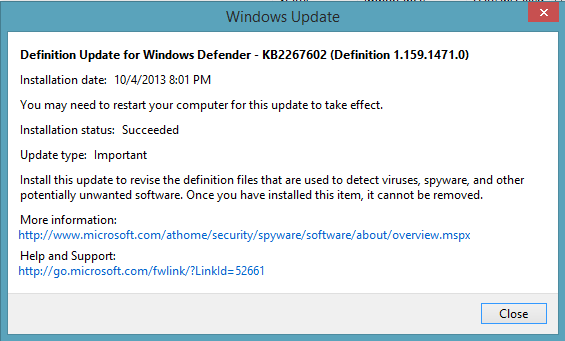
Antivirus software should be configured to always be on and to monitor incoming files from either the Internet or from external sources. It should also be configured to stay up-to-date on the signature files that it depends on to be effective.
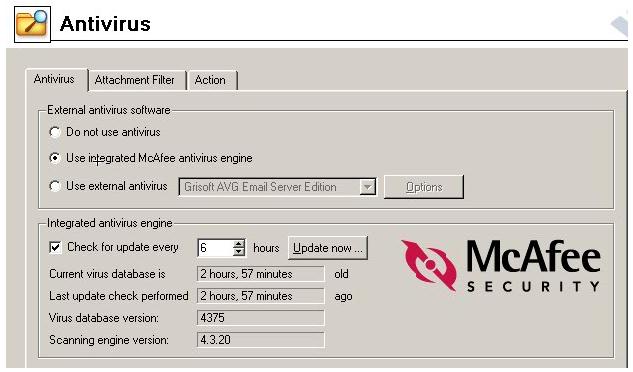
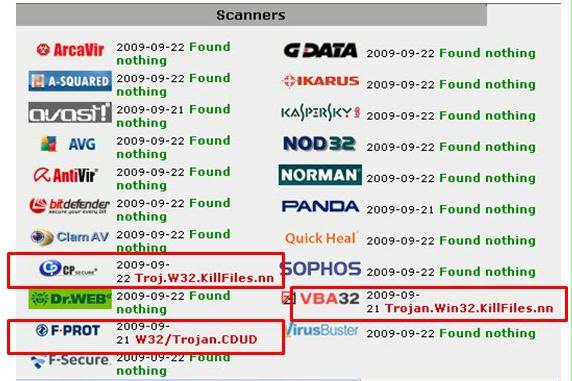
Anti-virus software are not all created equal.
What you have installed on your computer may not look for all bad things. Commercial antivirus software that works at the enterprise level is more expensive, but may do a better job of looking for viruses such as Trojans, worms, and macro viruses that freeware would not detect.
See for yourself in the image in the image below (www.jotti.com).
Personal Firewall
There are two types of firewalls: your personal (PC), software based firewall and a hardware based network firewall. Your personal firewall is usually enabled to filter (block) inbound network traffic that has no purpose on your PC. Your personal filter may also be configured to block certain outbound traffic. The network firewall will more generalized to control network traffic in and out of your office or home's network.
Click on the green arrow below to view a video demonstration of disabling the Music app.
User Account Control (UAC)
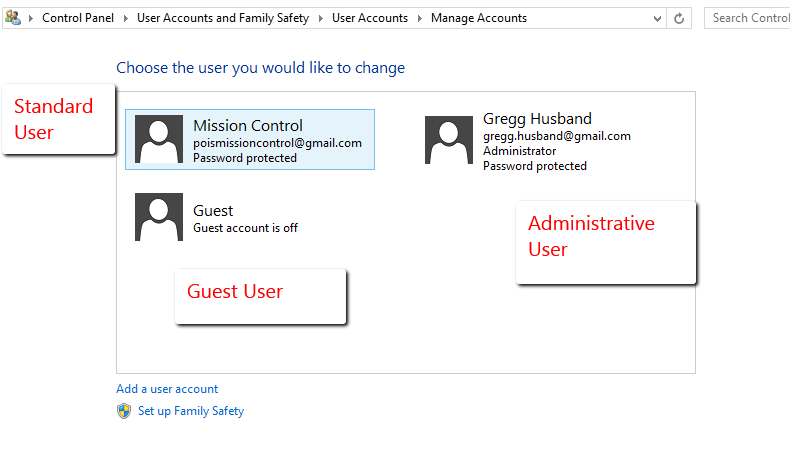
User account control is fully implemented on your Windows 8 virtual machine. What this means is that you can utilize the installed features of the operating system as a standard user, with minimal ability to change the settings of the operating system. Significant changes to the operating system are performed by the administrative user. Then there is the guest user that can use most of the applications on your system, but can change even less than the standard user.
The administrative user on your Windows 8 virtual machine is the first user that you configured when you installed the operating system. As you can see by the image below, my administrative user is my Microsoft Account. Notice how the guest user is disabled.
To demonstrate the functionality of UAC, click on the green arrow below.
User account control also has 4 different levels of notification that very from always being notified of changes and requiring administrative authentication to no notification and no authentication. Depending on how and where the computer will be used will dictate which setting is made; the most secure setting is the default.
Creating Data Backups
There are four basic decisions to make regarding backups and they are:
- What information should be backed up?
- How often should backups be made?
- Which device type should backups be made to?
- Where should the backup device be stored?
What information should be backed up?
User files or all files?
For a personal computer it is not always necessary to backup the entire hard drive. Backing up only your personal files such as photos, work documents, school work, financial information, etc., is adequate as long as you are able to restore the system and application programs by reinstalling them from CD or DVD.
Corporations typically have a backup policy that includes a full backup (all files) once per week followed by partial backups of only the files that get changed during the week.
Backup utilities allow this to happen because of a special file archive bit that informs backup utilities whether the file was changed or not since the last time the backup archive bit was turned off by the backup utility (such as during full and incremental backups).
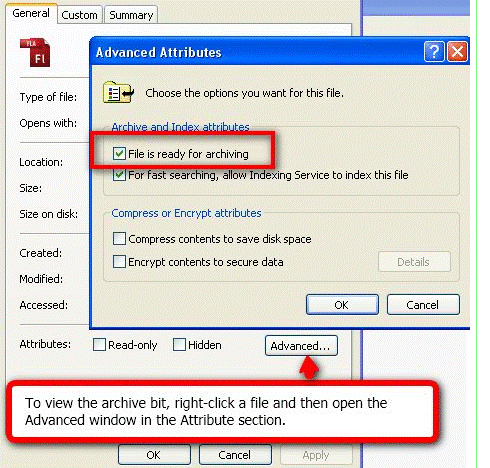
There are three main, universal backup types that are performed and these are:
Full backups: Copies all files selected to be backed up regardless of the archive bit setting and will clear the archive bit of all files that get backed up.
Differential backups: Copies all files changed since last full backup (files with the archive bit turned on) and does not clear the archive bit after files get backed up.
How often should backups be made?
Corporations backup their data nearly every night. A full backup is made usually on a Friday or a Saturday night. The rest of the week either an incremental or a differential backup is made (this depends on whether they want a quick backup or a quick restore).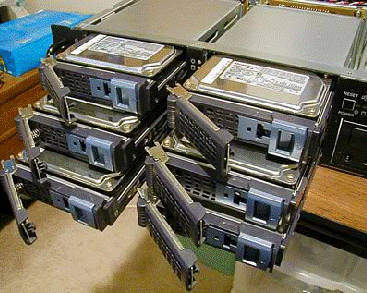
Corporations do not depend entirely on backups, however. Most use RAID technologies. RAID stands for Redundant Array of Independent Disks. This basically creates data redundancy on the hard drives, enabling the ability to instantly recover lost data due to a drive failure. RAID does not enable the corporation to recover deleted or corrupt files, backups are required for this.
Which device type should backups be made to?
Click on the link or image below to view some of your choices.
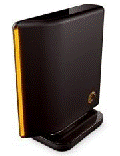 http://coursecontent.ntc.edu/CIT/husband/pois/lp2/m25-backupdevices.html
Where should the backup device be stored?
Everyone would agree that backups need to be made. If the backups are for a corporation, these backups should preferably be made on portable digital devices such as tapes and then stored off site, preferably in a fire proof vault.
Cloud backups and backups to storage area network devices are become popular. Cloud backups satisfy the offsite requirement of backups but rely on the Internet. Storage area network devices are a quick option for both backups and restores with adequate capacity, but may not easily be stored offsite.
Personal backups at home are typically not stored offsite, but still could be - perhaps at grandmother’s house. They should be clearly labeled with a date, time, and contents.
Recovering from an Attack
"Hope for the best but prepare for the worst."
Despite the precautions, you may be faced with putting out a fire.
Here's a check list of things to do if you get infected by a virus:
Disconnect
Immediately disconnect your computer from the network or Internet.
By disconnecting from your network you prevent the virus from spreading to other computers in your network. By disconnecting from the Internet, you stop the attacker from accessing your computer or the files on your computer.
Identify
Identify the virus.
Tell your anti-virus (AV) software to scan your entire hard drive plus all removable devices that may have infected your computer. If your virus scanner can do a boot scan, have your AV software scan the computer before it boots to the operating system - this helps discover really bad root kits that hide in the operating system.
If your AV software does not detect the virus, then you may have to reconnect to the Internet and access an online service that will scan your computer.
Click on the image or link below to check out the service that Symantec provides.
Disinfect
Disinfect your computer - kill the virus!
If you get this far you are doing good. All you need to do is kill the virus. This may not be easy. Have your AV software either remove the virus or quarantine the virus. If your AV software could not detect the virus, then use an online scanner/removal tool such as the Microsoft Windows Malicious Software Removal Tool.
Recheck
Once the virus is removed, scan the computer again for any more signs of the virus. Since your original AV software betrayed you, you may want to use another brand of AV software (after removing the first) or use an online service as mentioned before.
Reinstall
If all else fails, you may have to rebuild your operating system, reinstall your applications and restore your data from backup. You may possibly get by with simply restoring your entire computer from backup, but you risk restoring the virus as well.
Analyze
So that you do not lose anymore downtime, which is sometimes the most expensive part of being infected with a virus, you need to brainstorm on how you can prevent this from happening again.
- Check the validity and age of your virus signature files. Are you scanning everything?
- Make sure your operating system is up-to-date (with patches and service packs).
- Check your email trash or emails that were opened for suspicious emails - but do so on a sacrificial computer.
- Review your security policies and procedures.