DisplayAccessibilityAdds letters such as N so diagram meaning
is not conveyed by color alone.Progress
Overview
Object Instantiation and Assigning Field Values
In this activity, you will start from the provided Zoo 1.1 LastName project and complete the
first version of the Como Zoo object model.
User Story: Como Zoo Starter Program
The manager of Como Zoo has asked for the first version of a program that stores basic zoo
information. This version will create the main Como Zoo object and connect it to the first objects
the zoo needs to track: a featured animal, restrooms, a ticket booth, and the employee working at
the booth.
This checkpoint gives the rest of the project a foundation. Later checkpoints will build on these
objects and add more behavior.
Acceptance Criteria
Create a ComoZoo object.
Store the zoo's name and capacity.
Store a featured animal with its starting information.
Store both a ladies' restroom and a men's restroom.
Store a ticket booth with its ticket price.
Store the employee assigned to the ticket booth.
Run the program and verify the object values with the debugger.
Names in C# must match exactly. A missing capital letter, a renamed event handler that does not match
XAML, or a changed class or field name can prevent the project from building or running correctly.
Watch Out For
Most issues in this checkpoint come from one character being different: a missing capital letter, a
renamed event handler that does not match XAML, or a class file that was created outside the
expected folder.
Before You Begin
Each code block shows only the line or lines you need to add or change. Do not recopy code that is
already in the file. Place each snippet inside the correct method and inside the correct set of
braces.
For this checkpoint, the code changes belong in ZooScenario/MainWindow.xaml.cs, inside the
newComoZooButton_Click event handler.
You have some freedom in how you organize the lines. The key rule is that an object must exist before
you assign values to its fields.
Set Up Zoo Starting Code
Begin with the starter ZIP file supplied by your instructor.
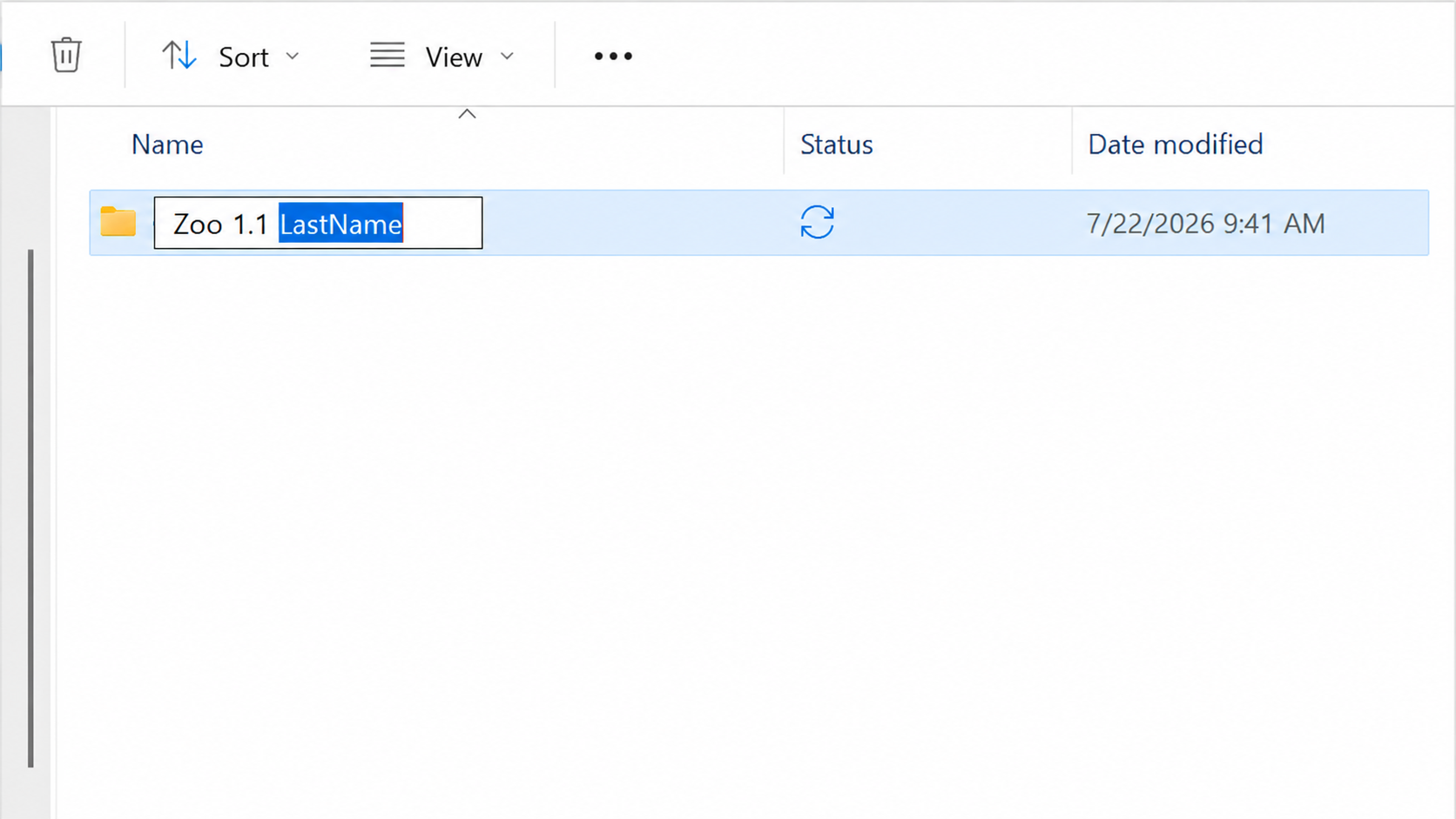
Rename the extracted project folder by replacing LastName with your
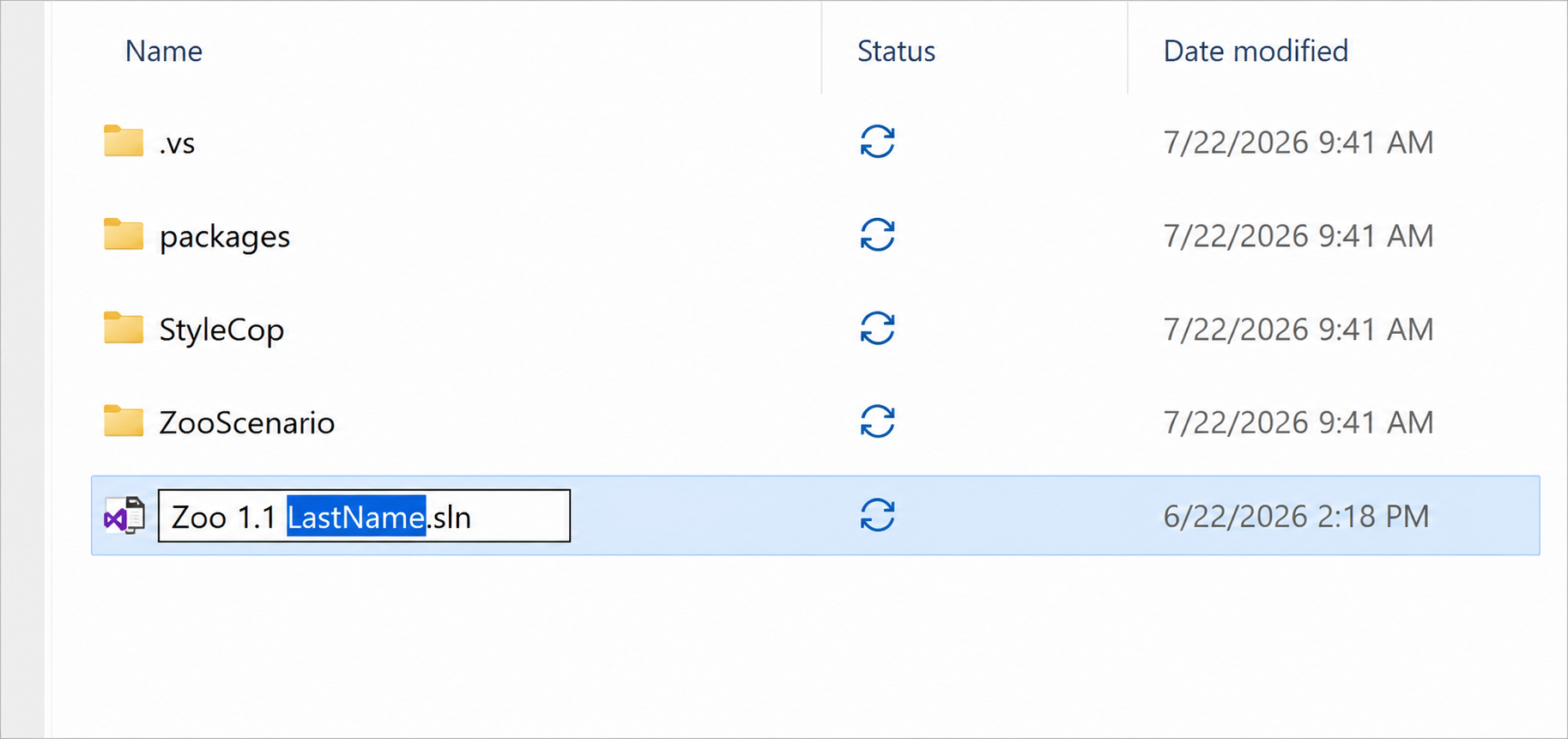
own last name.Rename the solution file by replacing LastName with your own last
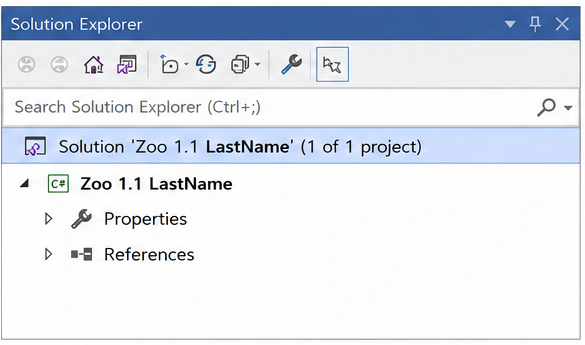
name.Open the solution and confirm that the solution and project names
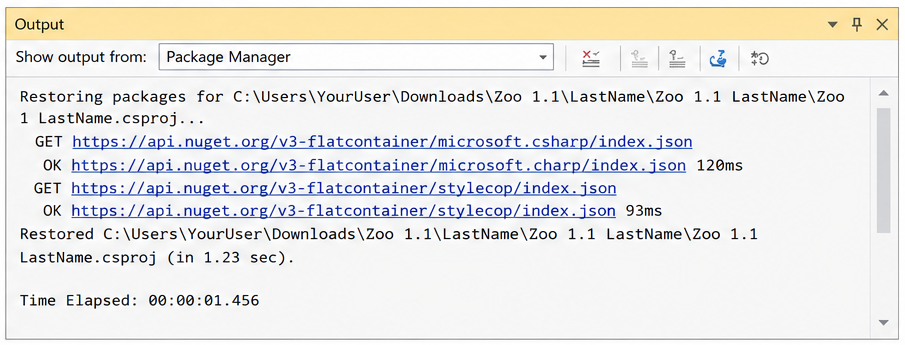
use the required naming pattern.If prompted, restore the NuGet packages and wait for the restore to
finish.Go to
top
Explore the New Como Zoo Event Handler
The Goal
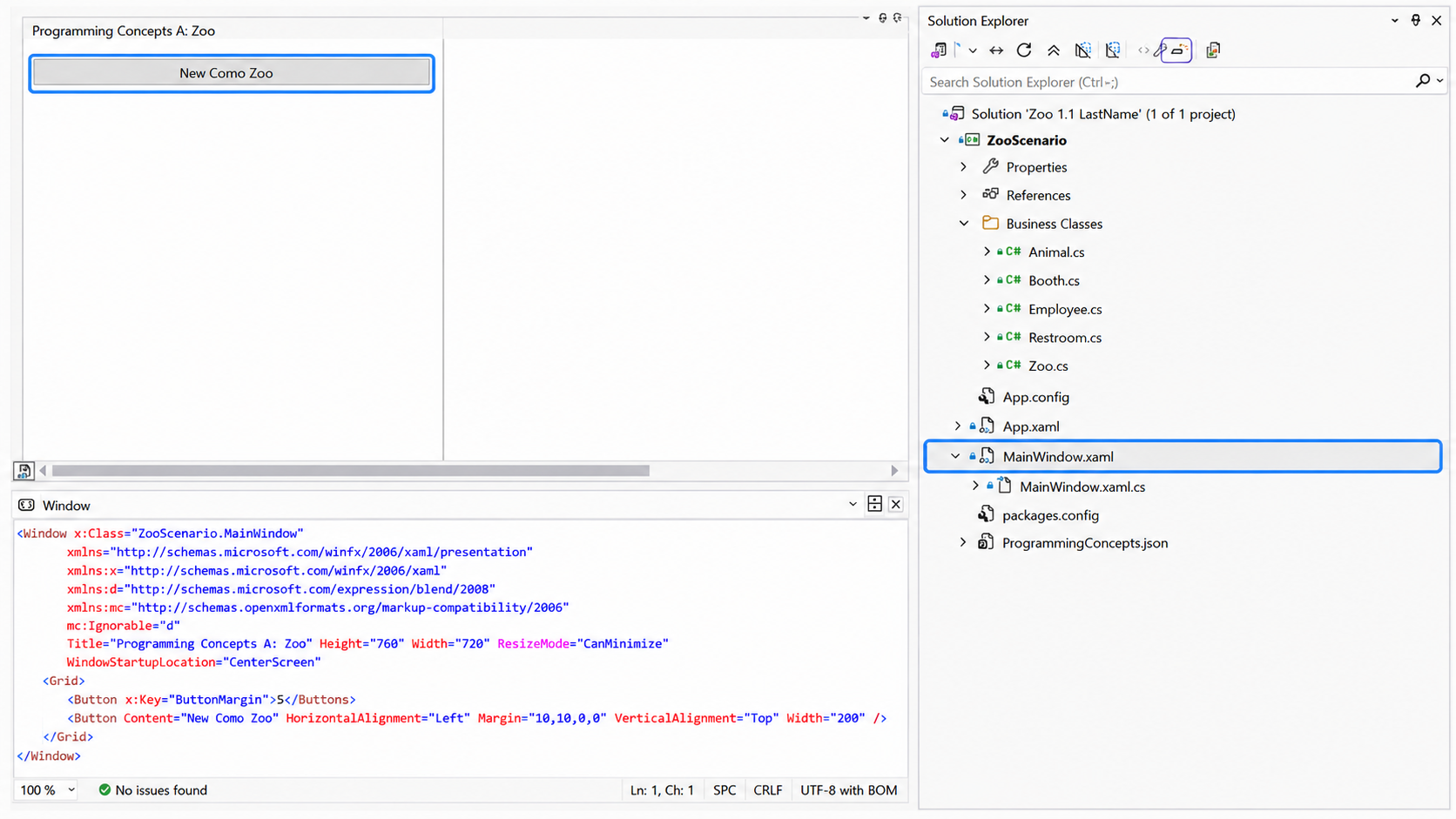
Before adding any zoo code, confirm that the New Como Zoo button is already connected to code
that runs when the button is clicked.
Your Task
Open ZooScenario/MainWindow.xaml, locate the New Como
Zoo button, and double-click it. Visual Studio should open
MainWindow.xaml.cs and place the cursor inside the existing
newComoZooButton_Click event handler.
Double-clicking the button opens its event handler in
MainWindow.xaml.cs.
Verify Your Work
What This Means
The button is already connected to its event handler. A breakpoint pauses the program so you
can inspect what is happening, but the breakpoint is not required for the button or the
event handler to work.
The MainWindow already has a ComoZoo field, but that field does not
point to a real Zoo object yet.
Your Task
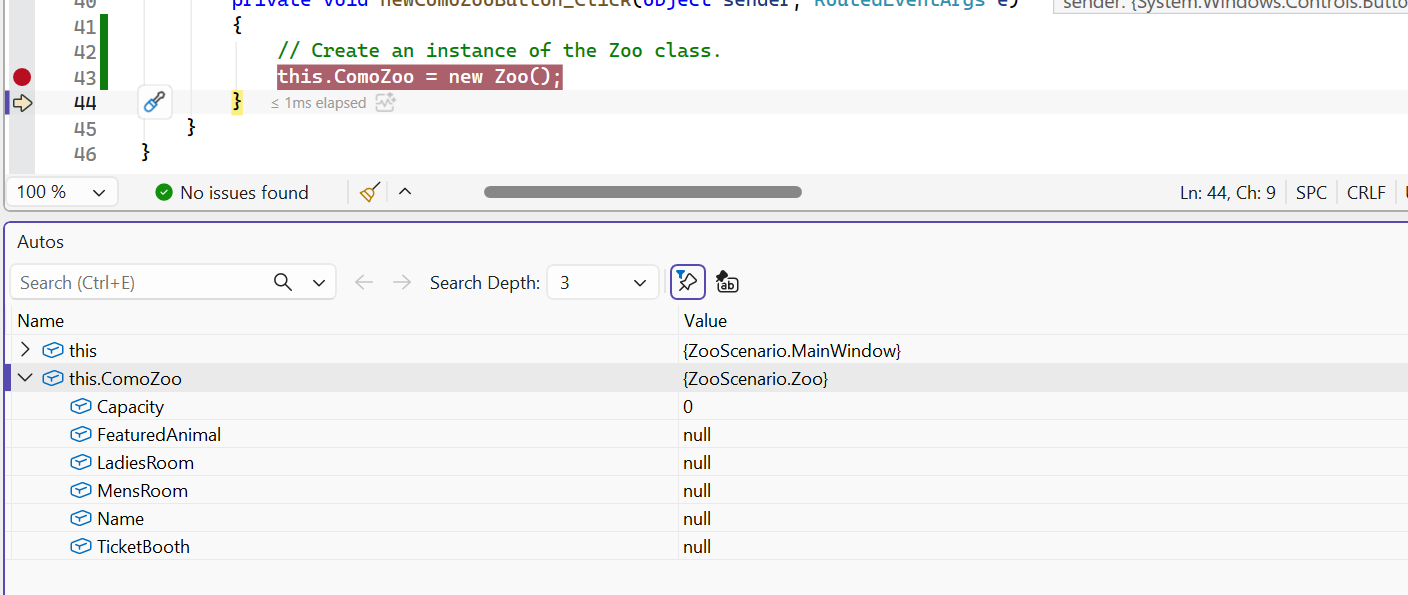
Inside the newComoZooButton_Click event handler, create one new Zoo
object and store it in this.ComoZoo. Place it near the start of the method, before
any code that uses this.ComoZoo.
Current object state after this task.
// Create an instance of the Zoo class.this.ComoZoo=newZoo();
What This Code Does
This line creates one Zoo object in memory. The this.ComoZoo = part
saves a reference to that object so the rest of the method can keep filling in information
for the same zoo. The comment above the line labels this part of the event handler so the
object-creation code is easy to distinguish from the field assignments that follow.
Show where the student should add the Zoo object instantiation
inside MainWindow.xaml.cs.Show the breakpoint and the Locals or Watch window after F10 (Step
Over), with this.ComoZoo no longer null.
Verify Your Work
What This Means
Once this line runs, this.ComoZoo is no longer null. It now points
to the zoo object that the rest of this checkpoint will fill in.
The zoo object now exists, but its Capacity field still has its default value.
Your Task
Give the existing zoo object a capacity value. Add this after this.ComoZoo has been
created, near the other zoo field assignments.
Current object state after this task.
// Assign field values of Como Zoo.this.ComoZoo.Capacity=1000;
Understanding the Change
This line does not create another object. It follows the reference stored in
this.ComoZoo and fills in the Capacity field on the existing zoo
object.
Show this.ComoZoo.Capacity in the Locals or Watch window after the
assignment executes.
Verify Your Work
Try the Error Intentionally
Why You Are Trying This
Before moving on, intentionally create a common programming mistake so you can see why the
order of these statements matters. The line this.ComoZoo = new Zoo(); must run
before the capacity assignment. Otherwise, this.ComoZoo is still
null, and the program cannot assign a capacity to a zoo object that does not
exist.
You will temporarily comment out the object-creation line to observe the error.
Restore the line before continuing to the next task.
Como Zoo needs an animal to showcase, but the zoo does not have an Animal object
assigned yet.
Your Task
Create one Animal object and store it in the zoo's FeaturedAnimal
field. Add this after this.ComoZoo exists. It may be grouped with the other
object-creation lines.
Current object state after this task.
// Create the featured animal.this.ComoZoo.FeaturedAnimal=newAnimal();
What This Code Does
This gives the zoo a reference to an animal object. Later, when you write
this.ComoZoo.FeaturedAnimal.Age, the program starts with the zoo, follows its
FeaturedAnimal reference, and then fills in that animal's age.
Verify Your Work
What You Accomplished
The zoo now has a featured animal object. The next lines will not create another animal; they
will fill in fields on the animal object you just assigned.
The zoo object still needs its main related objects and its name.
Your Task
Create the restroom and ticket booth objects, and assign the zoo's name. Add these lines after
the zoo object exists. The restroom and booth objects must be created before you assign values
to their fields later.
Current object state after this task.
// Create the restrooms.this.ComoZoo.LadiesRoom=newRestroom();this.ComoZoo.MensRoom=newRestroom();// Assign the remaining field value of Como Zoo.// You may place this beside Capacity to group Zoo field values.this.ComoZoo.Name="Como Zoo";// Create the ticket booth.this.ComoZoo.TicketBooth=newBooth();
Understanding the Change
The restroom and ticket booth lines create objects. The name line fills in a string value on
the zoo object.
Verify Your Work
What's Different Now?
The main zoo object now has references to its restroom objects and ticket booth object. It
also has a name stored directly on the zoo.
The animal object exists, but it does not yet have any details.
Your Task
Fill in the fields on the existing FeaturedAnimal object. Add these lines after
FeaturedAnimal has been assigned a new Animal object.
Current object state after this task.
// Assign field values of the featured animal.this.ComoZoo.FeaturedAnimal.Age=4;this.ComoZoo.FeaturedAnimal.Gender="Female";this.ComoZoo.FeaturedAnimal.IsPregnant=true;this.ComoZoo.FeaturedAnimal.Name="Dolly";this.ComoZoo.FeaturedAnimal.Type="Dingo";this.ComoZoo.FeaturedAnimal.Weight=35.3;
Verify Your Work
Take a Closer Look
Each line starts at the window, follows the ComoZoo reference, follows the
FeaturedAnimal reference, and then fills in one field on that animal.
The restroom and ticket booth objects exist, but they still need values. The ticket booth also
needs an employee object before you can fill in employee information.
Your Task
Fill in the restroom fields, set the ticket price, and create the attendant object. Add these
lines after LadiesRoom, MensRoom, and TicketBooth have
been created.
Current object state after this task.
// Assign field values of the ladies' restroom.this.ComoZoo.LadiesRoom.Capacity=4;this.ComoZoo.LadiesRoom.Gender="Female";// Assign field values of the men's restroom.this.ComoZoo.MensRoom.Capacity=4;this.ComoZoo.MensRoom.Gender="Male";// Create and assign field values of the ticket booth.this.ComoZoo.TicketBooth.Attendant=newEmployee();this.ComoZoo.TicketBooth.TicketPrice=15.00m;
What This Code Does
The ticket booth can store a reference to an employee. The line with
new Employee() creates that employee object so the next section can fill in the
attendant's name and number.
Verify Your Work
Putting It Together
The zoo now has restroom details and a ticket booth that knows its ticket price. The booth
also has an attendant object ready for employee information.
The ticket booth now has an attendant object, but the attendant does not yet have values.
Your Task
Fill in the fields on the existing attendant object. Add these lines after the attendant object
has been created.
Current object state after this task.
// Assign field values of the ticket booth attendant.this.ComoZoo.TicketBooth.Attendant.Name="Sam";this.ComoZoo.TicketBooth.Attendant.Number=42;
Verify Your Work
Key Takeaway
The ticket booth attendant now has identifying information. The program can connect the
ticket booth to a specific employee instead of leaving the employee object blank.
You created the first complete Como Zoo object graph. The final diagram shows the objects, references,
and field values that should exist when the checkpoint is complete.
A Zoo object is assigned to MainWindow.ComoZoo.
The Zoo stores its name and capacity.
The Zoo references a featured animal, two restrooms, and a ticket booth.
The ticket booth references its attendant.
Diagram MarkerNew in this
checkpoint
Ending object diagram for Zoo 1.1.
Screenshot Viewer
Use + and − to zoom. Press Esc or select × to return to the walkthrough.