6.3B Zoo Assignment

6.3B Zoo Assignment
Use delegates to redraw animals in cage window
Acceptance Criteria
Acceptance criteria
  • Movement notifications trigger cage redraws through delegates.
1.Use delegates to redraw animals in cage window
Solution
Problem
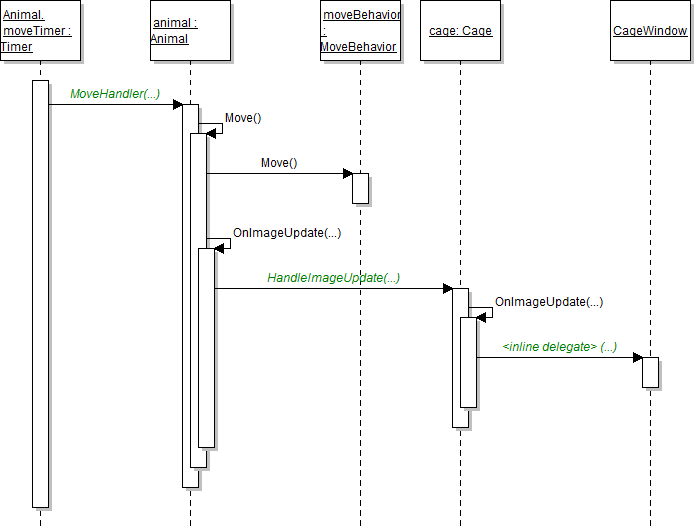
"Animal.moveTimer: Timer" object calls MoveHandler(...) on "animal: Animal", which calls Move() on itself, Move() on "moveBehavior: MoveBehavior", and OnImageUpdate(...) on itself. OnImageUpdate calls HandleImageUpdate(...) on "cage: Cage", which calls OnImageUpdate(...) on itself. The cage's OnImageUpdate method calls an inline delegate on the CageWindow.. Reference figure for use delegates to redraw animals in cage window.
"Animal.moveTimer: Timer" object calls MoveHandler(...) on "animal: Animal", which calls Move() on itself, Move() on "moveBehavior: MoveBehavior", and OnImageUpdate(...) on itself. OnImageUpdate calls HandleImageUpdate(...) on "cage: Cage", which calls OnImageUpdate(...) on itself. The cage's OnImageUpdate method calls an inline delegate on the CageWindow.
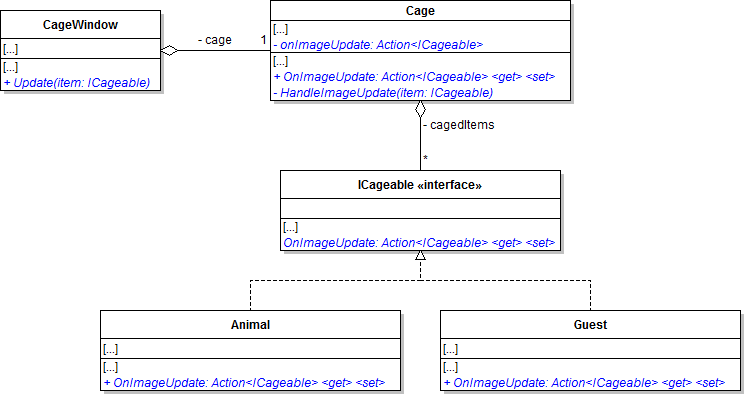
A Make changes to the CageWindow, Cage, Guest, and Animal classes and ICageable interface as specified in the diagram below.
Class Diagram: Move Delegates. Reference figure for use delegates to redraw animals in cage window.
Class Diagram: Move Delegates
B Call the animal's OnImageUpdate delegate in the animal's Move method, after calling the Move method on the move behavior.
C Update the Cage class.
1 In the HandleImageUpdate method, call the cage's OnImageUpdate delegate.
2 In the Add method after adding the caged item, plug the HandleImageUpdate method into the caged item's OnImageUpdate delegate.

Then call the cage's OnImageUpdate method. This will bubble the caged item's notification up to the cage window.

3 In the Remove method after removing the caged item, unplug the HandleImageUpdate method from the caged item's OnImageUpdate delegate.

Then call the cage's OnImageUpdate method. This will bubble the caged item's notification up to the cage window.

D Update the cage window.
1 In the constructor, plug the Update method into the cage's OnImageUpdate delegate.
2 At the end of the DrawItem method, just before adding the viewbox to the cage grid's children, set the viewbox's Tag property to the item.

This will store the object in the viewbox for future reference.

3 Put the following code block in the Update method.
try
{
    this.Dispatcher.Invoke(new Action(delegate()
    {
        // code here
    }));
}
catch (TaskCanceledException)
{
}
4 Inside the Dispatcher.Invoke method, loop through the viewboxes in the cage grid's children.

If the current viewbox's tag matches the item parameter, remove that viewbox from the cage grid and break. After looping, draw the item.

5 Remove the redrawTimer and the code that instantiates and starts it.
6 Add a window_Closed event handler.

In it, just set the cage's OnImageUpdate delegate to null. This will help with serialization by removing any references the delegate might have to the window's Update method.

E Check Your Work
1 Run the WPF application. Restart the zoo.
2 Show an animal cage. The animal(s) should be appear and be moving as they did before removing the redraw timer.
Fix animals flipping between foreground and background
Acceptance Criteria
Acceptance criteria
  • Redrawing preserves the original foreground and background ordering.
2.Fix animals flipping between foreground and background
Problem
Solution
A In CageWindow.xaml.cs, add a parameter called zIndex of type int to the DrawItem method.

Instead of adding the viewbox to the cage grid's children, insert it at the zIndex spot. Use the Insert method.

B In the DrawAllItems method, define a zIndex variable before the loop and initialize it to 0.

In the loop, pass the variable in to the DrawItem method, and then increment the variable.

C In the Update method, define and instantiate a zIndex variable before the loop.

Increment it inside the loop but after the if block. Then pass it in to the DrawItem method.

D Check Your Work
1 Run the WPF application.
2 Create multiple dingoes, if they don't already exist.

Show their cage. The overlapping animals should no longer flip back and forth between the foreground and the background.
Fix removed animals getting stuck in window
Acceptance Criteria
Acceptance criteria
  • Inactive animals and guests are not drawn in the cage window.
3.Fix removed animals getting stuck in window
Problem
Solution
A Add properties to caged items indicating whether or not they are active.
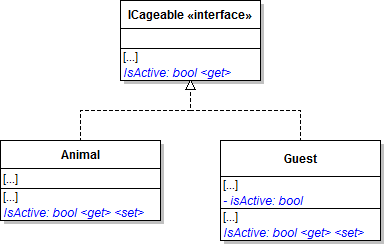
1 Make changes to the Animal and Guest classes and ICageable interface as specified in the diagram below.
Class Diagram: Active Properties. Reference figure for fix removed animals getting stuck in window.
Class Diagram: Active Properties
2 In the animal's IsActive property, get and set the moveTimer's Enabled property.
3 In the guest's IsActive setter, set the isActive field.

The getter should return true if either isActive is true or the guest's adoptedAnimal is not null.

B In the Zoo's AddAnimal method, set the animal's IsActive property to true.
C In the zoo's RemoveAnimal method, set the animal's IsActive property to false.
D Do the same for the guest in the zoo's RemoveGuest method.
E In CageWindow.xaml.cs's Update method, only call DrawItem if the item is active.
F Check Your Work
1 Run the WPF application.
2 Create multiple dingoes, if they do not exist. Show their cage.
3 Remove an animal. The animal should disappear from the window without getting stuck.
4 Create a guest if one does not exist.

Have the guest adopt an animal. The guest should appear in the cage window. Have the guest un-adopt their animal. The guest should disappear from the cage window.

5 Have the guest re-adopt the animal.

The guest should appear in the cage window. Remove the adopted animal from the zoo. Both the animal and the guest should disappear from the cage window.

6 Have the guest adopt another animal.

The guest should appear in the cage window. Remove the guest from the zoo. The guest should disappear from the cage window.

Demonstrate your work
4.Record a video showing
A Your WPF Application
1 Step 3F - Check Your Work
Prepare and submit your work
5.Submission Steps
A Ensure that your application has no compiler errors or warnings
B Ensure that your code is StyleCop compliant
C Remove all bin and obj folders from your solution
D Zip your solution
E Submit your zipped solution to the Feedback System
F Submit your Feedback System results link to Canvas
G Submit your video recording to your f-channel
Source credit

© 2026 Northcentral Technical College