6.2B Zoo Assignment

6.2B Zoo Assignment
Use delegates to automatically update display of guests in their list box
Acceptance Criteria
Acceptance criteria
  • Guest-change delegates refresh the guest list display automatically.
1.Use delegates to automatically update display of guests in their list box
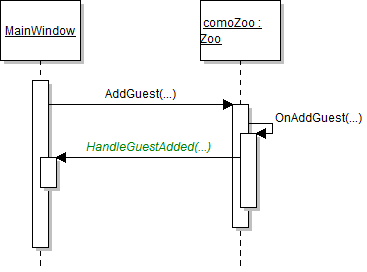
Sequence Diagram: Guest Delegate. Reference figure for use delegates to automatically update display of guests in their list box.
Sequence Diagram: Guest Delegate
Problem
Solution
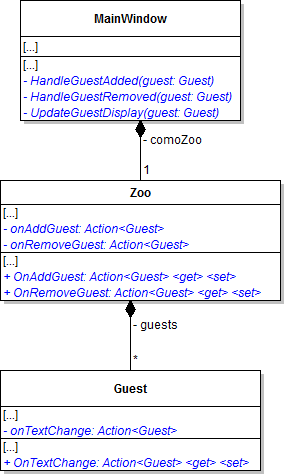
A Make changes to the MainWindow, Zoo, and Guest classes as specified in the diagram below.
Class Diagram: Update Delegate. Reference figure for use delegates to automatically update display of guests in their list box.
Class Diagram: Update Delegate
B Mark the onAddGuest, onRemoveGuest, and onTextChange fields as NonSerialized.

The MainWindow will plug methods into these delegates, so they cannot be serialized.

C Use zoo to connect guest to window. In the Zoo class
1 Call the OnAddGuest delegate in the AddGuest method and pass in the guest as the argument.
2 Call the OnRemoveGuest delegate in the RemoveGuest method and pass in the guest.
D Call the OnTextChange delegate in the guest's name, age, and adopted animal properties.

Remember to do null checks for the delegate.
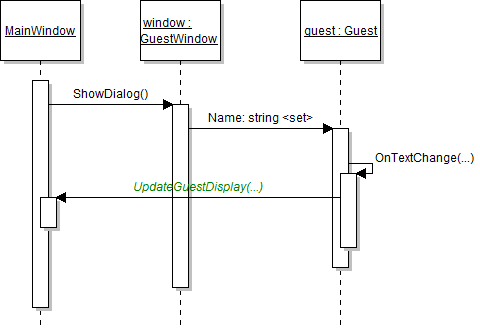
E Connect the MainWindow to the zoo and the guest. Review the sequence diagram below to complete the following steps.
Sequence Diagram: Update Guest. Reference figure for use delegates to automatically update display of guests in their list box.
Sequence Diagram: Update Guest
1 In the AttachDelegates method, plug the HandleGuestAdded method in to the zoo's OnAddGuest delegate and plug the HandleGuestRemoved method in to the zoo's OnRemoveGuest delegate.
2 In the HandleGuestAdded method, add the guest to the list box's Items and then plug the UpdateGuestDisplay method into the guest's OnTextChange delegate.

This will bubble any text changes on the guest (name, age, etc.) up to the window.

3 Put the following code in the UpdateGuestDisplay method
int index = this.guestListBox.Items.IndexOf(guest);

if (index >= 0)
{
    // disconnect the guest
    this.guestListBox.Items.RemoveAt(index);
    // create new guest item in the same spot
    this.guestListBox.Items.Insert(index, guest);
    // re-select the guest
    this.guestListBox.SelectedItem = this.guestListBox.Items[index];
}
4 In the HandleGuestRemoved method, remove the guest from the list box's Items and then unplug the UpdateGuestDisplay method from the guest's OnTextChange delegate.

This will unattach the method and delegate when a guest is removed so that the guest doesn't have any "kite strings" still hanging onto it.

F Remove the PopulateGuestListBox method on MainWindow.xaml.cs and all calls to it.
G In the MainWindow's ClearWindow method, instead of setting the list boxes' ItemsSource to null, call the Clear method on the list boxes' Items collection.
H In the OnDeserialized method, reattach delegates by looping through all the guests in the zoo and call the OnAddGuest delegate for each guest.

This simulates the adding of deserialized (saved) guests so that they will appear in the list box.

I Check your work
1 Run the WPF application.
2 Admit Ethel to the Zoo.
3 Edit Ethel.

Change her name. The guest's name should change in the list box in the MainWindow when you tab out of the name text box in the GuestWindow. The same should happen for age.
4 Save the application (or close to autosave). Ensure that the application saves successfully.
5 Load the saved file. Ensure the guest loads in the guest window.
Use delegates to update the checking account and wallet.
Acceptance Criteria
Acceptance criteria
  • Money-change delegates refresh checking-account and wallet information.
2.Use delegates to update the checking account and wallet.
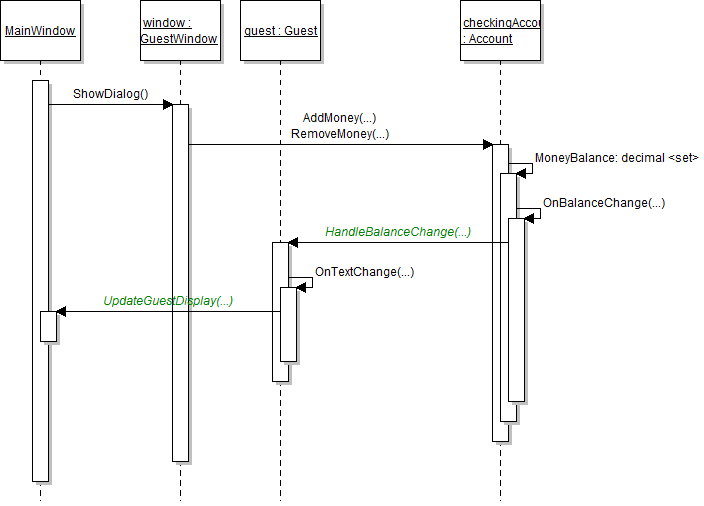
Sequence Diagram: Account. Reference figure for use delegates to update the checking account and wallet.
Sequence Diagram: Account
Problem
Solution
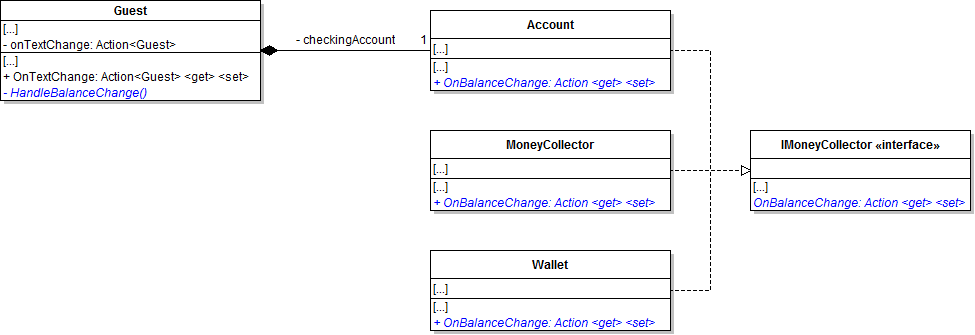
A Make changes to the Account and MoneyCollector classes as specified in the diagram below.
Class Diagram: OnBalanceChange. Reference figure for use delegates to update the checking account and wallet.
Class Diagram: OnBalanceChange
B In the Account and MoneyCollector, call the OnBalanceChange delegate when the balance is changed (i.e. in the MoneyBalance setter).
C Connect the guest to the checking account.
1 In the guest's constructor, plug the HandleBalanceChange method in to the checking account's OnBalanceChange delegate.
2 In the HandleBalanceChange method, call the guest's OnTextChange delegate.

This will bubble up the checking account's balance change notification.
D In the Account and MoneyCollector, ensure that anytime the money balance is updated it references the property and not the field.
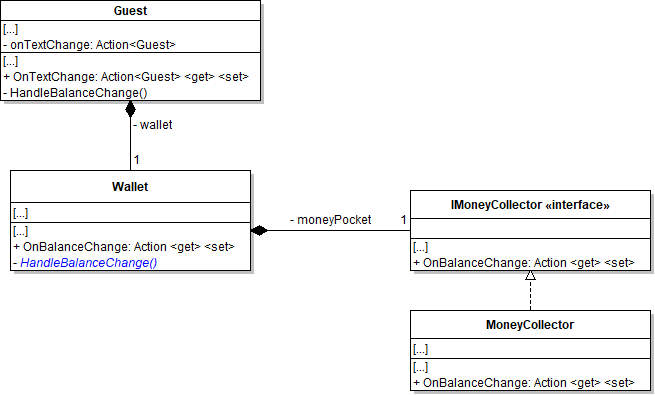
E Make changes to the Wallet class as specified in the diagram below.
Class Diagram: Wallet Class. Reference figure for use delegates to update the checking account and wallet.
Class Diagram: Wallet Class
F Set up the delegate for the wallet.
1 In the wallet constructor, plug the HandleBalanceChange method in to the wallet's moneyPocket's OnBalanceChange delegate.
2 In the Wallet's HandleBalanceChange method, call the wallet's OnBalanceChange delegate.
3 In the guest's constructor, plug the HandleBalanceChange method in to the wallet's OnBalanceChange delegate.
G Check your work
1 Run the WPF application.
2 Remove your previous guest and admit Ethel into the Zoo.
3 Edit Ethel's account balance.

Ensure that her account money balance changes immediately in the list box in the MainWindow.

4 Edit Ethel's wallet balance.

Ensure that her wallet money balance changes immediately in the list box in the MainWindow.

Use delegates to automatically update display of animals in their list box
Acceptance Criteria
Acceptance criteria
  • Animal-change delegates refresh the animal list display automatically.
3.Use delegates to automatically update display of animals in their list box
Problem
Solution
A Change the way null checks are performed on delegates.
if (this.OnTextChange != null)
{
    this.OnTextChange(this);
}

Previously we have added null checks to ensure that the delegate actually has a method plugged into it before executing it like this:

Instead, we can shorten this using what is called a Null Conditional Operator which looks like this:

this.OnTextChange?.Invoke(this);
B Follow the process as you did for guest to implement delegates for automatically updating the display of animals.
1 Animals should have a NonSerialized delegate for notifying subscribers of all text changes named onTextChange and have a corresponding Property.
2 MainWindow should have a method for updating the animal display named UpdateAnimalDisplay.
3 Zoo should have NonSerialized delegates for notifying subscribers of addition and removal of animals named onAddAnimal an onRemoveAnimal and corresponding corresponding Properties.
4 MainWindow should have methods for handling the addition and removal of animals named HandleAnimalAdded and HandleAnimalRemoved.
5 Add a setter to the IsPregnant property in the Animal class and change all references from the field reference to the property.
6 Call OnTextChange, OnAddAnimal and OnRemoveAnimal in their appropriate places.
7 Zoo should simulate the adding of animals after it is deserialized (loaded).
C Check your work
1 Run the WPF application.
2 Edit an animal.

The animal's name, age, and weight should update in the list box in the MainWindow after tabbing out of the text boxes in the AnimalWindow. The animal's pregnancy status should update in the list box in the MainWindow after making the animal pregnant in the AnimalWindow.

3 Close out of the application to save it and start the application.

The animal you edited previously should be loaded properly and should appear in the list box.

4 Add a new animal to the zoo with just their default values.
5 Edit your new animal and make sure the display updates as you tab out.
6 Save/Close the application and start it up again. Ensure that your custom animal was saved and loads correctly.
Demonstrate your work
4.Record a video showing
A Your WPF Application
1 Show that updating guest information will also update them in the MainWindow
Subtasks
  • A. Add a guest to the zoo.
  • B. After the guest is added, change the following and ensure changes also show up in the MainWindow
  • B.1. Name
  • B.2. Age
  • B.3. Account Balance
  • B.4. Wallet Balance
  • C. Adopt an animal and make sure its name is added to the Guest's information.
  • D. Unadopt the animal and make sure its name disappears from the Guest's information.
2 Show that updating animal information will also update them in the MainWindow
Subtasks
  • A. Add a female animal to the zoo
  • B. After the animal is added, change the following and ensure changes also show up in the MainWindow
  • B.1. Name
  • B.2. Age
  • B.3. Weight
  • C. Make the animal pregnant and ensure changes show up in the MainWindow
  • D. Make the animal give birth and ensure the animal's information also changes in the MainWindow
Prepare and submit your work
5.Submission Steps
A Ensure that your application has no compiler errors or warnings
B Ensure that your code is StyleCop compliant
C Remove all bin and obj folders from your solution
D Zip your solution
E Submit your zipped solution to the Feedback System
F Submit your Feedback System results link to Canvas
G Submit your video recording to your f-channel
Source credit

© 2026 Northcentral Technical College