5.5B Zoo Assignment

5.5B Zoo Assignment
Write the hover behavior
Acceptance Criteria
Acceptance criteria
  • Hover movement follows the animal's zooming and hovering states.
1.Write the hover behavior
Problem
Solution
5.5.4 How to Use the State Pattern 5.5.5 Why we Use the State Pattern
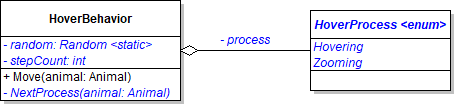
A Modify the HoverBehavior class as specified in the diagram below.
Class Diagram: Hover Behavior. Reference figure for write the hover behavior.
Class Diagram: Hover Behavior
B Initialize the random field at the field definition by assigning it to a new Random(DateTime.Now.Millisecond)
C Write the NextProcess method
1 Check if the current process is Hovering and add an else case.
2 If it is Hovering
Subtasks
  • A. Change the process to Zooming (change the state).
  • B. Assign the stepCount to a random number between 5 and 8 (inclusive).
  • C. Assign the XDirection to a random HorizontalDirection.
  • D. Assign the YDirection to a random VerticalDirection.
3 If it isn't Hovering (if it's Zooming)
Subtasks
  • A. Assign the process to Hovering.
  • B. Assign the stepCount to a random number between 7 and 10 (inclusive).
D Write the Move method
1 Check if the stepCount is 0 (the animal has run out of steps to take).

If it is, call the NextProcess method and pass in the animal.

2 Reduce the stepCount by 1.
3 Define a local variable of type int named moveDistance.

This will reference how far the animal moves depending on if it's hovering or zooming.

4 If the animal is Hovering, assign the moveDistance variable to the animal's MoveDistance, assign the animal's XDirection to a random HorizontalDirection and the animal's YDirection to a random Vertical Direction.
5 Otherwise (if it's Zooming), assign the moveDistance variable to the 4 times the animal's MoveDistance.
6 Use the MoveHelper's MoveHorizontally and MoveVertically to move the animal, using the moveDistance variable as the argument.
E Check Your Work
1 Run the WPF application.
2 Create a hummingbird and show its cage.

It should move a single step in a random direction between 7 and 10 times; then it should zoom in a single direction for 5 to 8 paces; then it should switch to hovering and start the cycle over again.
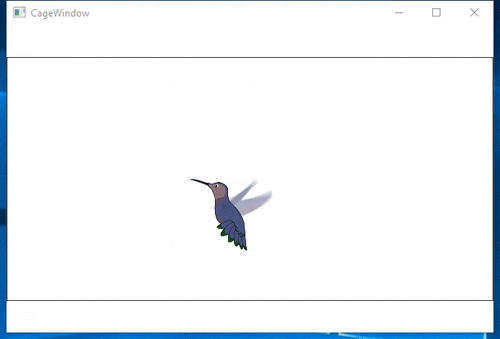
Animation: Hover Behavior. Reference figure for write the hover behavior.
Animation: Hover Behavior
Write the climb behavior
Acceptance Criteria
Acceptance criteria
  • Climb movement follows the animal's climbing, falling, and scurrying states.
2.Write the climb behavior
Problem
Solution
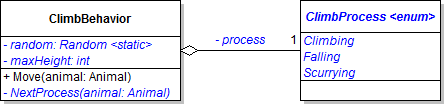
A Modify the ClimbBehavior class as specified in the diagram below.
Class diagram for climb behavior. Reference figure for write the climb behavior.
Class diagram for climb behavior
B Initialize the random field at the field definition by assigning it to a new Random(DateTime.Now.Millisecond)
C Write the NextProcess method
1 Switch on the process field and make cases for the different 'states' (Climbing, Falling, Scurrying).
2 If the process is Climbing, change it to Falling.
3 If the process is Falling, change it to Scurrying.
4 If the process is Scurrying
Subtasks
  • A. Insert the code below. This code gives two new values for the height of the canvas. The lowerMax is the smallest distance the animal can climb to before falling and the higherMax is the highest distance it can climb to before falling. Then it assigns the maxHeight field to a value within those ranges.
int higherMax = Convert.ToInt32(Math.Floor(Convert.ToDouble(animal.YPositionMax) * 0.15));
int lowerMax = Convert.ToInt32(Math.Floor(Convert.ToDouble(animal.YPositionMax) * 0.85));

this.maxHeight = ClimbBehavior.random.Next(higherMax, lowerMax + 1);
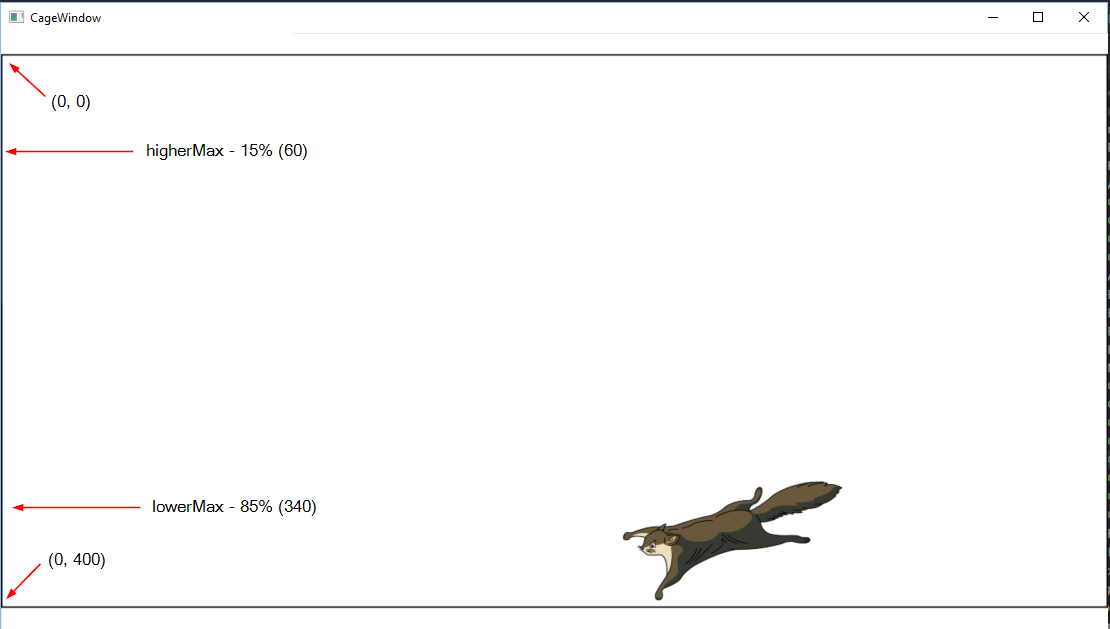
Snip - Climb Canvas. Reference figure for write the climb behavior.
Snip - Climb Canvas
Subtasks
  • B. Change the process to Climbing.
D Write the Move method
1 Switch on the process and make cases for the different 'states'.
2 If the animal is Climbing
Subtasks
  • A. Assign the animal's YDirection to Up.
  • B. Move the animal vertically by its regular move distance.
  • C. If the animal's YPosition minus it's MoveDistance is less than or equal to the maxHeight:
Subtasks
  • C.1. Change the animal's YDirection to Down
  • C.2. Change the animal's XDirection to the opposite value
  • C.3. Call the NextProcess method
3 If the animal is Falling
Subtasks
  • A. Move the animal horizontally by its regular move distance.
  • B. Move the animal vertically by twice its move distance.
  • C. If the animal's YPosition plus its MoveDistance is greater than or equal to the YPositionMax, call the NextProcess.
4 If the animal is Scurrying
Subtasks
  • A. Move the animal horizontally by its regular move distance.
  • B. Check if the animal's next movement exceeds the bounds of either the XPositionMax OR 0. If it does, if the animal is exceeding the XPositionMax, assign the animal's XPosition to XPositionMax otherwise assign it to 0. Then call the NextProcess.
E Check Your Work
1 Run the WPF application.
2 Create a squirrel and show its cage.

It should move horizontally until it hits a vertical edge; then it should move vertically until it hits a random maximum height; then it should fall at a steep angle until it hits the bottom of the cage; then it should move horizontally and start the cycle over again.
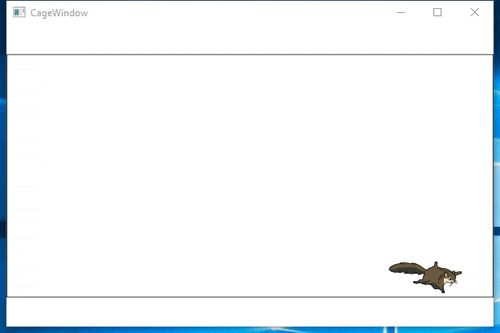
Animation: Climb Behavior. Reference figure for write the climb behavior.
Animation: Climb Behavior
Demonstrate your work
3.Record a video showing
A Your WPF Application
1 Show a Hummingbird in its cage. Ensure it goes through all Hovering phases.
2 Show a Squirrel in its cage. Ensure it goes through all Climbing phases.
Prepare and submit your work
4.Submission Steps
A Ensure that your application has no compiler errors or warnings
B Ensure that your code is StyleCop compliant
C Remove all bin and obj folders from your solution
D Zip your solution
E Submit your zipped solution to the Feedback System
F Submit your Feedback System results link to Canvas
G Submit your video recording to your f-channel
Source credit

© 2026 Northcentral Technical College