5.4A Zoo Assignment

5.4A Zoo Assignment
Use a stack for tickets
Acceptance Criteria
Acceptance criteria
  • The booth retrieves tickets from a stack instead of scanning the mixed item list.
1.Use a stack for tickets
Problem
Solution
5.4.1 How to Use Hierarchical Data Structures 5.4.2 How to Use Stacks
A Add a ticket stack to the MoneyCollectingBooth as specified in the diagram below.

The Stack class is in the System.Collections.Generic namespace.
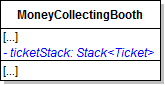
Class Diagram: Ticket Stack. Reference figure for use a stack for tickets.
Class Diagram: Ticket Stack
B In the MoneyCollectingBooth's constructor, instantiate the ticketStack to a new stack.

Then, instead of adding the five tickets to the Items list, push them onto the ticketStack using the Push method.

C In the money collecting booth's SellTicket method, instead of asking the attendant to find a ticket, just remove the first ticket off of the ticket stack using the Pop method.
D Check Your Work
1 Set a breakpoint at the end of the MoneyCollectingBooth constructor and in the SellTicket method after popping the ticket off the stack.
2 Run the WPF application.
3 Inspect the ticketStack after the constructor breakpoint is hit.

Notice that the five tickets are in the stack in reverse order of how they were added. This is because stacks only allow pushing of items - pushing an item onto a stack puts it in the first spot.
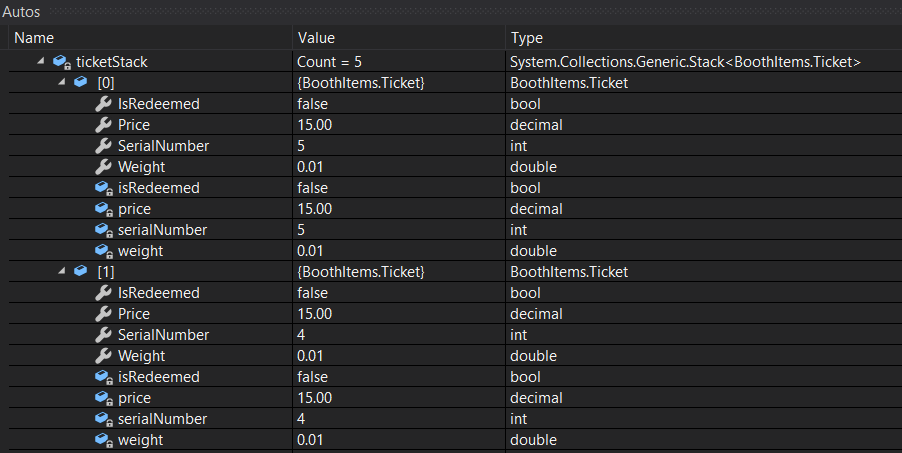
Snip: Ticket Stack. Reference figure for use a stack for tickets.
Snip: Ticket Stack
4 Click Continue.

Admit Ethel to the Zoo. Inspect the ticket after the SellTicket breakpoint is hit. Notice that its serial number is 5 - the serial number of the first item in the stack. This is because popping an item off of a stack (the only way to retrieve and remove an item from a stack) automatically returns the first item in the stack. This is called Last In First Out (LIFO).
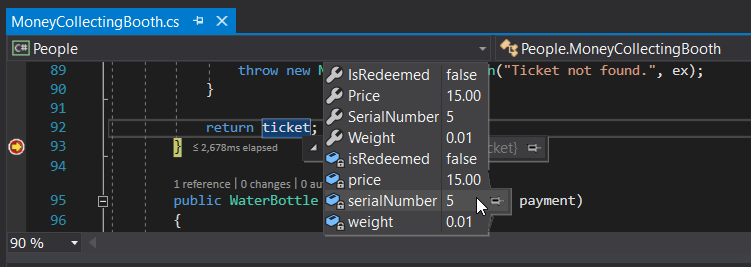
Snip: Ticket Popped. Reference figure for use a stack for tickets.
Snip: Ticket Popped
Use a queue for birthing animals
Acceptance Criteria
Acceptance criteria
  • The birthing queue processes pregnant animals in first-in, first-out order.
2.Use a queue for birthing animals
Problem
Solution
5.4.3 How to Use Queues
A Add a queue to the birthing room for pregnant animals.
1 Make changes to the BirthingRoom and Zoo classes as specified in the diagram below.

The Queue class is in the System.Collections.Generic namespace.

Class Diagram: Birthing Room Queue. Reference figure for use a queue for birthing animals.
Class Diagram: Birthing Room Queue
2 Instantiate PregnantAnimals in the birthing room constructor to a new queue.
3 In the Zoo class's BirthAnimal method, remove the parameter from the method header.
4 In the Zoo class's BirthAnimal method, get the first pregnant mother by calling Dequeue on the birthing room's PregnantAnimals queue.
5 Surround the code inside the BirthAnimal method in the Zoo class with a try/catch that catches an InvalidOperationExcpetion and shows a message telling the user the zoo does not have any pregnant animals.
6 In the Zoo's AddAnimal method, call Enqueue on the PregnantAnimals queue if the passed-in animal is pregnant and pass in the animal parameter.
B Modify the existing birth animal button.
1 Remove all of the code within the event handler.

This code has the user selecting an individual animal to give birth and we don't want that anymore.

2 Call the comoZoo's BirthAnimal method and then populate the list box.
C Currently, the BirthAnimal button only works if the animal is initially added to the zoo when it is pregnant.

In order to edit an animal to make it pregnant and added to the PregnantAnimals queue we must modify the double click event handler for animals.

1 In the if-statement where it checks if the showDialog is true, add an if-statement checking if the selected animal is pregnant.
2 In the if-statement checking for animal pregnancy, remove the selected pregnant animal to the zoo before re-adding it back.
D Check Your Work
1 Run the WPF application.
2 Click the Birth animal button. Ensure you get a message about no pregnant animals in the zoo.
3 Make Bubbles the Chimp, Maggie the Dingo and Ari the Eagle pregnant by double clicking them and clicking their Make Pregnant button.

Ensure that they are removed from the zoo and then added again. They will go to the bottom of the list and have a P next to their name now.
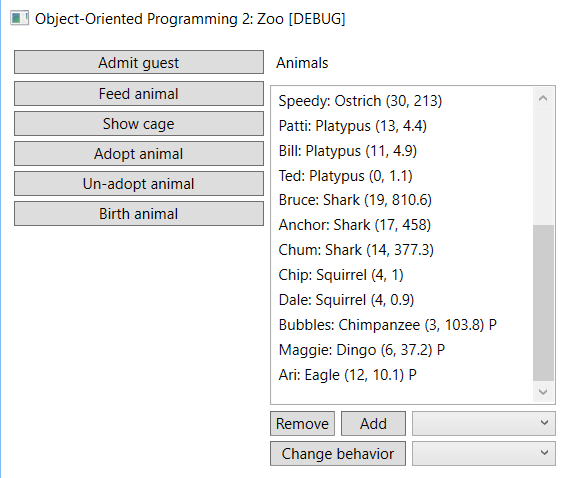
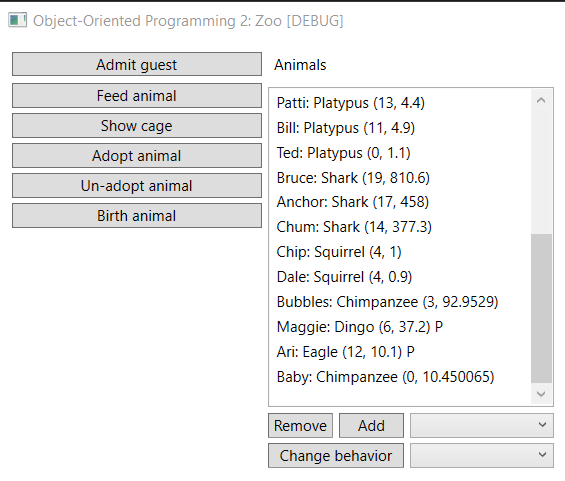
Snip - Pregnant Animals. Reference figure for use a queue for birthing animals.
Snip - Pregnant Animals
4 Click the Birth animal button. Bubbles should give birth first since she is the first one that was made pregnant.
Snip - Pregnant Animals Birth. Reference figure for use a queue for birthing animals.
Snip - Pregnant Animals Birth
5 Click the birth animal button again.

A baby dingo should be born since that was the second animal to be made pregnant.

6 Click the birth animal button again.

A baby eagle should be born since that was the third animal to be made pregnant.
Write algorithm structures for climbing and hovering
Acceptance Criteria
Acceptance criteria
  • Code comments outline the hovering and climbing algorithms before their behavior is implemented.
3.Write algorithm structures for climbing and hovering
Problem
Solution
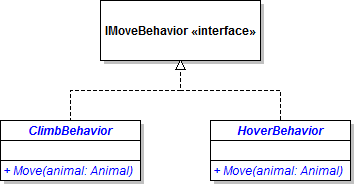
A Add the climb and hover behaviors to the Animals project as specified in the diagram below.
Class Diagram: Hove and Climb Behaviors. Reference figure for write algorithm structures for climbing and hovering.
Class Diagram: Hove and Climb Behaviors
B Add the Climb and Hover behaviors to the MoveBehaviorType Enum.
C Add the Climb and Hover behaviors to the MoveBehaviorFactory.
D Give the Squirrel the Climb behavior and the Hummingbird the Hover behavior.
E Write code comments in the ClimbBehavior's Move method that represent the structure of the algorithm for climbing.

The climb behavior has three stages - climbing, falling and scurrying. In it, an animal climbs a vertical wall to a randomly set maximum height; when the animal hits the maximum point, it begins falling diagonally at a steep angle until it hits the bottom of the cage; when it hits the bottom, the animal scurries along the bottom of the cage until it hits a vertical wall; then the cycle starts again.

// if the animal is climbing
    // make sure it's moving up (vertical direction)
    // move vertically
    // if the animal hit the maximum height (top of cage or other)
        // switch to falling

// if the animal is falling
    // move diagonally at a relatively steep angle
    // if the animal hit the bottom of the cage
        // switch to scurrying

// if the animal is scurrying
    // move horizontally along the bottom of the cage
    // if the animal hit a vertical edge
        // set the random max height
        // switch to climbing
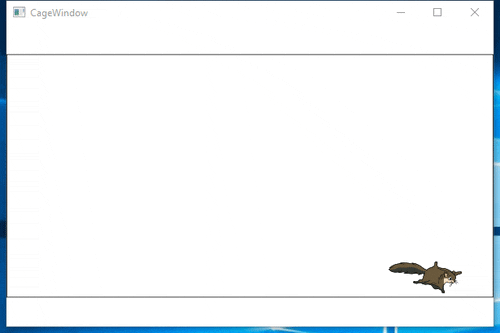
Gif: Climbing. Reference figure for write algorithm structures for climbing and hovering.
Gif: Climbing
F Write code comments in the HoverBehavior's Move method that represent the structure of the algorithm for hovering.

The hover behavior has two stages - hovering and zooming. In it, an animal hovers by moving a single step in a random direction for five to eight steps. After the five to eight steps, the animal begins zooming by moving in a single random direction for seven to 10 steps. While zooming, the animal moves at four times its normal step distance.
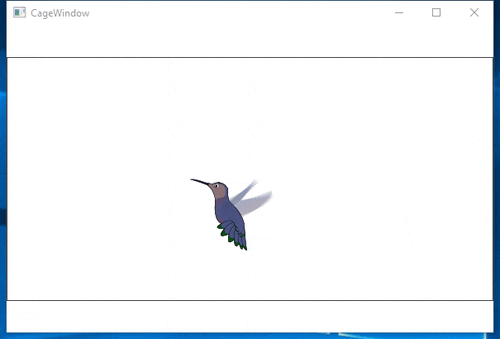
Gif: Hovering. Reference figure for write algorithm structures for climbing and hovering.
Gif: Hovering
Demonstrate your work
4.Record a video showing
A Your WPF Application
1 Step 2D - Check Your Work
B Your comment for the Move method in
1 ClimbBehavior
2 HoverBehavior
Prepare and submit your work
5.Submission Steps
A Ensure that your application has no compiler errors or warnings
B Ensure that your code is StyleCop compliant
C Remove all bin and obj folders from your solution
D Zip your solution
E Submit your zipped solution to the Feedback System
F Submit your Feedback System results link to Canvas
G Submit your video recording to your f-channel
Source credit

© 2026 Northcentral Technical College