5.2A Zoo Assignment

5.2A Zoo Assignment
Add a console command to show a cage
Acceptance Criteria
Acceptance criteria
  • The show cage console command displays the cage and its occupants as text, including their current positions.
1.Add a console command to show a cage
Problem
Solution
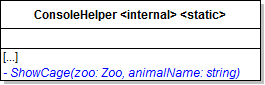
A Add the ShowCage method to ConsoleHelper as specified in the diagram below.
Class Diagram: ShowCage. Reference figure for add a console command to show a cage.
Class Diagram: ShowCage
B In the ShowCage method
1 Find an animal using the animalName parameter.
2 Find the cage the animal is in using the animal's Type
3 Write the cage to the console using the cage's ToString method.
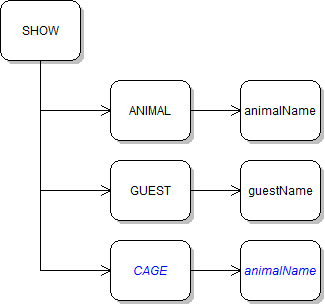
C In the ProcessShowCommand method, add a case statement for "cage". In it, call the ShowCage method.
Command Diagram: Show Cage. Reference figure for add a console command to show a cage.
Command Diagram: Show Cage
D Write the cage's string representation.
1 In the Cage class, override the ToString method
2 Declare a result variable. Use string interpolation to add the following information
{AnimalType.Name} cage ({Width} x {Height})
3 Then, loop through the cage's cagedItems.

For each item, use string interpolation to add the following information to the result variable:

{Environment.NewLine}{cagedItem} ({cagedItem.XPosition} x {cagedItem.YPosition})
4 Return the result.
E In the ShowCage method
1 Wrap the call to FindCage in an if statement that checks if the animal is null.

If it is, write a message to the Console.

2 Wrap the call to Console.WriteLine in an if statement that checks if the cage is null.

If it is, write a message to the Console.

F Cut and paste the AddAnimal calls from the window loaded event handler to the NewZoo method in the Zoo class so the console has some pre-populated animals.
G Check Your Work
1 Run the console application.
2 Call the show cage command, using one of the dingoes' name as the parameter.

The cage's information and both dingoes' information should be written to the console.
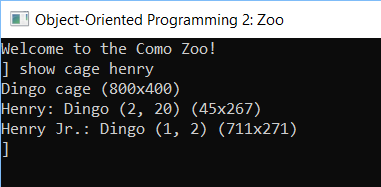
Snip: ShowCage Example. Reference figure for add a console command to show a cage.
Snip: ShowCage Example
3 Run the show cage command again.

Notice that the dingoes' XPositions have changed. This is because animals are always moving when the application is running, whether a cage window is open in the WPF application or not.

4 Press the up arrow in the console application to cycle through previous commands you've run.

Press enter on the show cage command again to show the new values.

Make other animals pace
Acceptance Criteria
Acceptance criteria
  • The specified additional animals use pacing movement.
2.Make other animals pace
Problem
Solution
A Copy the code inside the mammal's Move method and paste it inside the ostrich's Move method. Do not call base.
B Add an Ostrich and a Platypus to the zoo in the NewZoo method.
C Check Your Work
1 Run the WPF application.
2 Show the cage window for each animal type. All of the animals should pace back and forth.
3 Show the Platypus cage.

The platypus should appear in the cage window, but it should not move because it overrides the mammal's Move method without calling base.

Write movement code for swimming
Acceptance Criteria
Acceptance criteria
  • Swimming updates the animal's movement according to the required algorithm.
3.Write movement code for swimming
Problem
Solution
5.2.1 How to Use Algorithms
A In the fish's Move method, write code to simulate swimming.
1 Swimming is the same as pacing in that the animal moves horizontally at a steady rate and switches direction when it hits an edge.
2 When swimming, an animal moves vertically half as many units as it moves horizontally (so it would move diagonally at an angle of less than 45 degrees).
3 When swimming, an animal moves in the same vertical direction until it hits an edge.

Then it switches its vertical direction.

4 Remember: The bottom of the cage is the YPositionMax and when the fish is moving up you will need to subtract MoveDistance instead of add.
B Copy the swim code from the fish's Move method and paste it in the platypus's Move method.
C Add a shark to your animals in the zoo.
D Check Your Work
1 Run the WPF application.
2 Open the shark cage.

The shark should be moving diagonally across the cage window. When it hits the left or right edge, it should change horizontal direction (and only horizontal direction). When it hits the top or bottom edge, it should change vertical direction (and only vertical direction).

3 Create a platypus and show its cage window.

It should be moving in the same way as the shark. The result should look similar to the image below.
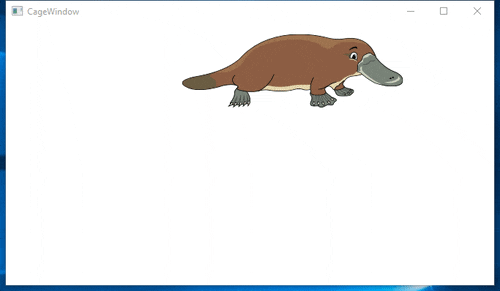
Platypus is moving vertically and horizontally at same time.. Reference figure for write movement code for swimming.
Platypus is moving vertically and horizontally at same time.
Write movement code for flying
Acceptance Criteria
Acceptance criteria
  • Flying updates the animal's movement according to the required algorithm.
4.Write movement code for flying
Problem
Solution
A In the bird's Move method, write code to simulate flying.
1 Flying is the same as pacing in that the animal moves horizontally at a steady rate and switches direction when it hits an edge.
2 When flying, an animal moves vertically 10 (a hardcoded value) units in its vertical direction each time it moves (e.g. if it's moving down, then it moves down the cage window by +10 units).
3 When flying, an animal switches its VerticalDirection each time it moves (every time the Move method is called).
B Add an Eagle and a Hummingbird to the zoo.
C Check Your Work
1 Run the WPF application.
2 Open the eagle cage.

The eagle should be steadily moving horizontally across the window. It should be moving alternately up and down each time it moves.

The result should look similar to the image below.
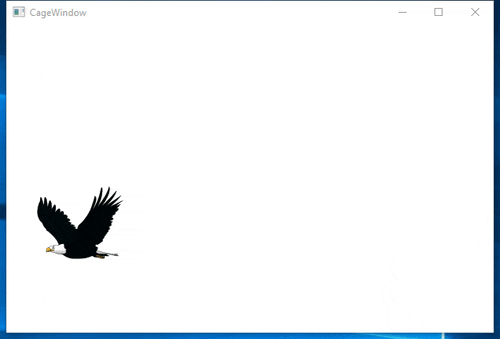
Eagle moves horizontally and up and down.. Reference figure for write movement code for flying.
Eagle moves horizontally and up and down.
3 Create a hummingbird and show its cage.

The hummingbird should appear in the cage window, but it should not move because it overrides the bird's Move method without calling base.
Refactor movement code to be reusable
Acceptance Criteria
Acceptance criteria
  • Shared movement operations replace repeated movement code.
5.Refactor movement code to be reusable
Problem
Solution
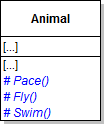
A Add methods to the Animal class as specified in the diagram below.
Existing animal class adds methods: # Pace(), # Fly(), # Swim(). Reference figure for refactor movement code to be reusable.
Existing animal class adds methods: # Pace(), # Fly(), # Swim()
B Move the pacing code from the mammal's Move method to the animal's Pace method.

Then call this.Pace() in the Move method of the following classes:

  • Mammal
  • Ostrich
C Move the swimming code from the Fish's Move method to the Animal's Swim method.

Then, remove the code in the Move method and call this.Swim() in the Move method of the following classes:

  • Fish
  • Platypus
D Move the flying code from the Bird's Move method to the Animal's Fly method.

Then, remove the code in the Move method and call this.Fly() in the Move method of the Bird class.
E Check Your Work
1 Run the WPF application.
2 Open each animal's cage window. Their movement should be the same as before the refactoring of the movement code.
Refactor movement code to a helper class
Acceptance Criteria
Acceptance criteria
  • The movement helper provides reusable operations for the animal classes.
6.Refactor movement code to a helper class
Problem
Solution
5.2.2 Why we Use the Single Responsibility Principle 5.2.3 Why we Use the Open/Closed Principle 5.2.4 Why we Use the Encapsulate What Varies Principle
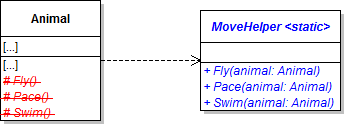
A Create the static MoveHelper class in the Animals project as specified in the diagram below.
Class Diagram: Move Helper. Reference figure for refactor movement code to a helper class.
Class Diagram: Move Helper
B In the Animals project, create a new folder named MoveBehaviors and put the MoveHelper class in it.
C Move the code in each of the animal's Fly, Pace, and Swim methods to the method of the same name in the MoveHelper class.

All references to "this" in the code should be changed to refer to the passed-in animal.

D Remove the Fly, Pace, and Swim methods from the Animal class.
E In each place where the animal's Fly, Pace, and Swim methods are called, instead call the same method on the static MoveHelper class.

Pass in the current animal when calling the method.

F Check Your Work
1 Run the WPF application.
2 Open each animal's cage window. Their movement should be the same as before the refactoring of the movement code.
Demonstrate your work
7.Record a video showing
A Your Console Application
1 Step 1G - Check Your Work
B Your WPF Application
1 Show the cages of each of these animal types
Subtasks
  • A. Platypus
  • B. Shark
  • C. Eagle
  • D. Hummingbird
Prepare and submit your work
8.Submission Steps
A Ensure that your application has no compiler errors or warnings
B Ensure that your code is StyleCop compliant
C Remove all bin and obj folders from your solution
D Zip your solution
E Submit your zipped solution to the Feedback System
F Submit your Feedback System results link to Canvas
G Submit your video recording to your f-channel
Source credit

© 2026 Northcentral Technical College