2.7 Zoo Learning Activity

Zoo 2.7 — Properties

Continue from your completed Zoo 2.6. Use the diagrams and the directions below to make the next set of changes.

1.Getting Started
A Copy your Zoo 2.6 ending code, renaming both the folder and the Visual Studio solution file for Zoo 2.7 using your last name. Open the copied solution and restore its NuGet packages.
B Update the window Title for Zoo 2.7 and your last name. Keep the project target at .NET Framework 4.8.
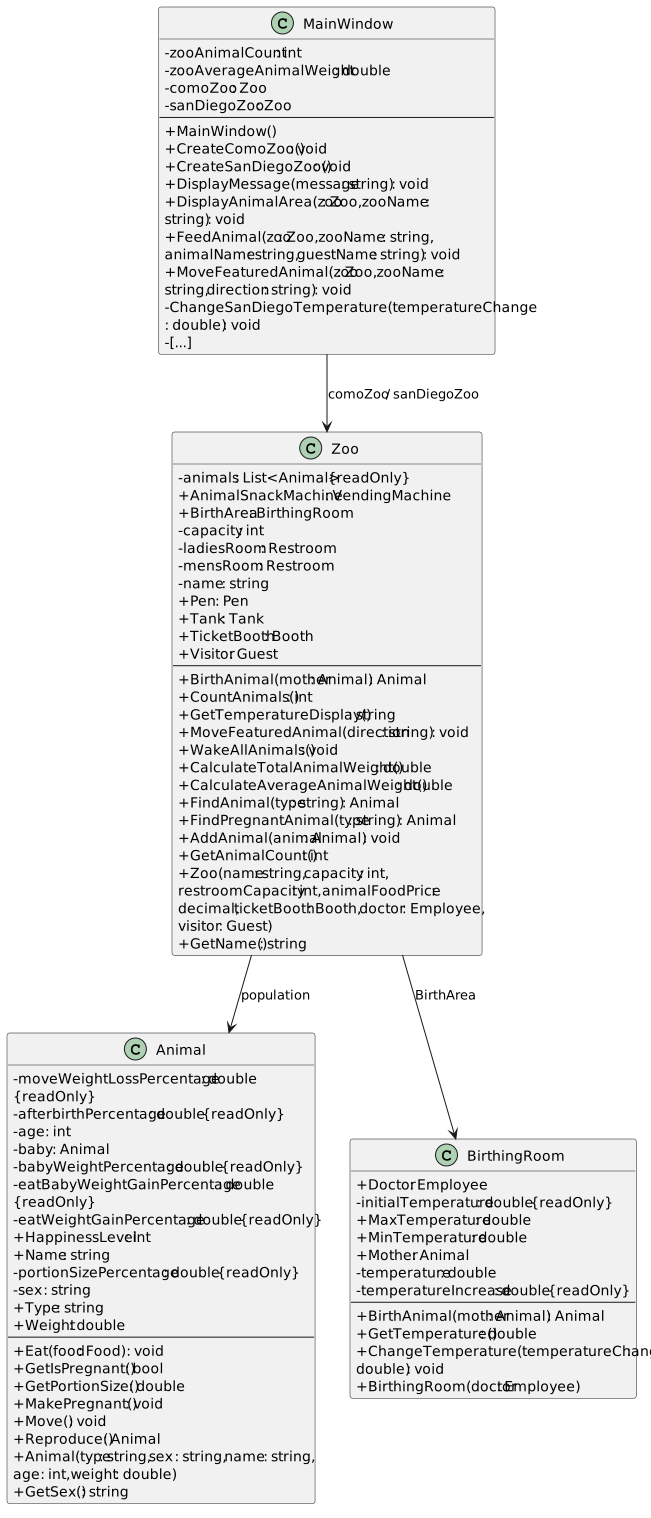
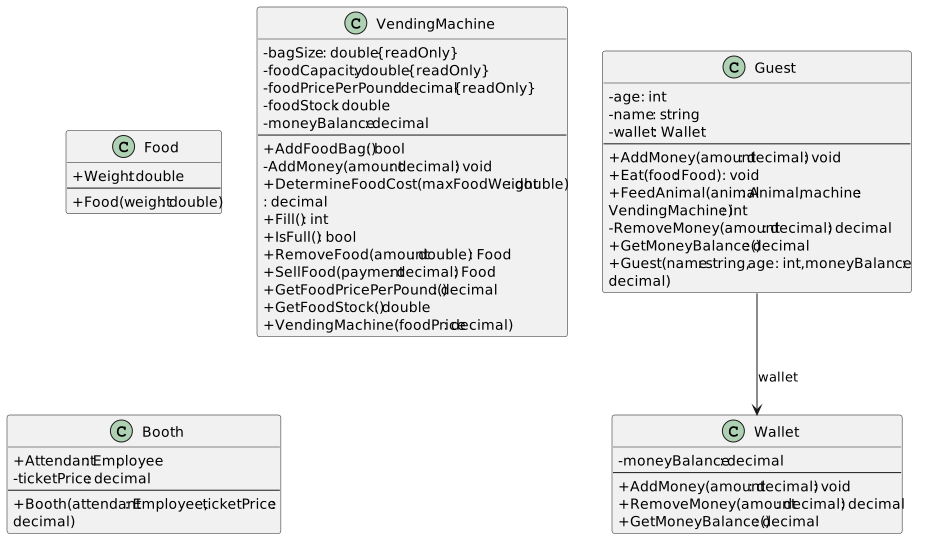
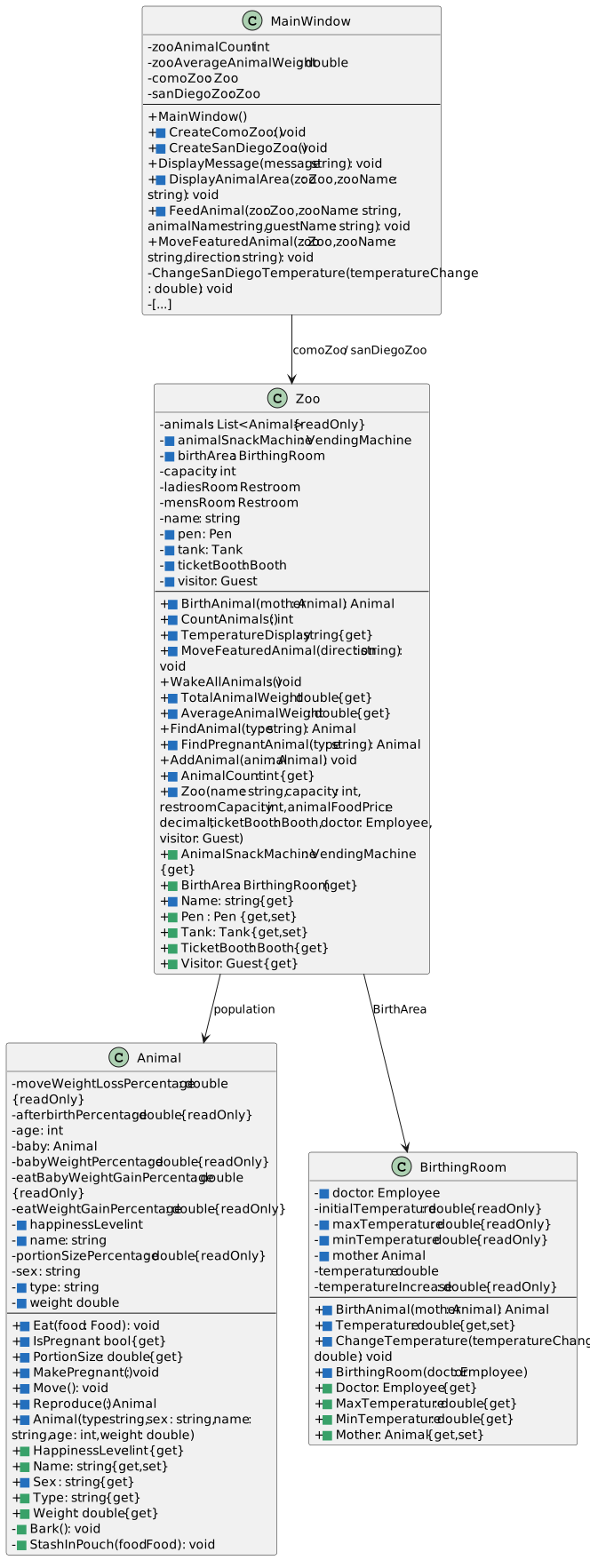
Starting structure — Zoo 2.6 core classes
  • New
  • Changed
  • Removed
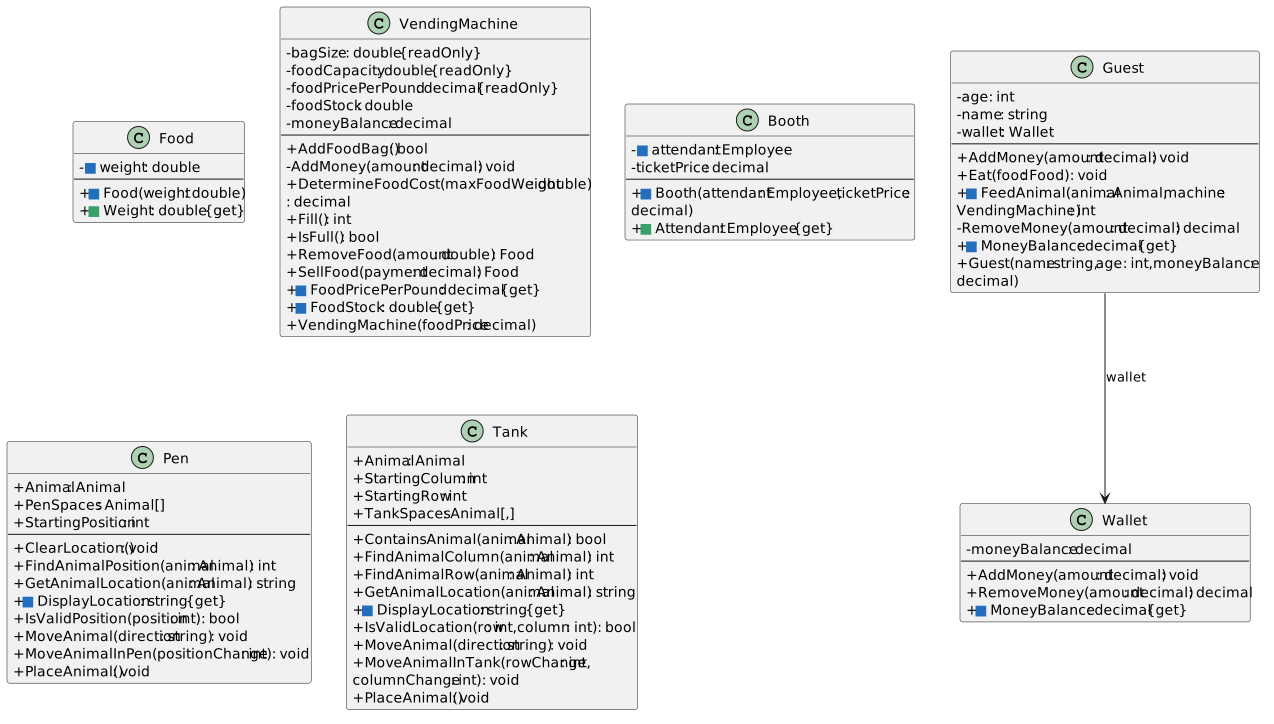
Starting structure — Zoo 2.6 services
  • New
  • Changed
  • Removed
C Check Your Work
1 Select Build > Build Solution. Open View > Error List and resolve any errors introduced by this task.
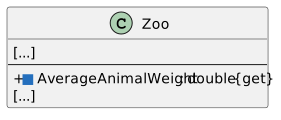
2 Create both zoos. Confirm population counts 3 and 2. Recreate before testing feeding, birth and movement separately.
3 Create San Diego Zoo. Increase then decrease the temperature: confirm 77.5 then 77.0.
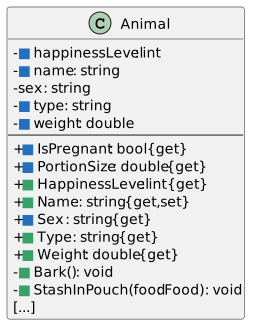
Expose object information through properties
Acceptance Criteria
  • Getters return information from private fields.
  • Only the properties that need outside assignment have setters.
2.Make the remaining Animal fields private
Problem

The Animal class still has public fields that can be altered from outside the class.

Solution

You will change their visibility and add properties for the information other classes need.

Animal backing fields, properties and feeding helpers
  • New
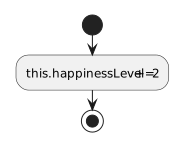
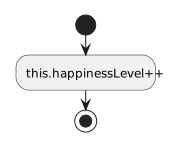
  • Changed
  • Removed
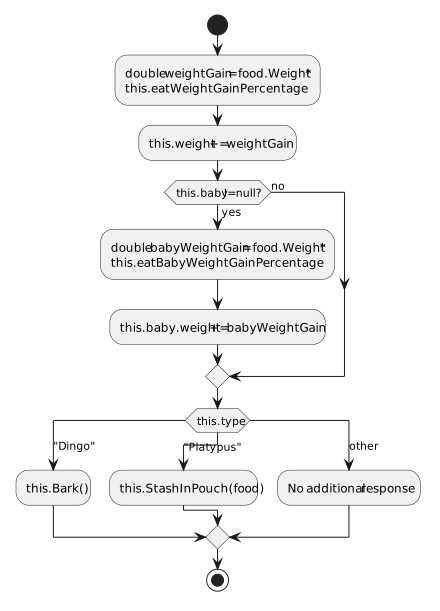
A Modify Animal.cs.
1 Make HappinessLevel, Name, Type and Weight private backing fields named happinessLevel, name, type and weight. Keep the existing private age, sex and baby fields. This task changes the fields; the following tasks add the properties shown in the focused diagram.
2 Update the constructor and the class’s own field reads/writes to use the backing fields. Keep baby.Weight as a read where only the returned value is needed.
3 In Eat, update the unborn baby’s weight through this.baby.weight. Code inside Animal can access a private field on another Animal object.
B Check Your Work
1 Open Animal.cs. Confirm the private fields are named this.happinessLevel, this.name, this.type and this.weight.
2 Read Eat and Move: confirm adult weight assignments use this.weight. In Eat, confirm the baby update uses this.baby.weight.
3 Read Reproduce: confirm it retains the delivered reference before clearing this.baby.
3.Define Animal.Name with a getter and setter
A Use the old guide’s Name property pattern.
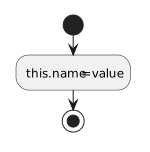
1 The getter returns this.name. The setter assigns this.name from value.
Animal Name property
public string Name
{
    get
    {
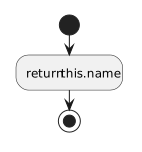
        return this.name;
    }

    set
    {
        this.name = value;
    }
}
Reading Animal.Name returns the private name.
  • New
  • Changed
  • Removed
Assigning Animal.Name stores the supplied value.
  • New
  • Changed
  • Removed
B Check Your Work
1 Open Animal.Name in the source. Follow its statements from top to bottom using the sample values below; this is a paper/source trace, so do not run or edit the application for this check.
2 Follow the newborn Name assignment into the setter. Confirm value is Baby and the setter stores it in this.name.
3 Follow a subsequent read through the getter. Confirm it returns Baby without changing the field.
4.Define the read-only Animal information properties
A Use the focused class diagram and the Name getter as a pattern.
1 Define each getter in the table using its shown return type and return expression. Keep these properties getter-only.
2 Replace GetSex() with Sex; remove the old GetSex method after moving its return statement into the getter.
Animal read-only properties
Property Type Getter returns
HappinessLevel int this.happinessLevel
Sex string this.sex
Type string this.type
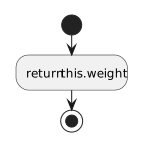
Weight double this.weight
B Check Your Work
1 Read the Animal getters. Confirm HappinessLevel returns this.happinessLevel, Sex returns this.sex, Type returns this.type and Weight returns this.weight.
2 For Dolly, substitute 35.3 for this.weight. Confirm Weight returns 35.3.
3 Confirm each property has get and no set accessor.
5.Replace Animal.GetIsPregnant() with IsPregnant
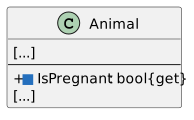
IsPregnant property signature
  • New
  • Changed
  • Removed
A Move the existing method body into a getter.
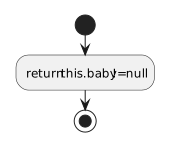
1 Define IsPregnant as a public getter-only property of type bool. Return this.baby != null.
2 Remove GetIsPregnant and update each call to use IsPregnant without parentheses.
IsPregnant computes its result when read.
  • New
  • Changed
  • Removed
B Check Your Work
1 Open Animal.IsPregnant in the source. Follow its statements from top to bottom using the sample values below; this is a paper/source trace, so do not run or edit the application for this check.
2 Trace this.baby equal to null: expect false.
3 Trace a non-null baby: expect true. Confirm the getter does not create or remove a baby.
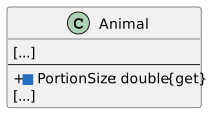
6.Replace Animal.GetPortionSize() with PortionSize
PortionSize property signature
  • New
  • Changed
  • Removed
A Move the existing method body into a getter.
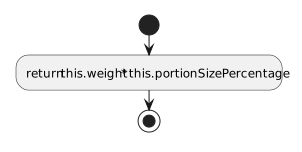
1 Define PortionSize as a public getter-only property of type double. Return this.weight * this.portionSizePercentage.
2 Remove GetPortionSize and update each call to use PortionSize without parentheses.
PortionSize computes its result when read.
  • New
  • Changed
  • Removed
B Check Your Work
1 Open Animal.PortionSize in the source. Follow its statements from top to bottom using the sample values below; this is a paper/source trace, so do not run or edit the application for this check.
2 Use weight 35.3 and portion percentage 0.02. Confirm approximately 0.706.
3 Trace separately with weight 3.27: expect approximately 0.0654. Confirm neither read changes this.weight.
Read transaction information through getters
Acceptance Criteria
  • Food weight, balances, machine price and stock can be read through properties.
  • Existing transaction methods continue to change balances and stock.
7.Modify the Booth attendant access
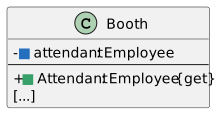
Booth fields and property signatures
  • New
  • Changed
  • Removed
A Modify Booth.cs.
1 Make Attendant private as attendant and update the constructor assignment.
2 Define the getter-only properties in the table. Update the affected reads in other classes to use the property name without parentheses.
Booth getters
Property Type Getter returns
Attendant Employee this.attendant
B Check Your Work
1 Open Booth.Attendant in the source. Follow its statements from top to bottom using the sample values below; this is a paper/source trace, so do not run or edit the application for this check.
2 Find the return expression this.attendant. Use Sam’s Employee reference as its stored value.
3 Confirm the getter returns that same value or reference and contains no assignment to this.attendant.
8.Modify the Food weight access
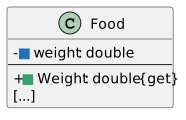
Food fields and property signatures
  • New
  • Changed
  • Removed
A Modify Food.cs.
1 Make Weight private as weight and have Food(double weight) assign this.weight.
2 Define the getter-only properties in the table. Update the affected reads in other classes to use the property name without parentheses.
Food getters
Property Type Getter returns
Weight double this.weight
Food.Weight reads the weight supplied during construction.
  • New
  • Changed
  • Removed
B Check Your Work
1 Open Food.Weight in the source. Follow its statements from top to bottom using the sample values below; this is a paper/source trace, so do not run or edit the application for this check.
2 Find the return expression this.weight. Use 1.25 as its stored value.
3 Confirm the getter returns that same value or reference and contains no assignment to this.weight.
9.Replace Wallet.GetMoneyBalance() with a property
Wallet fields and property signatures
  • New
  • Changed
  • Removed
A Modify Wallet.cs.
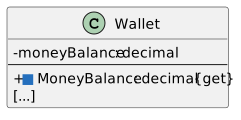
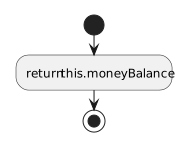
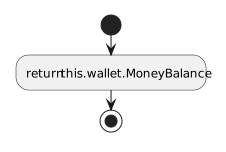
1 Keep the private moneyBalance field. Move the existing getter method’s return into the property, then remove the method.
2 Define the getter-only properties in the table. Update the affected reads in other classes to use the property name without parentheses.
Wallet getters
Property Type Getter returns
MoneyBalance decimal this.moneyBalance
Wallet.MoneyBalance reads the current balance.
  • New
  • Changed
  • Removed
B Check Your Work
1 Open Wallet.MoneyBalance in the source. Follow its statements from top to bottom using the sample values below; this is a paper/source trace, so do not run or edit the application for this check.
2 Find the return expression this.moneyBalance. Use 5.25m as its stored value.
3 Confirm the getter returns that same value or reference and contains no assignment to this.moneyBalance.
10.Replace Guest.GetMoneyBalance() with a property
Guest fields and property signatures
  • New
  • Changed
  • Removed
A Modify Guest.cs.
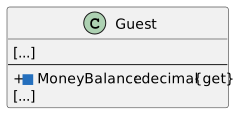
1 Keep the private wallet field. Move the method’s return into the property, reading wallet.MoneyBalance, then remove the method.
2 Define the getter-only properties in the table. Update the affected reads in other classes to use the property name without parentheses.
Guest getters
Property Type Getter returns
MoneyBalance decimal this.wallet.MoneyBalance
Guest.MoneyBalance forwards the wallet property read.
  • New
  • Changed
  • Removed
B Check Your Work
1 Open Guest.MoneyBalance in the source. Follow its statements from top to bottom using the sample values below; this is a paper/source trace, so do not run or edit the application for this check.
2 Follow this.wallet.MoneyBalance into Wallet. With this.moneyBalance of 5.25m, confirm returned 5.25m.
3 Confirm Guest forwards the same amount without depositing or withdrawing money.
11.Replace the machine read methods with properties
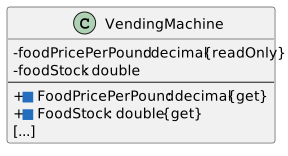
VendingMachine fields and property signatures
  • New
  • Changed
  • Removed
A Modify VendingMachine.cs.
1 Keep the existing private fields. Replace GetFoodPricePerPound and GetFoodStock with the corresponding getter-only properties.
2 Define the getter-only properties in the table. Update the affected reads in other classes to use the property name without parentheses.
VendingMachine getters
Property Type Getter returns
FoodPricePerPound decimal this.foodPricePerPound
FoodStock double this.foodStock
B Check Your Work
1 Read the VendingMachine FoodPricePerPound and FoodStock getters. Confirm they return this.foodPricePerPound and this.foodStock.
2 Use stored values 0.75m and 195.0. Confirm those are returned, with no sale, refill or money change.
12.Update Guest.FeedAnimal(...)
A Replace the old read-method calls in the existing transaction.
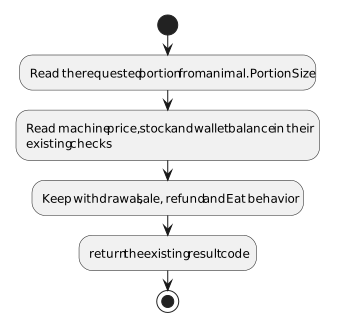
1 Use animal.PortionSize, machine.FoodPricePerPound, machine.FoodStock and this.wallet.MoneyBalance in the corresponding existing expressions.
2 Keep the rest of the price, funds, stock, payment, refund and result-code paths.
Guest feeding read replacements
Previous read Property read
animal.GetPortionSize() animal.PortionSize
machine.GetFoodPricePerPound() machine.FoodPricePerPound
machine.GetFoodStock() machine.FoodStock
this.wallet.GetMoneyBalance() this.wallet.MoneyBalance
The existing feeding flow reads properties instead of getter methods.
  • New
  • Changed
  • Removed
B Check Your Work
1 Find this.wallet.MoneyBalance inside Guest.FeedAnimal. Follow that read directly into Wallet’s getter.
2 Separately read Guest.MoneyBalance in the source. Confirm it forwards the same wallet property; FeedAnimal need not call that Guest getter.
Expose current population information
Acceptance Criteria
  • AnimalCount is the population count; CountAnimals remains the display-area count.
  • TotalAnimalWeight and AverageAnimalWeight calculate their values from current animals.
13.Make Zoo’s object references private and add properties
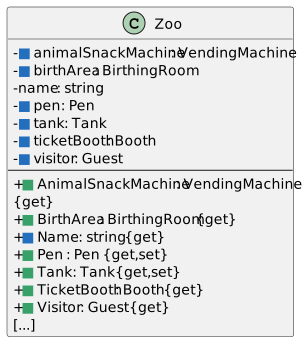
Zoo exposes controlled access to its connected objects
  • New
  • Changed
  • Removed
A Modify Zoo.cs and its constructor.
1 Make AnimalSnackMachine, BirthArea, Pen, Tank, TicketBooth and Visitor private backing fields with lowercase names. Keep the existing private name field.
2 In the constructor and Zoo’s own behavior methods, use the private fields where the object owns the assignment or action.
3 Add getter-only properties for AnimalSnackMachine, BirthArea, TicketBooth and Visitor. Replace GetName() with the getter-only Name property.
4 Add Pen and Tank properties with both get and set accessors. MainWindow’s existing area creation still assigns these two references.
Zoo access properties
Property Type Getter returns Setter
AnimalSnackMachine VendingMachine this.animalSnackMachine None
BirthArea BirthingRoom this.birthArea None
Name string this.name None
TicketBooth Booth this.ticketBooth None
Visitor Guest this.visitor None
Pen Pen this.pen this.pen = value
Tank Tank this.tank this.tank = value
B Check Your Work
1 Read Zoo’s constructor. Confirm each object assignment stores the supplied or constructed reference in its lowercase backing field.
2 Check AnimalSnackMachine, BirthArea, TicketBooth and Visitor getters: each returns its matching field.
3 Follow MainWindow’s Pen and Tank assignments into their setters. Confirm each setter stores value in its matching field.
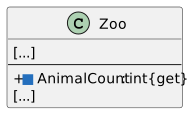
14.Replace Zoo.GetAnimalCount() with AnimalCount
AnimalCount is a getter-only property
  • New
  • Changed
  • Removed
A Move the existing method body into the property getter.
1 Keep the return type and existing local variables, loop or empty-list guard. Remove the old method after its body has been moved.
Population count property
public int AnimalCount
{
    get
    {
        return this.animals.Count;
    }
}
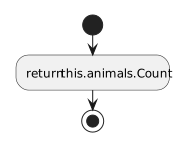
AnimalCount returns current population information.
  • New
  • Changed
  • Removed
B Check Your Work
1 Open Zoo.AnimalCount in the source. Follow its statements from top to bottom using the sample values below; this is a paper/source trace, so do not run or edit the application for this check.
2 Use Como’s three starting animals. Confirm this.animals.Count is 3 and the getter returns 3.
3 Trace an empty list: expect 0. This count measures the population list, not map occupancy.
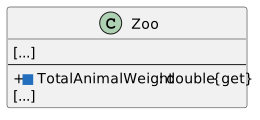
15.Replace Zoo.CalculateTotalAnimalWeight() with TotalAnimalWeight
TotalAnimalWeight is a getter-only property
  • New
  • Changed
  • Removed
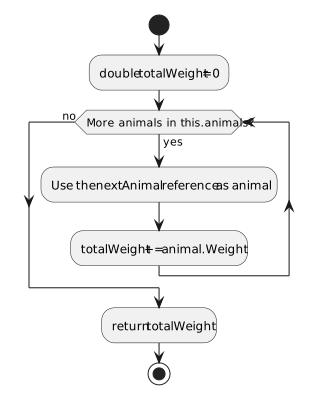
A Move the existing method body into the property getter.
1 Keep the return type and existing local variables, loop or empty-list guard. Remove the old method after its body has been moved.
TotalAnimalWeight returns current population information.
  • New
  • Changed
  • Removed
B Check Your Work
1 Open Zoo.TotalAnimalWeight in the source. Follow its statements from top to bottom using the sample values below; this is a paper/source trace, so do not run or edit the application for this check.
2 Use Como weights 35.3, 33.8 and 15.5. Confirm the accumulated total is approximately 84.6.
3 Trace an empty list: expect 0.0. Confirm no animal weight changes.
16.Replace Zoo.CalculateAverageAnimalWeight() with AverageAnimalWeight
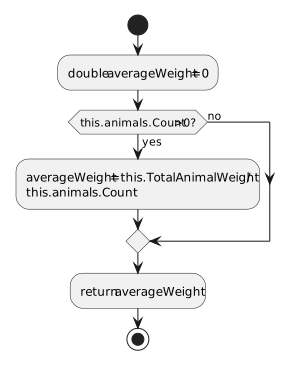
AverageAnimalWeight is a getter-only property
  • New
  • Changed
  • Removed
A Move the existing method body into the property getter.
1 Keep the return type and existing local variables, loop or empty-list guard. Remove the old method after its body has been moved.
2 In the average getter, replace CalculateTotalAnimalWeight() with this.TotalAnimalWeight. Keep the existing this.animals.Count reads.
AverageAnimalWeight returns current population information.
  • New
  • Changed
  • Removed
B Check Your Work
1 Open Zoo.AverageAnimalWeight in the source. Follow its statements from top to bottom using the sample values below; this is a paper/source trace, so do not run or edit the application for this check.
2 For Como, use this.TotalAnimalWeight approximately 84.6 and this.animals.Count of 3. Confirm returned average approximately 28.2.
3 For San Diego, use total approximately 3.77 and count 2: expect approximately 1.885.
4 Trace an empty list: confirm zero is returned before division.
Keep the room temperature in range
Acceptance Criteria
  • Temperature has a getter and a range-checked setter.
  • Both birth-related and button-related increments use the property.
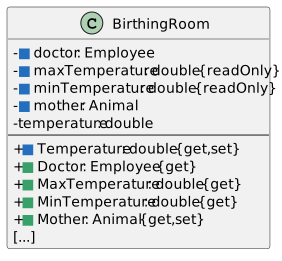
17.Make BirthingRoom references and limits private
BirthingRoom fields and properties
  • New
  • Changed
  • Removed
A Modify BirthingRoom.cs.
1 Make Doctor and Mother private as doctor and mother. Update the constructor to assign the doctor field.
2 Make maxTemperature and minTemperature private readonly, initialized to 95.0 and 35.0. Remove the constructor’s old MaxTemperature/MinTemperature assignments.
3 Add getter-only Doctor, MaxTemperature and MinTemperature properties. Add Mother with a getter and setter because MainWindow assigns that relationship.
Room accessors
Property Getter returns Setter
Doctor this.doctor None
MaxTemperature this.maxTemperature None
MinTemperature this.minTemperature None
Mother this.mother this.mother = value
B Check Your Work
1 Read BirthingRoom.cs. Confirm this.minTemperature is private readonly 35.0 and this.maxTemperature is private readonly 95.0.
2 Confirm MinTemperature and MaxTemperature return those fields. Confirm Doctor returns this.doctor and Mother reads and writes this.mother.
18.Use a property to control the temperature of the birthing room
Problem

Currently, repeated temperature changes could push the room outside an allowed range.

Solution

You will define a property with logic inside it to control the temperature range.

A Replace GetTemperature() with a Temperature property.
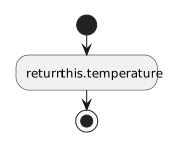
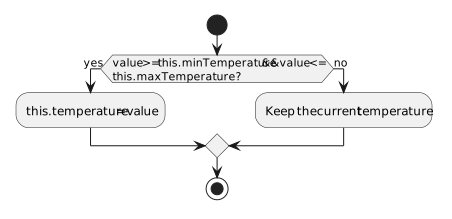
1 The getter returns this.temperature. In the setter, assign this.temperature from value only when value is between minTemperature and maxTemperature, inclusive.
2 Remove GetTemperature after moving its read operation into the getter. Keep invalid assignments from changing the stored temperature.
Temperature property
public double Temperature
{
    get
    {
        return this.temperature;
    }

    set
    {
        if (value >= this.minTemperature && value <= this.maxTemperature)
        {
            this.temperature = value;
        }
    }
}
The Temperature getter reads the stored value.
  • New
  • Changed
  • Removed
The Temperature setter accepts values from 35 through 95 inclusive.
  • New
  • Changed
  • Removed
B Check Your Work
1 Open BirthingRoom.Temperature in the source. Follow its statements from top to bottom using the sample values below; this is a paper/source trace, so do not run or edit the application for this check.
2 Start this.temperature at 77.0. Trace setter value 35.0: confirm accepted and stored.
3 Reset to 77.0. Trace value 95.0: confirm accepted and stored.
4 Reset to 77.0. Trace value 34.5: confirm rejected and stored temperature still 77.0.
5 Reset again. Trace value 95.5: confirm rejected and stored temperature still 77.0.
19.Update BirthingRoom.BirthAnimal(...)
A Route birth-related changes through the property.
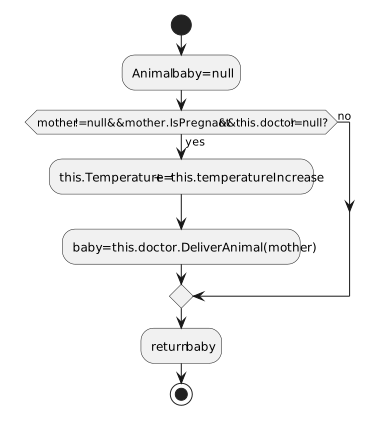
1 Use mother.IsPregnant and the private doctor reference in the existing condition.
2 Use this.Temperature += this.temperatureIncrease before calling this.doctor.DeliverAnimal(mother). Keep the existing returned-baby behavior.
BirthAnimal uses the validated property for its increment.
  • New
  • Changed
  • Removed
B Check Your Work
1 Open BirthingRoom.BirthAnimal in the source. Follow its statements from top to bottom using the sample values below; this is a paper/source trace, so do not run or edit the application for this check.
2 Use a valid pregnant mother, a doctor and this.temperature of 95.0.
3 Follow the increment of 0.5. Confirm proposed setter value 95.5 is rejected and stored temperature stays 95.0.
4 Follow the next statement: confirm the delivery call still runs.
20.Update BirthingRoom.ChangeTemperature(...)
A Use the property for button-related changes.
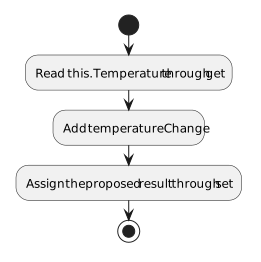
1 Change the body to this.Temperature += temperatureChange.
ChangeTemperature reads then assigns Temperature.
  • New
  • Changed
  • Removed
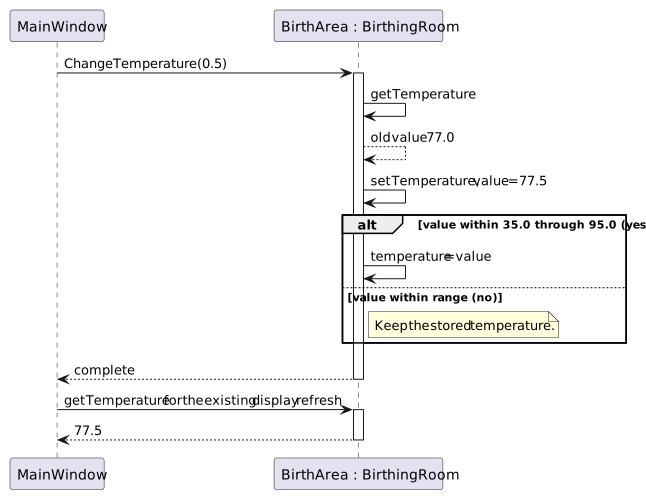
A temperature button reads the old value, checks the proposed value in the setter, then reads the display value.
  • New
  • Changed
  • Removed
B Check Your Work
1 Open BirthingRoom.ChangeTemperature in the source. Follow its statements from top to bottom using the sample values below; this is a paper/source trace, so do not run or edit the application for this check.
2 Start at 77.0 with change 0.5. Follow the getter, addition and setter: confirm proposed and stored value 77.5.
3 Trace separately from 95.0 with change 0.5. Confirm proposed 95.5 is rejected and stored value remains 95.0.
21.Replace Zoo.GetTemperatureDisplay() with TemperatureDisplay
A Move the existing formatting into a getter.
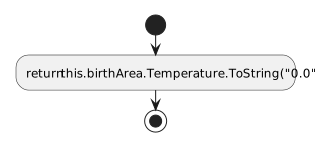
1 Return this.birthArea.Temperature.ToString("0.0") from a getter-only string property, then remove GetTemperatureDisplay.
TemperatureDisplay formats the current room property.
  • New
  • Changed
  • Removed
B Check Your Work
1 Open Zoo.TemperatureDisplay in the source. Follow its statements from top to bottom using the sample values below; this is a paper/source trace, so do not run or edit the application for this check.
2 Confirm the method reads this.birthArea.Temperature and retains ToString("0.0").
3 Trace 77.0 and 77.5 separately. Confirm one decimal digit in each display. The separator follows the current culture.
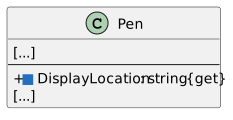
22.Replace Pen.GetDisplayLocation() with DisplayLocation
Pen.DisplayLocation property signature
  • New
  • Changed
  • Removed
A Move the complete existing map body into a getter.
1 Keep the local display variable, loops, X/x/empty markers, separators and return statement. Remove only the old method wrapper and replace it with the public string property and get accessor.
B Check Your Work
1 Open Pen.DisplayLocation in the source. Follow its statements from top to bottom using the sample values below; this is a paper/source trace, so do not run or edit the application for this check.
2 Use four this.PenSpaces entries with the mother at index 1 and the others empty. Confirm - X - -.
3 Trace a newborn at index 0. Confirm lowercase x marks the newborn and uppercase X marks the mother.
4 Confirm the getter does not move any array reference.
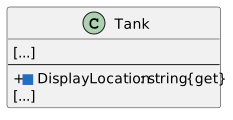
23.Replace Tank.GetDisplayLocation() with DisplayLocation
Tank.DisplayLocation property signature
  • New
  • Changed
  • Removed
A Move the complete existing map body into a getter.
1 Keep the local display variable, loops, X/x/empty markers, separators and return statement. Remove only the old method wrapper and replace it with the public string property and get accessor.
B Check Your Work
1 Open Tank.DisplayLocation in the source. Follow its statements from top to bottom using the sample values below; this is a paper/source trace, so do not run or edit the application for this check.
2 Use Patti at this.TankSpaces[1, 1]. Confirm uppercase X marks her cell and - marks empty cells.
3 Trace a newborn at this.TankSpaces[0, 0]. Confirm lowercase x.
4 Confirm spaces separate columns and Environment.NewLine separates rows, with no trailing separators.
24.Update MainWindow.DisplayAnimalArea(...)
A Read the map properties instead of calling methods.
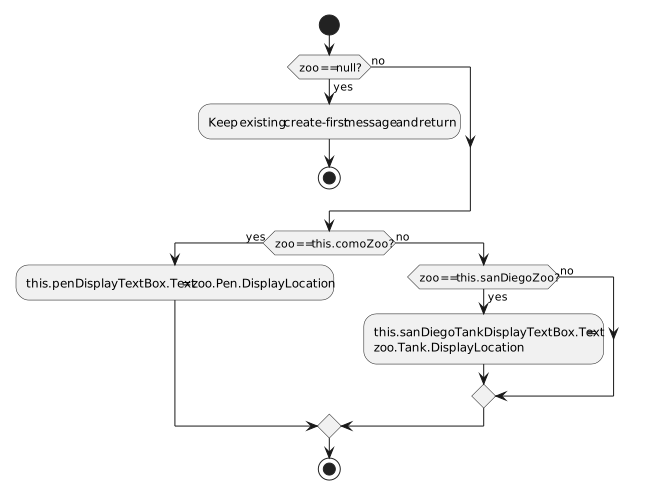
1 Use zoo.Pen.DisplayLocation for the Como pen and zoo.Tank.DisplayLocation for the San Diego tank. Keep the existing zoo guards and TextBox names.
DisplayAnimalArea reads the existing maps through properties.
  • New
  • Changed
  • Removed
B Check Your Work
1 Read MainWindow’s map helper. Confirm it reads zoo.Pen.DisplayLocation or zoo.Tank.DisplayLocation for the matching area.
2 Follow each property into Pen or Tank. Confirm the map-building loop remains inside that class and MainWindow only displays its returned string.
Use properties and inline creation in the window
Acceptance Criteria
  • The same scenario values and object relationships are preserved.
  • Both zoo paths read their new public property names.
25.Make CreateComoZoo more readable
A Create the attendant directly where Booth needs its argument.
1 Replace the separate attendant variable with new Employee("Sam", 42) inside the Booth constructor call, then delete the old attendant declaration.
2 Keep the remaining doctor, guest, Zoo, Animal and area setup. Pen/Tank and BirthArea.Mother now use their public setters.
Inline attendant for CreateComoZoo
Booth booth = new Booth(new Employee("Sam", 42), 15.00m);
B Check Your Work
1 Open MainWindow.CreateComoZoo. Identify the Employee constructor call for Sam.
2 Follow that returned reference into the Booth constructor. Confirm no second attendant Employee is created.
3 Follow the Booth into the Zoo constructor. Confirm this.comoZoo.TicketBooth.Attendant returns the original attendant.
26.Make CreateSanDiegoZoo more readable
A Create the attendant directly where Booth needs its argument.
1 Replace the separate attendant variable with new Employee("Betty", 84) inside the Booth constructor call, then delete the old attendant declaration.
2 Keep the remaining doctor, guest, Zoo, Animal and area setup. Pen/Tank and BirthArea.Mother now use their public setters.
Inline attendant for CreateSanDiegoZoo
Booth booth = new Booth(new Employee("Betty", 84), 25.50m);
B Check Your Work
1 Open MainWindow.CreateSanDiegoZoo. Identify the Employee constructor call for Betty.
2 Follow that returned reference into the Booth constructor. Confirm no second attendant Employee is created.
3 Follow the Booth into the Zoo constructor. Confirm this.sanDiegoZoo.TicketBooth.Attendant returns the original attendant.
27.Update MainWindow.FeedAnimal(...)
A Use the Zoo Name property in the existing success message.
1 Replace zoo.GetName() with zoo.Name. Keep the animal search, Guest.FeedAnimal call, switch and messages.
B Check Your Work
1 Find zoo.Name in the feeding message. Confirm it reads Zoo.Name.
2 Trace Como’s zoo name Como Zoo separately from the found animal’s Name Dolly. Confirm the message uses both in their appropriate places.
28.Update the existing event-handler reads
A Replace the old getter calls with their properties, preserving each handler’s other behavior.
1 Apply the replacements in this table to the indicated handlers.
2 Update the count and average result assignments to use AnimalCount and AverageAnimalWeight. Keep the existing private result fields and messages.
Window property replacements
Where Previous expression Replacement
newComoZooButton_Click this.comoZoo.GetName() this.comoZoo.Name
newSanDiegoZooButton_Click this.sanDiegoZoo.GetName() this.sanDiegoZoo.Name
Both birth handlers baby.GetSex() baby.Sex
birthPlatypusButton_Click this.sanDiegoZoo.GetTemperatureDisplay() this.sanDiegoZoo.TemperatureDisplay
Increase/decrease and new San Diego handlers this.sanDiegoZoo.BirthArea.GetTemperature() this.sanDiegoZoo.BirthArea.Temperature
getComoZooAnimalCount_Click this.comoZoo.GetAnimalCount() this.comoZoo.AnimalCount
getSanDiegoZooAnimalCount_Click this.sanDiegoZoo.GetAnimalCount() this.sanDiegoZoo.AnimalCount
getComoZooAverageAnimalWeight_Click this.comoZoo.CalculateAverageAnimalWeight() this.comoZoo.AverageAnimalWeight
getSanDiegoZooAverageAnimalWeight_Click this.sanDiegoZoo.CalculateAverageAnimalWeight() this.sanDiegoZoo.AverageAnimalWeight
Give animal types their feeding response
Acceptance Criteria
  • The shared weight updates remain in Eat.
  • Private helpers change the animal’s happiness for the two supported responses.
29.Define the private Animal.Bark() helper
A Use the focused signature and activity diagram.
1 Define a private void method named Bark and increase happinessLevel by 2.
Bark increases the dingo happiness level by two.
  • New
  • Changed
  • Removed
B Check Your Work
1 Open Animal.Bark() in the source. Follow its statements from top to bottom using the sample values below; this is a paper/source trace, so do not run or edit the application for this check.
2 Start this.happinessLevel at 0. Confirm the increment produces 2.
3 Find the Dingo case in Eat and confirm it calls Bark.
30.Define the private Animal.StashInPouch(Food food) helper
A Use the existing Food reference parameter.
1 Define a private void StashInPouch method with a Food parameter named food. Increase happinessLevel by 1.
StashInPouch increases the platypus happiness level by one.
  • New
  • Changed
  • Removed
B Check Your Work
1 Open Animal.StashInPouch in the source. Follow its statements from top to bottom using the sample values below; this is a paper/source trace, so do not run or edit the application for this check.
2 Start this.happinessLevel at 0. Confirm the increment produces 1.
3 Confirm the helper does not change the supplied Food object’s weight.
31.Make the feeding decision in Animal.Eat more readable
Problem

A feeding action should use the shared weight changes and then choose the response for its type.

Solution

You will use the switch statement pattern from the old guide and call the private helpers.

A Keep the common weight updates and add the type switch.
1 Use food.Weight and the private percentage fields for the existing weight updates. Change this animal’s backing field this.weight and, when pregnant, this.baby.weight.
2 Switch on this.type. Call Bark for "Dingo", StashInPouch(food) for "Platypus", and leave the default case with no additional state change. Keep break statements.
Eat updates weights and chooses its type-specific response.
  • New
  • Changed
  • Removed
B Check Your Work
1 Read Animal.Eat from its first statement. Confirm the common adult weight update occurs before the switch.
2 Trace the Dingo case: confirm the weight update is followed by Bark.
3 Trace the Platypus case: confirm the weight update is followed by StashInPouch.
4 Trace each remaining supplied switch case separately. Confirm each keeps the common weight update.
32.Build and check the property conversion
A Check Your Work
1 Select Build > Build Solution. Open View > Error List and resolve any errors introduced by this task.
2 Confirm the public-field suppression is removed only where every field is private. Pen and Tank still have public fields.
3 Create both zoos. Confirm population counts 3 and 2 and initial averages approximately 28.2 and 1.885.
4 Set a breakpoint after Bark’s increment. Recreate Como and feed once. Inspect this.happinessLevel as 2.
5 Continue. Break after StashInPouch’s increment. Recreate San Diego and feed once. Inspect this.happinessLevel as 1.
6 Press F5 to continue. Stop debugging and remove the breakpoint before the next check.
33.Follow the Animal.Name setter during birth
A Remove earlier breakpoints and create a fresh Como Zoo. Set a breakpoint on this.name = value; inside the Animal.Name setter, then click Give birth to dingo.
Watch inside the Animal.Name setter
Expression Before the assignment
this.name Empty string; the baby constructor used string.Empty
value "Baby"
this.Type "Dingo"
this The newborn Animal, not MainWindow or the mother
B Use F10 to follow the assignment.
1 After the assignment, this.name is "Baby". The public Name getter now reads that same value.
2 Press F5 to finish the birth handler, then confirm the newborn map marker and population count 4. Remove the setter breakpoint.
C Check Your Work
1 Step through the preceding newborn Name setter. Confirm it stores Baby in the newborn’s name field.
2 After registration and placement, inspect the newborn’s population-list entry and map-array entry. Confirm both have Name Baby and hold the returned newborn reference.
3 Press F5 to continue. Stop debugging and remove the breakpoint before the next check.
34.Step through the Temperature getter and setter
A Create San Diego first. Then set breakpoints in MainWindow.ChangeSanDiegoTemperature, on return this.temperature in the room getter, and on the condition inside its setter. Click + once.
Watch at the MainWindow helper
Expression Expected state
temperatureChange 0.5
this.sanDiegoZoo.BirthArea.temperature 77.0
this.temperature Unavailable in MainWindow
value Unavailable until inside the property setter
this.minTemperature Unavailable in MainWindow; 35.0 inside BirthingRoom
this.maxTemperature Unavailable in MainWindow; 95.0 inside BirthingRoom
B Use F11 into BirthingRoom.ChangeTemperature and follow the property-body breakpoints.
1 At the getter breakpoint, this refers to BirthingRoom and this.temperature is 77.0. value is unavailable in the getter.
2 After the getter returns, continue to the setter breakpoint. value is 77.5, this.minTemperature is 35.0 and this.maxTemperature is 95.0.
3 Step through the successful condition and assignment; this.temperature becomes 77.5. Remove the property/helper breakpoints while paused, then press F5 and confirm the display shows 77.5.
C Check Your Work
1 Record this.temperature before the preceding property increment.
2 Follow the getter, addition and setter in order. Confirm the setter value is the old temperature plus the supplied change.
3 Confirm only an accepted setter assignment changes the field. Explain that += performs both a read and a write.
4 Press F5 to continue. Stop debugging and remove the breakpoint before the next check.
35.Check accepted and rejected property assignments
A Use the table as a source trace of the setter. Both endpoints are included.
Setter decisions
Proposed value Decision Stored result
35.0 Accept 35.0
95.0 Accept 95.0
34.5 Reject Previous temperature
95.5 Reject Previous temperature
B For each runtime check below, stop debugging before editing and recreate San Diego before clicking the changed button.
1 Temporarily replace the 0.5 argument in increaseSanDiegoTemperatureButton_Click with 18.0. Build, run, create San Diego and click + twice. The display becomes 95.0 and stays 95.0. Restore 0.5.
2 Temporarily replace the -0.5 argument in decreaseSanDiegoTemperatureButton_Click with -42.0. Build, run, create San Diego and click - twice. The display becomes 35.0 and stays 35.0. Restore -0.5.
C Check Your Work
1 Restore original arguments 0.5 for increase and -0.5 for decrease.
2 Select Build > Build Solution. Open View > Error List and resolve any errors introduced by this task.
3 Click New San Diego Zoo to reset that zoo. Do not feed, refill, move or give birth before this test.
4 Confirm 77.0. Increase once: expect 77.5. Decrease once: expect 77.0.
36.Follow calculated property getters
A Remove earlier breakpoints and recreate San Diego. Before clicking, set breakpoints on the result assignment in getSanDiegoZooAverageAnimalWeight_Click and the first statements inside the AverageAnimalWeight and TotalAnimalWeight getters. Then click Get average animal weight.
Watch at the average handler
Expression Expected state
this.zooAverageAnimalWeight Last stored result; assignment has not run
averageWeight Unavailable in MainWindow; belongs to the average getter
totalWeight Unavailable in MainWindow; belongs to the total getter
this.sanDiegoZoo.animals Private list with Count 2
B Follow the actual getters with F11, F10 and their breakpoints.
1 After the local declaration in AverageAnimalWeight, averageWeight is 0. The guard reads this.animals.Count as 2.
2 Follow TotalAnimalWeight: totalWeight becomes approximately 3.27 and then 3.77. Return to the average getter and observe approximately 1.885 after division.
3 Return to the event handler. Its result field receives the value after the assignment executes. Remove the breakpoints and press F5 to display the result.
C Check Your Work
1 Follow this.TotalAnimalWeight into its getter during the preceding average trace. Confirm it returns the list’s total.
2 Return to AverageAnimalWeight. For fresh Como, confirm total approximately 84.6 divided by this.animals.Count of 3 gives approximately 28.2.
3 Confirm the getter does not call the removed calculation methods.
4 Press F5 to continue. Stop debugging and remove the breakpoint before the next check.
Complete Zoo 2.7
37.Review the ending structure
A Use the ending diagrams to explain how the objects now control or expose their state.
Ending structure — Zoo 2.7 core classes
  • New
  • Changed
  • Removed
Ending structure — Zoo 2.7 service classes
  • New
  • Changed
  • Removed
38.Submit a zipped Visual Studio solution
A Save and build your .NET Framework 4.8 solution. Zip the solution and submit it to the Feedback System. Submit the Feedback System URL to the correct assignment in Canvas.