1.6 Zoo Learning Activity

Overview

Under Construction

This page is currently being built. Please check back soon.

A platypus
Overview
1.Prepare for Zoo 1.6
A One Animal, More Than One Reference

In Zoo 1.6, connect each birthing room to its zoo's existing featured animal. Feed the animal through the birthing-room reference, then inspect the change through both references. Display the before and after weights together and count the shared animal only once.

B Getting Started
1 Copy your completed Zoo 1.5 solution. Rename the copied folder and solution file for Zoo 1.6, then open the copied solution in Visual Studio.
2 Build the solution and resolve any starting errors or warnings.
C Starting Point — End of Zoo 1.5

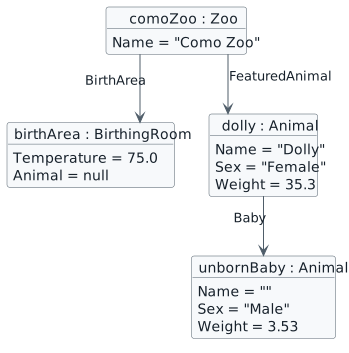
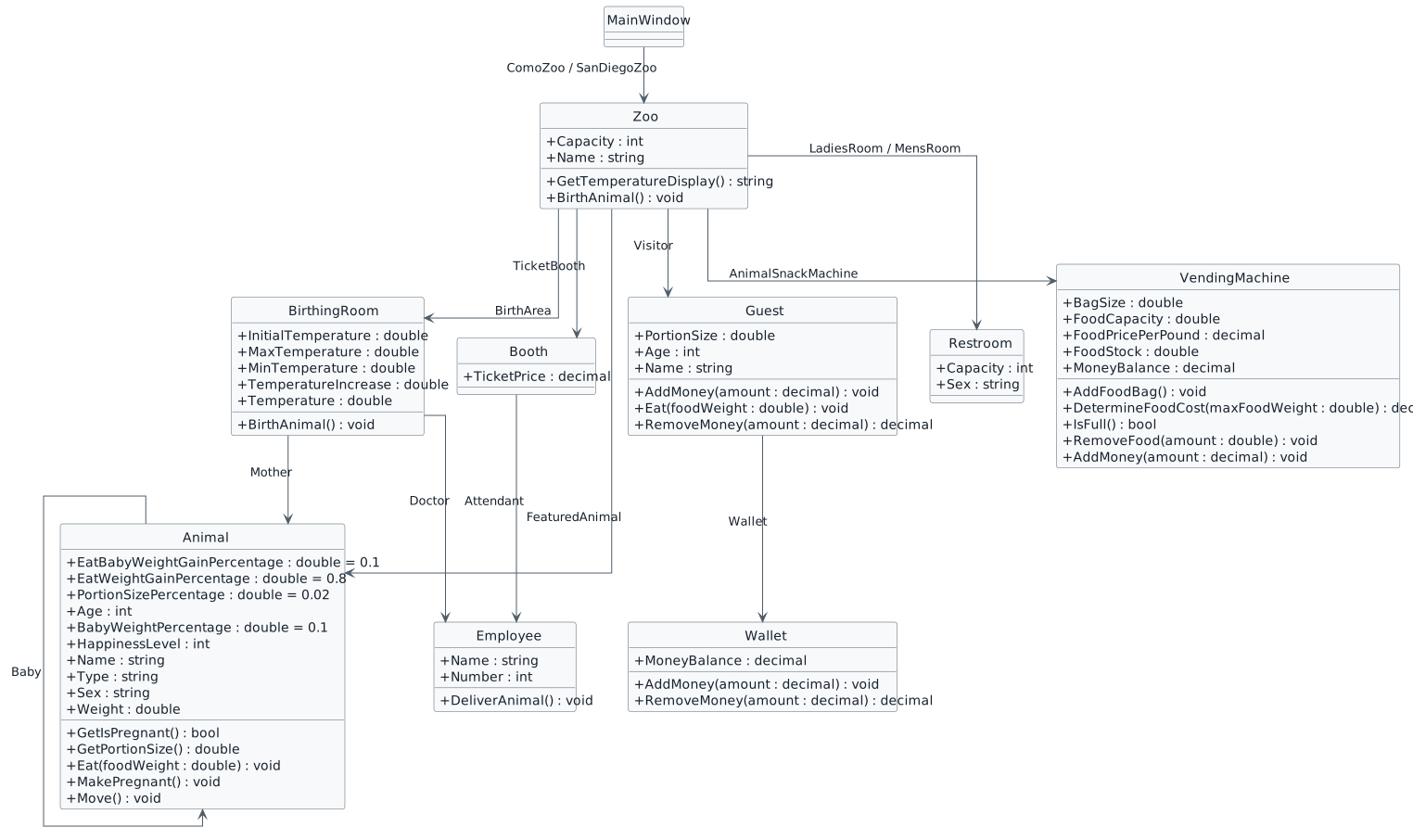
The class diagram shows the existing structure. The focused object diagram shows Como Zoo before its birthing room is connected to Dolly.
Starting Zoo 1.6 business-class structure. Relationships are reference fields; Animal.Baby represents the unborn animal.
Starting structure — completed Zoo 1.5
  • New
  • Changed
  • Removed
At the end of Zoo 1.5, the birthing room Animal reference is null. Dolly already references her unborn Baby.
Starting references — Como Zoo
  • New
  • Changed
  • Removed
1 Create each zoo and inspect FeaturedAnimal, BirthArea.Animal, and FeaturedAnimal.Baby. The featured animal and its unborn Baby exist; BirthArea.Animal is still null.
Starting references after creating each zoo
Reference Como Zoo San Diego Zoo
FeaturedAnimal Dolly, Weight 35.3 Patti, Weight 3.27
BirthArea.Animal null null
FeaturedAnimal.Baby Unborn Animal, Weight 3.53 Unborn Animal, Weight 0.327

Keep the existing names Sex, GetIsPregnant, BirthingRoom.Animal, and Animal.Baby. Keep both calls to MakePregnant() in the zoo-creation methods. The existing temperature setup remains unchanged: Como starts at 75.0 and San Diego at 77.0, each using its room's InitialTemperature to set Temperature.
Manage the Same Animal Through Two References
Acceptance Criteria
  • Each birthing room references its zoo's existing featured animal.
  • Feeding through the birthing room changes the weight seen through FeaturedAnimal.
  • The display preserves both before weights and shows both after weights.
  • An explicit if/else reports whether the two references identify the same animal.
2.Share the Featured Animal with the Birthing Room
Problem

The zoo already has a mother, but the birthing room has no animal reference. Creating another Animal would give the room a different object.

Solution

Assign the existing featured-animal reference to the birthing room's Animal field.

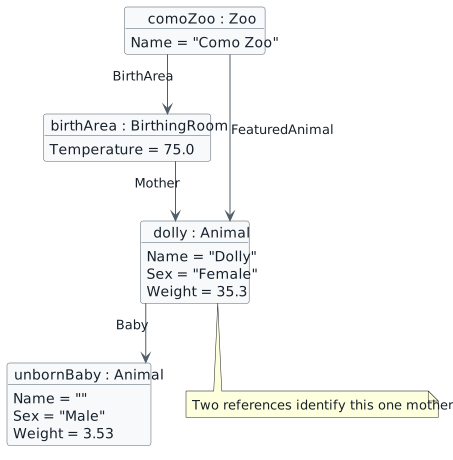
After reference assignment, FeaturedAnimal and BirthArea.Animal both point to Dolly. The count is one.
Two references to one mother
  • New
  • Changed
  • Removed
A Make the Changes
1 In MainWindow.xaml.cs, at the end of CreateComoZoo(), immediately after FeaturedAnimal.MakePregnant(), assign ComoZoo.FeaturedAnimal to ComoZoo.BirthArea.Animal. Use the existing reference; do not instantiate another Animal.
2 Make the corresponding assignment at the end of CreateSanDiegoZoo(), using SanDiegoZoo for both sides.
3.Feed Through the Birthing-Room Reference
Problem

Matching field values alone cannot establish that the references identify one object. A change made through one path should be visible through the other.

Solution

Keep the feeding transaction, but call Eat through the birthing room's Animal reference.

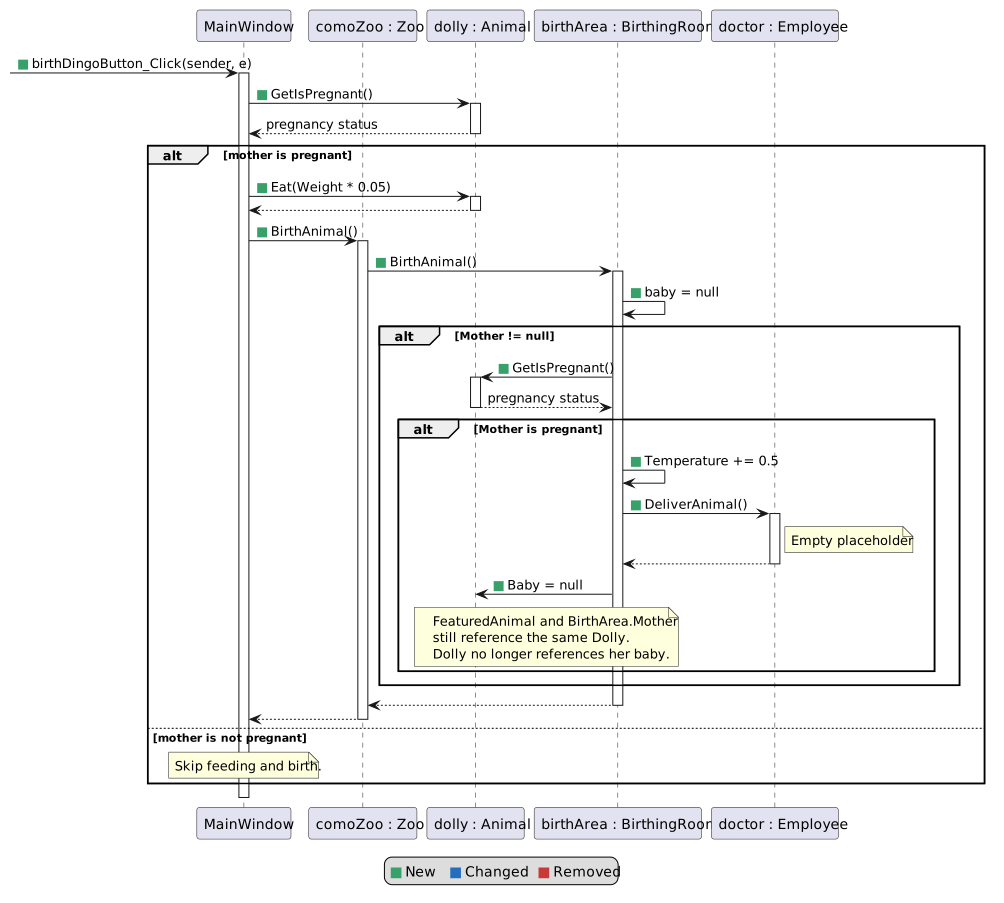
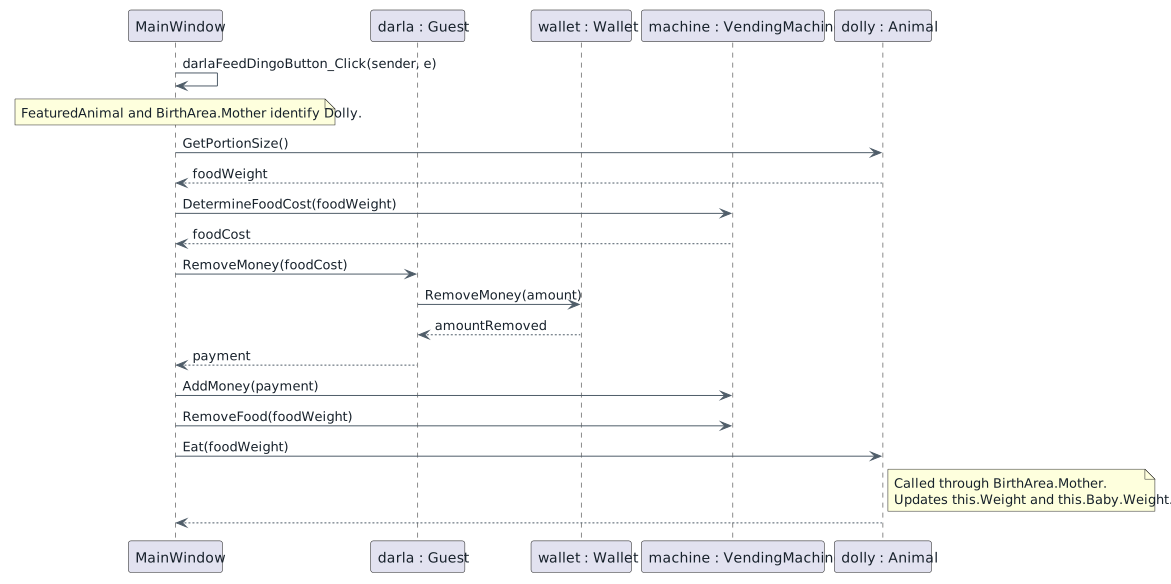
The Como feeding handler completes payment and calls Eat on Dolly through BirthArea.Animal. The same Dolly is also FeaturedAnimal.
Feed the shared animal — call sequence
  • New
  • Changed
  • Removed
A Make the Changes
1 In darlaFeedDingoButton_Click, change only the target of the final Eat(foodWeight) call from ComoZoo.FeaturedAnimal to ComoZoo.BirthArea.Animal. Keep the portion, price, payment, AddMoney, and RemoveFood statements.
2 Make the corresponding change in daveFeedPlatypusButton_Click.
4.Show Before and After Feeding Together
Problem

After feeding, the animal holds its new weight. Reading both references at that point does not recover the earlier values.

Solution

Save both numeric weights before feeding, then display those saved values and the current weights together in the existing text box.

A Save the Before Weights
1 At the beginning of darlaFeedDingoButton_Click, before foodWeight is calculated, declare two double variables: featuredAnimalWeightBefore and birthingAreaAnimalWeightBefore. Assign the first from ComoZoo.FeaturedAnimal.Weight and the second from ComoZoo.BirthArea.Animal.Weight.
2 At the beginning of daveFeedPlatypusButton_Click, save the same two before weights using SanDiegoZoo. Use the same local variable names in this separate handler.
B Compare the Animal References
1 After the Eat call, declare bool sameAnimal. Use the following explicit if/else to assign it.
bool sameAnimal;

if (this.ComoZoo.FeaturedAnimal == this.ComoZoo.BirthArea.Animal)
{
    sameAnimal = true;
}
else
{
    sameAnimal = false;
}

For the current Animal class, this is a reference equality comparison: it asks whether both references identify the same object. It does not compare the animals' names or weights.

2 After the San Diego Eat call, declare sameAnimal and use the corresponding explicit if/else with SanDiegoZoo.
C Display the Before and After Values
1 Immediately after that if/else, call DisplayMessage as shown. Use the saved variables for the before values and the current fields for the after values.
this.DisplayMessage("Before feeding:\n Featured animal: " + featuredAnimalWeightBefore
    + "\n Birthing-area animal: " + birthingAreaAnimalWeightBefore
    + "\n\n After feeding through the birthing area:\n Featured animal: " + this.ComoZoo.FeaturedAnimal.Weight
    + "\n Birthing-area animal: " + this.ComoZoo.BirthArea.Animal.Weight
    + "\n\n Same animal: " + sameAnimal);
2 Add the corresponding DisplayMessage call after the San Diego reference comparison. Use its saved before values and SanDiegoZoo for its current after values.
3 In MainWindow.xaml, find informationTextBox and change its Height from 84 to 170. Keep its existing name, read-only setting, and scrolling behavior so both sections fit in the same text box.
D Check Your Work
1 Place a breakpoint on the reference-equality if statement in darlaFeedDingoButton_Click. Run the application, create Como Zoo, and click Darla, feed dingo. Step through the comparison and confirm the true branch assigns sameAnimal = true. Continue execution and confirm the text box displays Same animal: True.
2 Repeat in daveFeedPlatypusButton_Click after creating San Diego Zoo. Confirm the true branch runs and the display reports Same animal: True.
3 Restart, create both zoos, and feed each animal once. Compare the display with the values below. Both references should report the same after weight, and Same animal should be True. Compare floating-point values approximately.
First feeding from freshly created zoos
Displayed value Como Zoo San Diego Zoo
Before: Featured animal 35.3 3.27
Before: Birthing-area animal 35.3 3.27
After: Featured animal 35.8648 3.32232
After: Birthing-area animal 35.8648 3.32232
Same animal True True

The True result confirms object identity. The before and after weights show that feeding through BirthArea.Animal updates the same animal reached through FeaturedAnimal; matching weights alone would not establish that identity.

4 Feed the same animal again. Its new before weights should equal the previous after weights. Explain why the saved double variables do not change when Eat updates the Animal object.
5.Preserve the Mother's Pregnancy Checks
Problem

The existing early return protects an unborn Baby, but baby creation also needs to be restricted to female animals.

Solution

Keep the pregnancy early return and place the existing creation statements inside a separate Female check.

A Make the Changes
1 In Animal.MakePregnant(), keep the existing GetIsPregnant() check and its early return at the beginning of the method.
2 Below the early-return block, wrap the existing Baby creation and all five field assignments in an if statement checking this.Sex == "Female". Keep the existing assignments and their values.
B Check Your Work
1 Create each zoo. Both female animals should still have their starting babies. Call MakePregnant again while paused in the debugger and verify that the existing Baby reference is preserved.
2 For a temporary check, change Dolly's setup Sex to "Male", then create Como Zoo. Verify Baby remains null. Restore "Female" before continuing and recreate the zoo.
Count the Animals in the Zoo
6.Return the Animal Count
Problem

The zoo now has two access paths to each mother. Counting both fields as different animals would report two when there is only one born animal.

Solution

Count the featured animal when it exists. Count the birthing-room animal only when it exists and is a different object. Do not count the unborn Baby.

A Make the Changes
1 In Zoo.cs, after the fields and before GetTemperatureDisplay(), add public int GetAnimalCount(). Include XML summary and return-value documentation.
2 Inside the method, declare int animalCount = 0. If FeaturedAnimal is not null, assign animalCount to 1.
3 Next, use nested if statements to check that BirthArea is not null, that BirthArea.Animal is not null, and that BirthArea.Animal != FeaturedAnimal. Inside the innermost block, increase animalCount by one.
4 Return animalCount after all checks. Do not count Animal.Baby: the unborn animal is excluded from this displayed count.
B Check Your Work
1 Build, create each zoo, and evaluate its GetAnimalCount() in the debugger. Both should return 1. Follow the nested checks and explain why the shared birthing-room reference does not increase the count.
7.Display the Count in WPF
Problem

The animal-count method returns a number, but the application does not yet display it.

Solution

Show the count when each zoo is created and add a button to check Como Zoo again after feeding.

A Make the Changes
1 In newComoZooButton_Click, replace the existing DisplayMessage call with the following statement. Keep CreateComoZoo() before it.
this.DisplayMessage("Created " + this.ComoZoo.Name + " (" + this.ComoZoo.GetAnimalCount() + " animals)");
2 Make the corresponding message change in newSanDiegoZooButton_Click using SanDiegoZoo. Keep the existing temperature display assignment.
3 In MainWindow.xaml, inside comoZooStackPanel immediately after floraFillVendingMachineButton, add this button.
<Button x:Name="getComoZooAnimalCountButton" Content="Get animal count" Click="getComoZooAnimalCountButton_Click"/>
4 In MainWindow.xaml.cs, add the matching public event handler getComoZooAnimalCountButton_Click(object sender, RoutedEventArgs e), after floraFillVendingMachineButton_Click and before newSanDiegoZooButton_Click. Include XML summary and parameter documentation.
5 Inside that handler, declare string message. Assign it the Como Zoo name, the text " animal count: ", and the returned value of ComoZoo.GetAnimalCount(). Then call DisplayMessage(message).
B Check Your Work
1 Create each zoo. The messages should read "Created Como Zoo (1 animals)" and "Created San Diego Zoo (1 animals)".
2 Create Como Zoo, feed Dolly, then click Get animal count. Confirm "Como Zoo animal count: 1". Feeding changes state, not the number of born animals.
8.Ignore Missing or Empty Messages
Problem

A null or empty message should not erase useful information already shown in the text box.

Solution

Use two separate early-return checks before the existing text assignment.

A Make the Changes
1 In MainWindow.DisplayMessage(string message), add two separate if statements before the existing informationTextBox.Text assignment. Return immediately if message is null. In the second statement, return immediately if message equals string.Empty. Keep the existing text assignment after both checks.
B Check Your Work
1 After a message is displayed, pause in the debugger and evaluate DisplayMessage(null), then DisplayMessage(string.Empty). Continue execution and confirm the previous message remains. A normal feeding or count message should still replace it.
9.Compare Shared Objects with Matching Values
Problem

Matching names and weights do not prove that two references identify the same object.

Solution

Temporarily give the birthing room a separate animal with matching values. Compare its behavior with the shared animal, then restore the shared reference.

Temporary comparison before feeding: two different animals have matching names and weights. Reference equality is false and the count is two.
Temporary comparison — two matching animals
  • New
  • Changed
  • Removed
A Make a Temporary Comparison
1 Temporarily replace only the shared assignment at the end of CreateComoZoo() with creation of a new Animal for BirthArea.Animal. Assign that new animal the same Sex, Name, Age, Weight, Type, and HappinessLevel values used for Dolly. Do not change FeaturedAnimal.
2 Create Como Zoo and feed once. Both before weights are 35.3, but FeaturedAnimal stays at 35.3 while BirthArea.Animal changes to approximately 35.8648. Same animal is False. The count is 2 because the references identify different born animals.
B Restore the Shared Reference
1 Remove the temporary second-animal creation and field assignments. Restore the single assignment of FeaturedAnimal to BirthArea.Animal.
C Check Your Work
1 Recreate Como Zoo and feed once. Verify both weights change together, Same animal is True, and GetAnimalCount returns 1.
10.Review the Completed Design
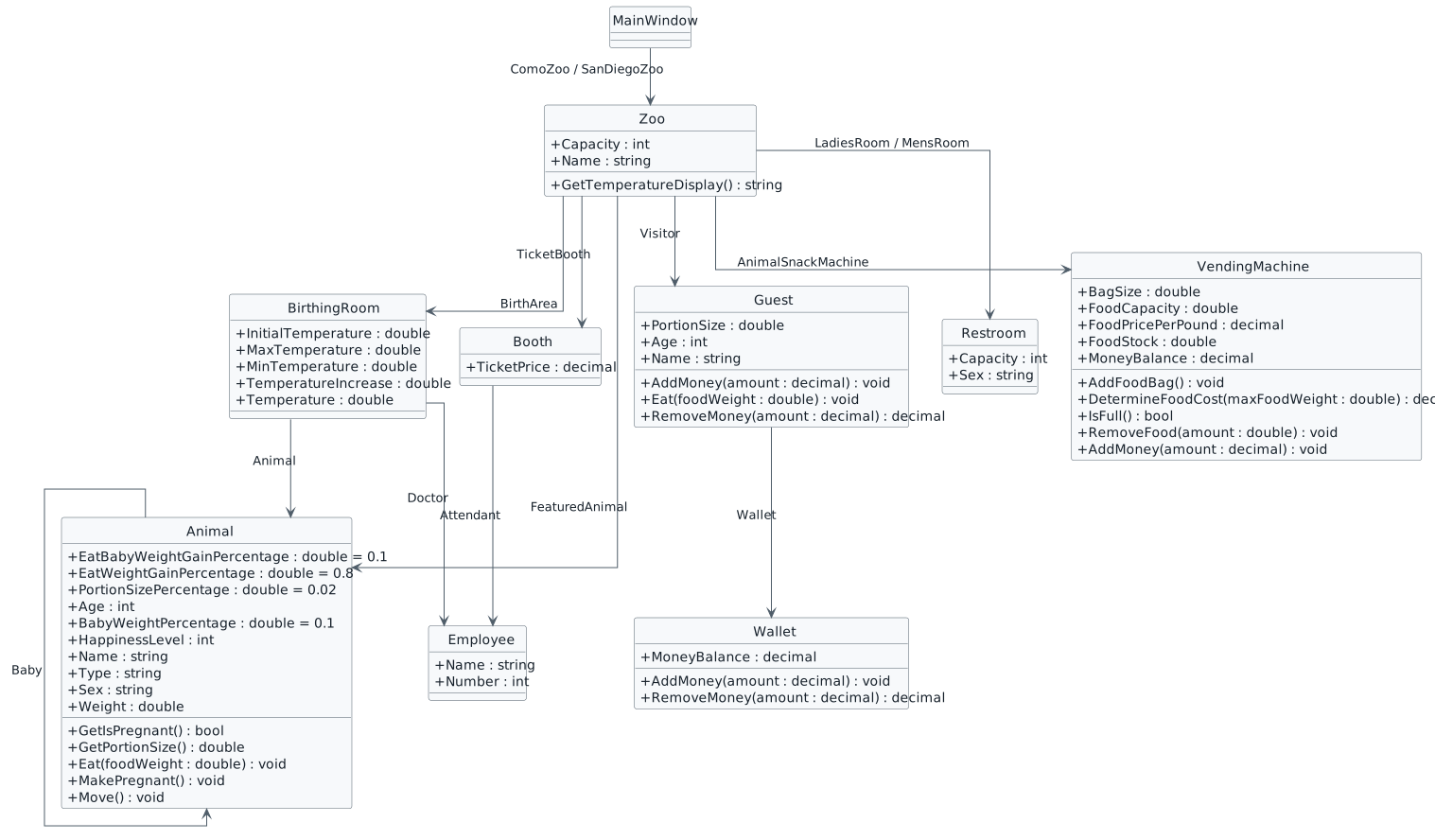
Ending Zoo 1.6 business-class structure. Relationships are reference fields; Animal.Baby represents the unborn animal.
Ending structure — completed Zoo 1.6
  • New
  • Changed
  • Removed
A Final Check
1 Confirm GetIsPregnant and the separate Female check remain. Both feeding handlers use BirthArea.Animal.Eat(foodWeight), save the before weights, and display the reference comparison through explicit if/else statements.
2 Confirm both mothers begin pregnant, the original temperature assignments remain, and no temporary duplicate-animal setup remains.
3 Build the solution and resolve errors and warnings. Confirm the added methods have XML documentation and modified code passes the project's StyleCop checks.
11.Submit Zoo 1.6
A Close Visual Studio and ZIP the complete Zoo 1.6 solution folder.
B Submit the ZIP through the Feedback System.
C Submit the Feedback System URL in Canvas.