Overview
1.Getting Started
A
Make a copy of your Grade Book 1.4 LastName folder and .sln file and rename the copied versions to Grade Book 1.5 LastName
B
The class diagram below represents the current structure of the GradeBookScenario solution

- New
- Changed
- Removed
2.Have the completed assignment return a score
A
Modify the return types and add Grade to Instructor.cs based on the class diagram below
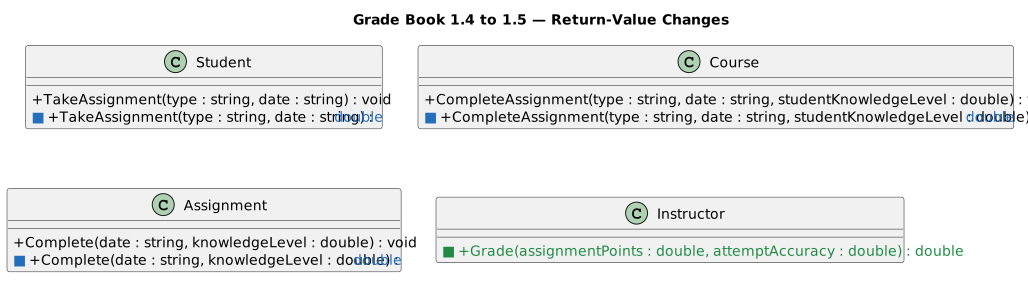
- New
- Changed
- Removed
B
Modify Complete in Assignment.cs based on the activity diagram below
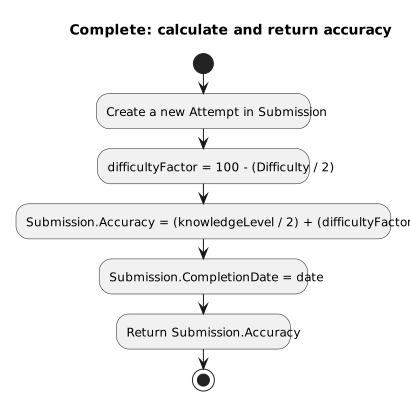
- New
- Changed
- Removed
C
Modify Grade in Instructor.cs based on the activity diagram below
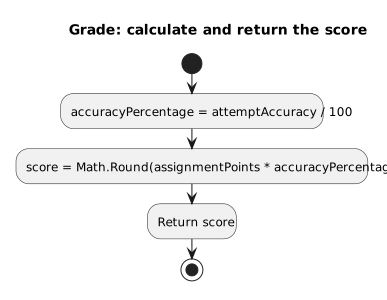
- New
- Changed
- Removed
D
Modify CompleteAssignment in Course.cs based on the activity diagram below
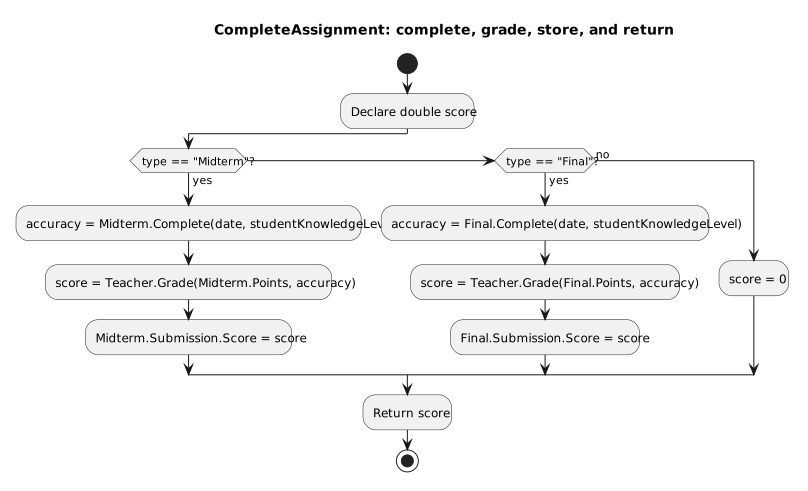
- New
- Changed
- Removed
E
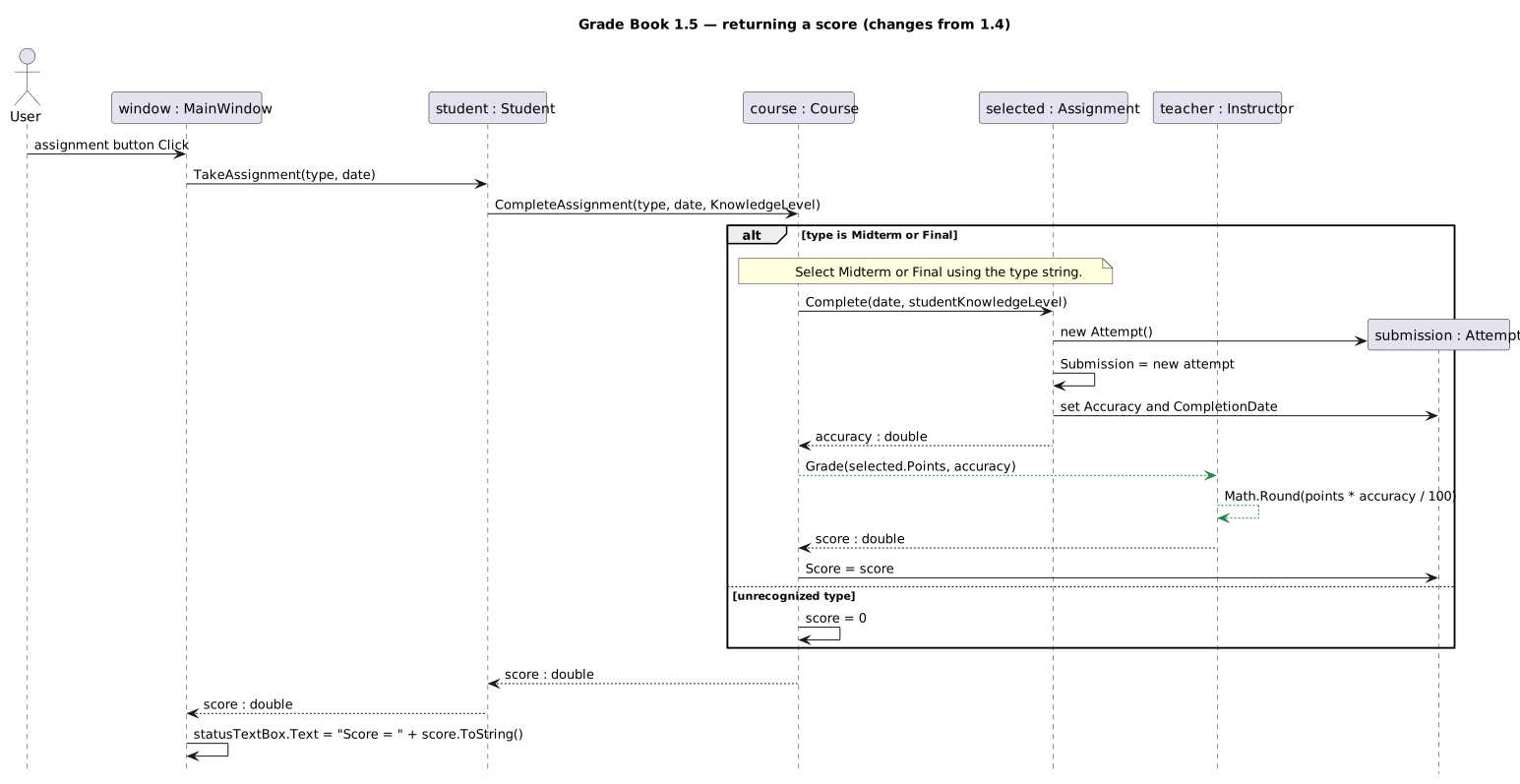
Update TakeAssignment in Student.cs and follow the method calls and returned values shown in the sequence diagram below
- New
- Changed
- Removed
3.Display the student’s score in the window
A
In MainWindow.xaml, give the outer Grid two rows: a star-sized row for the existing controls and an Auto-sized row for the score display
B
After the Canvas StackPanel, add the following TextBox inside the outer Grid
<TextBox x:Name="statusTextBox" Grid.Row="1" Grid.ColumnSpan="3"
         Margin="8" IsReadOnly="True"/>
C
Using the sequence diagram, update the four assignment event handlers in MainWindow.xaml.cs to display the returned score
1
Keep "Midterm" and "10/07/2018" for both midterms, and "Final" and "12/18/2018" for both finals
D
Check Your Work (Blackboard Midterm):
1
Set a breakpoint on the closing curly brace of takeMidtermButton_Click. Start the application, click 'New Blackboard', then click 'Take midterm'
2
Ensure that Arthur’s Midterm’s Submission has Accuracy equal to 79.575, CompletionDate equal to "10/07/2018", and Score equal to 80
3
Press F5 and ensure that the TextBox displays "Score = 80"
E
Check Your Work (Blackboard Final):
1
Set a breakpoint on the closing curly brace of takeFinalButton_Click. Start the application, click 'New Blackboard', then click 'Take final'
2
Ensure that Arthur’s Final’s Submission has Accuracy equal to 66.55, CompletionDate equal to "12/18/2018", and Score equal to 67
3
Press F5 and ensure that the TextBox displays "Score = 67"
F
Check Your Work (Canvas Midterm):
1
Set a breakpoint on the closing curly brace of writeEssayButton_Click. Start the application, click 'New Canvas', then click 'Write midterm essay'
2
Ensure that Samantha’s Midterm’s Submission has Accuracy equal to approximately 86.075, CompletionDate equal to "10/07/2018", and Score equal to 86
3
Press F5 and ensure that the TextBox displays "Score = 86"
G
Check Your Work (Canvas Final):
1
Set a breakpoint on the closing curly brace of writeFinalPaperButton_Click. Start the application, click 'New Canvas', then click 'Write final paper'
2
Ensure that Samantha’s Final’s Submission has Accuracy equal to 77.35, CompletionDate equal to "12/18/2018", and Score equal to 77
3
Press F5 and ensure that the TextBox displays "Score = 77"
4.Review the structure of the application at the end of this assignment
A
Compare your solution with the class diagram below

- New
- Changed
- Removed
5.Submit to the Feedback System
A
Ensure that all code is StyleCop compliant
B
Zip the solution and submit to the Feedback System
C
Submit the Feedback System url to the correct assignment in Canvas