Overview
1.Getting Started
A
Copy your 1.2 ending code, renaming both the folder and the Visual Studio solution file
B
The class diagram below represents the structure of the application at the start of this assignment
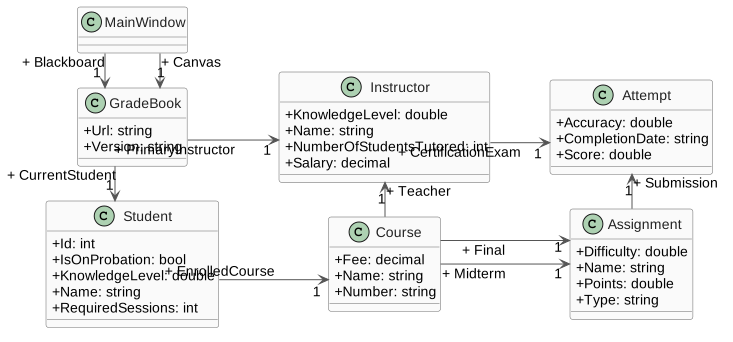
- New
- Changed
- Removed
2.Have Arthur and Samantha take their Finals
A
Add assignment completion abilities
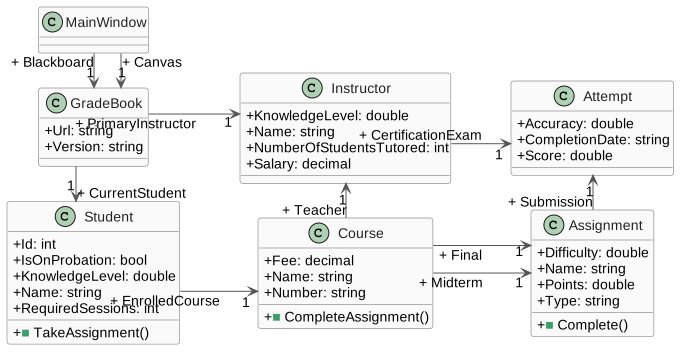
- New
- Changed
- Removed
1
Modify the class structure as shown in the class diagram above
2
Use the following code to add the button for taking the Blackboard final and create an event handler
<Button x:Name="takeFinalButton" Content="Take final" Click="takeFinalButton_Click"/>
3
Use the following code to add the button for taking the Canvas final and create an event handler
<Button x:Name="writeFinalPaperButton" Content="Write final paper" Click="writeFinalPaperButton_Click"/>
B
Insert method calls in the application based on the sequence diagram below
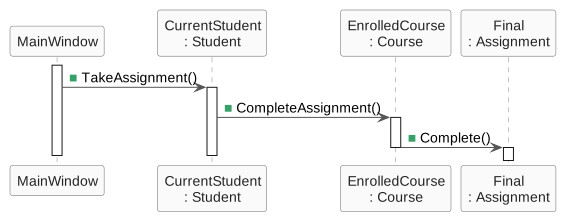
- New
- Changed
- Removed
1
The takeFinalButton_click is for this.Blackboard, and the writeFinalPaperButton_click is for this.Canvas
C
Modify the Assignment's Complete method
1
Assign the Submission field to a new instance of the Attempt class
2
Assign the Submission's Accuracy to 70.0
D
Check Your Work (Blackboard):
1
Set a breakpoint on the closing curly brace of the takeFinalButton_Click method
2
Start the application. Click the New Blackboard button. Click the 'Take Final' button
3
Ensure Arthur's Website 1 Final Submission is at 70 Accuracy
E
Check Your Work (Canvas):
1
Set a breakpoint on the closing curly brace of the writeFinalPaperButton_Click method
2
Start the application. Click the New Canvas button. Click the 'Write Final Paper' button
3
Ensure Samantha's Term Paper Final Submission is at 70 Accuracy
3.Tutor Arthur and Samantha
A
Add tutoring capabilities
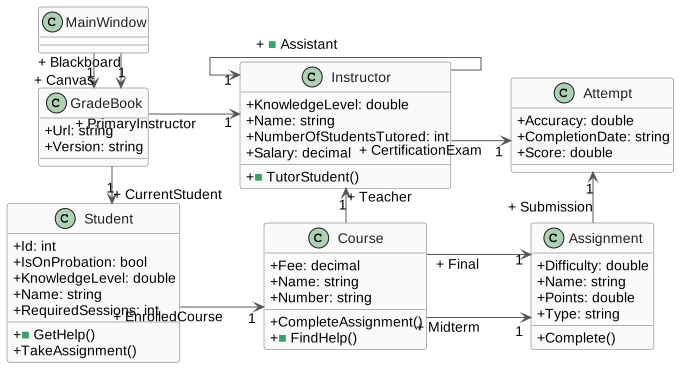
- New
- Changed
- Removed
1
Modify the class structure based on the class diagram above
2
Use the following code to add a button for tutoring Arthur under the Blackboard buttons, and create an event handler
<Button x:Name="tutorArthurButton" Content="Tutor Arthur" Click="tutorArthurButton_Click"/>
3
Use the following code to add a button for tutoring Samantha under the Canvas buttons, and create an event handler
<Button x:Name="tutorSamanthaButton" Content="Tutor Samantha" Click="tutorSamanthaButton_Click"/>
B
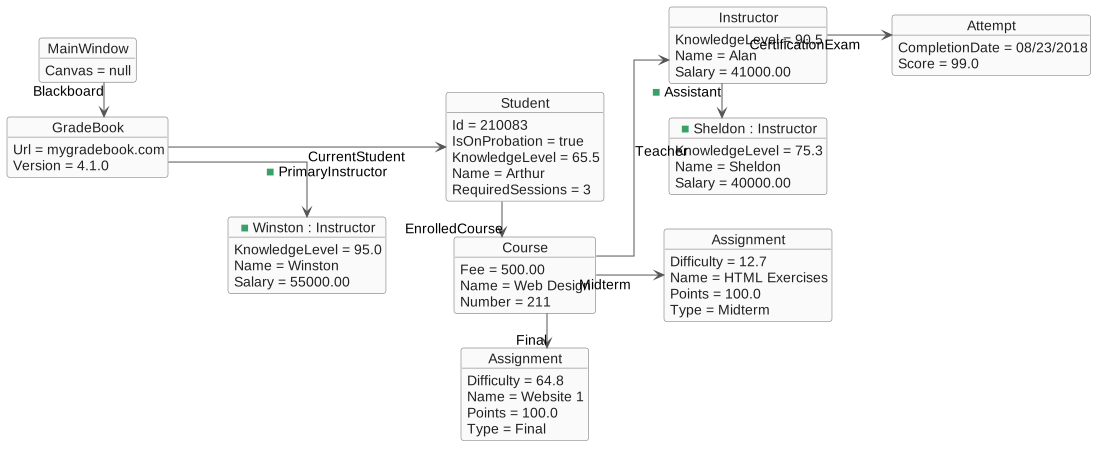
In the newBlackboardButton_Click method, create a separate PrimaryInstructor for the Blackboard GradeBook and create an Assistant for the Course's Teacher
- New
- Changed
- Removed
1
After assigning this.Blackboard.Version and before creating this.Blackboard.CurrentStudent, add the following code to create Winston as the Blackboard GradeBook's PrimaryInstructor
this.Blackboard.PrimaryInstructor = new Instructor();
this.Blackboard.PrimaryInstructor.Name = "Winston";
this.Blackboard.PrimaryInstructor.Salary = 55000.00m;
this.Blackboard.PrimaryInstructor.KnowledgeLevel = 95.0;
2
After creating Alan's CertificationExam, add the following code to create Sheldon as Alan's Assistant
this.Blackboard.CurrentStudent.EnrolledCourse.Teacher.Assistant = new Instructor();
this.Blackboard.CurrentStudent.EnrolledCourse.Teacher.Assistant.KnowledgeLevel = 75.3;
this.Blackboard.CurrentStudent.EnrolledCourse.Teacher.Assistant.Name = "Sheldon";
this.Blackboard.CurrentStudent.EnrolledCourse.Teacher.Assistant.Salary = 40000.00m;
C
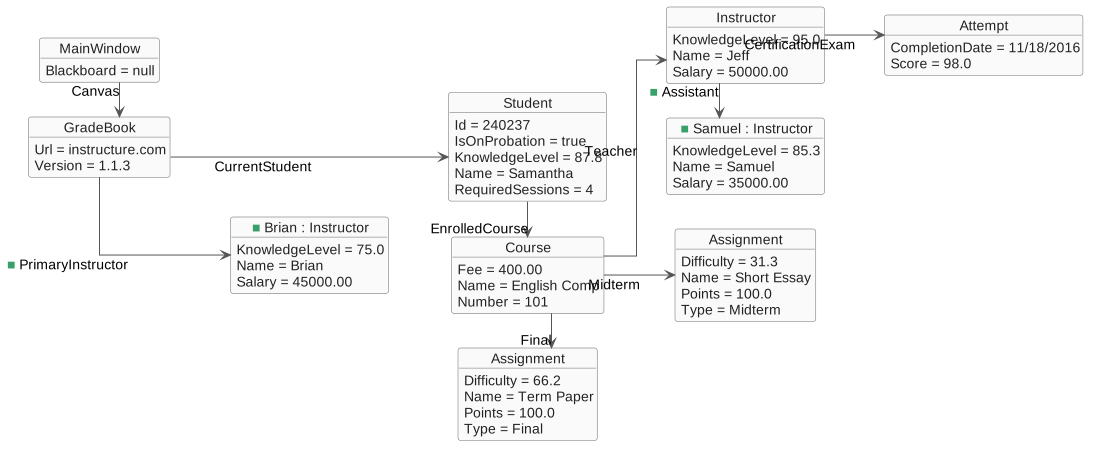
In the newCanvasButton_Click method, create a separate PrimaryInstructor for the Canvas GradeBook and create an Assistant for the Course's Teacher
- New
- Changed
- Removed
1
After assigning this.Canvas.Version and before creating this.Canvas.CurrentStudent, add the following code to create Brian as the Canvas GradeBook's PrimaryInstructor
this.Canvas.PrimaryInstructor = new Instructor();
this.Canvas.PrimaryInstructor.Name = "Brian";
this.Canvas.PrimaryInstructor.Salary = 45000.00m;
this.Canvas.PrimaryInstructor.KnowledgeLevel = 75.0;
2
After creating Jeff's CertificationExam, add the following code to create Samuel as Jeff's Assistant
this.Canvas.CurrentStudent.EnrolledCourse.Teacher.Assistant = new Instructor();
this.Canvas.CurrentStudent.EnrolledCourse.Teacher.Assistant.Name = "Samuel";
this.Canvas.CurrentStudent.EnrolledCourse.Teacher.Assistant.KnowledgeLevel = 85.3;
this.Canvas.CurrentStudent.EnrolledCourse.Teacher.Assistant.Salary = 35000.00m;
D
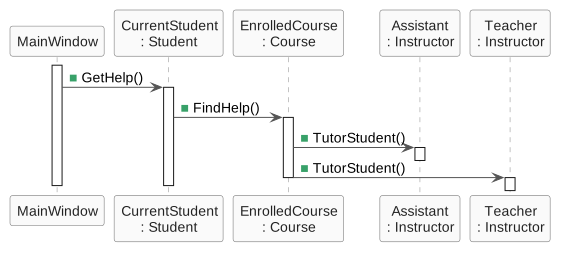
Insert method calls in the application based on the sequence diagram below
- New
- Changed
- Removed
E
In the Instructor's TutorStudent method, assign the NumberOfStudentsTutored to 1
F
In the Student's GetHelp method, assign the IsOnProbation field to false after they find help
G
Check Your Work (Blackboard):
1
Set a breakpoint on the closing curly brace of the tutorArthurButton_Click method
2
Start the application. Click the New Blackboard button. Click the Tutor Arthur button
3
Ensure the Student's IsOnProbation field is false
4
Ensure Alan's NumberOfStudentsTutored is 1
5
Ensure Blackboard.PrimaryInstructor is Winston with a Salary of 55000.00 and a KnowledgeLevel of 95.0
6
Ensure Blackboard.CurrentStudent.EnrolledCourse.Teacher is Alan and Alan's Assistant is Sheldon
H
Check Your Work (Canvas):
1
Set a breakpoint on the closing curly brace of the tutorSamanthaButton_Click method and the newCanvasButton_Click
2
Start the application. Click the New Canvas button
3
Ensure Canvas.PrimaryInstructor is Brian with a Salary of 45000.00 and a KnowledgeLevel of 75.0
4
Click the Tutor Samantha button
5
Ensure the Student's IsOnProbation field is false
6
Ensure Jeff's NumberOfStudentsTutored is 1
7
Ensure Canvas.CurrentStudent.EnrolledCourse.Teacher is Jeff and Jeff's Assistant is Samuel
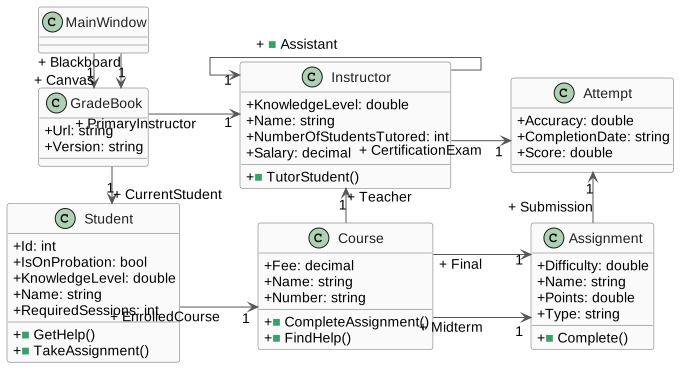
4.The class diagram below represents the structure of the application at the end of this assignment
- New
- Changed
- Removed
5.Submit a zipped Visual Studio solution
A
Ensure all code is StyleCop compliant
B
Zip the solution and submit to the Feedback System
C
Submit the Feedback System url to the correct assignment in Canvas