Acceptance criteria
- The Netflix Titles database is created using the supplied data and instructions.
- The Web API project uses the required name and initial authentication setting.
12.3 Lab
In this lab we will create our own API using C# in Visual Studio. This API will allow different clients and browsers to retrieve information from our database. After creating our API application, we will test our calls to our API in Postman to verify that our application runs successfully.
Work through the stories in order. Use the acceptance criteria to check each feature, and complete the nested tasks using the specified names, values, and scenarios.
| Operation | Checkpoint response |
|---|---|
| GET | 200 OK with the requested data. |
| POST | 200 OK with the created result, as required here. |
| PUT (12.4 onward) | 200 OK after the update. |
| DELETE (12.5) | 204 No Content after deletion. |
In SQL Server Management Studio, open the downloaded script and execute the query. This should create a database named Netflix Titles with 5 tables. Select the top 1000 rows of each table to ensure that there is data in each table.
In Visual Studio, create a new ASP.NET Core Web Application (C#) named 12.3LabNetflixTitlesYourLastName. Select the Web API template. Make sure Authentication is set to No Authentication.
We will add authentication when we configure the connection to the database.
"profiles": {
"IIS Express": {
"commandName": "IISExpress",
"launchBrowser": true,
"launchUrl": "api",
"environmentVariables": {
"ASPNETCORE_ENVIRONMENT": "Development"
}
},
"12.3NetflixTitles": {
"commandName": "Project",
"launchBrowser": true,
"launchUrl": "api",
"applicationUrl": "https://localhost:5001;http://localhost:5000",
"environmentVariables": {
"ASPNETCORE_ENVIRONMENT": "Development"
}
Create the Models that will be used to represent the data in the application's database, these Model classes should be stored in a new Models folder.
using System;
using System.Collections.Generic;
using System.ComponentModel.DataAnnotations.Schema;
using System.Linq;
using System.Threading.Tasks;
namespace _12._3LabLocke.Models
{
/// <summary>
/// The class that is used to represent a Netflix category.
/// </summary>
[Table("Category")]
public class Category
{
/// <summary>
/// Gets or sets the category id.
/// </summary>
public int Id { get; set; }
/// <summary>
/// Gets or sets the category name.
/// </summary>
[Column("Category")]
public string Name { get; set; }
}
}
Note the Table and Column attributes. These attribute specifies the database table and column that the entity and entity property should map to when the entity and entity's property name and database table and database column name differ. It uses the System.ComponentModel.DataAnnotations.Schema namespace.
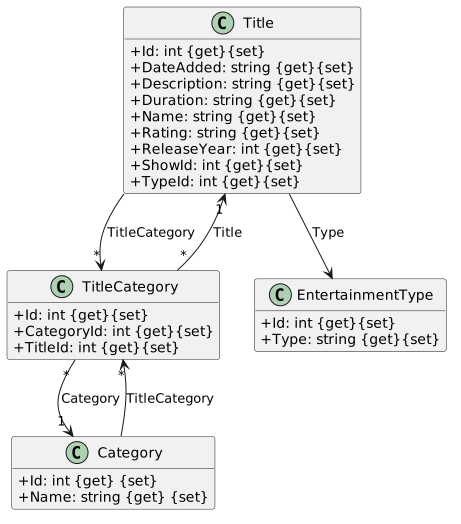
Be sure to add the TitleCategory property to the Category class.
You will need to install the Microsoft.EntityFrameworkCore package.
Paste the following code for the DataContext's constructor. This initializes a new instance of the DataContext class by referencing the connection and mapping source.
/// <summary>
/// Initializes a new instance of the data context class.
/// </summary>
/// <param name="options">The data context connnection options.</param>
public DataContext(DbContextOptions<DataContext> options)
: base(options)
{ }public DbSet<Category> Categories { get; set; }protected override void OnModelCreating(ModelBuilder modelBuilder)
{
base.OnModelCreating(modelBuilder);
}// 1 to 1 relationship between title and entertainment type.
modelBuilder.Entity<Title>()
.HasOne(t => t.Type);// 1 to many relationship between title and title category.
modelBuilder.Entity<TitleCategory>()
.HasOne(tc => tc.Title)
.WithMany(t => t.TitleCategory);
.HasForeignKey(tc => tc.TitleId)You will need to install the Microsoft.EntityFrameworkCore.SqlServer package
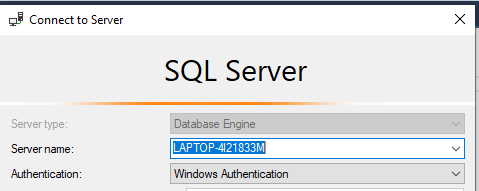
In your appsettings.json file, after AllowedHosts, add a ConnectionString object containing the SQL connection string as shown below. You will need to replace the Server property value with your local machine's SQL Server host name.
"ConnectionStrings":
{ "SQL": "Server=YourServerNameHere; Database=NetflixTitles; Trusted_Connection=TRUE" }
You can find your server name when connecting to your SQL Server Management Studio, as shown in the image below.
The Trusted_Connetion property when set to TRUE, enables Window's authentication. If you would use SQL Server Authentication, you would need to provide user and password properties, and remove the TrustedConnection property.
In Program.cs, either at the end of the ConfigureServices method or in the body of a .Net Core Program.cs script, add the following code to add the context to the services.
_ = services.AddDbContext<DataContext>
(options => options.UseSqlServer(Configuration.GetConnectionString("SQL"))
.UseQueryTrackingBehavior(QueryTrackingBehavior.NoTracking));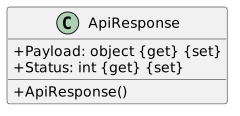
Create a new class named ApiController in the Controllers folder. Have it implement the Controller class. Add a Route attribute to the ApiController class as shown below.
[Route("api/[controller]")]The Route attribute will help configure the URL for our API calls.
In the constructor, create a new instance of the DataService class, passing in the dataContext parameter. Set the results equal to the _dataService field.
Create a new method named GetTitles that returns a list of Title. In the method, retrieve the titles from the database, including the title's type, title category, and title category's category as shown in the below code.
return this._dataContext.Titles
.Include(t => t.Type)
.Include(t => t.TitleCategory)
.ThenInclude(tc => tc.Category)
.ToList();Create a new method named GetCategories that returns a list of Category. In the method return the _dataContext's Categories property as a list using the .ToList() method.
Create a new method named GetEntertainmentTypes that returns a list of EntertainmentType. In the method return the _dataContext's EntertainmentTypes property as a list using the .ToList() method.
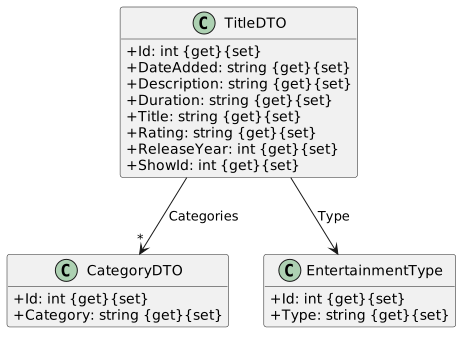
[HttpGet("titles")]Create a new TitleDTO and name it titleDTO.
Set all of the title properties to the titleDTO's equivalent properties, except for the titleDTO Categories property.
Create a new list of CategoryDTO and set it to the titleDTO Categories property
For each TitleCategory in the title's TitleCategory property
Create a new CategoryDTO variable named category.
Set the title categories category id to the categoryDTO's Id property.
Set the title categories name to the categoryDTO's Title property.
Add the category variable to the titleDTO Categories.
Add the titleDTO to the titleDTOs list.
/// <summary>
/// Gets the netflix titles from the data service.
/// </summary>
/// <returns></returns>
[HttpGet("titles")]
public IActionResult GetTitles()
{
// Create a new API response class.
ApiResponse apiResponse = new ApiResponse();
// Create a new list of titles and a new list of title dtos.
List<Title> titles = new List<Title>();
List<TitleDTO> titleDTOs = new List<TitleDTO>();
// Get the list of titles from the data service.
titles = _dataService.GetTitles();
// Foreach title retrieved from the data service.
foreach(Title t in titles)
{
// Create a new data transfer object and set the retrieved titles properties to the new object's properties.
TitleDTO titleDTO = new TitleDTO();
titleDTO.Id = t.Id;
titleDTO.Categories = new List<CategoryDTO>();
// For each title category in the title's title categories...
foreach(TitleCategory tc in t.TitleCategory)
{
// Create a new category data transfer object and set the current title's current title categories category properties to the new object.
CategoryDTO category = new CategoryDTO();
category.Id = tc.Category.Id;
category.Category = tc.Category.Name;
// Add the created category dto to the current title dto's list of categories.
titleDTO.Categories.Add(category);
}
titleDTO.Rating = t.Rating;
titleDTO.ReleaseYear = t.ReleaseYear;
titleDTO.ShowId = t.ShowId;
titleDTO.Title = t.Name;
titleDTO.DateAdded = t.DateAdded;
titleDTO.Description = t.Description;
titleDTO.Type = t.Type;
titleDTO.Duration = t.Duration;
// Add the created title dto to the list of title dtos.
titleDTOs.Add(titleDTO);
}
// Set the api response to be a success status, and the payload to be the retrieved titles.
apiResponse.Status = 0;
apiResponse.Payload = titleDTOs;
// return the response as a JSON object.
return Json(apiResponse);Create a new APIResponse variable named apiResponse.
Create a new list of type CategoryDTO named categoryDTOs
Create a new list of type Category named categories.
Call the _dataService's GetCategories method and set the result to the categories variable.
For each Category in the categories list.
Create a new CategoryDTO named cd.
Set the categories' id to the cd's Id property.
Set the categories' Name to the cd's Category property.
Add the cd to the categoryDTOs list.
Set the apiResponse's Status property to 0 and set the categoryDTOs variable to the apiResponse's Payload property. Return JSON(apiResponse).
Create a new APIResponse variable named apiResponse.
Create a new list of EntertainmentType named entertainmentTypes.
Call the _dataService's GetEntertainmentTypes method and set the results to the entertainmentTypes list.
Set the apiResponse's Status property to 0 and set the entertainmentTypes variable to the apiResponse's Payload property. Return JSON(apiResponse).
To set the returned Json Settings, add the below code to the services.AddControllers call, in the ConfigureServices method in the startup class.
services.AddControllers().AddNewtonsoftJson();You will need to add the Microsoft.AspNetCore.Mvc.NewtonsoftJson package to your project from NuGet Packages.
To set the returned Json Settings, add the below code to the services.AddControllers call, in the ConfigureServices method in the startup class.
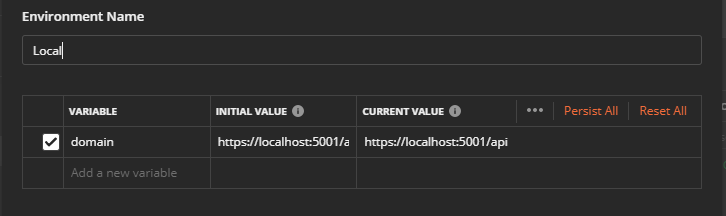
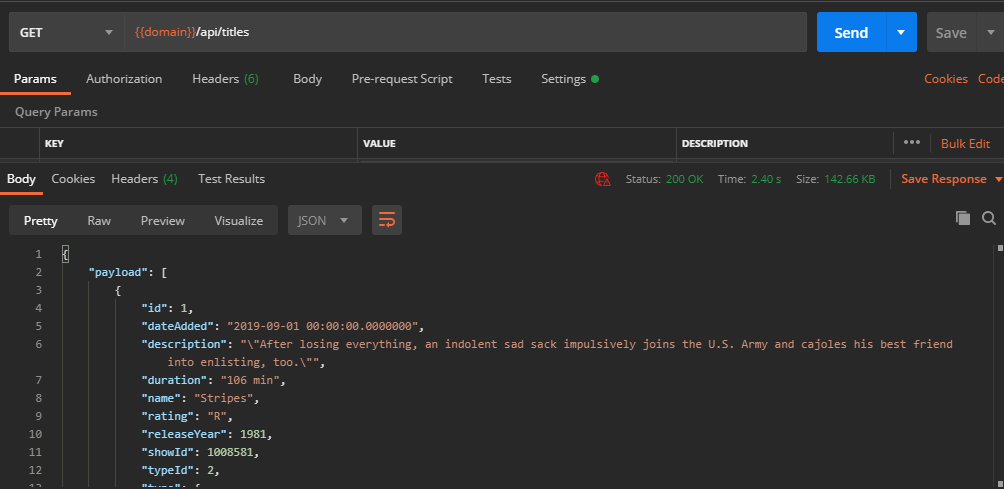
{{domain}}/api/titles{{domain}}/api/categories{{domain}}/api/typesOnce the blank page is displayed in your browser, click Send in Postman to send the Get/titles request. You should receive a response, similar to the below image.
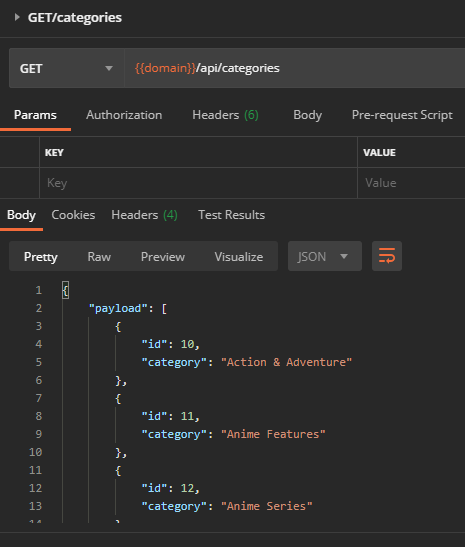
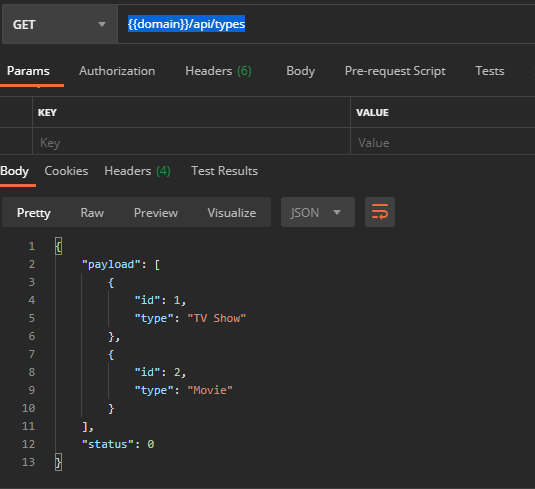
While your application is still running click Send in Postman for both the categories and entertainment types request. The responses should be similar to the below images.
Create another method in the DataService class named AddTitleCategory that accepts a parameter of type TitleCategory named titleCategory.
[HttpPost("add/title")]
public IActionResult AddTitle([FromBody]TitleDTO titleDTO){}
The [FromBody] attribute forces the API to read the type from the call's request body.
Title addedTitle = _dataService.GetTitles().Where(x => x.ShowId == titleDTO.ShowId).FirstOrDefault();
Create a new instance of the TitleCategory class named tc.
Set the addedTitle's Id property to the TitleCategory's TitleId property.
Set the CategoryDTO's Id property to the TitleCategory's CategoryId property.
Call the _dataService's AddTitleCategory() method, passing in the tc variable.
[HttpPost("add/title")]
public IActionResult AddTitle([FromBody]TitleDTO titleDTO)
{
Title title = new Title();
title.ShowId = titleDTO.ShowId;
title.Name = titleDTO.Title;
title.Rating = titleDTO.Rating;
title.ReleaseYear = titleDTO.ReleaseYear;
title.TypeId = titleDTO.Type.Id;
title.DateAdded = titleDTO.DateAdded;
title.Duration = titleDTO.Duration;
title.Description = titleDTO.Description;
title.TitleCategory = new List<TitleCategory>();
_dataService.AddTitle(title);
Title addedTitle = _dataService.GetTitles().Where(x => x.ShowId == titleDTO.ShowId).FirstOrDefault();
foreach (CategoryDTO c in titleDTO.Categories)
{
TitleCategory tc = new TitleCategory();
tc.TitleId = addedTitle.Id;
tc.CategoryId = c.Id;
_dataService.AddTitleCategory(tc);
}
return new StatusCodeResult(200);
}In Postman, add a POST request named POST/add/title. Use the below URL for the connection string, using the domain local environment variable.
{{domain}}/api/add/title
{
"categories": [
{
"id": 23,
"category": "Horror Movies"
}
],
"dateAdded": "2020-11-23 00:00:00.0000000",
"description": "A movie about an alien",
"duration": "117 min",
"title": "Alien",
"rating": "R",
"releaseYear": 1979,
"showId": 101,
"type": {
"id": 2,
"type": "Movie"
}
}
Send the GET/titles request and scroll down to the bottom of the response to verify that the movie, and all of it's properties were added.
Submit a zipped folder containing your completed application and a Word Document with snippets of successful responses of each of the API calls in Postman.
Submit a zipped folder containing your completed application and a Word Document with snippets of successful responses of each of the API calls in Postman.
Return to each story and verify its acceptance criteria. Preserve the submission format and destination stated in the activity; a reading, setup guide, lab, video demonstration, and oral final may require different evidence.
Prepare the Netflix Titles database and API Map and query the stored titles Return titles, categories, and types Add a title through the API