12.1 Lab

Overview

12.1 Lab

Calling Web APIs - Take Snippets of Each Step Completed Successfully

Work through the stories in order. Use the acceptance criteria to check each feature, and complete the nested tasks using the specified names, values, and scenarios.

Prepare The Movie Database requests
Acceptance Criteria
Acceptance criteria
  • The account has the required API key.
  • Postman is installed and configured with the requested workspace and collection.
Instructions
1.Register for The Movie Database API key

The Movie Database Sign-Up

The Movie Database Sign-Up
A Create an account

You will need to verify your email address after creating an account.

B After creating an account, go to The Movie Databases' API Introduction page.

The Movie Database's API Introduction

The Movie Database's API Introduction
1 Review the documentation.
2 Register for an API key

Go to your account | settings | API | Request an API Key

Select Developer

Read through the Terms of Use and Accept

Fill out the required information (Application type, Application name, summary, Your name, address, etc) and click Submit

You will be sent an email containing a reply from someone at The Movie Database, click on this link to get your API Key and links to their documentation.

2.Install and configure Postman
A Follow this tutorial to download and install Postman

Download Postman

Download Postman
B After downloading and creating a new account, create a new personal workspace named Advanced .NET C
C Create a new Collection
1 In the top left corner of the app, click the orange New button
2 Select collection, and name it 12.1Lab
Read movie data with GET
Acceptance Criteria
Acceptance criteria
  • The discover/movie request returns movie data.
  • The request-token and account lookup requests use the required parameters.
  • The response values needed by later requests are retained.
Instructions
3.Invoke from Postman using GET
A In the top right corner of Postman, click the eye icon to display your Global variables and Environments
B Go to the Globals tab, and in the Variable column type in api_key, tab over to the initial value column and paste in the…

Go to the Globals tab, and in the Variable column type in api_key, tab over to the initial value column and paste in your API key from the account setup task. Tab over again to copy the intial value into the current value. Click Save and exit out of the Globals page.

C Right-click the Labs collection folder and select Add Request
D Name your new request GET/discover/movie and click Save to 12.1Lab
E In the Authorization tab of the request select API Key as authorization type, ensure that the key and value fields are…

In the Authorization tab of the request select API Key as authorization type, ensure that the key and value fields are prefilled with your api_key global variable key name and value. Select Query Params from the Add To dropdown menu.
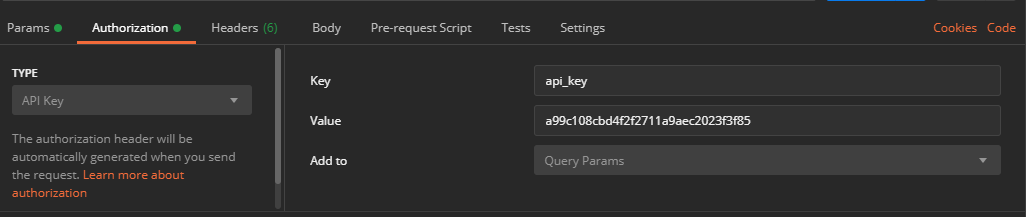
authorization for 12.1 Lab. Use the adjacent task instructions to identify the required controls, output, or debugger values.
authorization
F In the URL text box of your new request paste in the below. Ensure the request type is GET and click Send.
https://api.themoviedb.org/3/discover/movie

The results should look similar to the below image.
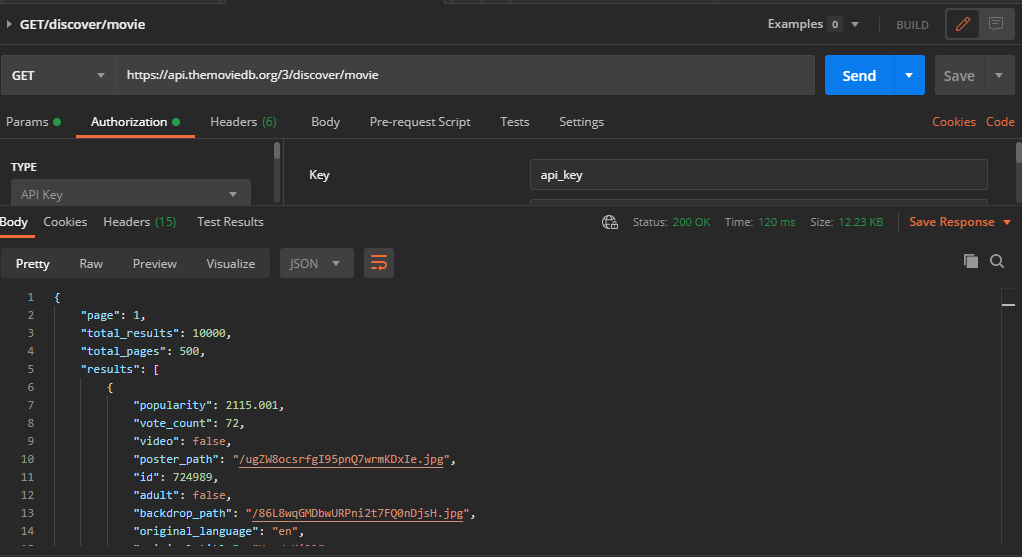
Get movie for 12.1 Lab. Use the adjacent task instructions to identify the required controls, output, or debugger values.
Get movie
Create and verify a favorite movie
Acceptance Criteria
Acceptance criteria
  • The session request uses the authorized request token.
  • The favorite-movie POST sends the specified JSON for the selected account and movie.
  • A subsequent GET confirms the favorite and the Word document records successful steps.
Instructions
4.Invoke from Postman using POST
A Get bearer token for user authentication
1 Right-click the Labs collection folder and select Add Request
2 Name your new request GET/authentication/token/new and click Save to 12.1Lab
3 In the URL text box of your new request paste in the below. Ensure the request type is GET,, set your authorization type to…

In the URL text box of your new request paste in the below. Ensure the request type is GET,, set your authorization type to API Key and click Send.

https://api.themoviedb.org/3/authentication/token/new

The results should look similar to the below image.
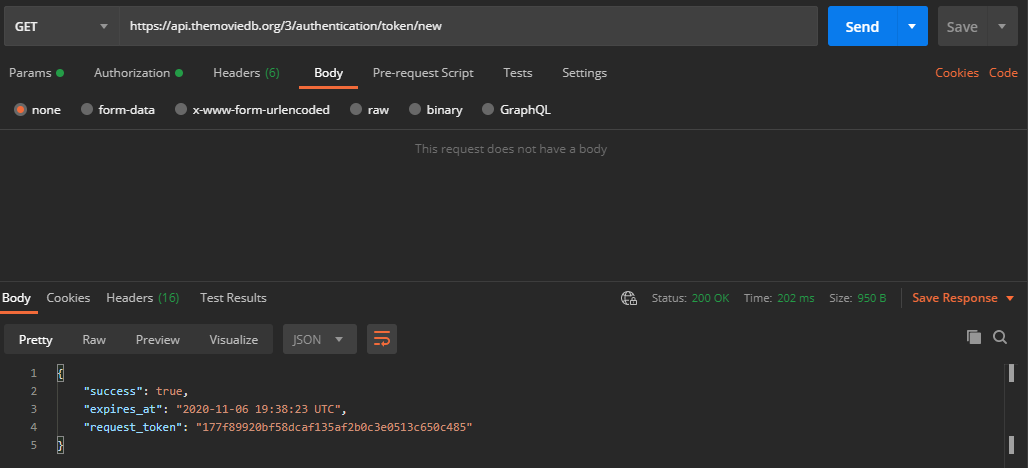
Get Token for 12.1 Lab. Use the adjacent task instructions to identify the required controls, output, or debugger values.
Get Token

This token will be used to authenticate your authorization to make GET and POST requests to your The Movie Database account

This token does expire! Once expired, you will have to send a request for a new token.

B Authorize token
1 In your browser URL, paste in the below link replacing {Request_Token} with your new token.
https://www.themoviedb.org/authenticate/{REQUEST_TOKEN}
2 The browser will take you to your account, where you can grant your POSTMAN collection read/write permissions on your The…

The browser will take you to your account, where you can grant your POSTMAN collection read/write permissions on your The Movie Database account. Click Approve.

C Create a new POST session request
1 Create a new request named POST/authentication/session/new
2 In the URL text box of your new request paste in the below. Ensure the request type is POST. Set the Authorization type to…

In the URL text box of your new request paste in the below. Ensure the request type is POST. Set the Authorization type to API Key. Do not hit send at this point.

https://api.themoviedb.org/3/authentication/session/new
3 In the Body tab of your request, select raw, and change the format from Text to JSON. In the editor paste in your request…

In the Body tab of your request, select raw, and change the format from Text to JSON. In the editor paste in your request token as shown below.
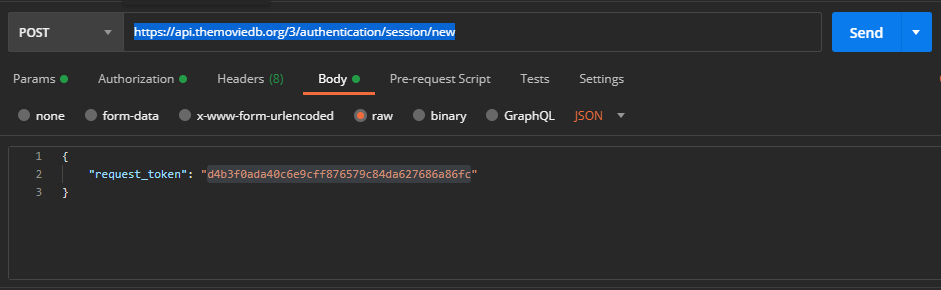
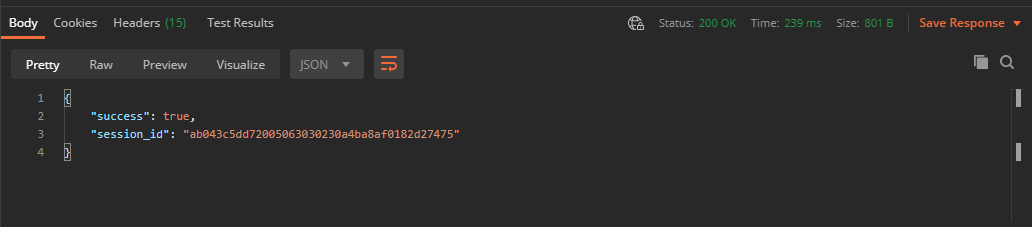
post body for 12.1 Lab. Use the adjacent task instructions to identify the required controls, output, or debugger values.
post body
4 Click Send. The response should look like the below picture.
post result for 12.1 Lab. Use the adjacent task instructions to identify the required controls, output, or debugger values.
post result
D Get Account details with new session id.
1 Create a new GET request named GET/Account/Details
2 In the URL text box of your new request paste in the below. Ensure the request type is GET. Set authorization type to API…

In the URL text box of your new request paste in the below. Ensure the request type is GET. Set authorization type to API Key. Do not hit send at this point.

https://api.themoviedb.org/3/account
3 In the Params tab of your request enter in session_id in the key column, underneath api_key, and the session id received…

In the Params tab of your request enter in session_id in the key column, underneath api_key, and the session id received from the “Create a new POST session request” task. The request should look similar to the below image.
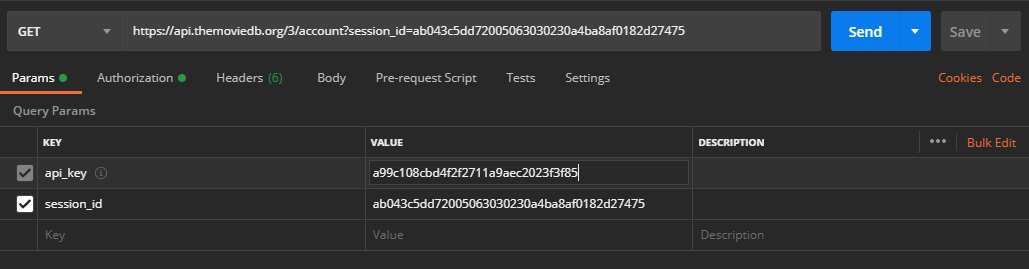
params for 12.1 Lab. Use the adjacent task instructions to identify the required controls, output, or debugger values.
params
4 Click Send. The results should look similar to the below image. Copy the id object value. This will be used to POST a…

Click Send. The results should look similar to the below image. Copy the id object value. This will be used to POST a favorite movie to your account.
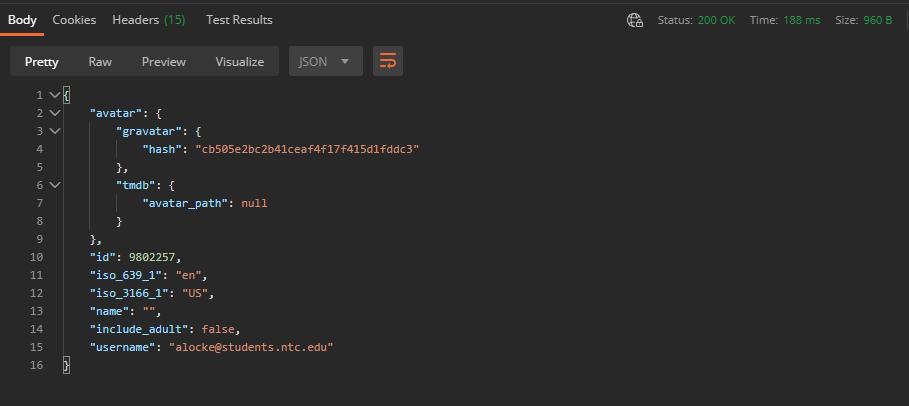
account results for 12.1 Lab. Use the adjacent task instructions to identify the required controls, output, or debugger values.
account results
E Add a favorite movie to your account with POST
1 Create a new request named POST/account/{account_id}/favorite
2 In the URL text box of your new request paste in the below, replacing {account_id} with your account id. Ensure the request…

In the URL text box of your new request paste in the below, replacing {account_id} with your account id. Ensure the request type is POST. Ensure authorization type is API Key. Do not hit send at this point.

https://api.themoviedb.org/3/account/{account_id}/favorite

3 In the Params tab of your request enter in session_id in the key column, underneath api_key, and the session id received…

In the Params tab of your request enter in session_id in the key column, underneath api_key, and the session id received from the “Create a new POST session request” task.

4 In the Body tab of your request, select raw, and change the format from Text to JSON. Paste in the below to the editor.
{
"media_type": "movie",
"media_id": 560,
"favorite": true
}
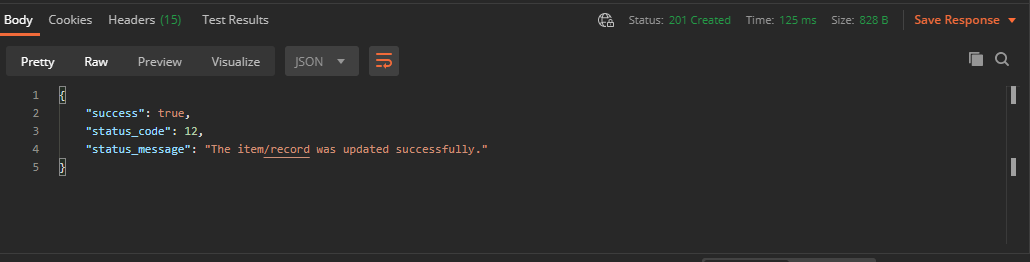
5 Click send. The response should look like the below image.
movie added for 12.1 Lab. Use the adjacent task instructions to identify the required controls, output, or debugger values.
movie added

If you receive a 403 error your request token may have expired, and you will need to go through the process of getting a new request token, granting access to your account, and getting a new session id again.

F Check that your Post was successful by getting your favorite movies.
1 Create a new GET request named get/account/{account_id}/favorite/movies
2 In the URL text box of your new request paste in the below, replacing {account_id} with your account id. Ensure the request…

In the URL text box of your new request paste in the below, replacing {account_id} with your account id. Ensure the request type is GET. Set Authorization to API Key. Add your session_id to the query params.

https://api.themoviedb.org/3/account/{account_id}/favorite/movies
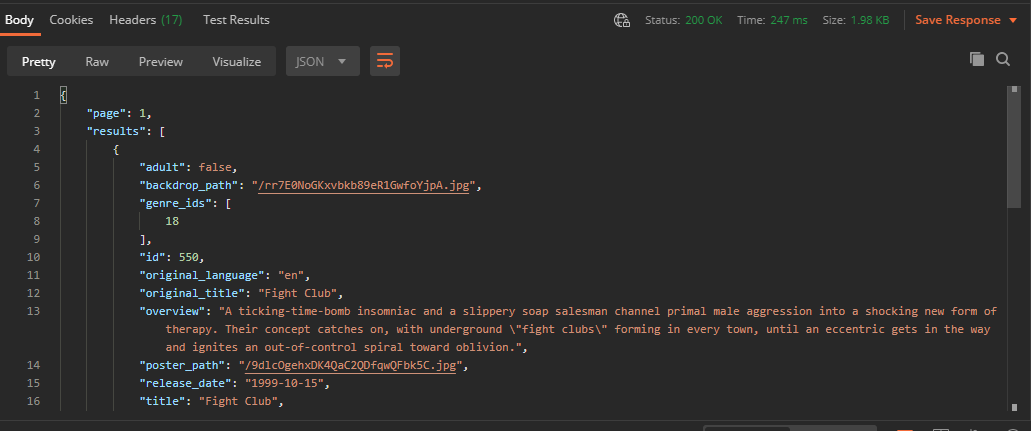
3 Hit Send. The results should look like the below image.
favorite movie for 12.1 Lab. Use the adjacent task instructions to identify the required controls, output, or debugger values.
favorite movie
5.Take snippets of each step completed successfully, and submit as a word document.
A Take snippets of each step completed successfully, and submit as a word document.
Completion review
6.Review the feature acceptance criteria
A Confirm the required results

Return to each story and verify its acceptance criteria. Preserve the submission format and destination stated in the activity; a reading, setup guide, lab, video demonstration, and oral final may require different evidence.

Prepare The Movie Database requests Read movie data with GET Create and verify a favorite movie
Task reference links

Use these links to revisit the named tasks referenced in the directions.

Create a new POST session request