Overview
1.Download the starting code
A
Download the 1.1 GradeBook starting zip file
B
Extract the contents of the zip file to a GradeBook OneDrive folder
C
Rename the "Grade Book 1.1 LastName" folder, replacing LastName with your last name
D
Within the folder renamed in the previous step, rename the file "GradeBook 1.1 LastName.sln" file, replacing LastName with your last name
E
Right click the Solution and select 'Restore NuGet Packages'
2.Instantiate objects and assign values to Blackboard
A
Using the object diagram below, instantiate objects and assign values for the Blackboard object and its sub-objects in the newBlackboardButton_Click
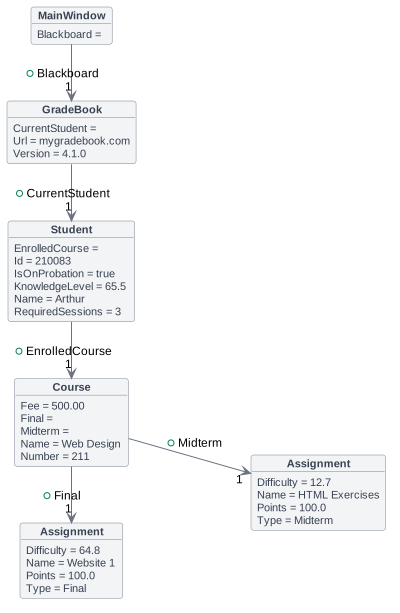
- New
- Changed
- Removed
B
Check Your Work:
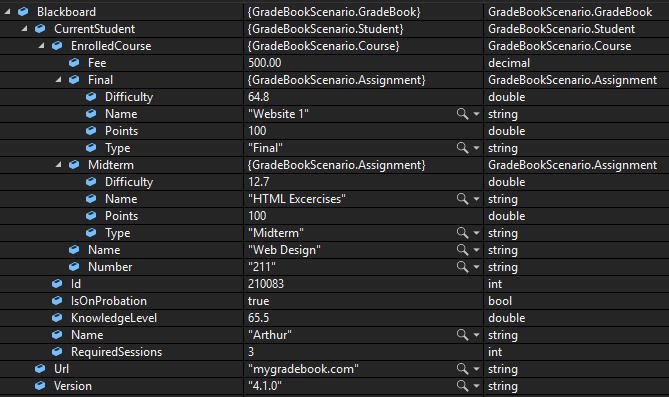
1
Set a breakpoint on the closing curly brace of the newBlackboardButton_Click
2
Start the application. Click the New Blackboard button
3
Ensure your values match the values below
3.Submit a zipped Visual Studio solution
A
Ensure all code is StyleCop compliant
B
Zip the solution and submit to the Feedback System
C
Submit the Feedback System url to the correct assignment in Canvas