11.5 Assignment

Overview

11.5 Assignment

Work through the stories in order. Use the acceptance criteria to check each feature, and complete the nested tasks using the specified names, values, and scenarios.
Prepare the 11.4 checkpoint
1.Use your 11.4 end code as starting code for this assignment.
A Use your 11.4 end code as starting code for this assignment.
Update the products
Acceptance Criteria
Acceptance criteria
  • The product classes implement IProduct.Description and Price.
  • Each Description uses the exact product-specific format below.
  • Changes to description inputs raise a Description notification through the product view model.
Instructions
2.Update the products.
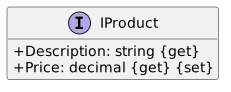
A Modify the IProduct interface as shown below:
Class Diagram: IProduct; Members and relationships are shown in the editable reference; unrelated members may be omitted.
Class Diagram: IProduct
  • New
  • Changed
  • Removed
B Implement the IProduct interface in the product classes. The Description properties for each of the products should return a…

Implement the IProduct interface in the product classes. The Description properties for each of the products should return a concatenated string formatted as shown below:

DisinfectingWipes: "{Brand} {Name} - {WipeCount} count"
HandSanitizer: "{Brand} {Name} - {FluidOunces}FL OZ"
ToiletPaper: "{Brand} {Name} - {NumberOfRolls} rolls"
C In each of the product view model's HandlePropertyChanged, also call OnPropertyChanged and pass in "Description" if the…

In each of the product view model's HandlePropertyChanged, also call OnPropertyChanged and pass in "Description" if the PropertyChangedEventArgs parameter's PropertyName is one of the properties that is part of the description.
Add functionality for LineItems
Acceptance Criteria
Acceptance criteria
  • LineItemViewModel wraps the existing LineItem and exposes its quantity, calculated cost, product price, and description.
  • Changing Quantity updates CalculatedCost automatically.
  • Price and Description changes raise the dependent property notifications listed below.
Instructions
3.Add functionality for LineItems.
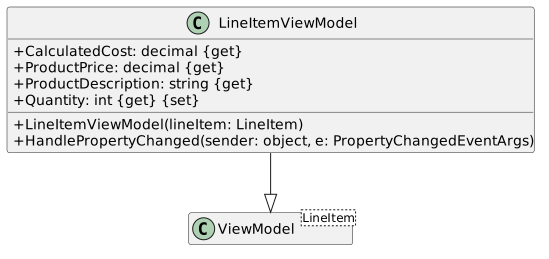
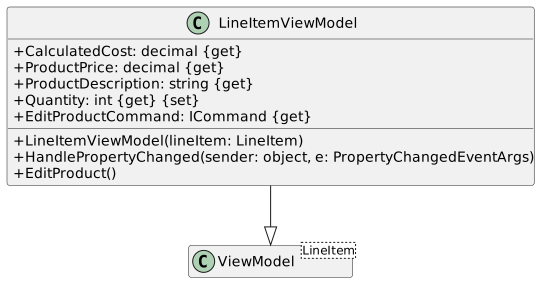
A Add the LineItemViewModel class as shown below:
Class Diagram: LineItemViewModel Class; Members and relationships are shown in the editable reference; unrelated members may be omitted.
Class Diagram: LineItemViewModel Class
  • New
  • Changed
  • Removed
B In each of the properties, get or set the LineItemViewModel's Entity corresponding property. Call OnPropertyChanged and pass…

In each of the properties, get or set the LineItemViewModel's Entity corresponding property. Call OnPropertyChanged and pass in the property name in each of the setters.

For ProductDescription and ProductPrice, return the Entity's Product's Description and Price.

C Add entity control attributes for each of the LineItemViewModel's properties.
D Write the HandlePropertyChanged method:
1 Write a switch statement that switches on the PropertyChangedEventArgs parameter's PropertyName.
2 If the case is "Quantity", call OnPropertyChanged and pass in "CalculatedCost".
3 If the case is "Price", call OnPropertyChanged twice passing in "CalculatedCost" and "ProductPrice".
4 If the case is "Description", call OnPropertyChanged and pass in "ProductDescription".
E Update the MainWindow:
1 Change the types in the productComboBox to be the types of products instead of the view models.
2 In viewProductButton_Click:

Change the instantiation of the obj variable to use the selected type instead.

This will hold your line item's product.

Instantiate a new LineItem object and assign its Product property to the variable holding your line item's product.

Instantiate a new LineItemViewModel object passing in the LineItem object into the constructor.

Pass the LineItemViewModel object into the EntityWindow's constructor.

F Check your work:
1 Run the application.
2 Pick a product and add a new line item. The details of the LineItem should appear in a new EntityWindow.
3 Change the quantity. The CalculatedCost should automatically update.
Allow for the editing of a line item's product
Acceptance Criteria
Acceptance criteria
  • EditProductCommand is an ICommand bound to the generated Edit Product button.
  • The converter selects the view-model Type for the product’s model Type.
  • Editing the product in its dialog updates the existing line item’s price and description.
Instructions
4.Allow for the editing of a line item's product.

We want to be able to edit a line item's product and change its properties. We are going to add a button that launches a new window with controls for the product.
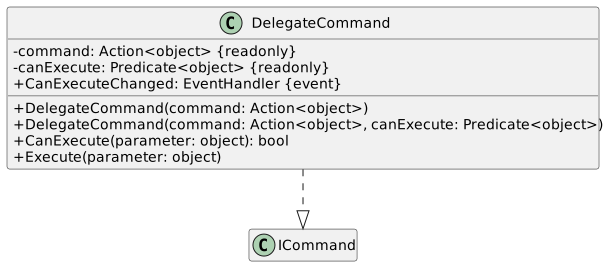
A Add the DelegateCommand class as shown below:
Class Diagram: DelegateCommand Class; Members and relationships are shown in the editable reference; unrelated members may be omitted.
Class Diagram: DelegateCommand Class
  • New
  • Changed
  • Removed
using System;
using System.Windows.Input;
namespace ReflectionScenario
{
public class DelegateCommand : ICommand
{
private readonly Action<object> command;
private readonly Predicate<object> canExecute;
public DelegateCommand(Action<object> command)
: this(command, null)
{
}
public DelegateCommand(Action<object> command, Predicate<object> canExecute)
{
if (command == null)
{
throw new Exception("Command was null.");
}
this.command = command;
this.canExecute = canExecute;
}
public event EventHandler CanExecuteChanged
{
add
{
CommandManager.RequerySuggested += value;
}
remove
{
CommandManager.RequerySuggested -= value;
}
}
public bool CanExecute(object parameter)
{
return this.canExecute == null ? true : this.canExecute(parameter);
}
public void Execute(object parameter)
{
this.command(parameter);
}
}
}
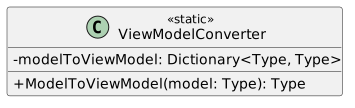
B Add the ViewModelConverter class
Class Diagram: ViewModelConverter Class; Members and relationships are shown in the editable reference; unrelated members may be omitted.
Class Diagram: ViewModelConverter Class
  • New
  • Changed
  • Removed
1 Instantiate the dictionary at the field definition and add entries for each of the products and their corresponding view…

Instantiate the dictionary at the field definition and add entries for each of the products and their corresponding view models. Use the type of the model as the key.
2 In ModelToViewModel, using the passed in model as the key, try to get and return the value from the dictionary.
C Add a new ControlType of Button to the ControlType enum.
D Modify the LineItemViewModel:
Class Diagram: EditProduct Class; Members and relationships are shown in the editable reference; unrelated members may be omitted.
Class Diagram: EditProduct Class
  • New
  • Changed
  • Removed
1 In the EditProduct method:

Get the line item's product's corresponding view model using the ViewModelConverter's ModelToViewModel.

Use Activator.CreateInstance to create an instance of the proper view model. Also pass in the line item's Product into the call to CreateInstance.

Attach the LineItemViewModel's HandlePropertyChanged to the view model's PropertyChanged.

Cast the viewModel as an INotifyPropertyChanged.

Instantiate a new EntityWindow and pass in the view model.

Call ShowDialog on the window.

2 Use the following code for the EditProductCommand property getter:
return new DelegateCommand(c => this.EditProduct());
3 Give the EditProductCommand property an EntityControlAttribute. Give it a ControlType of ControlType.Button.
E Modify the EntityView:
1 In BuildLabeledControl's switch statement, add a new case for the Button ControlType.
2 Model the case for the Button ControlType after the other control types.
3 When setting the button's binding, pass in Button.CommandProperty for the dependency property.
4 Assign the button's Content to the propertyInfo's control description.
F Check your work:
1 Start the application.
2 Pick a product and add a new line item for that product.
3 Show the line item. The entity window should now have an Edit Product button.
4 Click on the Edit Product button. A new entity window for the line item's product should appear.
5 Edit the values of the product. Any changes that affect the product's price and description should automatically appear in…

Edit the values of the product. Any changes that affect the product's price and description should automatically appear in the line item's window.

Add support for orders
Acceptance Criteria
Acceptance criteria
  • Order exposes Customer, OrderDate, and ShippingStatus with the specified enum values.
  • OrderViewModel forwards order properties and raises change notifications.
  • Adding a line item invokes OnEntityAdded; a calculated-cost change updates OrderTotal.
Instructions
5.Add support for orders.
A Add the ShippingStatus enum with the following values:
Pending,
Shipped,
InTransit,
Delivered,
B Modify the Order class by adding the following properties:
/// <summary>
/// The order's customer.
/// </summary>
/// <summary>
/// The order's customer.
/// </summary>
public string Customer { get; set; }
/// <summary>
/// The date the order was placed.
/// </summary>
/// <summary>
/// The date the order was placed.
/// </summary>
public DateTime OrderDate { get; set; }
/// <summary>
/// The order's shipping status.
/// </summary>
/// <summary>
/// The order's shipping status.
/// </summary>
public ShippingStatus ShippingStatus { get; set; }
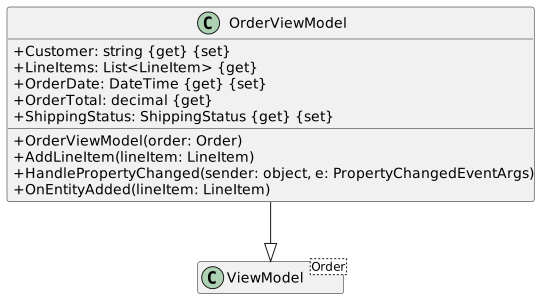
C Add the OrderViewModel class:
Class Diagram: OrderViewModel Class; Members and relationships are shown in the editable reference; unrelated members may be omitted.
Class Diagram: OrderViewModel Class
  • New
  • Changed
  • Removed
1 Give the properties entity control attributes.
2 In each of the properties, get and/or set the Entity's corresponding property. In the setters, also call OnPropertyChanged…

In each of the properties, get and/or set the Entity's corresponding property. In the setters, also call OnPropertyChanged and pass in the name of the property.

3 In the AddLineItem method, add the passed in lineItem to the LineItems list and call OnEntityAdded.
4 In the HandlePropertyChanged method, if the PropertyChangedEventArgs parameter's PropertyName is "CalculatedCost", call…

In the HandlePropertyChanged method, if the PropertyChangedEventArgs parameter's PropertyName is "CalculatedCost", call OnPropertyChanged and pass in "OrderTotal".
Add support for multi entity views
Acceptance Criteria
Acceptance criteria
  • MultiEntityViewModel initializes its observable collection and reports the model Type.
  • Every existing and newly added line item has a LineItemViewModel in AllEntities.
  • EntityColumnAttribute records column description, sequence, and width.
Instructions
6.Add support for multi entity views.
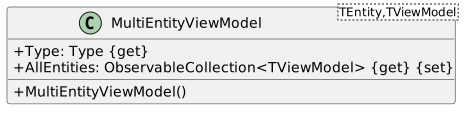
A Add the MultiEntityViewModel class:
Class Diagram: MultiEntityView Class; Members and relationships are shown in the editable reference; unrelated members may be omitted.
Class Diagram: MultiEntityView Class
  • New
  • Changed
  • Removed
1 In the constructor, instantiate the AllEntities collection.
2 In the Type property, return the type of TEntity.
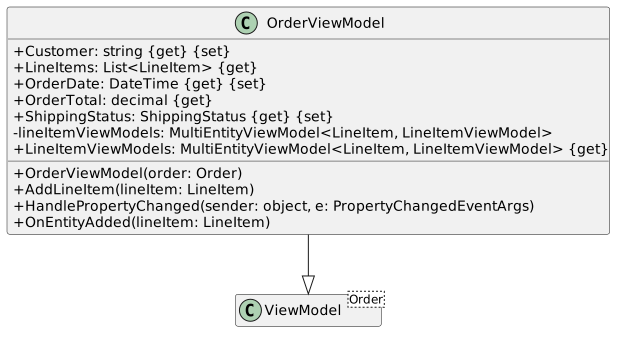
B Modify the OrderViewModel
Class Diagram: ModifyOrderViewModel Class; Members and relationships are shown in the editable reference; unrelated members may be omitted.
Class Diagram: ModifyOrderViewModel Class
  • New
  • Changed
  • Removed
1 In OnEntityAdded:

Instantiate a new LineItemViewModel passing in the lineItem.

Attach the OrderViewModel's HandlePropertyChanged method to the view model's PropertyChanged.

Add the view model to the LineItemViewModels's AllEntities.

2 In the constructor:

Instantiate the lineItemViewModels field.

For each line item in the order's line items, call OnEntityAdded and pass in the line item.
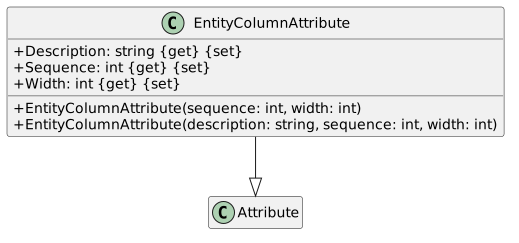
C Add the EntityColumnAttribute class.
Class Diagram: EntityColumnAttribute Class; Members and relationships are shown in the editable reference; unrelated members may be omitted.
Class Diagram: EntityColumnAttribute Class
  • New
  • Changed
  • Removed
D Add EntityColumn attributes to the properties in the LineItemViewModel. Give them appropriate sequence numbers and widths.
Add support for viewing multi entities
Acceptance Criteria
Acceptance criteria
  • The data grid uses explicitly generated columns ordered by EntityColumn sequence.
  • Button columns bind commands, TextBox columns are editable, and Label columns are read-only.
  • ItemsSource binds to AllEntities, and each cell binding uses its row item.
Instructions
7.Add support for viewing multi entities.
A Add the following methods to DisplayUtil. Model them after the other similar methods for the Controls.
public static bool HasColumn(MemberInfo memberInfo)
{
}
public static string GetColumnDescription(MemberInfo memberInfo)
{
}
public static int GetColumnSequence(MemberInfo memberInfo)
{
}
public static int GetColumnWidth(MemberInfo memberInfo)
{
}
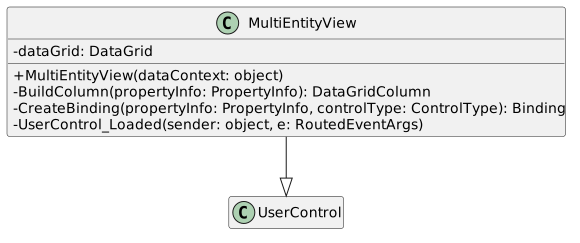
B Add a new user control named MultiEntityView to the project:
Class Diagram: MultiEntityView Class; Members and relationships are shown in the editable reference; unrelated members may be omitted.
Class Diagram: MultiEntityView Class
  • New
  • Changed
  • Removed
1 In the constructor, assign DataContext to the passed in dataContext.
2 Write the BuildColumn method:

Get the column description, width, and control type from the property and store them in variables.

Call CreateBinding and store the result in a variable.

Define a variable of type DataGridColumn named dataGridColumn. Assign it to null.

Make a switch statement that switches on the control type.

If the case is ControlType.Button:

Assign the dataGridColumn variable to a new DataGridTemplateColumn.

Define and instantiate a variable named buttonTemplate of type DataTemplate.

Define and instantiate a variable named bfactory of type FrameworkElementFactory, passing in the typeof(Button) into the constructor.

Call SetBinding on bfactory and pass in Button.CommandProperty and the binding variable.

Call SetValue on bfactory and pass in Button.ContentProperty and the columnDescription.

assign buttonTemplate's VisualTree to bfactory.

Assign the dataGridColumn's CellTemplate to the buttonTemplate.

Cast the dataGridColumn as a DataGridTemplateColumn.

If the case is TextBox:

Assign the dataGridColumn to a new DataGridTextColumn.

Assign the dataGridColumn's Binding to the binding variable.

Assign the dataGridColumn's IsReadOnly property to false;

If the case is Label:

follow the same steps as the control for a TextBox but set the IsReadOnly property to true.

After the switch statement, assign the dataGridColumn's Header and Width to the columnDescription and columnWidth.

Return the dataGridColumn.

3 Write the CreateBinding method:

Copy the contents from the EntityView's CreateBinding into the method body.

Remove the line that assigns the binding's source.

4 In the UserControl_Loaded:

Make sure to attach UserControl_Loaded to the MultiEntityView's loaded event.

Instantiate the dataGrid field.

Assign its AutoGenerateColumns to false.

Call SetBinding on the dataGrid and pass in DataGrid.ItemsSourceProperty and the code below for the binding:

new Binding("AllEntities") { Source = this.DataContext }));

Add this line:

Type type = this.DataContext.GetType().GetGenericArguments()[1];

Get the properties with columns sorted by the column sequence with the following code:

var properties =
from p in type.GetProperties()
where DisplayUtil.HasColumn(p)
orderby DisplayUtil.GetColumnSequence(p)
select p;

For each of the PropertyInfos in the properties variable:

Call BuildColumn and pass in the current propertyinfo object.

Add the result from the call to BuildColumn to the dataGrid's Columns.

After the foreach loop, assign the MultiEntityView's Content to the dataGrid.

Add order functionality to the MainWindow
Acceptance Criteria
Acceptance criteria
  • MainWindow displays order fields, a product selector, an Add Item button, and the line-item grid.
  • Editing quantity or product details refreshes dependent line-item values and the order total.
  • Adding a product creates a new row whose dependent values also update.
Instructions
8.Add order functionality to the MainWindow.
A Remove everything from the current MainWindow.xaml and MainWindow.xaml.cs except for the Window_Loaded event.
B In MainWindow.xaml, give the window's Grid a name of ContentGrid.
C In the Window_Loaded event handler:
1 Define and instantiate a new Order object. Give its properties some values.
2 Add a few new line items with new products to the order's LineItems.
3 Define and instantiate a new OrderViewModel named ovm passing in the order object into the constructor.
4 Assign the MainWindow's DataContext to the OrderViewModel object.
5 Define and instantiate a new EntityView and add it to the ContentGrid's list of children.
6 Define and instantiate a new combo box with a Height of 25 and a width of 150. Populate it with the types of products and…

Define and instantiate a new combo box with a Height of 25 and a width of 150. Populate it with the types of products and add it to the ContentGrid's list of children.

7 Define and instantiate a new Button with a Height of 25, a Width of 50, a Content equal to "Add Item", and a Margin equal to…

Define and instantiate a new Button with a Height of 25, a Width of 50, a Content equal to "Add Item", and a Margin equal to a new Thickness(0, 50, 0, 0).

8 Attach the following code to the button object's Click event handler:
(object sender, RoutedEventArgs e) => ovm.AddLineItem(new LineItem() { Product = Activator.CreateInstance(productComboBox.SelectedItem as Type) as IProduct })
9 Add the button to the ContentGrid's children.
10 Add a new MultiEntityView with a Margin equal to new Thickness(0, 250, 0, 0) to the ContentGrid's list of children. Pass in…

Add a new MultiEntityView with a Margin equal to new Thickness(0, 250, 0, 0) to the ContentGrid's list of children. Pass in ovm's LineItemViewModels into the MultiEntityView's constructor.

D Check your work:
1 Run the application.
2 Controls for the order, a combo box with the different products, and a data grid with the order's line items should appear…

Controls for the order, a combo box with the different products, and a data grid with the order's line items should appear in the window.

3 Change different values of the line items in the data grid. Any other properties in the order or the line item that depend…

Change different values of the line items in the data grid. Any other properties in the order or the line item that depend on that value should automatically update.

4 Edit one of the products. The values changed in the product window should automatically reflect in the data grid and the order.
5 Choose a product type and add a new product. A new line item should automatically appear in the data grid.
6 Edit the values of the new line item and its product. Ensure any dependent properties also change.
Completion review
9.Review the feature acceptance criteria
A Confirm the required results

Return to each story and verify its acceptance criteria. Preserve the submission format and destination stated in the activity; a reading, setup guide, lab, video demonstration, and oral final may require different evidence.

Update the products Add functionality for LineItems Allow for the editing of a line item's product Add support for orders Add support for multi entity views Add support for viewing multi entities Add order functionality to the MainWindow