11.1 Assignment

Overview

11.1 Assignment

Using Reflection to "mine" an assembly

Work through the stories in order. Use the acceptance criteria to check each feature, and complete the nested tasks using the specified names, values, and scenarios.

Download, extract, open, build and run the attached WPF application.
1.Download, extract, open, build and run the attached WPF application.

Reflection 11.1 LastName.zip

Reflection 11.1 LastName.zip
A Download, extract, open, build and run the attached WPF application.
Use Reflection to mine mscorlib.dll
Acceptance Criteria
Acceptance criteria
  • Click the Get types from mscorlib.dll button. The types should populate the left list box.
  • Click on one of the types in the list box. The MethodInfo information should populate the right list box and look like below.
  • The completed implementation satisfies this requirement: Call Assembly.LoadFrom and pass in the mscorlib.dll path. Assign it to a variable of type Assembly.
Instructions
2.Use Reflection to mine mscorlib.dll
A In the assemblyButton_Click in MainWindow.cs:
1 Locate mscorlib.dll on your computer.

Many copies/versions of mscorlib.dll often exist on every computer. Use one from within the C:\Program Files (x86)\Reference Assemblies\ directory.

2 Call Assembly.LoadFrom and pass in the mscorlib.dll path. Assign it to a variable of type Assembly.

Make sure to use the string literal character @ in front of the path or double backslashes \\ for the path to mscorlib.dll.

3 Call GetTypes on the assembly object and loop through all of its types. Add each one to the typesListBox's items.
B In the typesListBox_SelectionChanged:
1 Clear the methodsListBox.
2 Call GetMethods on the typesListBox's selected type. Pass in the binding flags below. Store the result of the call in a variable.
BindingFlags.Public | BindingFlags.NonPublic | BindingFlags.Instance | BindingFlags.Static | BindingFlags.DeclaredOnly
3 Loop through all of the MethodInfo objects and add each one to the methodListBox's items.
C Check Your Work
1 Click the Get types from mscorlib.dll button. The types should populate the left list box.
2 Click on one of the types in the list box. The MethodInfo information should populate the right list box and look like below.
NamespaceName.ReturnType MethodName(NamespaceName.ParamType, NamespaceName2.ParamType2 ParamName2)

NamespaceName + TypeName is called the fully qualified type name. In your code, using statements make it easy to forget that .NET allows many types of the same name as long as they are in different namespaces. It is the fully qualified type name that must be globally unique within your program.

Write helper methods to encapsulate Reflection code
Acceptance Criteria
Acceptance criteria
  • The completed implementation satisfies this requirement: Call Assembly.LoadFrom and pass in the current path combined with the assemblyName parameter. Store the result in a result variable.
  • The completed implementation satisfies this requirement: Define a result variable of type List<string> and instantiate the list.
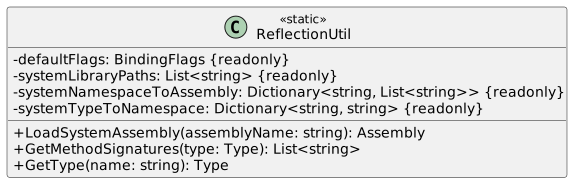
  • ReflectionUtil exposes the required contract: defaultFlags: BindingFlags {static} {readonly}; systemLibraryPaths: List<string> {static} {readonly}; LoadSystemAssembly(assemblyName: string): Assembly {static}; GetMethodSignatures(type: Type): List<string> {static}.
Instructions
3.Write helper methods to encapsulate Reflection code
A Create a new static class named ReflectionUtil using the class diagram below.
Class Diagram: Class ReflectionUtil; Members and relationships are shown in the editable reference; unrelated members may be omitted.
Class Diagram: Class ReflectionUtil
  • New
  • Changed
  • Removed
B At the field definition, assign defaultFlags to BindingFlags.Public | BindingFlags.Instance.
C At the field definition, assign systemLibraryPaths to a new list of strings containing any known system library paths on your machine.

The paths in the example below may not match your machine. Adjust them to match your system library paths.

private static readonly List<string> systemLibraryPaths = new List<string>()
{
@"C:\Program Files (x86)\Reference Assemblies\Microsoft\Framework\.NETFramework\v4.7.2\",
@"C:\Program Files (x86)\Reference Assemblies\Microsoft\Framework\.NETFramework\v4.6.1\",
@"C:\Program Files (x86)\Reference Assemblies\Microsoft\Framework\.NETFramework\v4.5.2\",
@"C:\Windows\Microsoft.NET\Framework64\v4.0.30319\",
};
D Write the LoadSystemAssembly method:
1 Looping through all of the paths in systemLibraryPaths:

Call Assembly.LoadFrom and pass in the current path combined with the assemblyName parameter. Store the result in a result variable.

If the assembly was successfully loaded, break from the loop.

2 If the named assembly was not found on any of the known system paths and was not successfully loaded, throw an exception.
3 Return the loaded Assembly.
E Write the GetMethodSignatures method:

We are building a custom string that will be bit richer than the default ToString of the MethodInfo class. The default MethodInfo.ToString does not show parameter names, but we can access them from the ParameterInfo objects. The desired format is below. Note that we do *not* want the fully qualified type name (which includes the namespace name) in the output string.

ReturnType MethodName(ParamType ParamName, ParamType2 ParamName2)
1 Define a result variable of type List<string> and instantiate the list.
2 Get the methods of the type parameter using GetMethods. Pass in defaultFlags for the binding flags. Store the result in a variable.
3 Looping through the methods (MethodInfo) of the passed in Type:

Define a variable of type string named s and assign it to the current method's return type, its name, and an opening parentheses.

$"{m.ReturnType} {m.Name}("

Call GetParameters on the current method and store the result in a variable.

Define a boolean variable named isFirst and assign it to true.

Looping through each parameter (ParameterInfo) of the method:

If the isFirst is false, add ", " to s.

Otherwise, assign isFirst to false.

Then after the if/else statement, add the current parameter's ParameterType and Name to s.

$"{p.ParameterType} {p.Name}"

After looping through the parameters, add ")" to s.

Add s to the result variable.

4 After looping through each method, return the result variable.
F In the MainWindow:
1 In assemblyButton_Click, call LoadSystemAssembly and only pass in the name of the assembly instead of the full path.
2 In typesListBox_SelectionChanged, use the results of GetMethodSignatures for the foreach loop.
Write code to load specified type by name only
Acceptance Criteria
Acceptance criteria
  • the Type gets loaded and displayed in the typesListBox.
  • the methods of that type are displayed in the methodsListBox.
  • The completed implementation satisfies this requirement: Define systemTypeToNamespace as shown below:
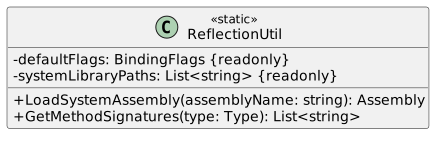
  • ReflectionUtil exposes the required contract: defaultFlags: BindingFlags {static} {readonly}; systemLibraryPaths: List<string> {static} {readonly}; systemNamespaceToAssembly: Dictionary<string, , List<string>> {static} {readonly}; systemTypeToNamespace: Dictionary<string, string> {static} {readonly}.
Instructions
4.Write code to load specified type by name only

If we want to load a type by name, we must know what assembly that type is defined in. In this step we will be adding code to have the ReflectionUtil look for that type in a known list of assemblies and what types they contain.

A Modify the RelfectionUtil class based on the diagram below:
Class Diagram: Class GetType; Members and relationships are shown in the editable reference; unrelated members may be omitted.
Class Diagram: Class GetType
  • New
  • Changed
  • Removed
B Define systemTypeToNamespace as shown below:
/// <summary>
/// Holds the mapping of namespace names to assembly name(s).
/// </summary>
/// <summary>
/// Holds the mapping of namespace names to assembly name(s).
/// </summary>
private static readonly Dictionary<string, List<string>> systemNamespaceToAssembly = new Dictionary<string, List<string>>()
{
{ "System.Drawing", new List<string>() { "System.Drawing.dll" } },
{ "System.Timers", new List<string>() { "System.dll" } },
{ "System.Windows", new List<string>() { "PresentationCore.dll", "PresentationFramework.dll" } },
{ "System.Windows.Controls", new List<string>() { "PresentationFramework.dll" } },
{ "System.Windows.Controls.Primitives", new List<string>() { "PresentationFramework.dll" } },
{ "System.Windows.Media", new List<string>() { "PresentationCore.dll" } },
{ "System.Xml.Serialization", new List<string>() { "System.Xml.dll" } },
{ "System", new List<string>() { "mscorlib.dll" } }
};
C Define systemTypeToNamespace as shown below:
/// <summary>
/// Holds the mapping of system types to namespace names.
/// </summary>
/// <summary>
/// Holds the mapping of system types to namespace names.
/// </summary>
private static readonly Dictionary<string, string> systemTypeToNamespace = new Dictionary<string, string>
{
{ "Application", "System.Windows" },
{ "ArgumentNullException", "System" },
{ "ArgumentOutOfRangeException", "System" },
{ "Border", "System.Windows.Controls" },
{ "Brush", "System.Windows.Controls" },
{ "Brushes", "System.Windows.Media" },
{ "Button", "System.Windows.Controls" },
{ "Canvas", "System.Windows.Controls" },
{ "ComboBox", "System.Windows.Controls" },
{ "Control", "System.Windows.Controls" },
{ "DateTime", "System" },
{ "ElapsedEventArgs", "System.Timers" },
{ "FormatException", "System" },
{ "HorizontalAlignment", "System.Windows" },
{ "IEnumerable", "System.Collections.Generic" },
{ "IndexOutOfRangeException", "System" },
{ "Label", "System.Windows.Controls" },
{ "ListBox", "System.Windows.Controls" },
{ "NullReferenceException", "System" },
{ "Point", "System.Drawing" },
{ "Random", "System" },
{ "RepeatButton", "System.Windows.Controls.Primitives" },
{ "RoutedEventArgs", "System.Windows" },
{ "ScaleTransform", "System.Windows.Media" },
{ "SkewTransform", "System.Windows.Media" },
{ "TextBox", "System.Windows.Controls" },
{ "Thickness", "System.Windows" },
{ "Timer", "System.Timers" },
{ "Type", "System" },
{ "VerticalAlignment", "System.Windows" },
{ "Viewbox", "System.Windows.Controls" },
{ "Window", "System.Windows" },
{ "XmlElementAttribute", "System.Xml.Serialization" }
};
D Write the GetType method:
1 Define a a result variable and set it to null.
2 Assign a variable of type string named typeNamespace to an empty string.
3 Define and instantiate a a list of strings named assemblyNames.
4 Write a try...catch statement. In the try:

Some system namespaces have so many types that they span multiple assemblies, so this lookup returns a list of assembly names.

Get the namespace from systyemTypeToNamespace using the passed in name parameter and assign typeNamespace to the result.

Get the list of assemblies the type might be located in using the typeNamespace. Use AddRange to add the list to assemblyNames.

Looping through the list of assembly names in assemblyNames:

Load the assembly with LoadSystemAssembly.

Get the type from the assembly by passing in the fully qualified type name. Assign the result variable to the return.

The type's fully qualified name looks like Namespace.Type

If the type is found, break from the loop.

5 In the catch, throw a new exception with a message stating that the type is not supported.
E In MainWindow:
1 Add a TextBox named typeNameTextBox and a Button named typeButton to the xaml.
2 Add an event handler for the typeButton's click event. In it, use GetType to try and load the type that is typed into the…

Add an event handler for the typeButton's click event. In it, use GetType to try and load the type that is typed into the text box and add it to the type list box. Surround it in a try..catch that displays any caught exception's message.

F Check Your Work
1 Select one of the type names from the SystemTypeToNamespace dictionary. Type it into the typeNameTextBox. Press the typeButton.
2 Ensure the Type gets loaded and displayed in the typesListBox.
3 Click on the type.
4 Ensure the methods of that type are displayed in the methodsListBox.
Add to the lookups to support more types.
Acceptance Criteria
Acceptance criteria
  • The completed implementation satisfies this requirement: Add an entry to the SystemTypeToNamespace dictionary to support the Math type. It is found in the System namespace.
  • The completed implementation satisfies this requirement: Add an entry to the SystemTypeToNamespace dictionary to support the HttpRequest type. It is found in the System.Web namespace.
  • The completed implementation satisfies this requirement: Add an entry to the SystemNamespaceToAssembly dictionary to support the System.Web namespace. All types in the System.Web namespace are in System.Web.dll.
Instructions
5.Add to the lookups to support more types.
A Type "Math" into the typeNameTextBox and press the typeButton.
B Ensure that the Math type is not found and your application reports this gracefully.
C Add an entry to the SystemTypeToNamespace dictionary to support the Math type. It is found in the System namespace.

Since the System namespace is already in the NamespaceToAssembly dictionary, this is the only thing we need to do to support the System.Math type.

D Type "Math" into the typeNameTextBox and press the typeButton.
E Ensure the System.Math type gets loaded and displayed in the typesListBox and the method list can be retrieved by clicking on it.
F Type "HttpRequest" into the typeNameTextBox and press the typeButton.
G Ensure that the HttpRequest type is not found and your application reports this gracefully.
H Add an entry to the SystemTypeToNamespace dictionary to support the HttpRequest type. It is found in the System.Web namespace.
I Add an entry to the SystemNamespaceToAssembly dictionary to support the System.Web namespace. All types in the System.Web…

Add an entry to the SystemNamespaceToAssembly dictionary to support the System.Web namespace. All types in the System.Web namespace are in System.Web.dll.

J Type "HttpRequest" into the typeNameTextBox and press the typeButton.
K Ensure the System.Web.HttpRequest type gets loaded and displayed in the typesListBox and the method list can be retrieved by…

Ensure the System.Web.HttpRequest type gets loaded and displayed in the typesListBox and the method list can be retrieved by clicking on it.

Completion review
6.Review the feature acceptance criteria
A Confirm the required results

Return to each story and verify its acceptance criteria. Preserve the submission format and destination stated in the activity; a reading, setup guide, lab, video demonstration, and oral final may require different evidence.

Use Reflection to mine mscorlib.dll Write helper methods to encapsulate Reflection code Write code to load specified type by name only Add to the lookups to support more types.