Last week, you used a sequence diagram to show what happens when a player rolls the dice. This week, you will model the data kept after a game. Look at two example records in an object diagram, then make one Violet class diagram showing the structure that both records share.
Your only deliverable is an editable Violet class diagram with one class named HighScore and four attributes. The object diagram below is an example to read; you do not need to submit an object diagram or write code.
Each box in the diagram is a particular HighScore object: one saved record with its own values. These records come from two different Parcheesi games. The game name can be the same because the games happened on different dates.
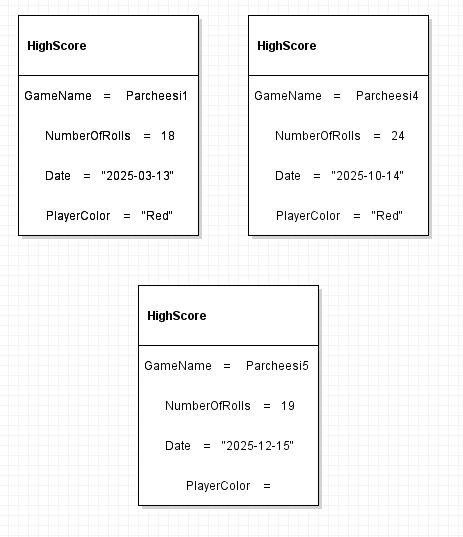
Read the value after each equals sign. The first record has 18 rolls, date 2026-09-18, and Red as the player color. The second has 24 rolls, date 2026-09-25, and Blue as the player color. Both store Parcheesi as the game name. The numbers and text change between records, while the four field names stay the same.
NumberOfRolls counts rolls in the saved game. It is a number, even though the record is called HighScore; you do not need to invent a separate Score attribute or decide how the game ranks records.
An object diagram shows particular records and their values. A class diagram shows a reusable definition for records of that kind. Create just one class: the two example objects are instances of the same HighScore class.
| Attribute | Type | What it stores |
|---|---|---|
| GameName | string | The name of the game |
| NumberOfRolls | int | The whole-number count of dice rolls |
| Date | string | The saved date as text |
| PlayerColor | string | The player's color as text |
Although a calendar date might use a different type in another program, use string for Date in this assignment. The exact attribute names and types in the table are the ones your class diagram must show.
Open Violet UML Diagramming Tool. Choose File > New > Class diagram, or choose Class diagram from Violet's opening screen. Select the class tool and click once in the workspace to place one class box.
Double-click the class box to edit its properties. Set its name to HighScore. If your version opens properties from a context menu, right-click the class and choose the properties command.
In the attributes area, enter these four lines in this order, preserving the spelling and capitalization:
GameName: string
NumberOfRolls: int
Date: string
PlayerColor: string
The attribute names come from the object diagram. The type after each colon describes what kind of value the attribute stores. Do not put the example values, such as 18 or Red, in the class diagram. Leave the methods area empty and do not add a Game class, other classes, or connectors.
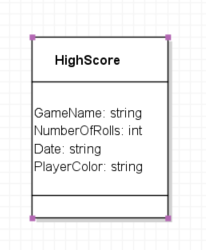
Make sure there is exactly one class named HighScore and exactly the four attributes shown. The object diagram has two boxes because it shows two actual records; your class diagram has one box because both records share one definition.
Choose File > Save. Use the base filename Parcheesi 0.6 LastName, replacing LastName with your last name. Keep Violet's class-diagram file extension. In the desktop version used for these assignments, the filename ends with .class.violet.html. Submit the editable file, not a screenshot.
ZIP the .class.violet.html file itself without placing it inside another folder. Name the ZIP Parcheesi 0.6 LastName.class.violet.html.zip and submit it to the Feedback System. Include only your completed class diagram.
Read the feedback. If it identifies an issue, make the correction in Violet, save the file, ZIP it again, and resubmit it.
Submit the resulting Feedback System URL to Canvas as directed by your course. No written explanation or additional diagram is required.